Your First Book on Windows
This guide takes you from a freshly installed app to turning the pages of a book. Follow A if you've signed in to an account that already has books, or B if you're adding a book from your PC.
A. Open a book from your library
When you're signed in, your shelf shows every book in your BookFusion library, including the ones that aren't on this PC yet.
-
Click the cover of the book you want to read. Its details open.
-
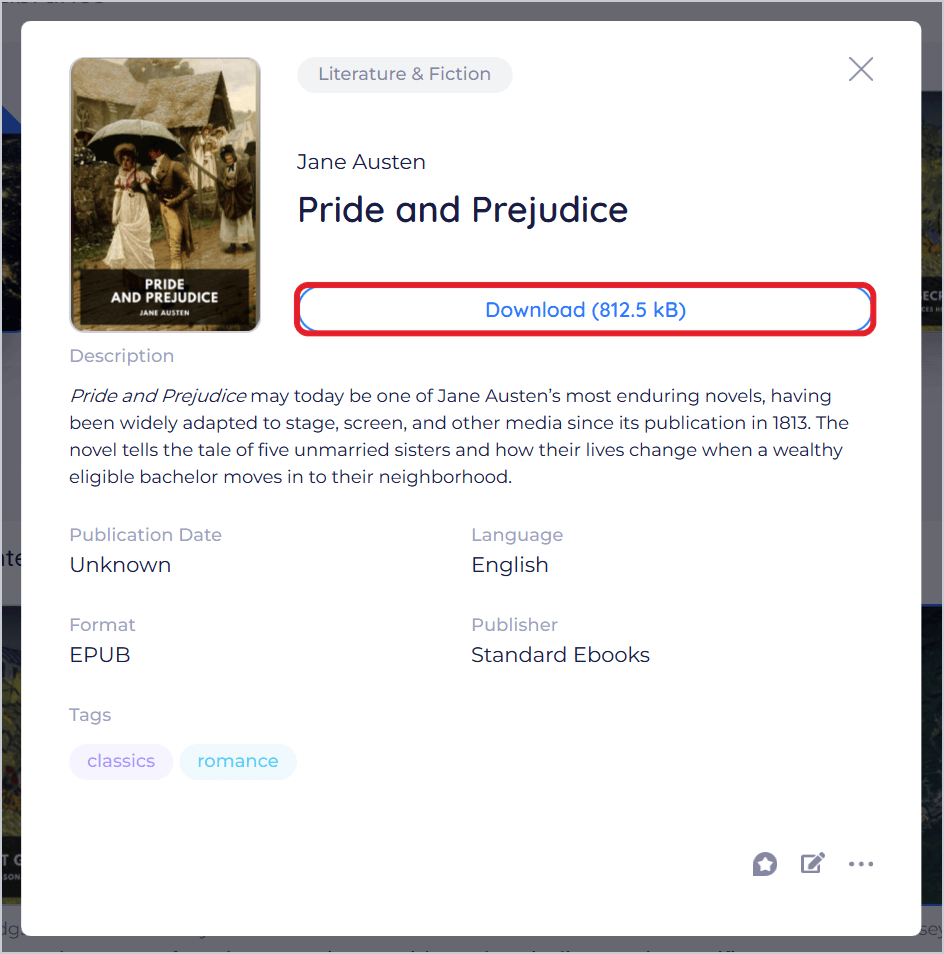
Click Download. The button shows how big the book is, and shows Downloading while the book downloads to your PC.
-
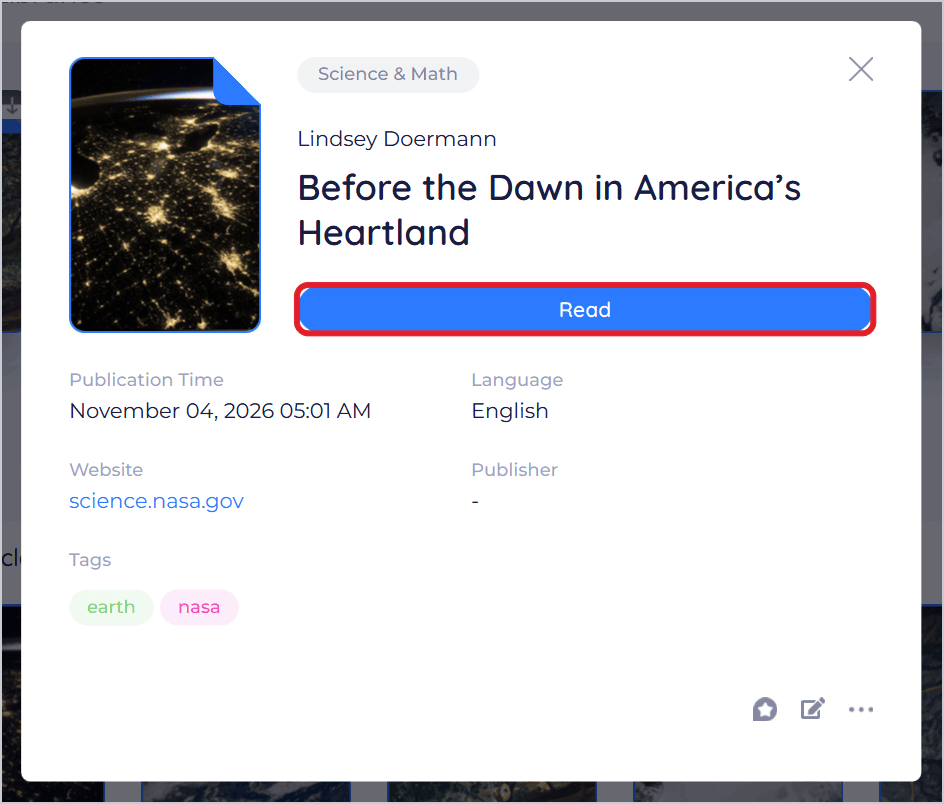
When the download is done, the button says Read. Click it to open the book.
Books you've started reading are along the top of the shelf. Click one there (its cover, title or Continue) to open it where you left off. If it isn't on this PC yet, its details open so you can download it first.
B. Add a book from your PC
-
Click Add Books at the top of the shelf.
-
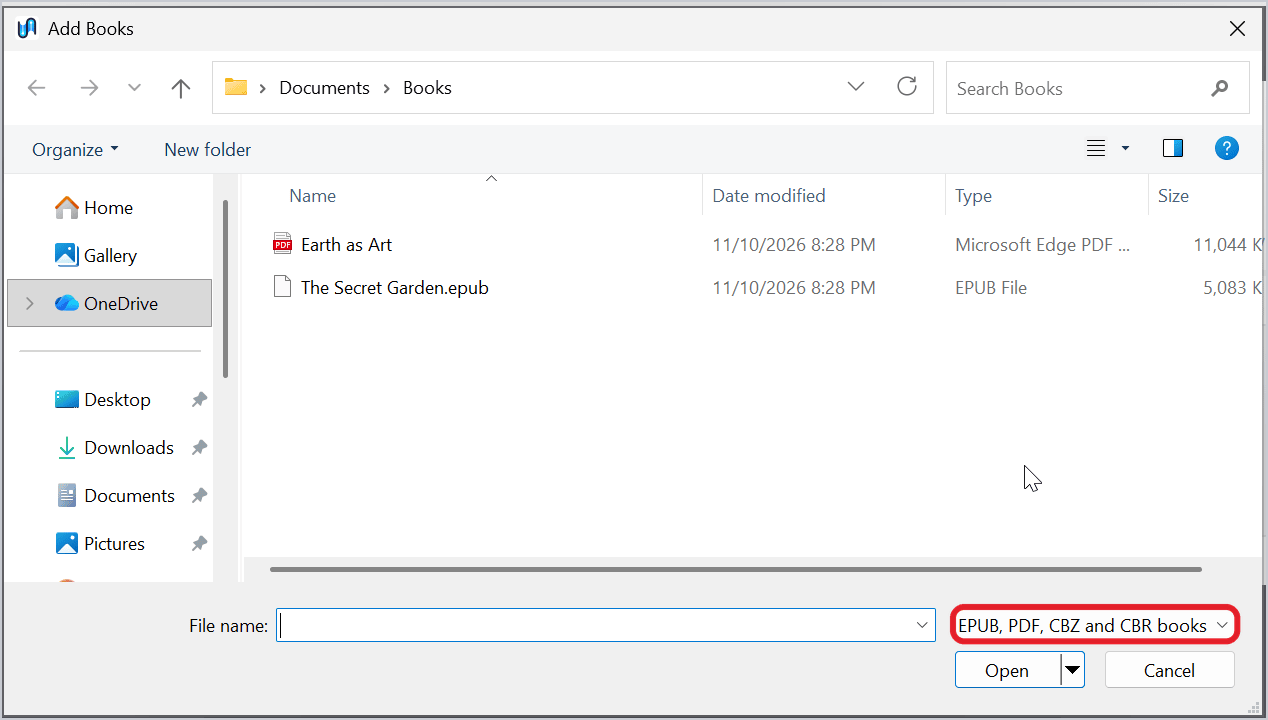
Click Select Files, choose an EPUB, PDF, CBZ or CBR file, and click Open. (Or drag the file from File Explorer onto the shelf.)
-
Close the Add Books window. Your book is on the shelf.
-
Click its cover, then click Read.
Books you add are on your PC already, so there's nothing to download. If you're signed in, BookFusion also uploads them to your library. See Adding Books to Your Library.
Read your book
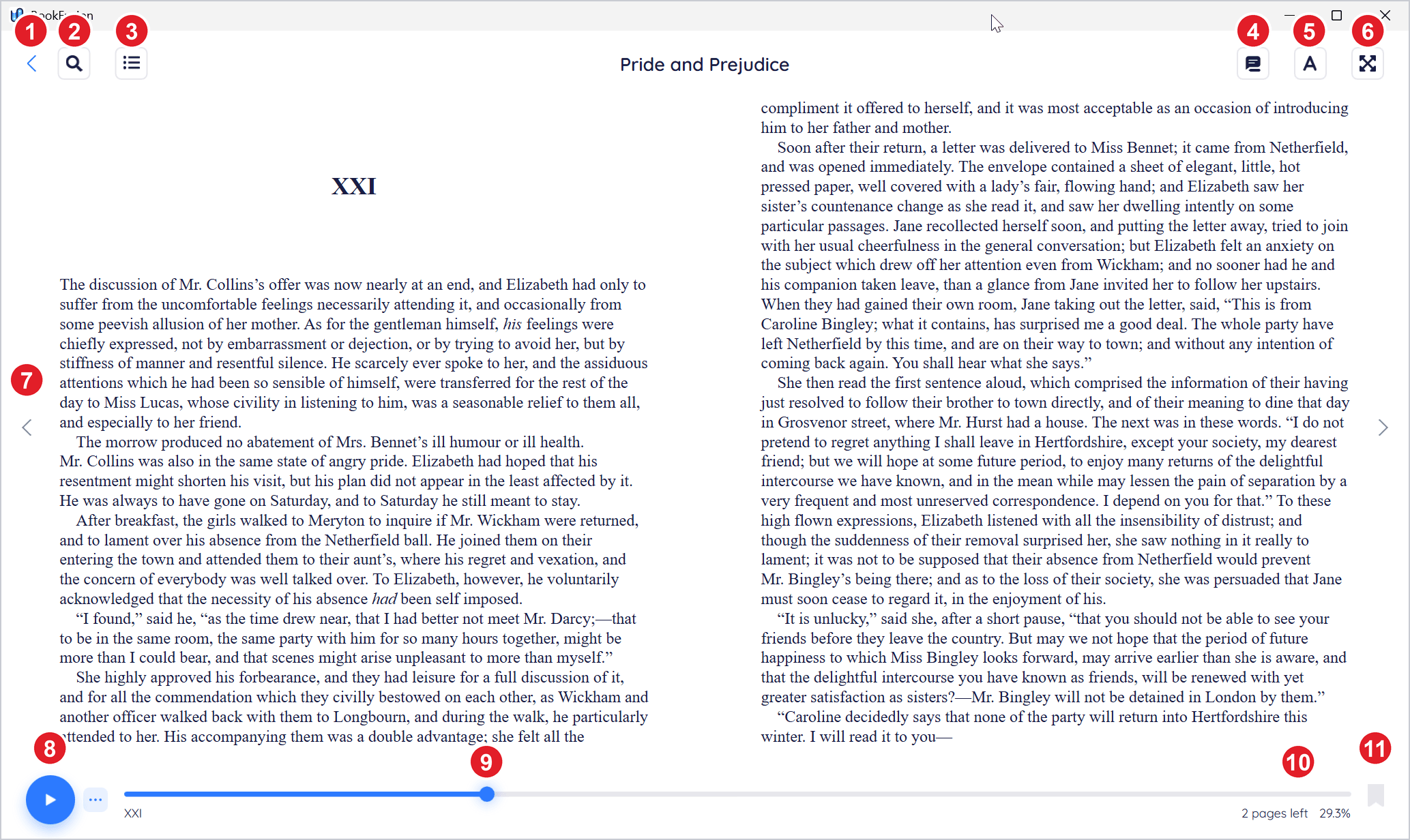
- Back to your shelf
- Search the book
- Contents and bookmarks
- Highlights in this book
- Settings: fonts, text size, themes and layout
- Full screen
- Page arrows: the previous page on the left, the next page on the right
- Play: reads the book aloud
- Position slider: drag it to move through the book
- Progress: pages left in the chapter, and how far through the book you are
- Bookmark this page
To turn pages, click the arrows at the sides of the page, or press the ← and → keys. With a touch screen or touchpad, you can also swipe.
To change how the book looks, click Settings (the A button). See Customizing Your Reading Experience.
To go back to your shelf, click Back (the arrow at the top left), or press Alt+←. BookFusion remembers your place, so the book opens where you left off next time.