Updating BookFusion & Joining Beta
BookFusion for Windows updates itself. It checks for a new version each time it starts, and tells you when one is ready.
When an update is available
When BookFusion finds a newer version, it shows Update available with what's new in that version.
- Click Update. BookFusion downloads the update and shows its progress. (Click Not now to update another time.)
- When the download is done, BookFusion shows Ready to update. Click Restart and update.
- BookFusion closes, installs the update, and opens again.
To stop the download, click Cancel download. If you click Later at Ready to update, BookFusion offers the update again the next time it starts.
Check for updates yourself
- Click your profile picture and choose Settings.
- Under About, click Check for updates.
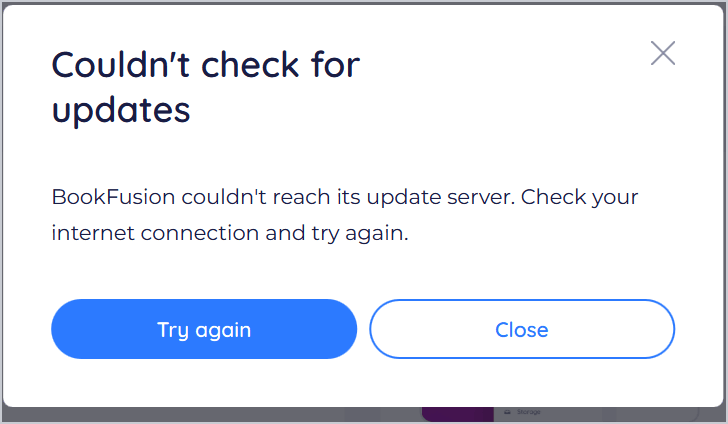
If you have the newest version, BookFusion says You're up to date. If it can't reach its update server, it says Couldn't check for updates: check your internet connection and click Try again.
Required updates
Occasionally, an old version of BookFusion stops being supported. BookFusion then shows Update required: This version of BookFusion is no longer supported. Click Update to install the new version, or Quit BookFusion. You can't use the old version until it's updated.
Join the beta
Beta versions get new features first, before everyone else, and may have more bugs.
-
Open Settings and find About.
-
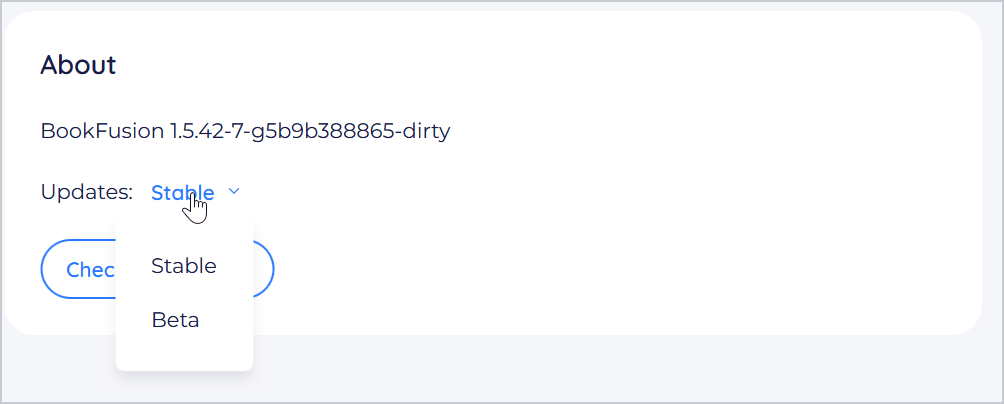
Next to Updates, choose Beta.
-
Click Check for updates to get the newest beta now. Otherwise BookFusion offers it the next time it starts.
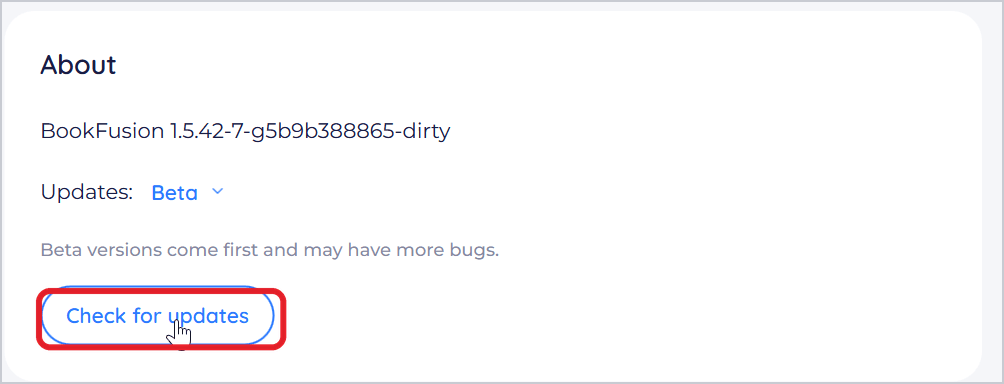
With Beta, you get both beta versions and stable releases, whichever is newer. Update dialogs for a beta are marked Beta.
Leave the beta
Next to Updates, choose Stable. You keep the version you have; BookFusion offers the next stable release that's newer than it. (Choosing Stable doesn't take you back to an older version.)
Find your version
Open Settings. Under About, the first line shows your version, such as BookFusion 1.5.42.
Tips and important differences
- What's new. The update dialog shows the new version's notes. There's no separate "What's New" screen after updating.
- Downloading a new installer isn't needed. If you do run a newer installer, it updates BookFusion in place, keeping your books and settings.