Troubleshooting Common Problems
Find your problem below and work through the checks in order. If none of them help, see Reporting Bugs & Getting Support.
Can't install or open the app
Check:
- Your PC runs 64-bit Windows 10 or 11 on an Intel or AMD processor. See System Requirements.
- If the Microsoft Store didn't finish installing BookFusion, open BookFusion in the Microsoft Store and click Install again.
- If you're using the installer file: it downloaded completely (it's about 135 MB; download it again if it's much smaller), and Install for all users of this machine needs administrator rights. If you don't have them, choose Install (just for you) instead.
If BookFusion doesn't open:
- BookFusion may already be open. Only one BookFusion runs at a time: look for it on the taskbar.
- If BookFusion shows Update required, click Update: an old version can't be used until it's updated. See Updating BookFusion & Joining Beta.
- Restart your PC and open BookFusion again.
Can't sign in or sign up
| Message | What to do |
|---|---|
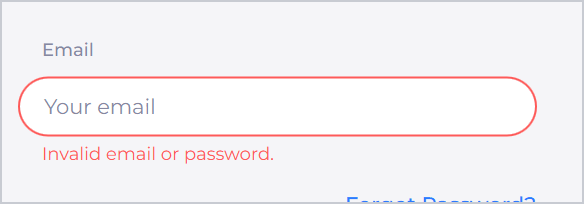
| Invalid email or password. | Check your email address and password. To reset your password, click Forgot Password?: it opens BookFusion's password page in your browser |
| Couldn't sign in. Check your internet connection and try again. | Check your connection, then try again |
| Couldn't sign in. Try again later. | BookFusion couldn't sign you in just now. Wait a few minutes and try again |
| This email already has an account. (signing up) | Click Sign in with this email and sign in instead |
| Your session has expired. Please sign in again. | Sign in again |
- Signing in with Google or X: your web browser opens to sign you in. Finish signing in there, and allow the browser to open BookFusion when it asks.
- Your organisation signs you in: after you type your work email and click Next, BookFusion opens your organisation's sign-in page in your browser. Sign in there.
- "Continue without an account" is missing: it's only offered on a PC where no BookFusion account has been used. See Choose How to Get Started.
Can't find a book
- Check the content type at the top of the sidebar. With Articles chosen, books are hidden, and the other way round. Choose All Content.
- Check the list under My Shelf. Downloaded shows only the books on this PC; choose All.
- Check for filters. A red dot on the filter button means filters are on. Click Remove All above the results.
- Check that you're online. Offline, the shelf shows only the books on this PC. If you see the crossed-out Wi-Fi icon, click Refresh Shelf.
- Added on another device? Click Refresh Shelf to fetch the latest from your account.
- Search for it with Find a book.... Online, search looks through your whole library.
A book won't upload
| What you see | What to do |
|---|---|
| Upload pending on the cover | The book is waiting its turn, or BookFusion is offline. It uploads when BookFusion is back online; click Refresh Shelf if you're connected |
| Not uploaded: BookFusion couldn't be reached. | Check your connection, then click Try Again in Add Books or the book's details |
| Not uploaded: the upload was canceled. | Click Try Again |
| Your current plan limits file size to … | The file is bigger than your plan allows. Upgrade your plan, or use a smaller file |
| “[title]” isn't an EPUB or PDF book. | The file isn't an EPUB, PDF, CBZ or CBR book, even if its name says so. Get a fresh copy of the book |
| “[title]” couldn't be added. | The file may be damaged or DRM-protected. BookFusion can only add DRM-free books |
| “[title]” is in your library already. | Nothing to do: the book is already in your BookFusion library |
See Adding Books to Your Library.
A book won't open
- Is it downloaded? A book with a download icon on its cover isn't on this PC yet. Open its details and click Download, then Read. Downloading needs a connection.
- Is it a library loan that ended? Its cover says Expired. Borrow it again; see Joining Libraries, Borrowing & Returning Books.
- "This comic can't be opened." or a PDF error: the file may be damaged. Open the book's details, choose More actions › Remove from device, then Download it again.
Use Remove from device this way only for books in your BookFusion library (that you can download again). For books added without an account, Remove from device deletes the book for good. Add it again from your original file instead.
A download is stuck
- Check your internet connection.
- If you see the crossed-out Wi-Fi icon next to Add Books, BookFusion is offline: click Refresh Shelf.
- Cancel the download (click Downloading, or the progress ring on the cover), then click Download again.
- Check that your PC has free disk space (Windows Settings › System › Storage).
Can't read offline
Only books on this PC can be read offline. Before you go offline, download the books you'll want; the Downloaded list shows what's on this PC. See Downloading Books for Offline Reading.
Syncing isn't working
- Same account? Check you're signed in to the same account on each device. On Windows, open Settings and check Personal Information.
- Online? If you see the crossed-out Wi-Fi icon, click Refresh Shelf. BookFusion doesn't go back online by itself.
- Up to date? Click Refresh Shelf, or close and reopen the book, to fetch the latest from your account.
- Uploaded? A book you added on Windows reaches your other devices only once it has uploaded. Check its cover doesn't say Upload pending or Not uploaded.
- Signed in at all? If you use BookFusion without an account, nothing syncs. Sign in to start syncing.
See Syncing Your Library Across Devices.
"No voices available", or read aloud doesn't start
- No voices available on the Local tab: download the local voices (the download button next to Supertonic). If the book's language has no local voice, try the Advanced tab.
- No voices available on the Advanced tab, or Upgrade: Advanced voices need a BookFusion account with a plan that includes them, and an internet connection.
- The wrong language's voices are listed: voices are chosen by the book's language. Check the book's Language in its details, and correct it with Edit if it's wrong.
- Text-to-Speech Error: if you're using an Advanced voice, check your connection, or switch to a local voice.
- Comics can't be read aloud.
See Listening to Books with Text to Speech.
PDFs or comics look wrong
- Pages too small or too big: open Settings (the A), expand Scale and choose Page Fit or Width Fill.
- Colours look odd: the Night and grey themes darken PDF and comic pages. Choose White for the original colours.
- Two pages shown when you want one (or the other way round): choose one or two columns in Settings. For comics, Spreads sets which pages are paired.
- A comic reads the wrong way: set Direction to RTL or LTR.
- "This page can't be shown.": that page of the comic file is damaged.
Library and borrowing errors
| Message | What to do |
|---|---|
| Sign In to Borrow | Joining libraries and borrowing need an account. Click Sign In |
| You're offline | Libraries need a connection. Check it, then click Try Again |
| Your loan has ended. | Borrow the book again, if the library allows |
| Your library isn't listed | Private libraries are shown only to their members. Contact the library's administrator |
Update problems
| Message | What to do |
|---|---|
| Couldn't check for updates | Check your connection and click Try again |
| Couldn't download the update | Check your connection and click Try again |
| Couldn't install the update | Click Try again. If it keeps happening, download the latest installer and run it |
Still stuck?
See Reporting Bugs & Getting Support for how to get help, and what to include.