Listening to Books with Text to Speech
BookFusion can read your books aloud, lighting up each sentence as it's read and turning the pages for you. Read-along books, with narration recorded by a person, play their narration.
Before you begin
BookFusion for Windows has two kinds of voices:
| Voices | Where they come from | What you need |
|---|---|---|
| Local | A voice pack you download once to your PC | Space for the download (about 380 MB). After that, no connection needed |
| Advanced | BookFusion's voices, streamed while you listen | A BookFusion account with a plan that includes them, and an internet connection |
BookFusion for Windows doesn't use the voices that come with Windows. For which plans include which voices, see Access & Plans.
Start listening
-
Open a book and go to where you want to start.
-
Click Play (the round button at the bottom left).
The first time, if you haven't chosen a voice for the book's language yet, BookFusion chooses one for you if it can. If it can't (for example, you're offline and haven't downloaded the local voices), Select Voice opens so you can choose one; see Choose a voice.
-
BookFusion reads aloud, highlighting each sentence as it's read, and turns the pages for you.
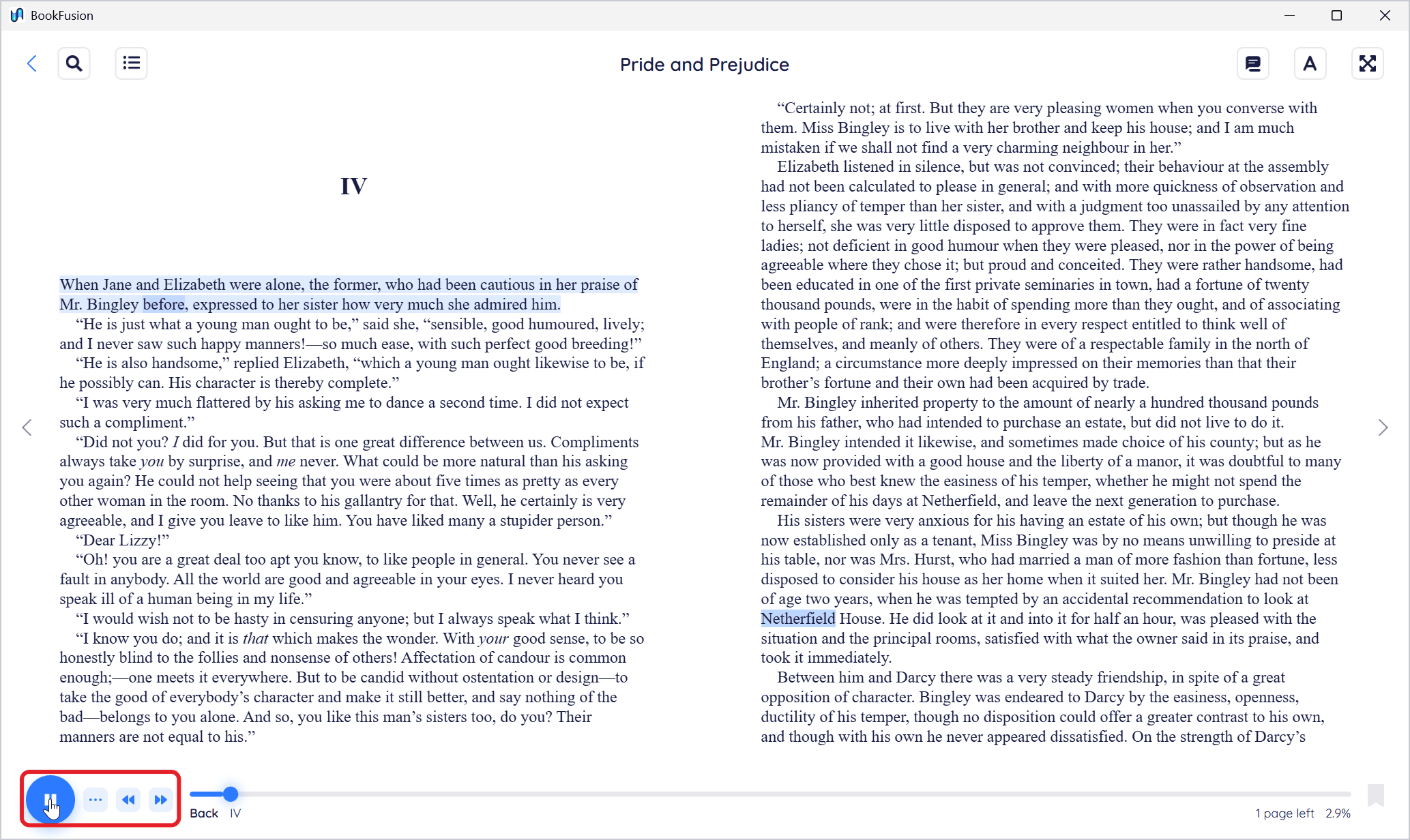
While it reads, use the buttons next to Pause to go back a sentence or skip ahead one. Click Pause to stop.
Start from a particular sentence: select some text, then click Play from here (the play arrow) in the menu that appears.
Choose a voice
-
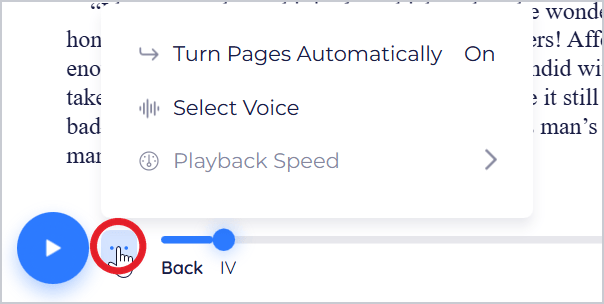
Click Playback options (the … next to Play), then Select Voice.
-
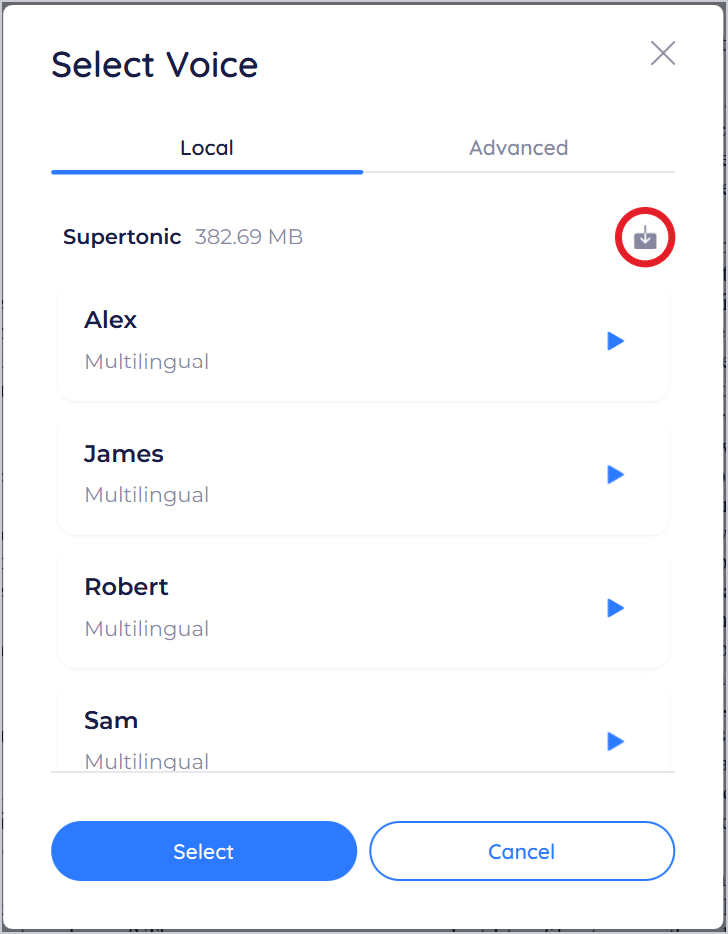
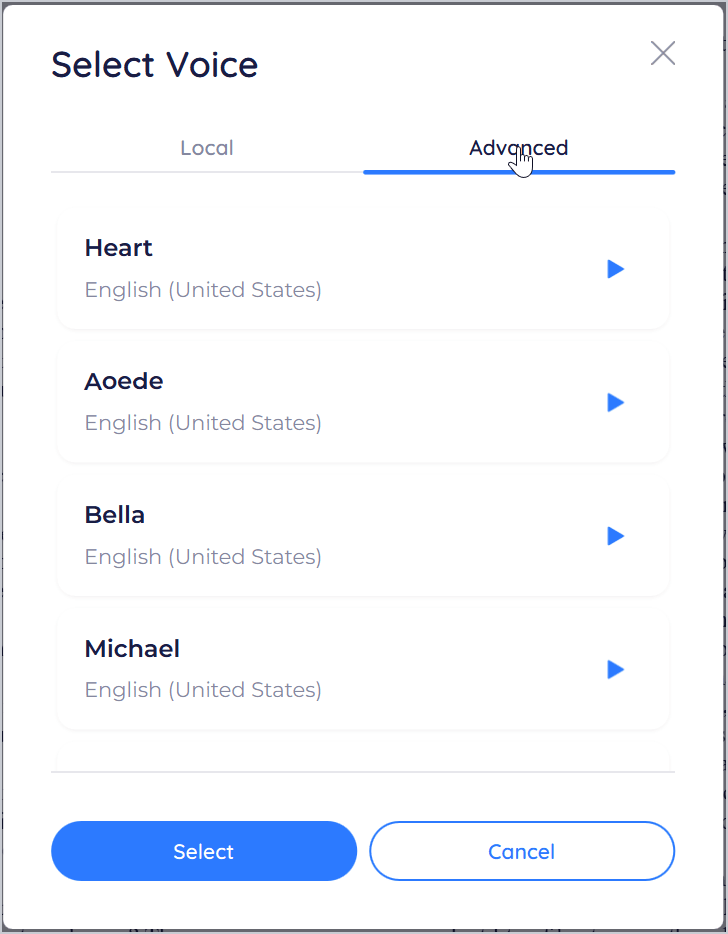
Choose the Local or Advanced tab. Only voices that speak the book's language are listed.
-
Click a voice's play button to hear a sample, then select the voice and click Select.
Local voices. The first time, click the download button next to Supertonic to download the voice pack (about 380 MB). Once it's downloaded, the local voices work without an internet connection.
Advanced voices. These are streamed while you listen. If your plan doesn't include them, Upgrade takes you to your plan's page on the BookFusion website.
BookFusion remembers the voice you choose for each language, so books in the same language use it too.
No voices available means there's no voice of that kind for the book's language. Try the other tab: download the local voices, or (with a plan that includes them) use an Advanced voice. Check that the book's language is right in its details; see Editing Book Details.
Playback options
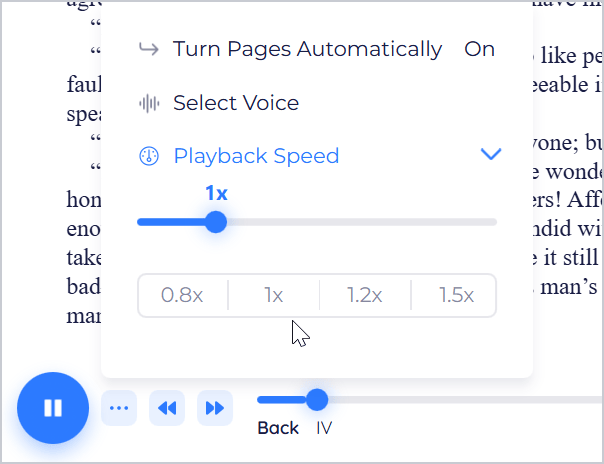
Click Playback options (the … next to Play):
- Turn Pages Automatically: On turns pages as the reading moves on; Off keeps the page where it is.
- Select Voice: choose a voice, as above.
- Playback Speed: drag the slider (from 0.5× to 3×), or click 0.8x, 1x, 1.2x or 1.5x.
Read-along books
Some EPUB books come with narration recorded by a person, synchronised with the text (EPUB 3 media overlays). BookFusion plays the narration and highlights each sentence as it's spoken.
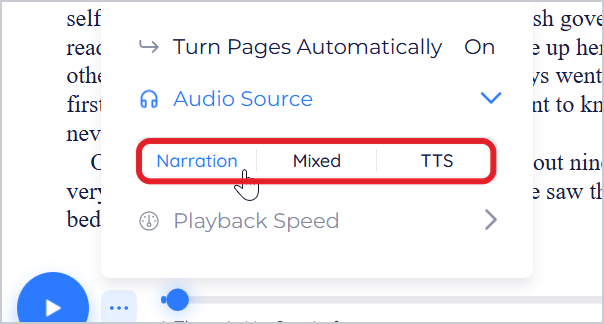
For these books, Playback options also has Audio Source:
- Narration: the book's recorded narration (the default).
- Mixed: the narration where the book has it, and a voice of your choice for the rest.
- TTS: a voice of your choice instead of the narration.
BookFusion remembers the audio source for each book.
Tips and important differences
- Without an account, only local voices are available.
- Offline, local voices keep working; Advanced voices need a connection.
- Comics can't be read aloud. PDFs can, when they have text.
- To delete the local voices and free up space, open Select Voice, go to the Local tab and use the delete button next to Supertonic.
If something doesn't work
- Play does nothing, or Select Voice keeps opening: choose a voice, or download the local voices.
- Text-to-Speech Error: check your internet connection if you're using an Advanced voice, or switch to a local voice.
See Troubleshooting Common Problems.