Signing Out & Uninstalling
How to sign out, switch to another account, and remove BookFusion from your PC, and what happens to your books and highlights each time.
Sign out
- Click your profile picture at the top right.
- Choose Sign Out.
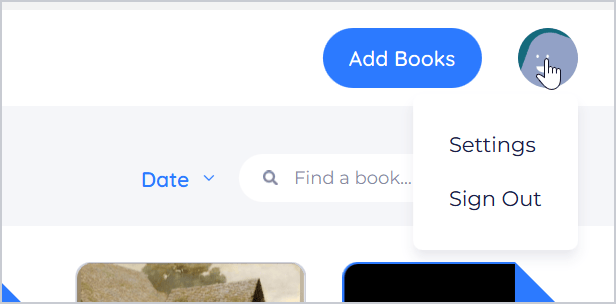
BookFusion signs you out straight away, without asking, and shows the sign-in window.
What stays on your PC: signing out doesn't delete anything from your PC. Your downloaded books stay where they are, and they're there again when you sign back in to the same account.
What's in your account: everything that has synced to your BookFusion account stays in your account. Books that were still uploading when you signed out stop uploading.
Switch to another account
Sign out, then sign in with the other account. Each account's books are kept separately on your PC.
Without an account
If you use BookFusion without an account, the profile menu has Sign In instead of Sign Out. There's nothing to sign out of: your books are kept on this PC. If you sign in, your books move to that account; see Choose How to Get Started.
Uninstall BookFusion
You can uninstall BookFusion and keep its data on your PC, or remove the data too.
Uninstall and keep your data
- Open Windows Settings › Apps › Installed apps. (On Windows 10: Settings › Apps › Apps & features.)
- Find BookFusion, click … (or click it), and choose Uninstall.
This removes the app but keeps BookFusion's data on your PC: your downloaded books, settings, sign-in, and the books you added without an account. If you install BookFusion again, it's all still there.
Uninstall and remove your data
To remove BookFusion's data from your PC as well, run the installer's remove option:
-
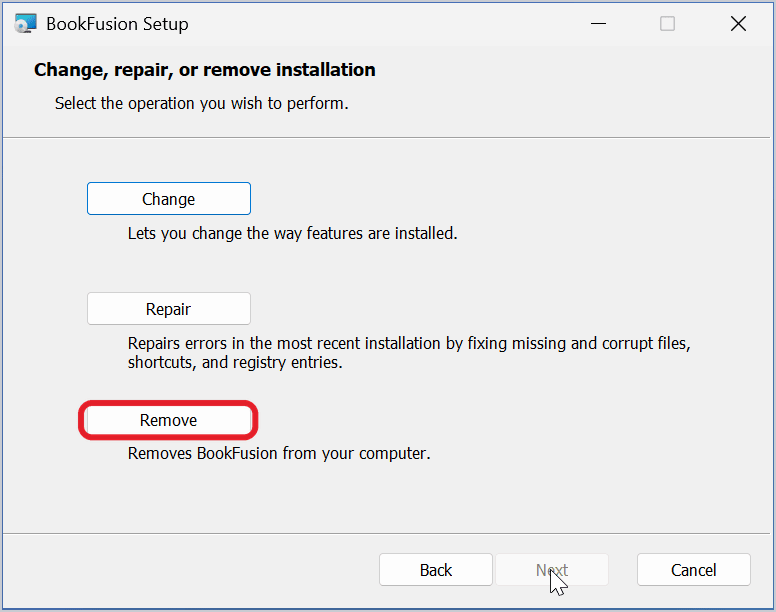
Run the BookFusion installer again (or in Windows Settings › Apps › Installed apps, choose Modify for BookFusion, if offered).
-
Click Next, then Remove.
-
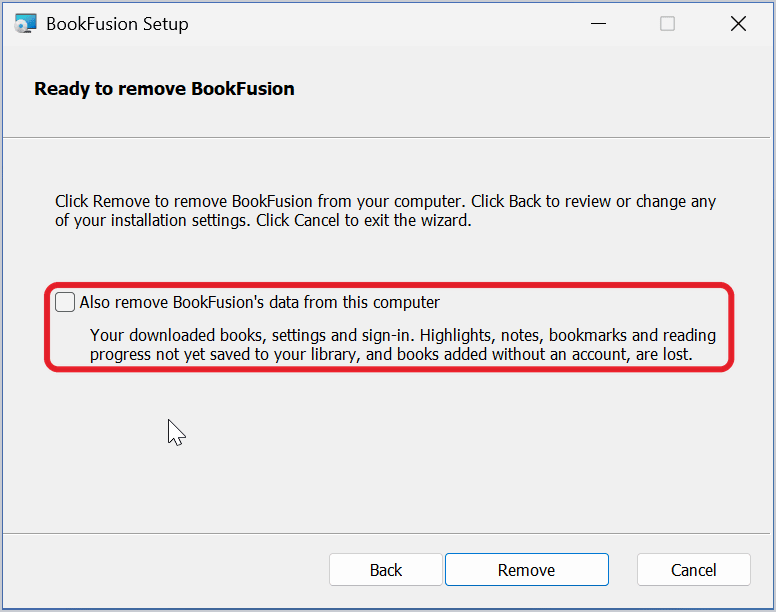
Read the warning, then tick Also remove BookFusion's data from this computer.
 danger
Removing BookFusion's data deletes, from this PC: your downloaded books, settings and sign-in. Highlights, notes, bookmarks and reading progress not yet saved to your library, and books added without an account, are lost. They can't be recovered.
If you've used BookFusion without an account, your books and highlights exist only on this PC. Keep your original files before you remove the data.
-
Click Remove.
What each action does
| Action | Your books in your BookFusion account | Downloaded books on this PC | Books added without an account |
|---|---|---|---|
| Sign Out | Kept | Kept | (Not available without an account) |
| Remove from device (one book) | Kept | That book removed | That book deleted |
| Delete (one book) | That book deleted | That book removed | That book deleted |
| Uninstall | Kept | Kept | Kept |
| Uninstall and remove data | Kept | All removed | All deleted |
Deleting your BookFusion account is done on the BookFusion website, not in the Windows app.