Organizing Shelves & Series
Shelves group books however you like: a book club, books to read with the kids, a topic. Series keep the books of a series together, in order. Each shelf gets its own row on your bookshelf, and your series are listed under Series in the sidebar.
Put a book on a shelf
You put a book on a shelf, or make a new shelf, from the book's details.
-
Click the book's cover, then click Edit (the pencil) at the bottom of its details.
-
Click the Shelves tab.
-
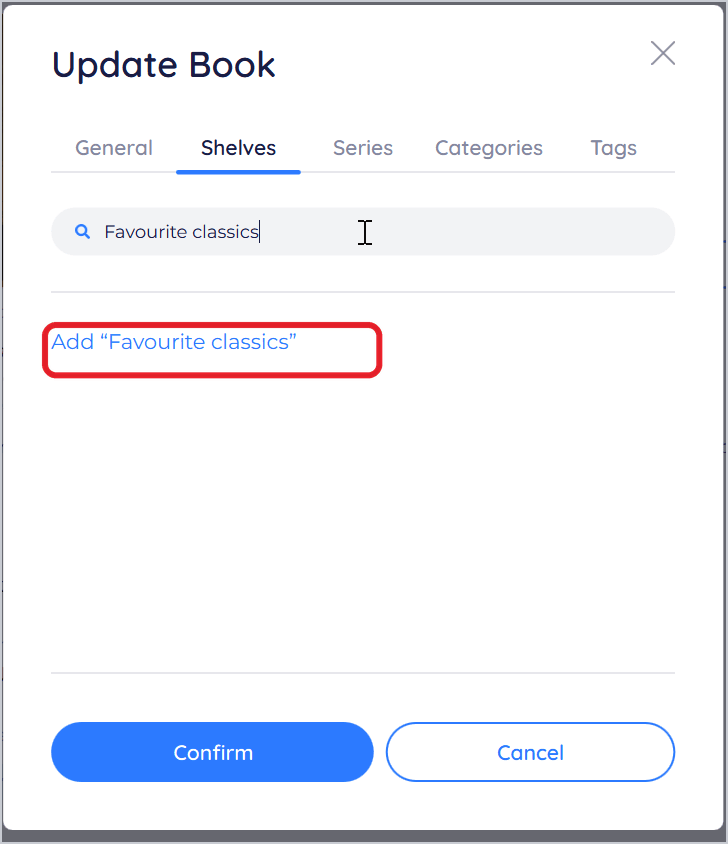
Tick the shelves you want the book on. To make a new shelf, type its name in Search and click Add “[name]”.
-
Click Confirm.
The book now appears in that shelf's row on your bookshelf. A new shelf gets a row of its own.
To take a book off a shelf, open the Shelves tab again, untick the shelf and click Confirm. The book stays in your library; only the shelf changes.
In the Windows app you create shelves from a book's Shelves tab. Renaming and deleting shelves isn't available in the Windows app yet: do that on the BookFusion website, and the change appears here after you refresh the shelf. Smart shelves aren't shown in the Windows app yet.
Create a series
-
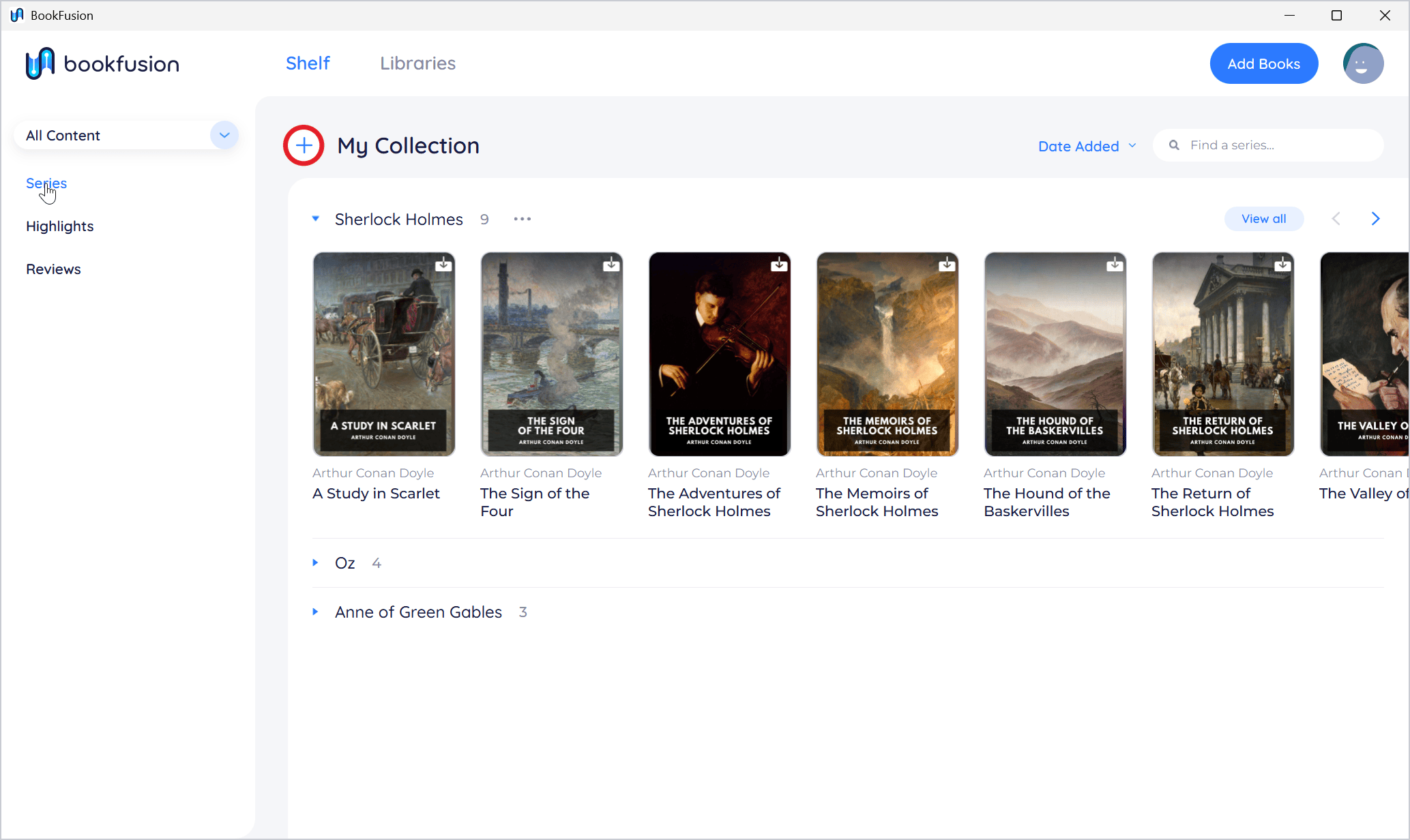
Click Series in the sidebar.
-
Click + (Create Series) next to My Collection.
-
Type the series' Title and click Create.

Add books to a series
-
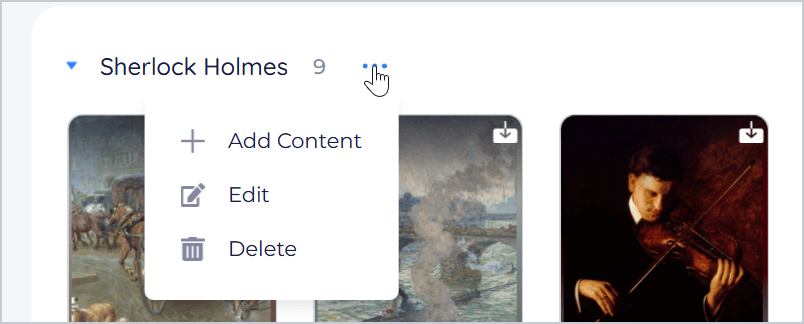
On the Series page, click the three dots next to the series and choose Add Content (or Add Books).
-
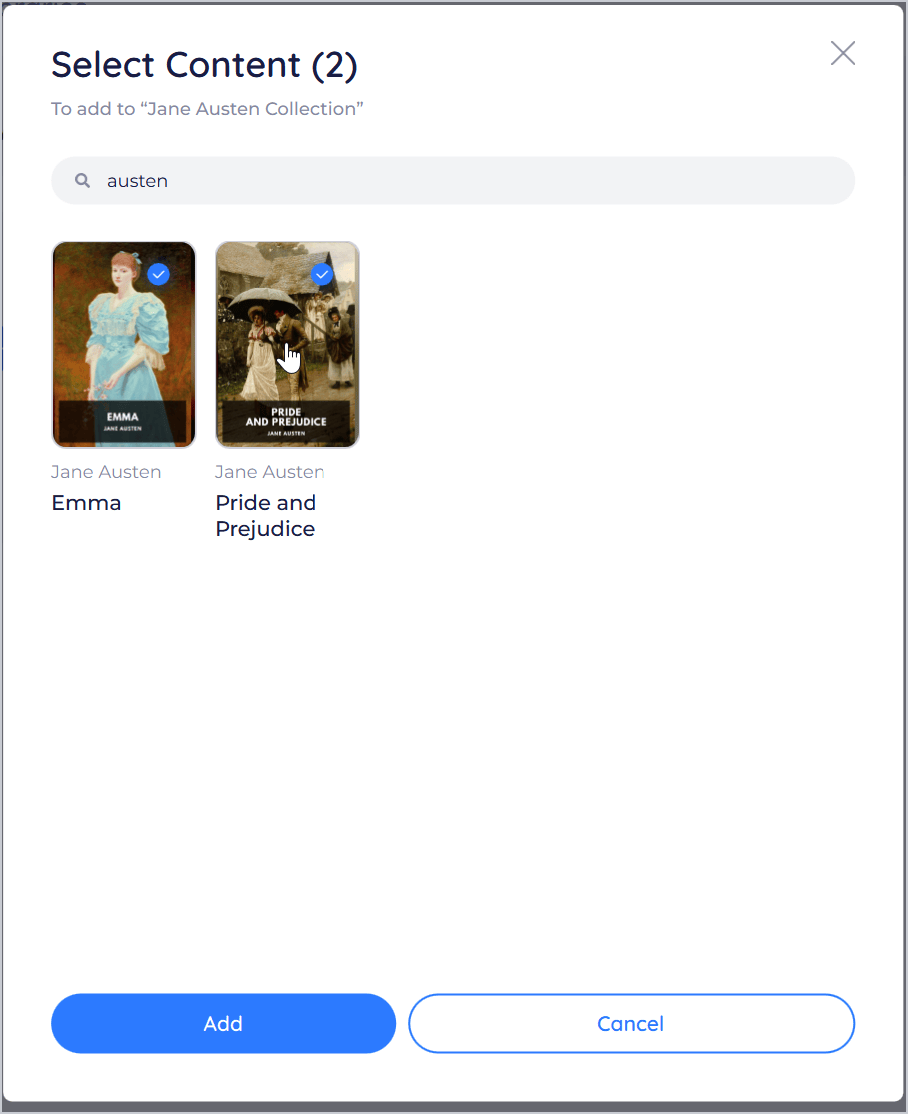
Tick the books to add. Search to find them in a large library. Books already in the series are marked In this series.
-
Click Add.

You can also add a single book to a series from its details: click Edit, open the Series tab, tick the series and click Confirm.
Set a book's place in a series
-
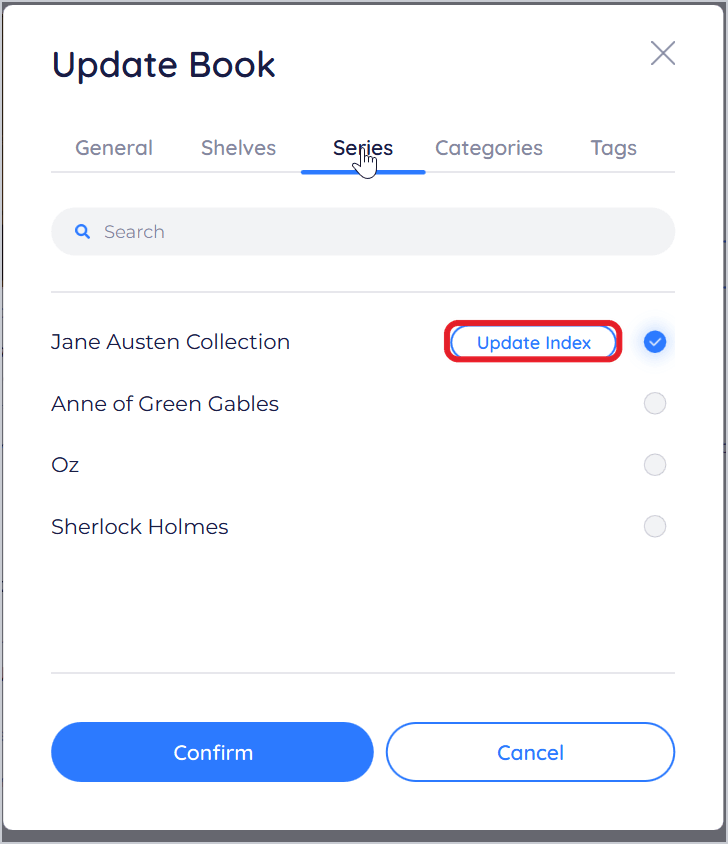
Open the book's details, click Edit, and open the Series tab.
-
Next to the series, click Update Index.
-
Type its number in the series, such as
2or2.5, and click Update.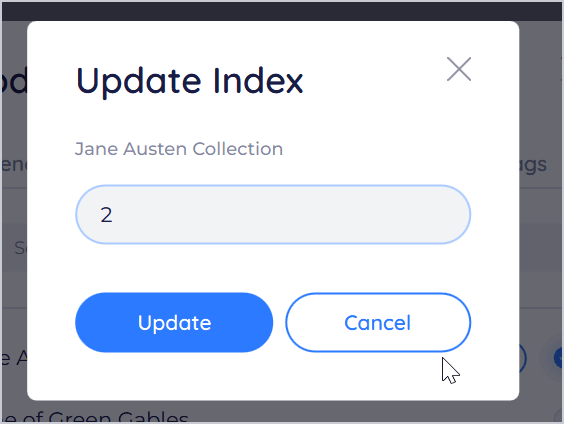
-
Click Confirm. The button now shows the number, as Update Index (2), and the series lists the book in that place.
Rename or delete a series
On the Series page, click the three dots next to the series:
- Edit to change its title. Type the new title and click Update.
- Delete to delete the series. Its books stay in your library; only the series is deleted.
Tips and important differences
- Offline. You can put books on shelves, create shelves and series, and change series while you're offline. The changes are saved on this PC and sent to your account when BookFusion is back online.
- Without an account. Shelves and series work the same way. They're kept on this PC, and move to your account if you sign in later.
- Favorites, Plan to Read and Completed are lists from your BookFusion account. The Windows app shows them but can't change them yet. See Exploring Your Bookshelf.
- Removing vs deleting. Unticking a shelf or series only takes the book off it. To delete the book from your library, use More actions › Delete in its details; see Downloading Books for Offline Reading.