Searching, Sorting & Filtering Books
As your library grows, search, sort and filters help you find the book you want. They're above the books on your shelf.
Search your library
- Click Find a book... at the top right of the shelf and type a title, an author or another word.
- Press Enter (or click the magnifying glass).
- The books that match replace the shelf, best matches first. Click a cover to open the book's details.
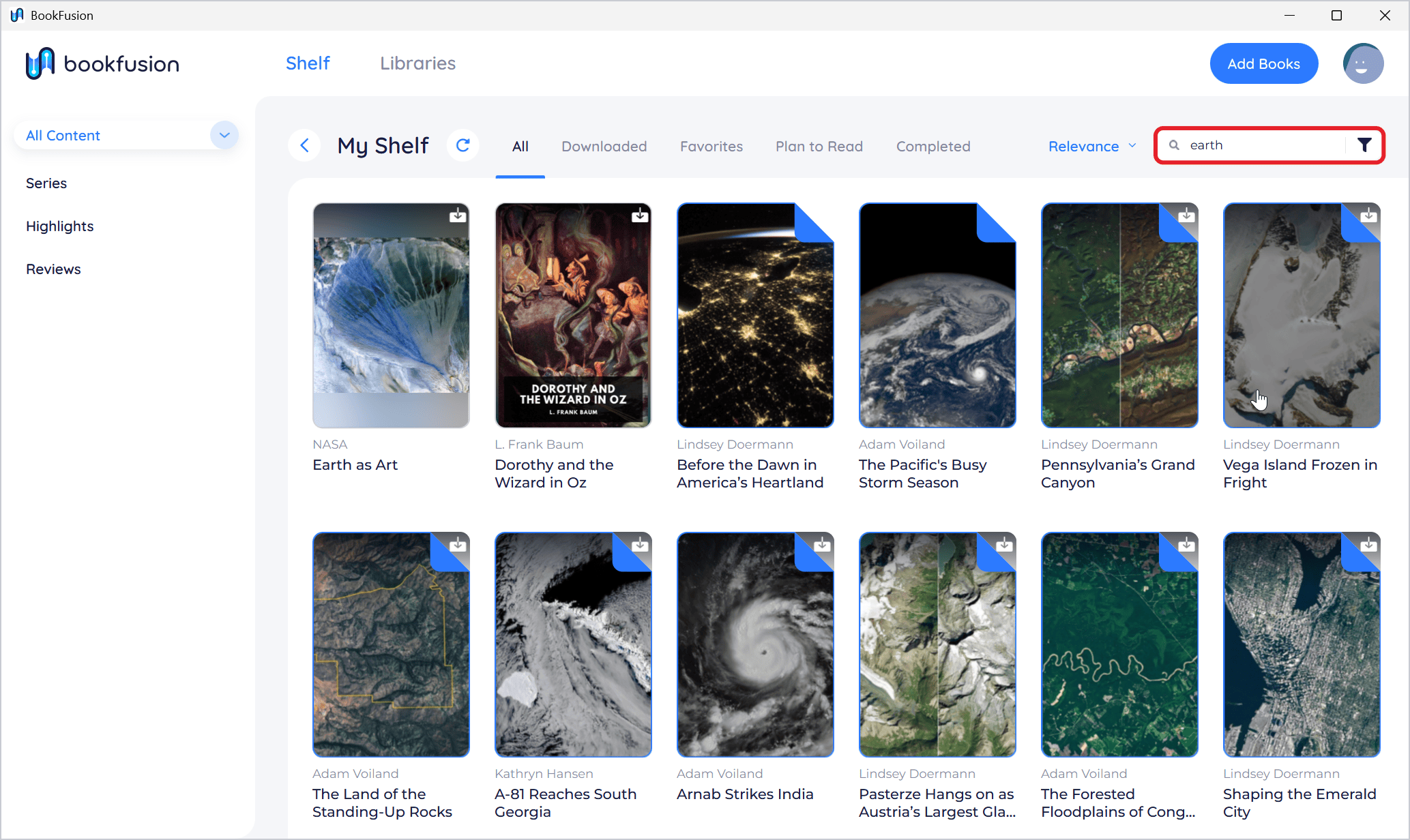
To go back to your shelf, click the Back arrow next to My Shelf.
What search looks through:
- Signed in and online: your whole BookFusion library, including books that aren't on this PC.
- Offline, or without an account: the books on this PC. BookFusion matches their titles, authors, descriptions, publishers, tags, categories and series, with title matches first.
Search on the shelf finds books. To find words inside a book you're reading, use the reader's search; see Navigating & Searching Within Books.
Sort your books
Click the sort menu (it shows the current order, such as Date) and choose how to order your books:
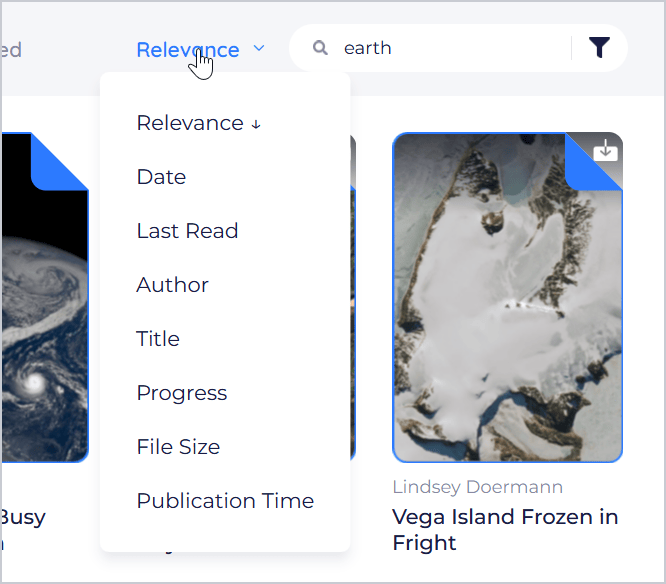
| Sort | Orders books by |
|---|---|
| Relevance | How well they match your search (only while searching) |
| Date | When you added them |
| Last Read | When you last read them |
| Author | Author |
| Title | Title |
| Progress | How far you've read |
| File Size | The size of the file |
| Publication Time | When they were published |
Choose the same sort again to reverse the order. The arrow next to it shows which way it's sorted.
BookFusion remembers the sort you choose for each list (All, Downloaded, Favorites and so on) separately. A sort you choose while searching applies only to that search.
Filter by category, author or tag
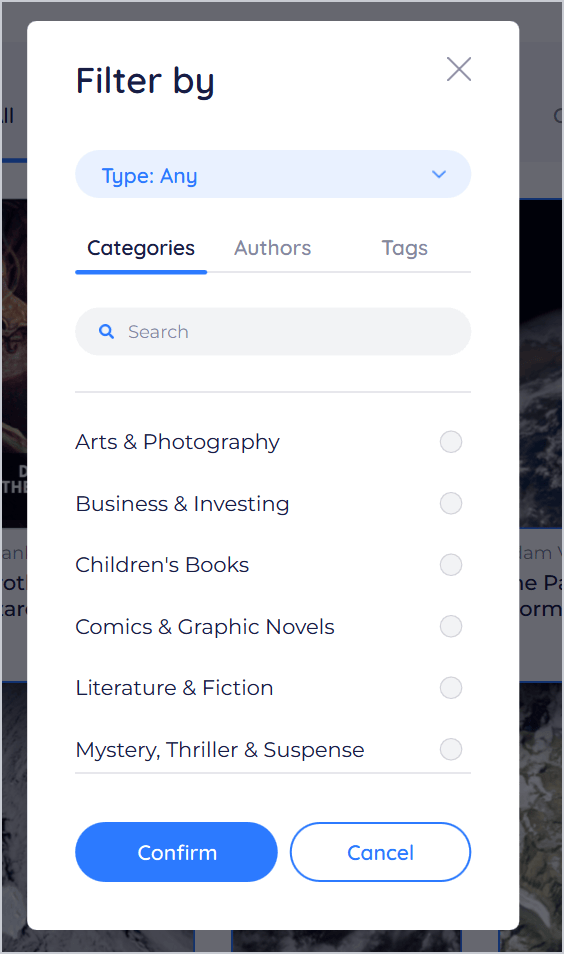
- Click the filter button (the funnel) at the right of the search box.
- In Filter by, choose what to show:
- Type (shown when the content type is All Content): Any, Book or Article.
- Categories, Authors and Tags: tick the ones you want. Use Search to find one in a long list.
- Click Confirm.
The filters you chose are shown above the results. A red dot on the funnel reminds you that filters are on. To clear them, click Remove All, or the × on a single filter.
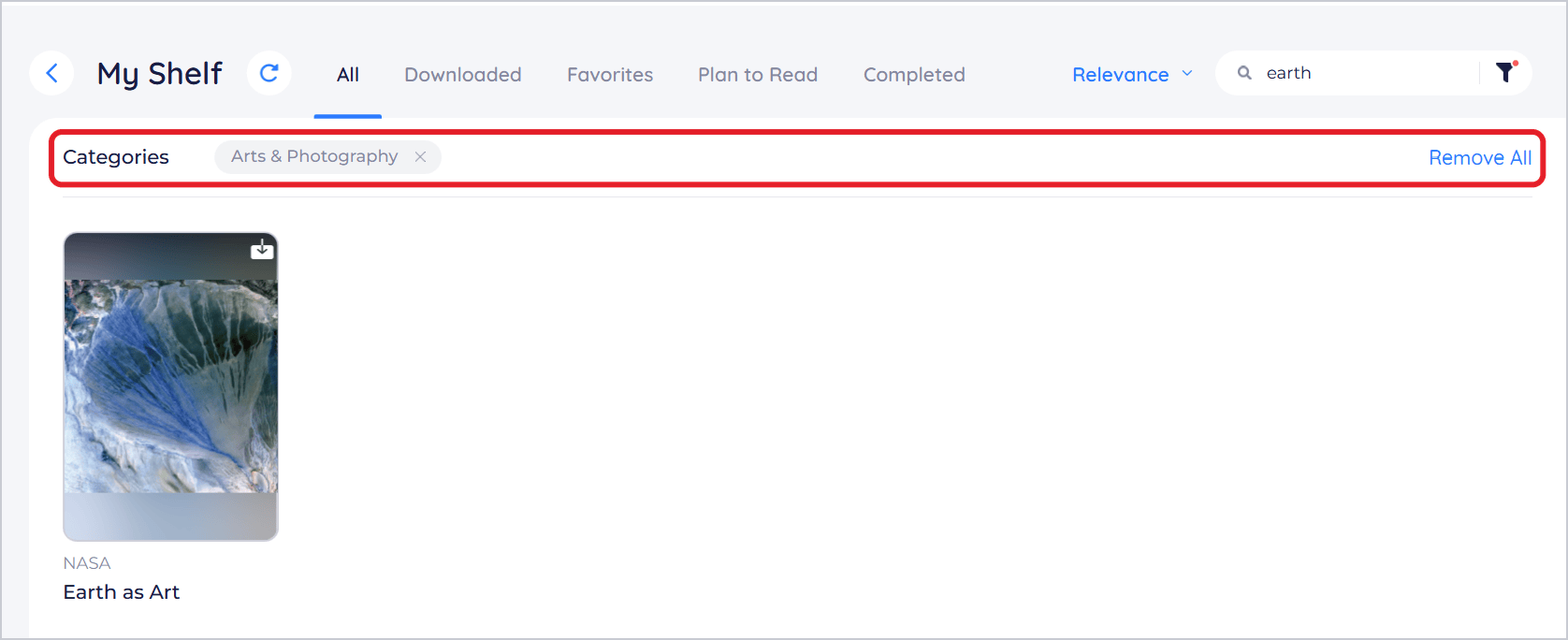
Filters stay on, for later searches too, until you remove them. BookFusion doesn't keep them once you close the app.
Show books or articles only
To show only books or only articles everywhere, use the content type at the top of the sidebar. See Exploring Your Bookshelf.