Reading Books on Windows
The BookFusion reader is made for a big screen: read in two columns, full screen, with the keyboard, the mouse, a touchpad or a touch screen. This guide covers everyday reading. For PDFs and comics, see Reading PDFs & Comics.
Open a book
Click a book's cover, then Read (or Download, then Read, if it isn't on this PC yet). Books you've been reading are along the top of the shelf: click one there to carry on where you left off.
The reader
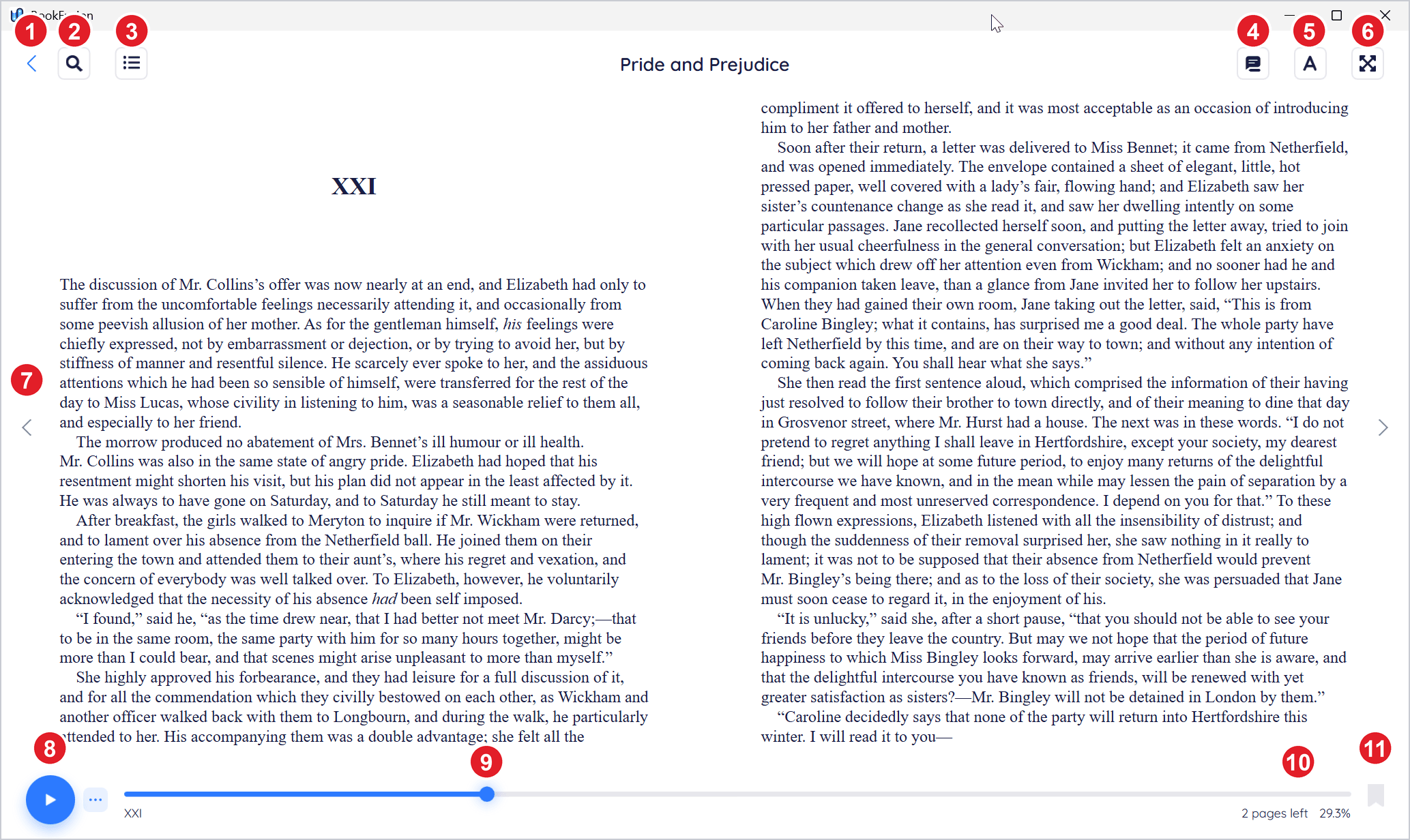
| Control | What it does | |
|---|---|---|
| 1 | Back | Goes back to your shelf |
| 2 | Open search | Searches the book. See Navigating & Searching Within Books |
| 3 | Open table of contents | The book's contents and your bookmarks |
| 4 | Open highlights | Your highlights and notes in this book. See Highlights, Notes, Tags & Bookmarks |
| 5 | Open settings | Fonts, text size, themes and layout. See Customizing Your Reading Experience |
| 6 | Enter fullscreen | Fills the screen with the book |
| 7 | Page arrows | The previous page (left) and the next page (right) |
| 8 | Play | Reads the book aloud. See Listening to Books with Text to Speech |
| 9 | Position slider | Drag it to move through the book |
| 10 | Progress | Pages left in this chapter, and how far through the book you are |
| 11 | Add bookmark | Bookmarks the page |
Hover over a button to see its name.
Turn pages
- Click the arrows at the left and right of the page.
- Press → or Page Down for the next page, ← or Page Up for the previous one. Space and Shift+Space work too. Hold a key down to keep turning.
- With a touchpad, swipe left or right with two fingers. With a touch screen, swipe with one finger: the page follows your finger.
For books written right to left, the arrows and keys turn the other way.
Pages slide across as they turn, unless you've turned animations off in Windows. To choose for yourself, open Settings, expand Page Animation and choose Slide or None.
Scroll instead of turning pages
Open Settings and turn on Vertical Scrolling. The book becomes one long page that you scroll with the mouse wheel, the touchpad or the arrow keys. Turn it off to go back to pages.
One or two columns
When the window is wide enough, BookFusion shows two pages side by side, like an open book.
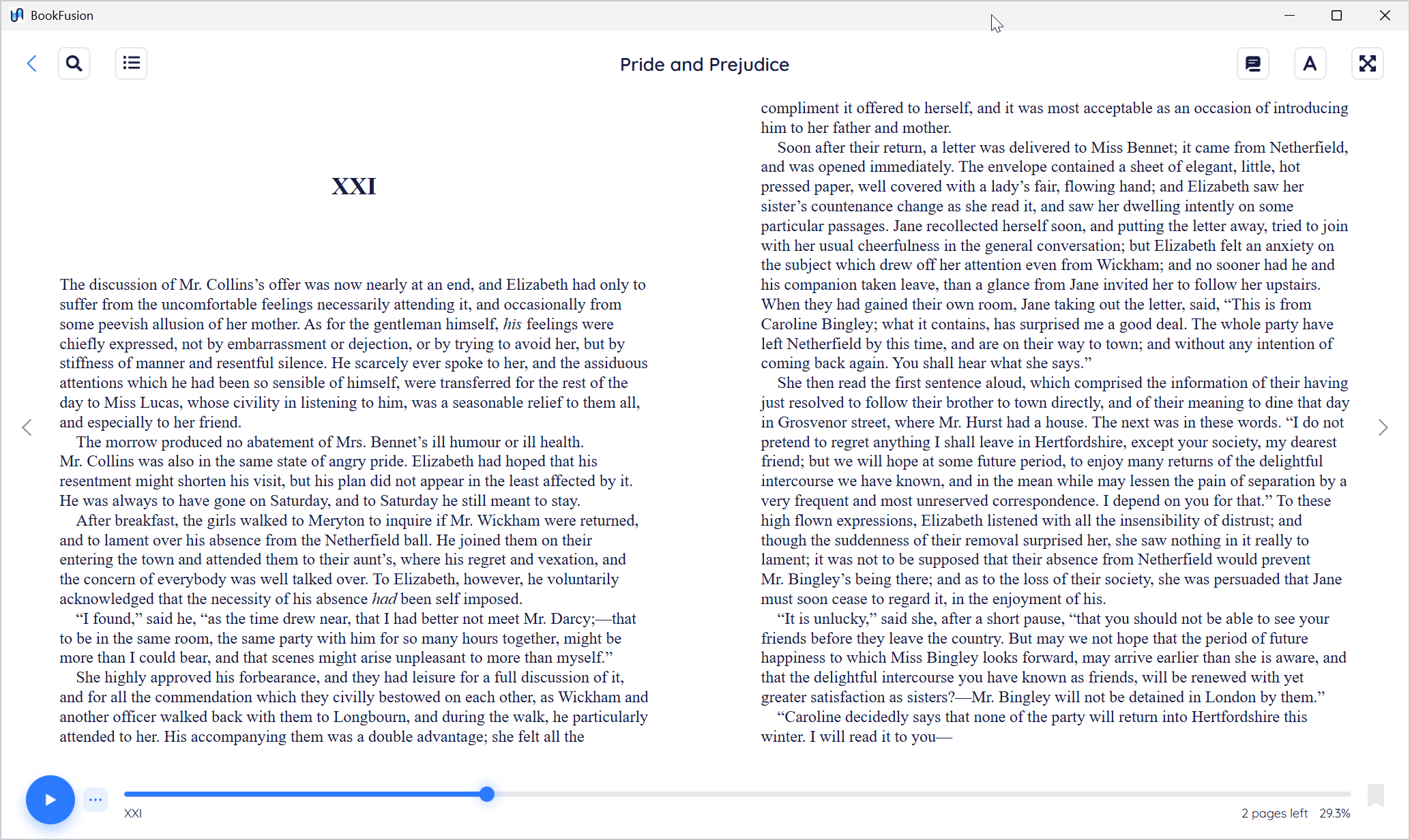
To choose for yourself, open Settings and click the single-column or two-column button. Click the selected one again to let BookFusion choose by the window's width. Columns aren't available while Vertical Scrolling is on.
Read full screen
Click Enter fullscreen (the arrows at the top right) or press F11. The toolbar and the controls at the bottom fold away; move the pointer to the top or bottom of the screen to bring them back.
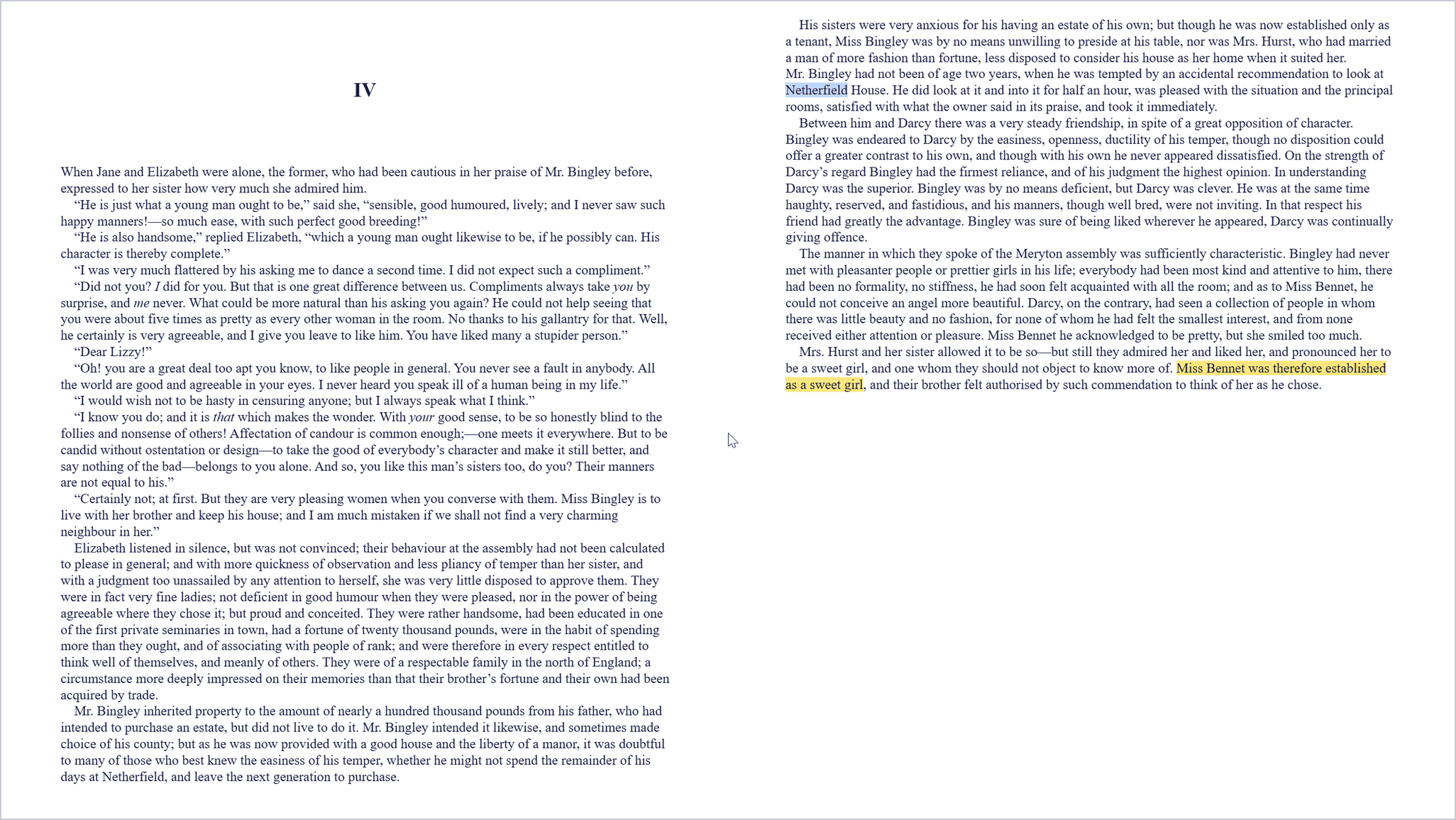
To leave full screen, press Esc or F11, or click Exit fullscreen.
See where you are
- The position slider shows how far through the book you are. Drag it to go somewhere else; a bubble shows the percentage as you drag.
- Under the slider, the chapter's name is on the left, and on the right how many pages are left in the chapter and how far through the book you are, as a percentage. (For PDFs and comics, the page number, such as 69 of 172.)
- Back and Forward appear under the slider after you jump somewhere, to take you back to where you were. See Navigating & Searching Within Books.
Go back to your shelf
Click Back at the top left, or press Alt+←. If a panel or the settings are open, Back closes them first.
BookFusion remembers where you are in each book. When you're signed in, your place is saved to your account, so you can carry on from there on your other devices.