Reading Articles on Windows
The web articles you save to BookFusion are in your library alongside your books. In the Windows app you can find them, read them, highlight them and read them offline.
Before you begin
Articles are saved to BookFusion from the web, not from the Windows app. Once saved, they appear in the Windows app when you're signed in.
Find your articles
- Click the content type at the top of the sidebar (All Content to begin with) and choose Articles.
- The shelf shows only your articles. Articles have a folded top corner on their cover.
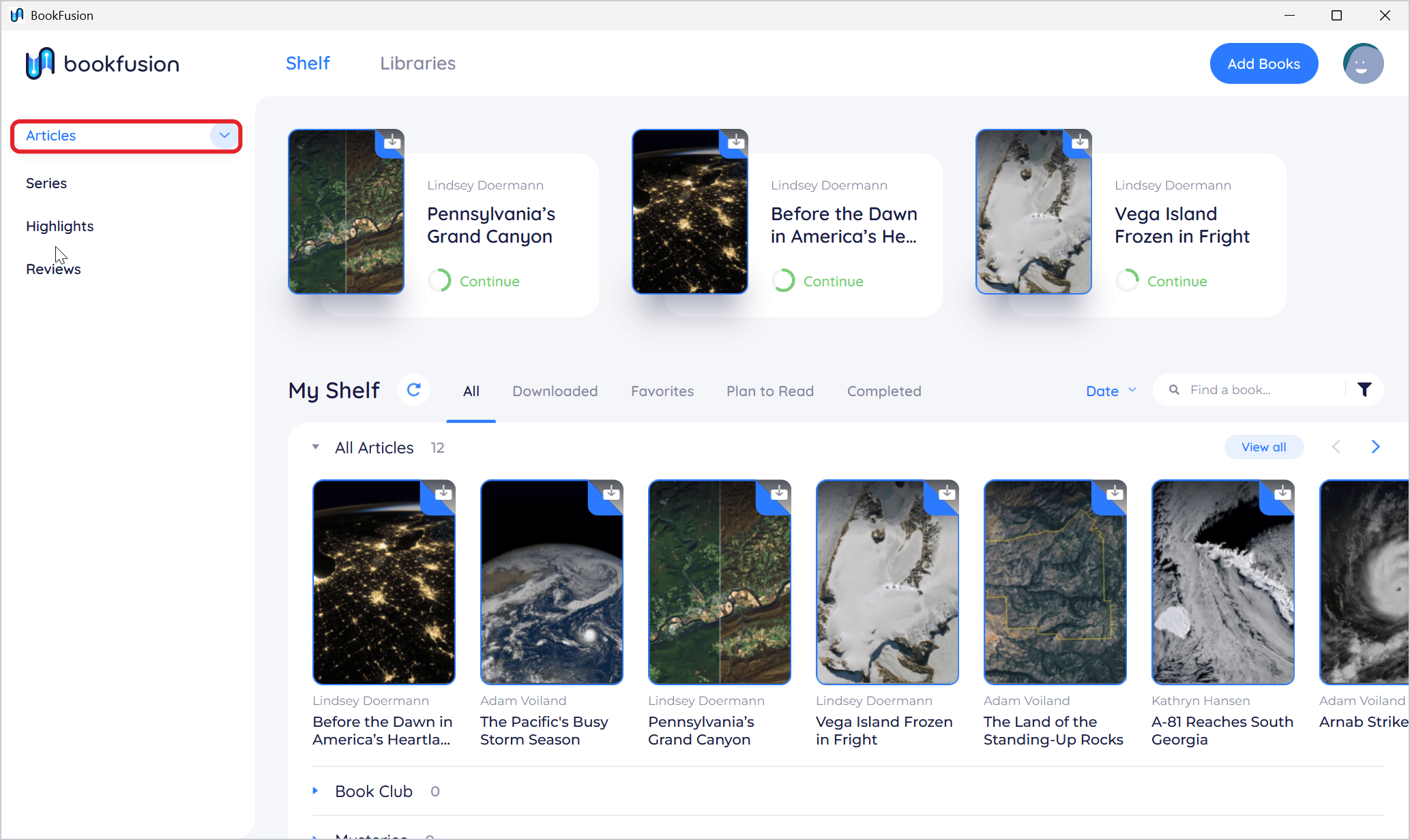
With All Content chosen, articles are mixed in with your books. Choose Books to hide them.
Read an article
-
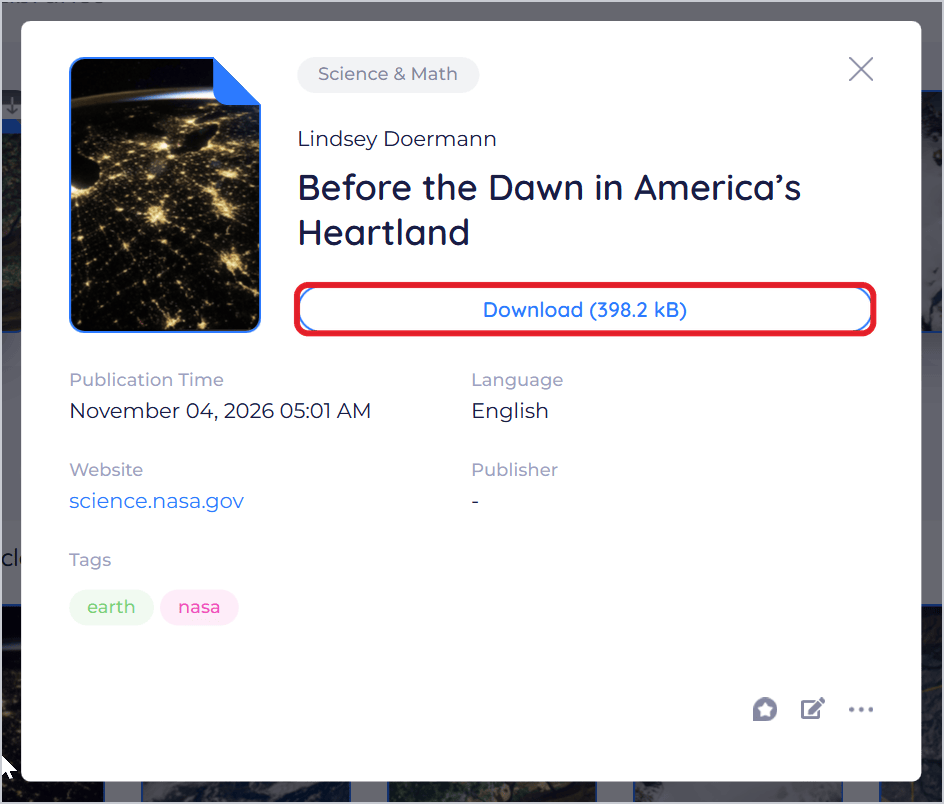
Click the article's cover. Its details show the Website it came from and its Publication Time.
-
Click Download, then Read.
-
The article opens in the reader, with its pictures.
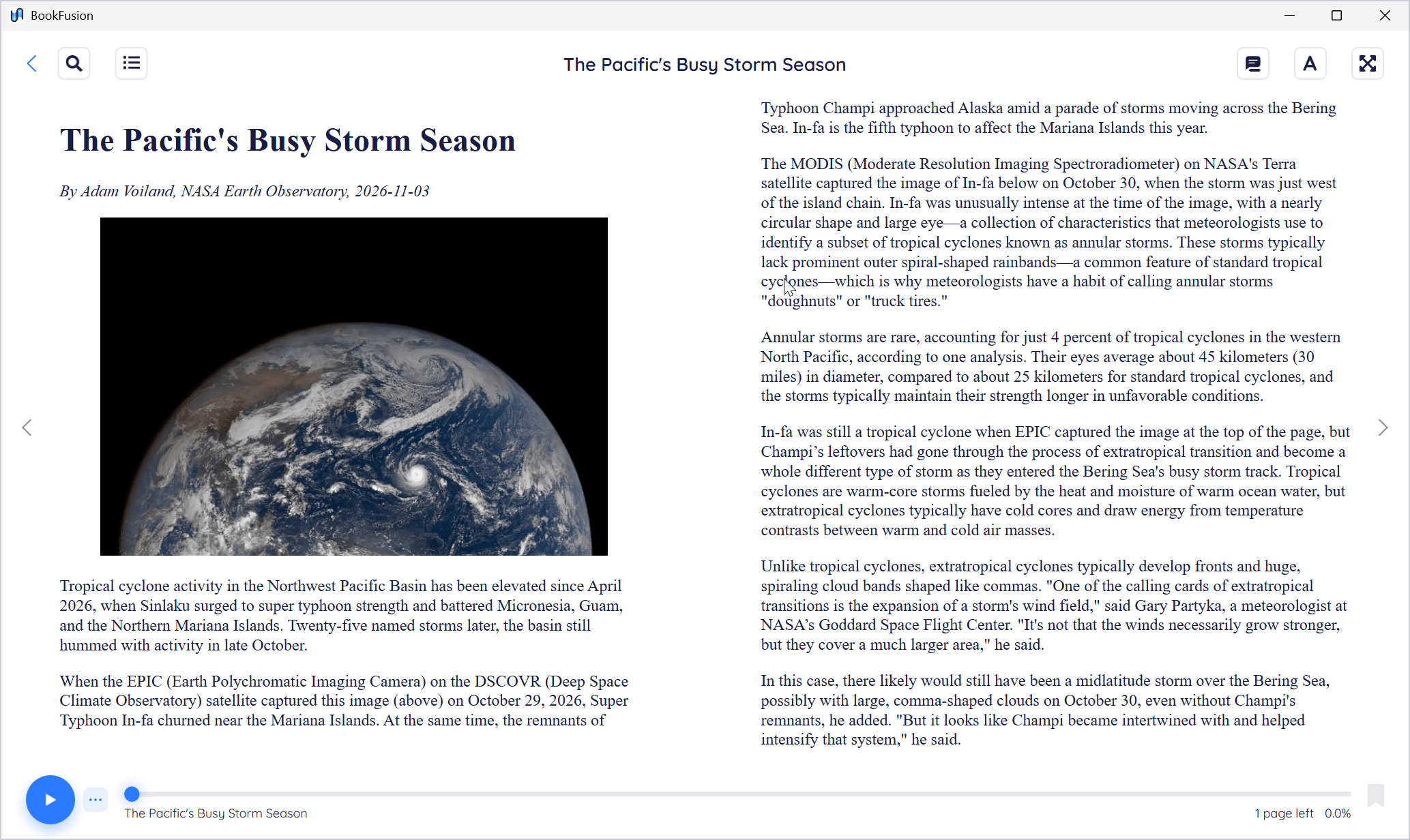
Articles are read just like books: turn pages, change the font and theme, highlight, add notes, bookmark and listen. See Reading Books on Windows. Links to other websites open in your web browser.
Tips and important differences
- Offline. Downloaded articles can be read offline, like books.
- The original page. To see the article on its website, click the Website link in its details.
- Videos and other embedded content. Articles are shown as BookFusion saved them. Videos, maps and other interactive parts of the original web page may not work in the Windows app.