Reading PDFs & Comics
PDFs and comics keep their pages exactly as they were made, so they're read a little differently from EPUB books: you zoom and scroll rather than change the font. This guide covers what's different.
PDFs
Read a PDF
Open a PDF as you would a book: click its cover, then Read. PDFs open scrolling down the page, with the page number at the bottom right, such as 69 of 172.
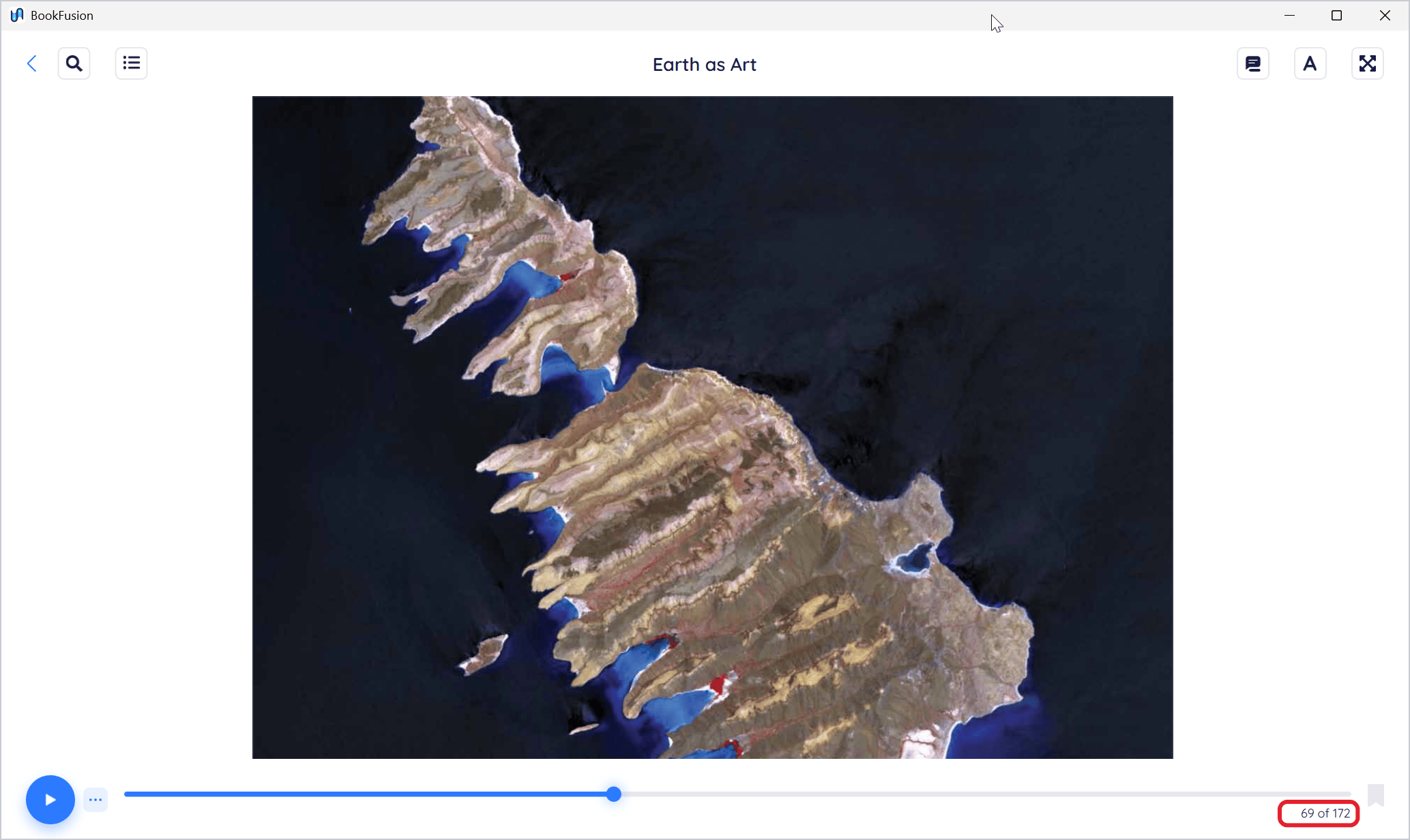
- Scroll with the mouse wheel, the touchpad or ↑ and ↓. Page Up, Page Down and Space move a screen at a time.
- Turn pages instead of scrolling: open Settings (the A) and turn off Vertical Scrolling. Then use the arrows at the sides of the page or the ← and → keys.
- Zoom by holding Ctrl and turning the mouse wheel, or by pinching on a touchpad.
PDF settings
Click Open settings (the A) for the PDF settings:
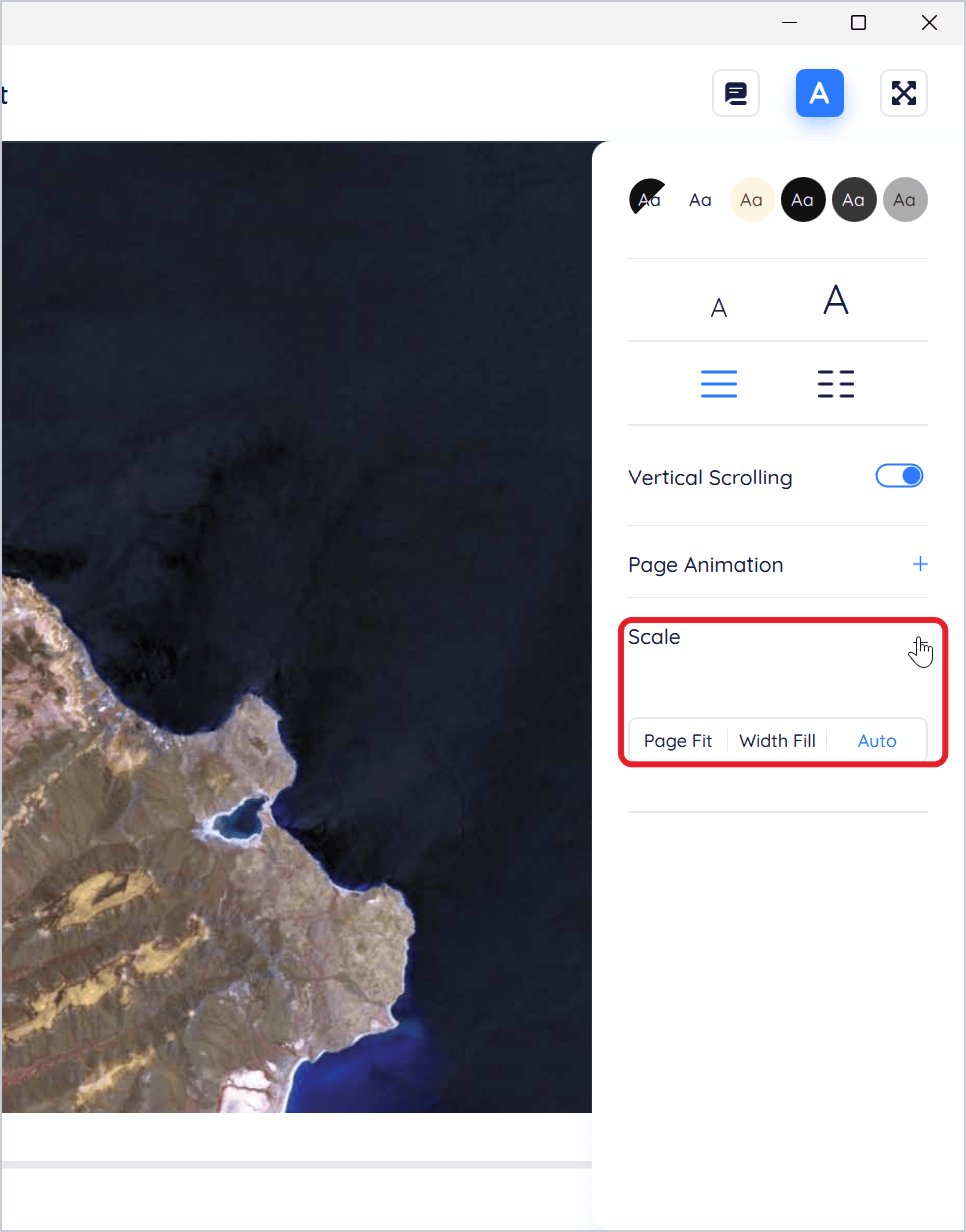
- Colour themes. Sepia, Night and the grey themes tint or darken the pages, for reading at night.
- Zoom with the small and large A.
- One or two pages side by side.
- Vertical Scrolling on or off.
- Page Animation: Slide or None, when you turn pages.
- Spreads (when two pages are side by side): start the pairs at page 1 or at page 2.
- Scale: Page Fit shows whole pages, Width Fill fills the width of the window, and Auto chooses for you. Zooming yourself clears the Scale choice.
Highlight an area of a PDF
As well as highlighting text, you can highlight an area of a page, such as a picture, a chart or a scanned passage.
-
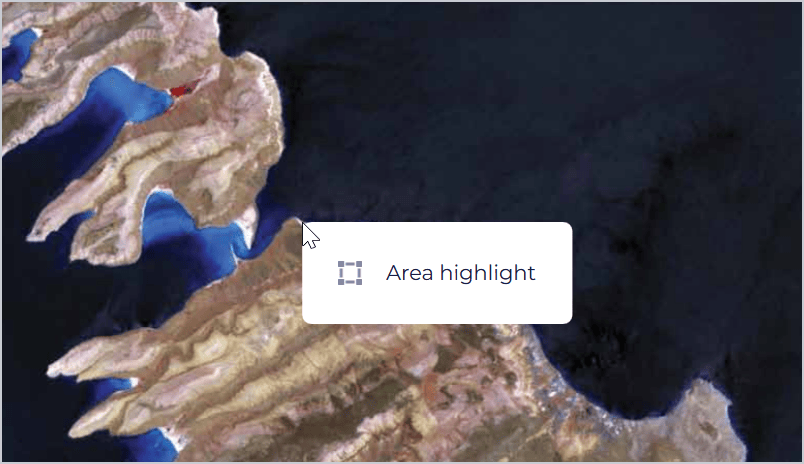
Right-click the page and choose Area highlight. (Or select some text and click the area highlight button in its menu.)
-
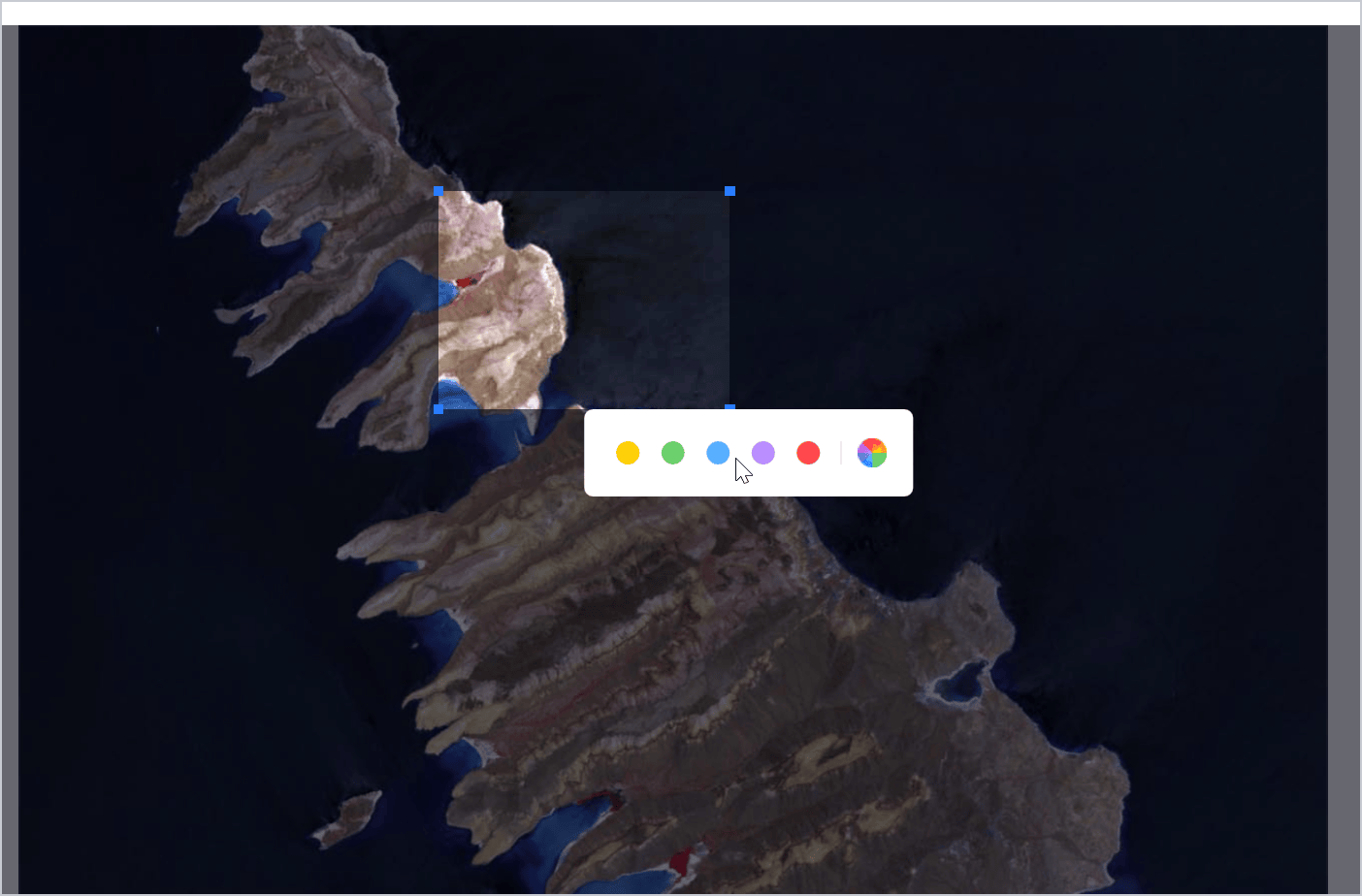
Drag a box over the area, and drag its edges or corners to adjust it.
-
Click a colour. The area is highlighted. Press Esc instead to cancel.
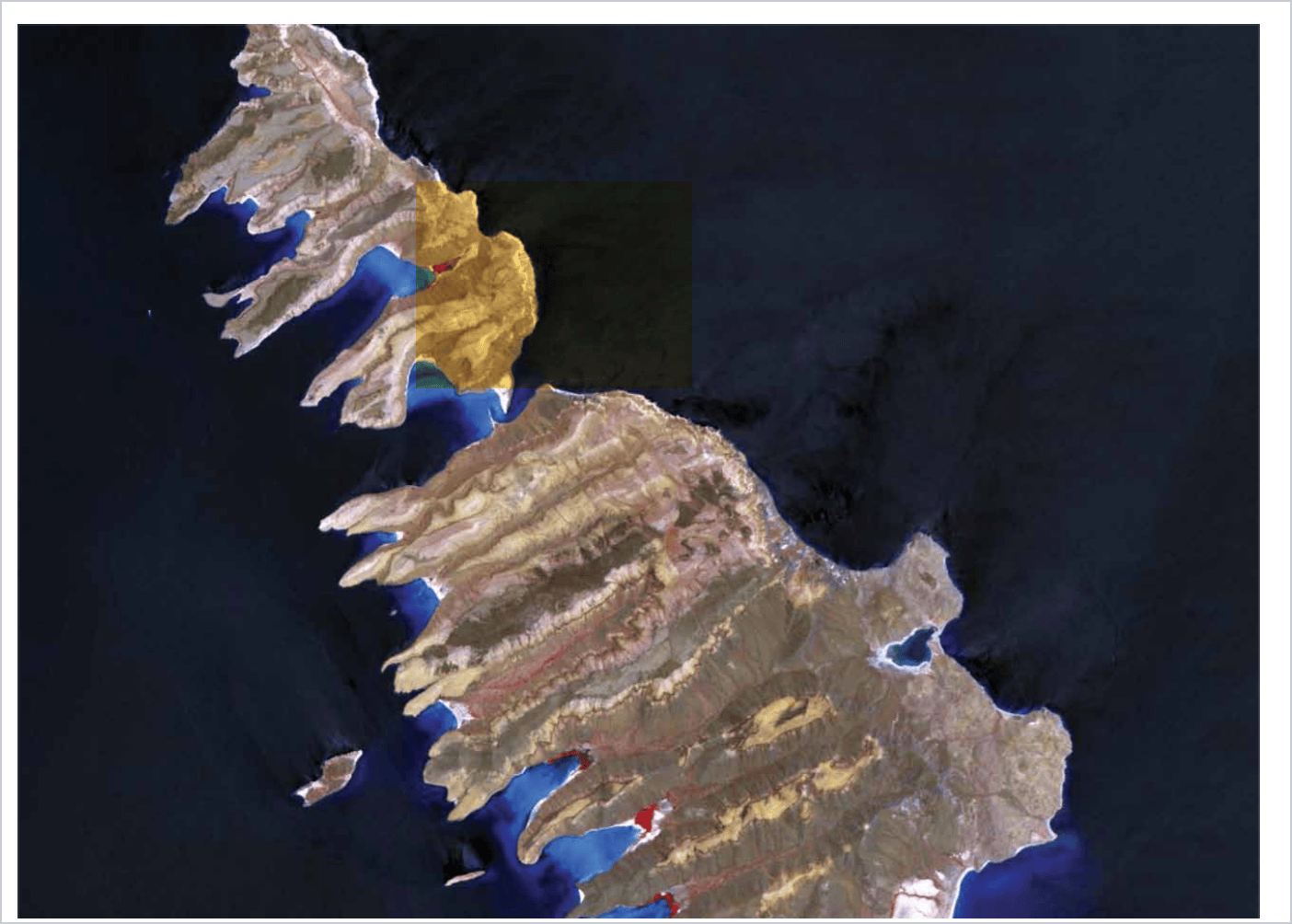
Area highlights appear in the highlights panel and on the Highlights page with a picture of the area. You can add notes and tags to them like other highlights; see Highlights, Notes, Tags & Bookmarks.
Comics
BookFusion for Windows reads comics in CBZ and CBR files.
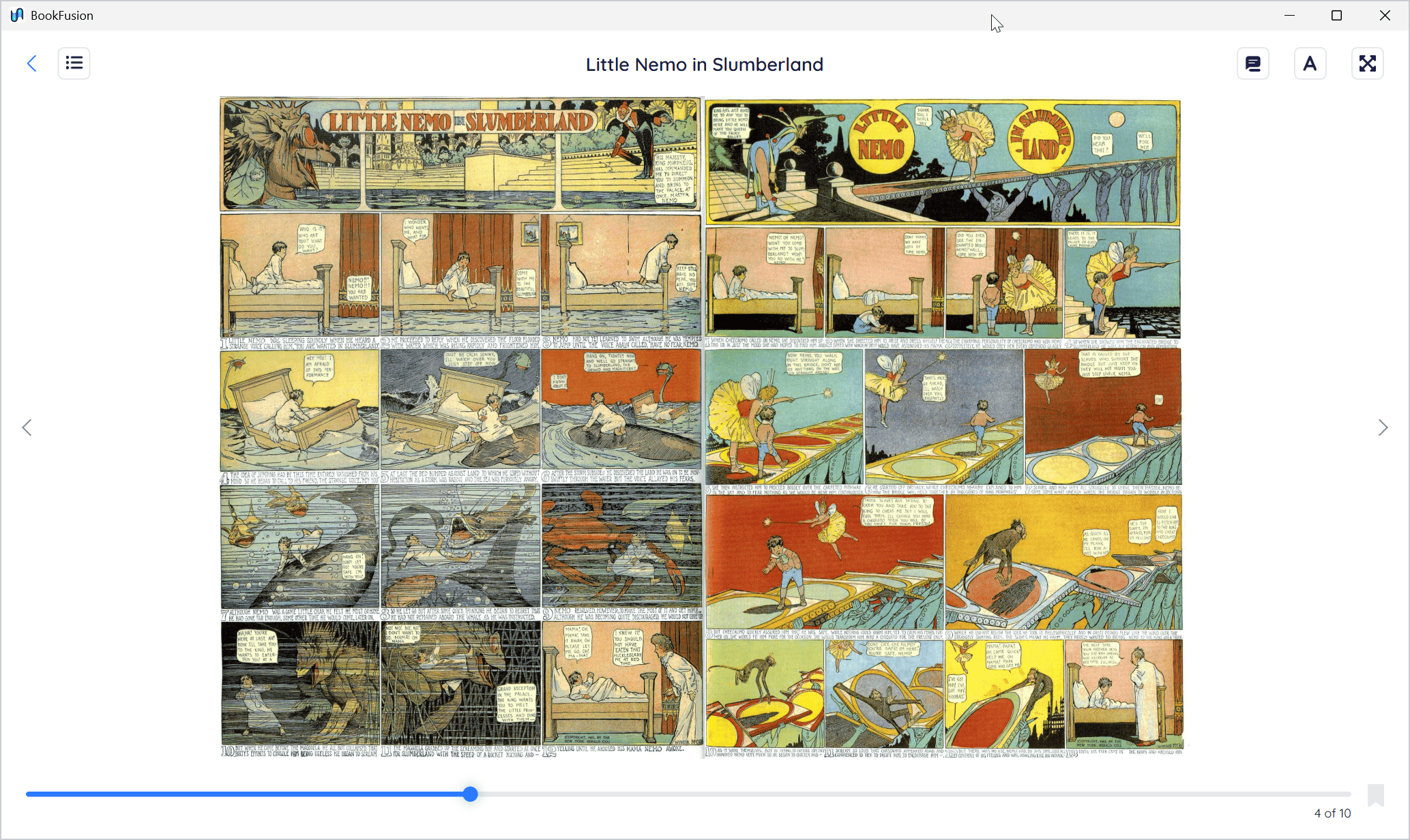
- Turn pages with the arrows at the sides, ← and →, Page Up and Page Down, the mouse wheel, or by dragging or swiping the page.
- Zoom with Ctrl and the mouse wheel, a pinch, or a double-click (double-click again to zoom back out).
- Go to the first or last page with Home or End.
Comic settings
Click Open settings (the A):
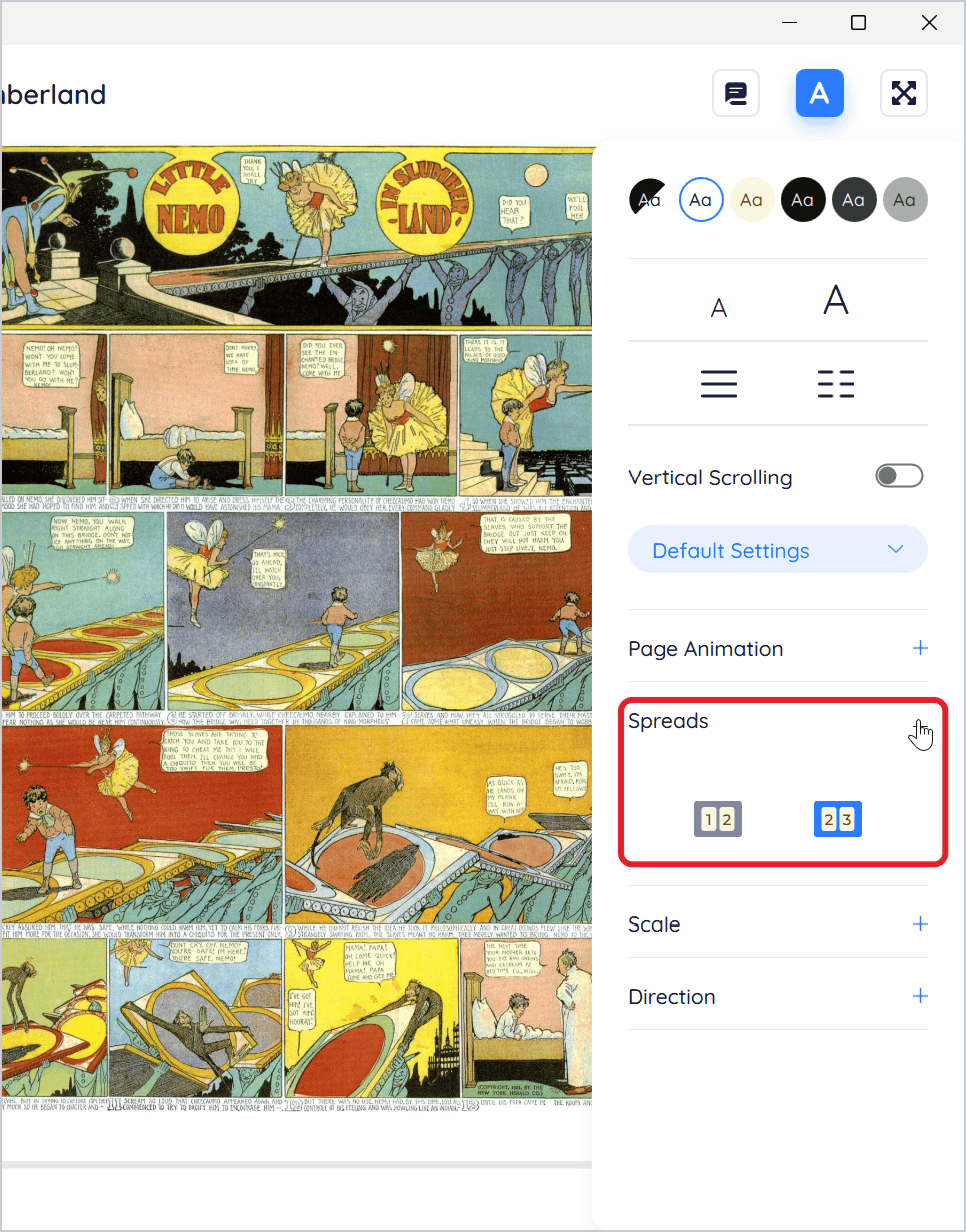
- Colour themes, zoom, one or two pages, Vertical Scrolling and Page Animation, as for PDFs.
- Spreads: which pages are paired when two are shown. Pages 2 and 3 side by side (the default) shows the cover on its own, as in a printed comic. Pages 1 and 2 side by side pairs the cover with the next page.
- Scale: Page Fit, Width Fill or Auto.
- Direction: Auto, LTR or RTL. Choose RTL for manga and other comics read right to left. It's kept for each comic.
What's different from EPUB books
| EPUB books | PDFs | Comics | |
|---|---|---|---|
| Fonts, line spacing, margins, presets | Yes | No | No |
| Colour themes and zoom | Yes | Yes | Yes |
| Search | Yes | Yes, if the PDF has text | No |
| Text highlights and notes | Yes | Yes | No |
| Area highlights | No | Yes | No |
| Read aloud | Yes | Yes, if the PDF has text | No |
| Spreads and scale | Fixed-layout books only | Yes | Yes |