BookFusion for Windows
What you can do
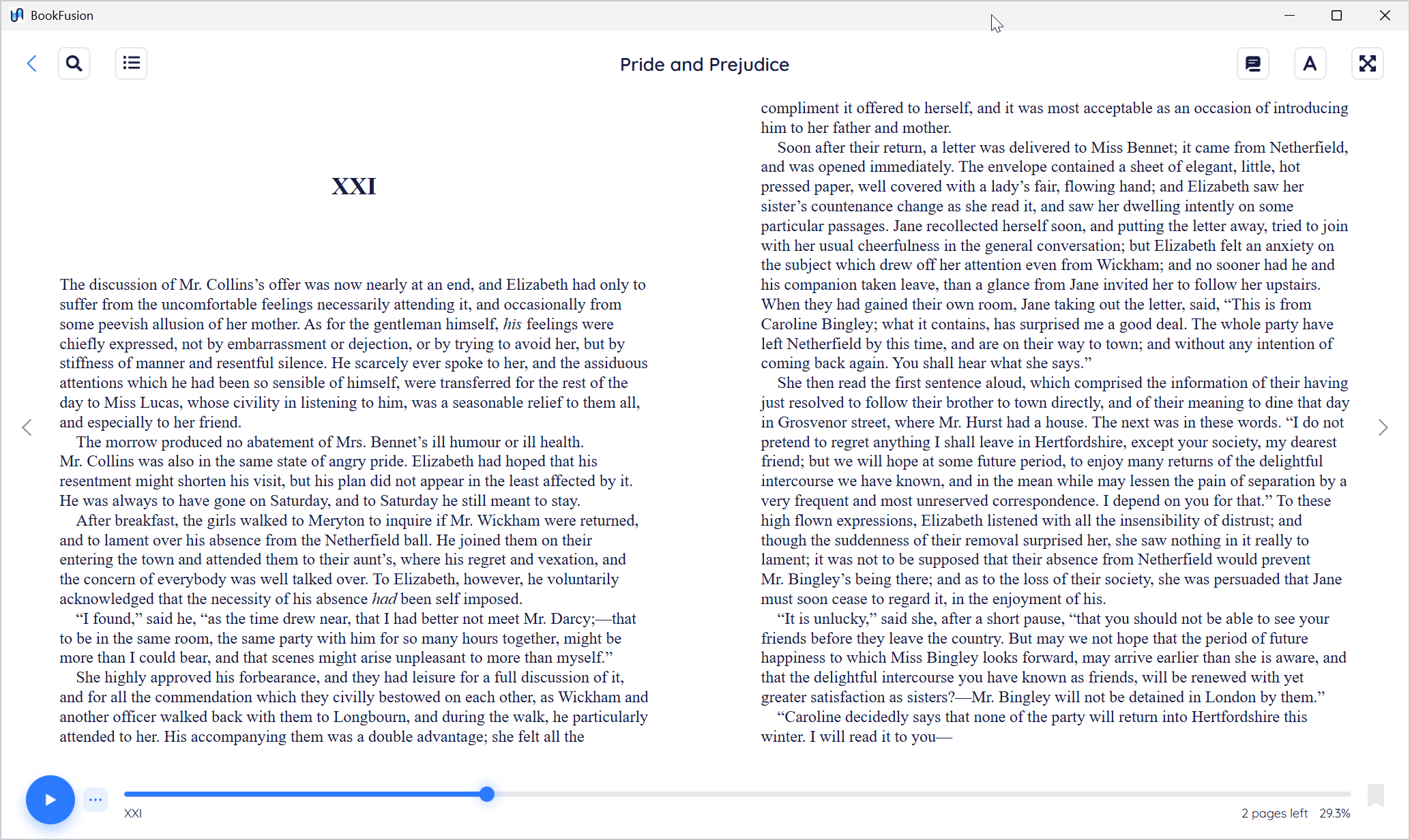
- Read your library. Open EPUB books, PDFs, comics (CBZ and CBR) and the articles you've saved to BookFusion, in one or two columns, in a window or full screen.
- Make the reader your own. Choose fonts, text size, line spacing, margins and colour themes, and save your favourite combination as a preset.
- Highlight and take notes. Highlight passages in colour, add notes and tags, bookmark pages, and find every highlight again in one place.
- Listen. Have books read aloud, or play the narration of read-along books.
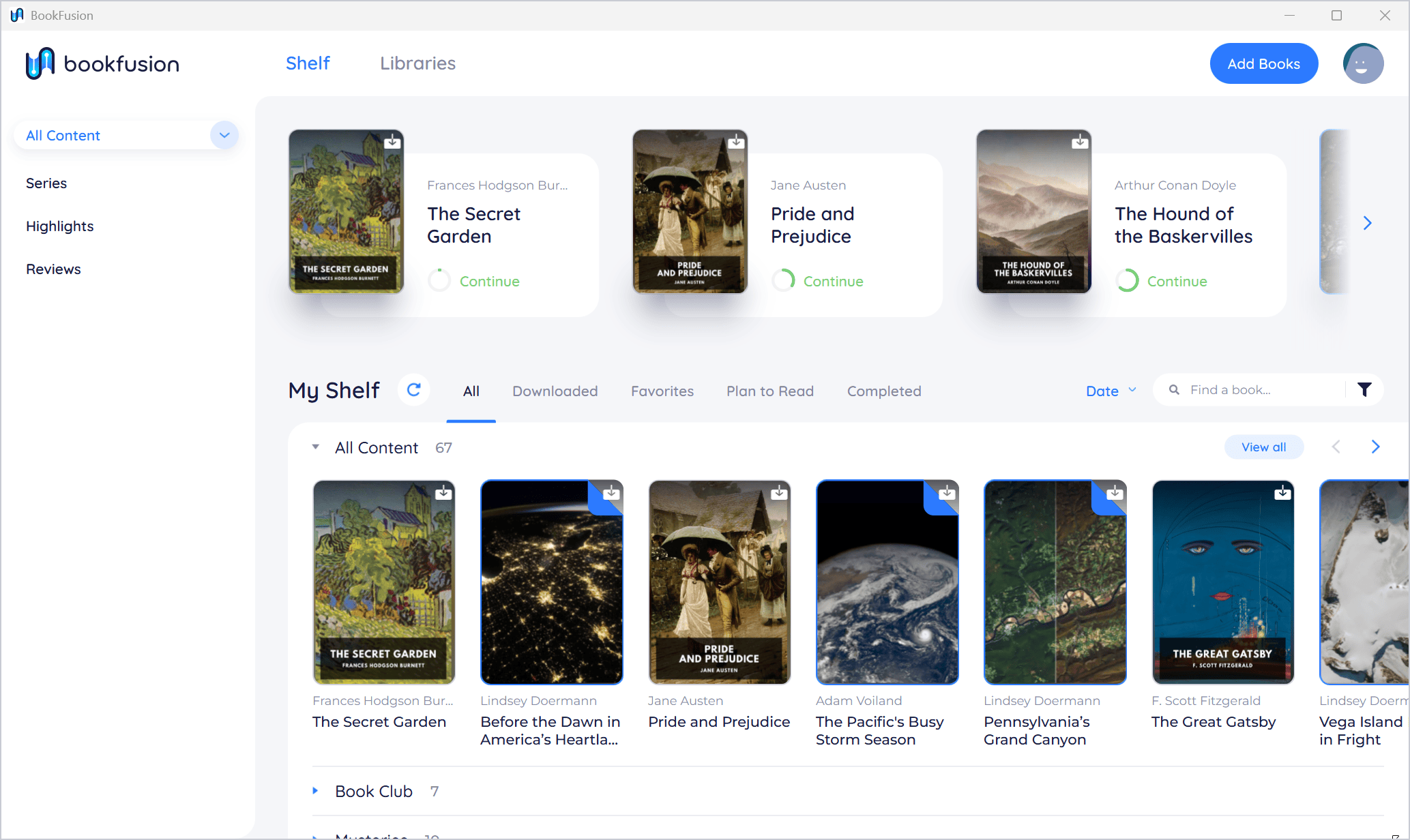
- Organise. Add your own books by dragging them onto the shelf, sort and filter, put books on shelves and in series, and edit their details.
- Read offline. Download books to your PC and read them with no connection. Changes you make offline are sent to your account when you're back online.
- Stay in sync. Sign in with your BookFusion account and your reading position, highlights, notes and bookmarks follow you between Windows, the web and the mobile apps.
The Windows app opens EPUB, PDF, CBZ and CBR files. BookFusion's library supports other formats too (see Supported Formats), but those are the four you can add and read directly in the Windows app.
Three ways to start
The first time you open the app, you choose how to use it:
- You already have a BookFusion account. Sign in, and your library is waiting on the shelf.
- You're new to BookFusion. Create a free account in the app and start adding books.
- You just want to read your own eBooks. Use the app without an account. Your books stay on this PC, and you can sign in later to sync them.
Choose How to Get Started explains each option and how they differ.
Start here
- Check that your PC can run the app: System Requirements.
- Install it for free from the Microsoft Store: Installing BookFusion on Windows.
- Choose how to start: Choose How to Get Started.
- Open a book: Your First Book on Windows.
Something not working? See Troubleshooting Common Problems.