Navigating & Searching Within Books
Jump to a chapter, find a word or phrase, and return to your place afterwards.
Go to a chapter
- Click Open table of contents (the list at the top left).
- On the Contents tab, click a chapter. The chapter you're in is highlighted.
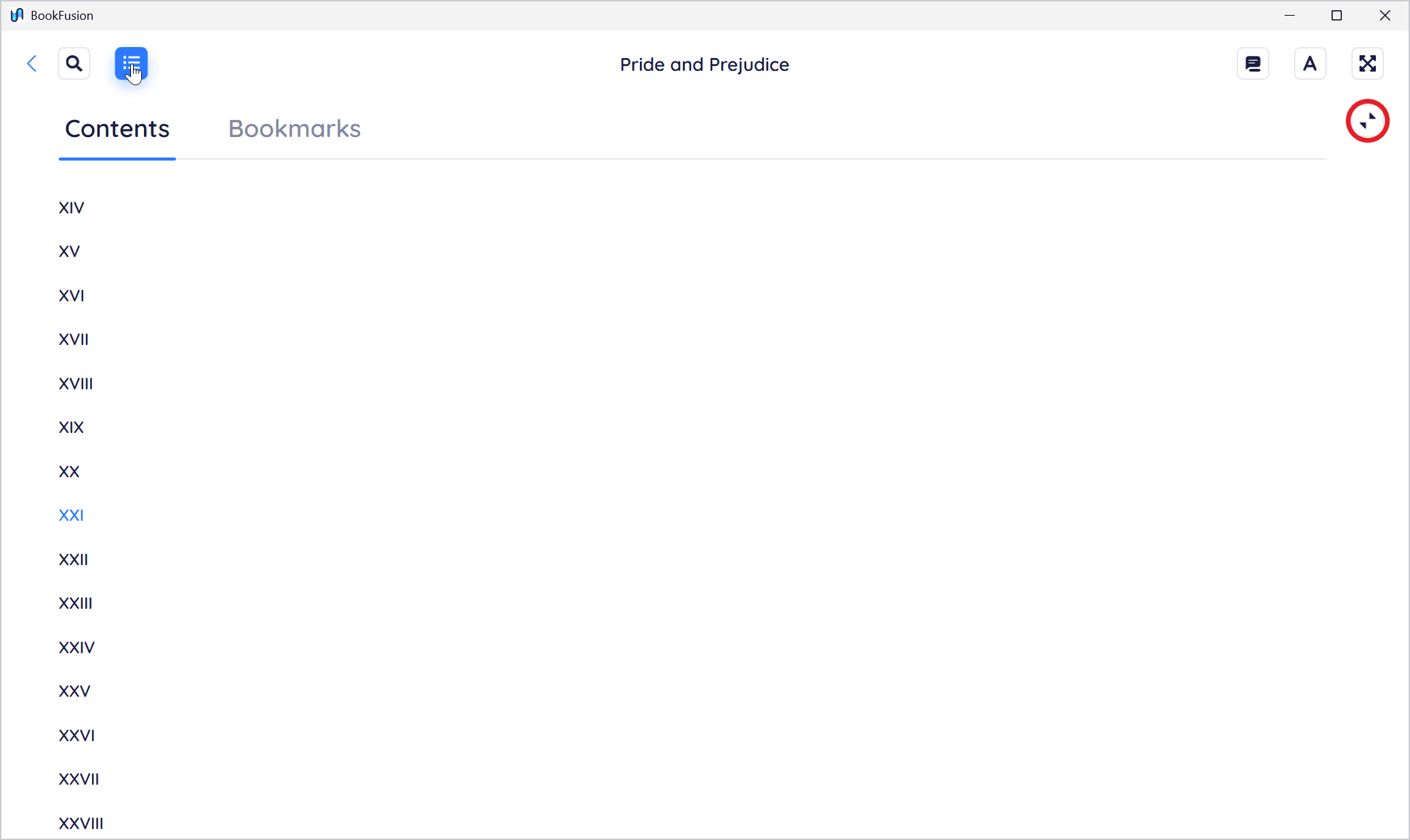
The panel covers the page and closes when you choose a chapter. To keep it open beside the book instead, click the small button at the panel's top right (Dock panel beside the book). A docked panel stays open while you read and jump around.
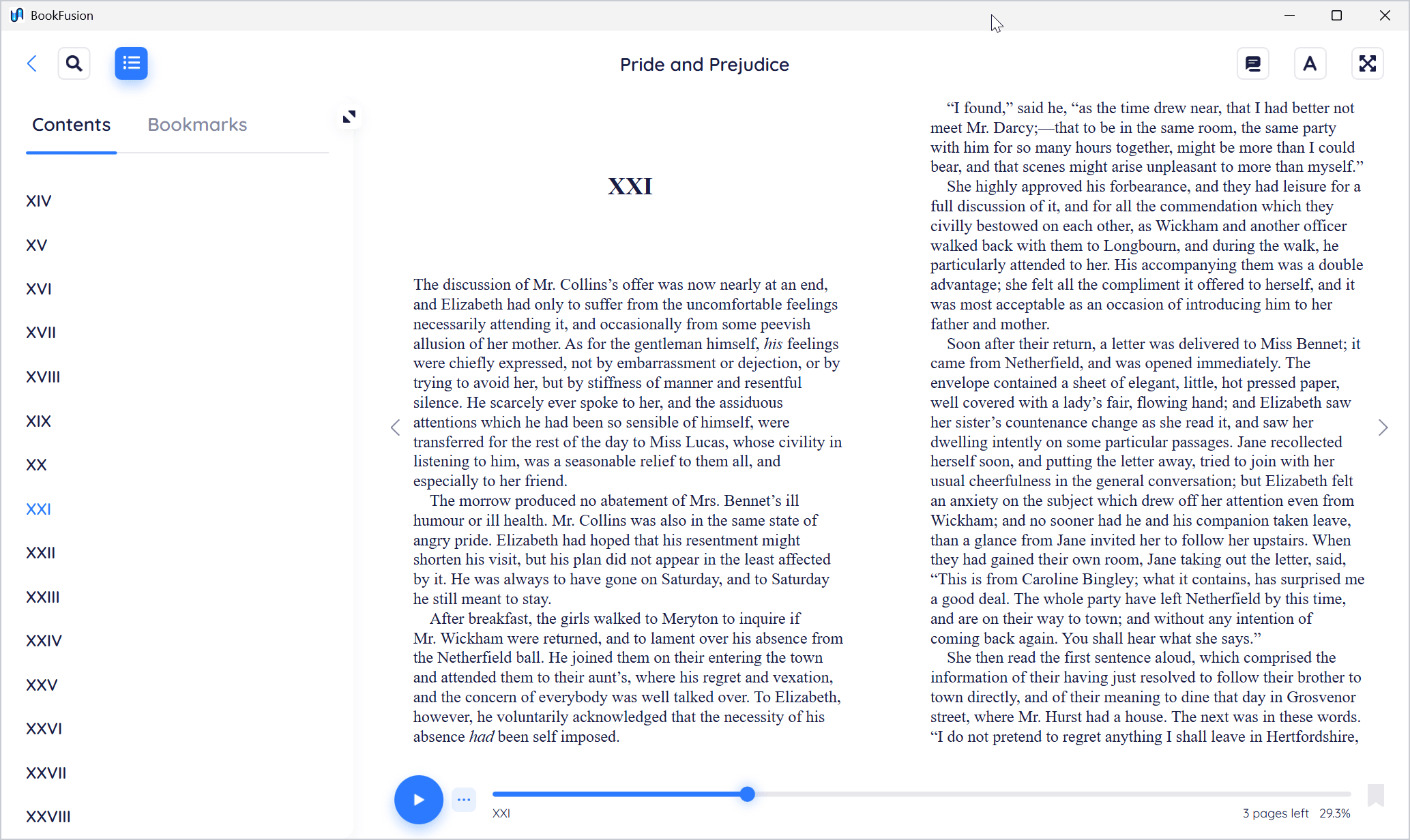
Drag the panel's edge to make it wider or narrower. To close it, click Open table of contents again, or press Esc. The Highlights panel can be docked the same way, on the right.
Search the book
-
Click Open search (the magnifying glass), or press Ctrl+F.
-
Type a word or phrase in Search and press Enter.
-
The results list each match with its chapter and the words around it. Scroll down for more.
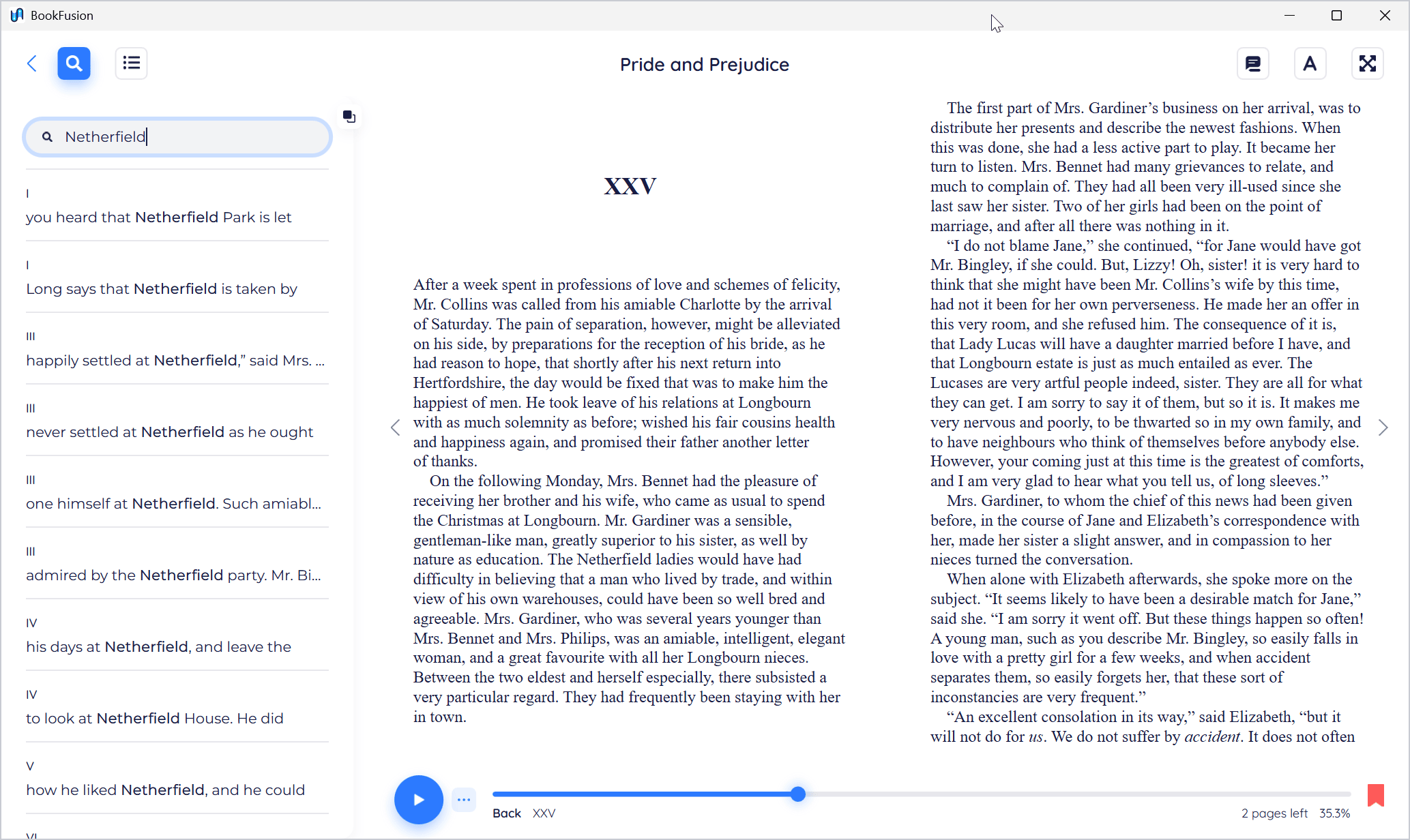
-
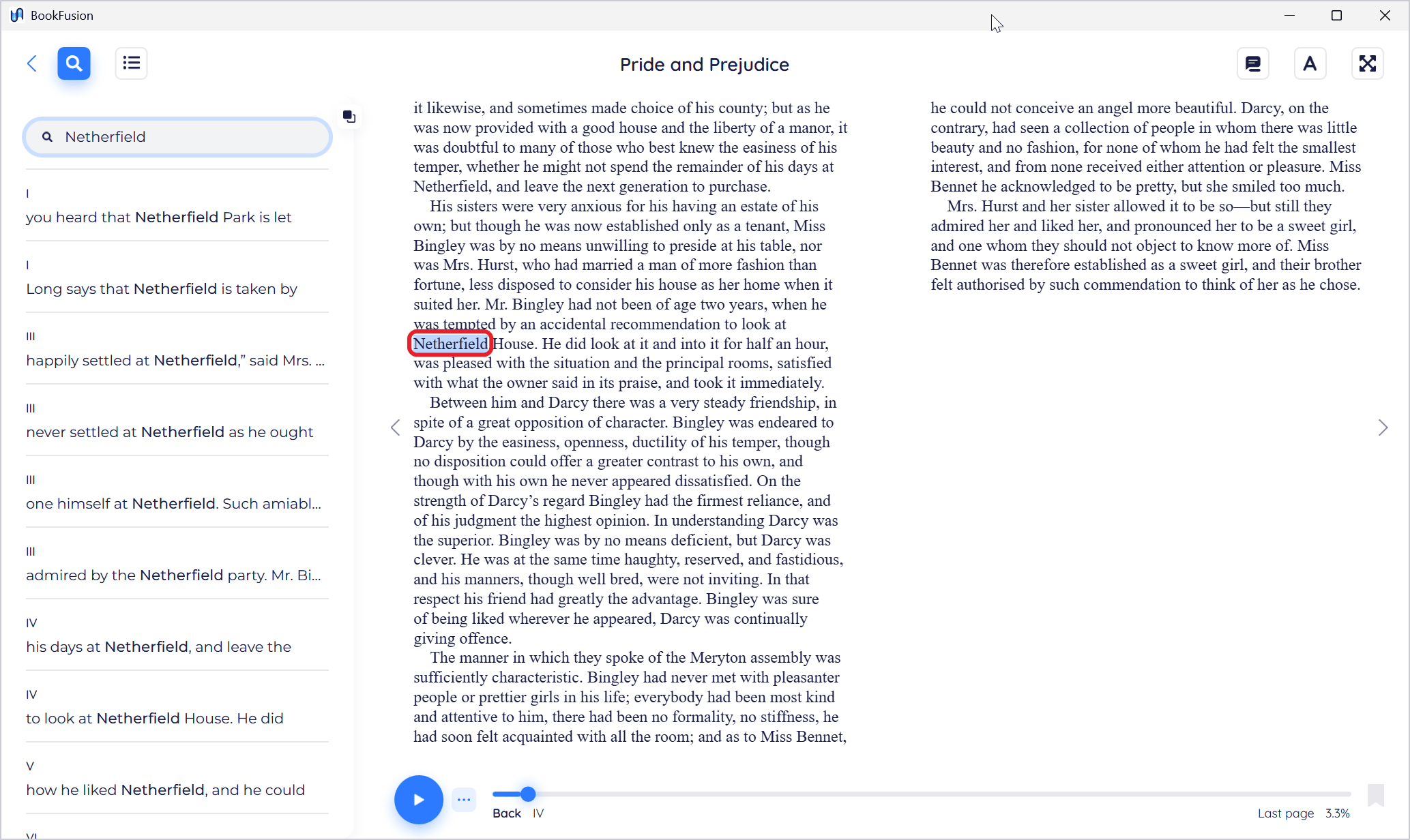
Click a result to go there. The match is marked on the page.
If nothing matches, the panel says Not Found.
You can also search for words you've selected on the page: select them and click the magnifying glass in the menu that appears.
Go back to where you were
When you jump somewhere (to a chapter, a search result, a highlight, a link in the book, or by dragging the position slider), BookFusion remembers where you were. Back appears under the position slider: click it to return. After going back, Forward takes you to where you'd jumped to.

The Back under the slider returns you to your earlier place in the book. The Back arrow at the top left (and Alt+←) closes the book and goes back to your shelf.
Move through the book with the slider
Drag the position slider at the bottom of the reader. While you drag, a bubble shows where you'll land, as a percentage (or a page number for PDFs and comics). There isn't a "go to page" box: use the slider, the contents, or search.
Your bookmarks
The Bookmarks tab of the contents panel lists the pages you've bookmarked. Click one to go there. See Highlights, Notes, Tags & Bookmarks.
Tips and important differences
- PDFs have contents and search too, when the PDF has a table of contents and text.
- Comics don't have search.
- Search results are from the book on this PC, so search works offline.