Managing Your Library Offline
BookFusion for Windows keeps working when you lose your connection: on a plane, on a train, or when the Wi-Fi drops. This page explains what you can do offline and how your changes catch up afterwards.
How you know you're offline
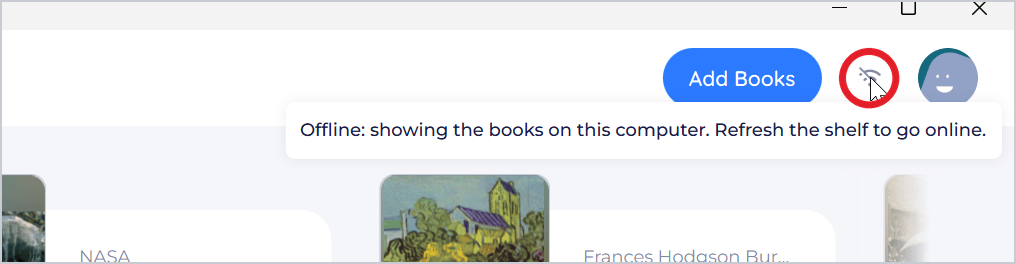
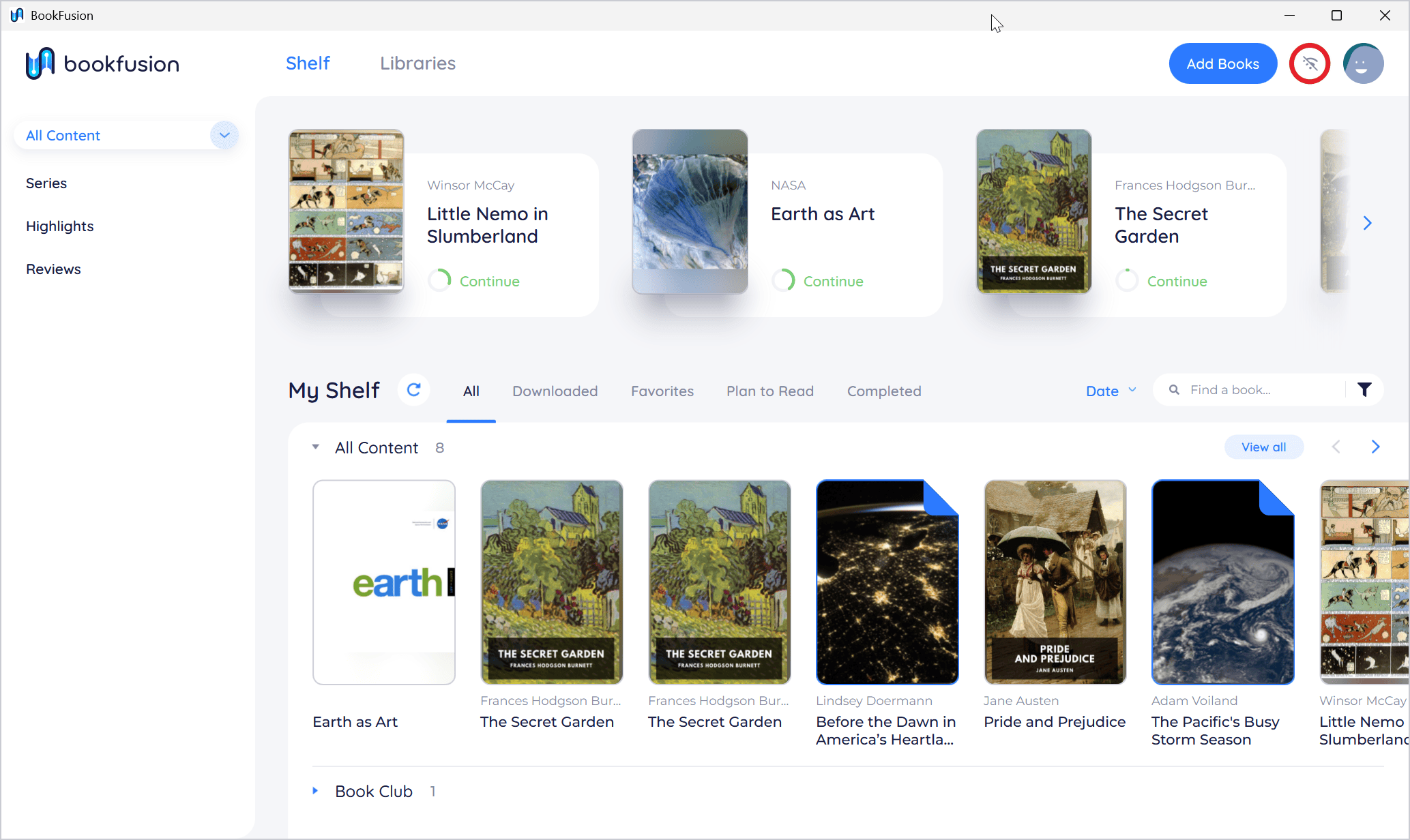
When BookFusion can't reach your account, the shelf shows the books on this PC, and a crossed-out Wi-Fi icon appears next to Add Books. Point at it to see Offline: showing the books on this computer. Refresh the shelf to go online.
What works offline
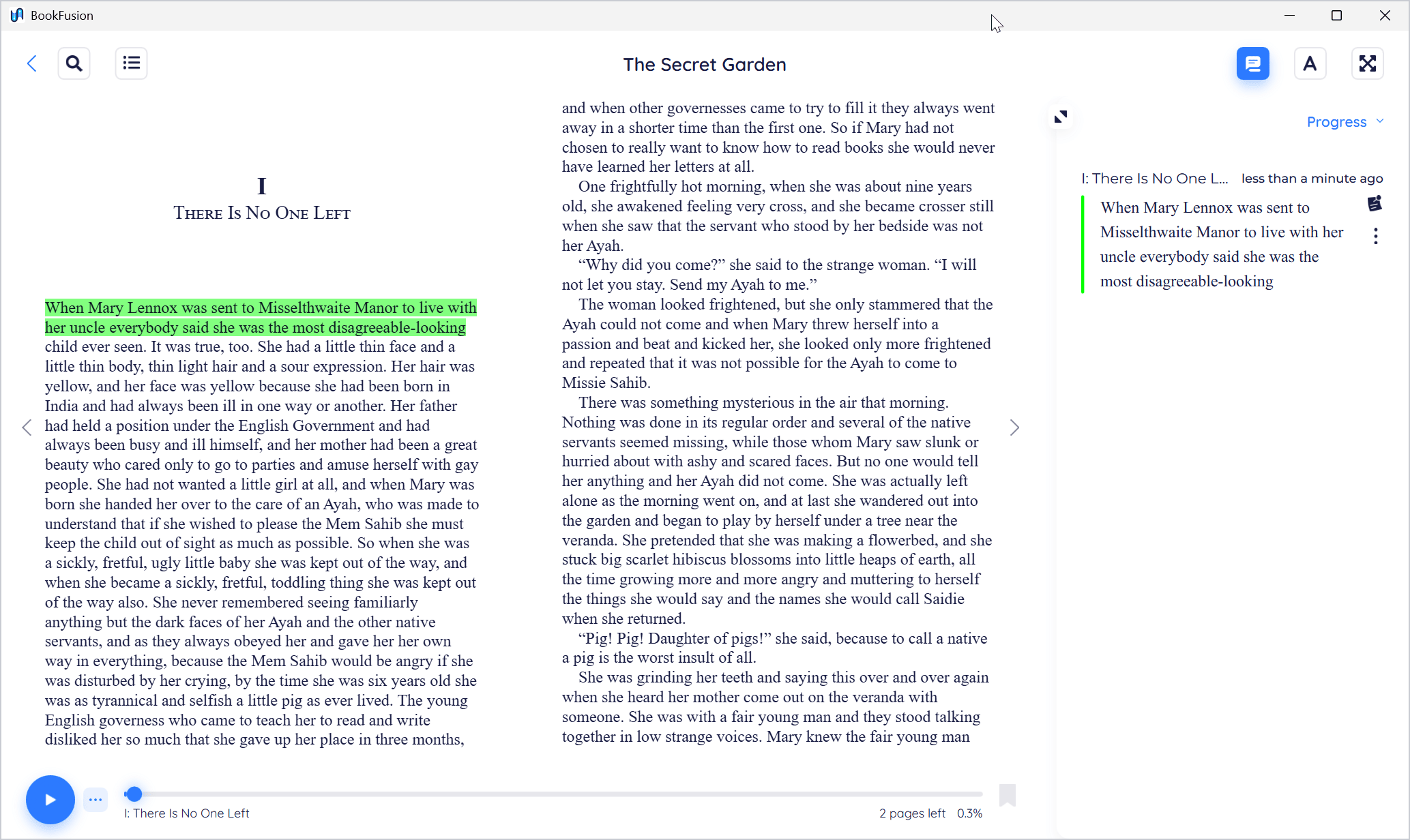
- Reading the books on this PC (your downloaded books and the books you've added).
- Highlights, notes, tags and bookmarks: adding, changing and deleting them.
- Your reading position, which is saved as you read.
- Searching, sorting and filtering the books on this PC.
- Adding books from your PC. They're added straight away, and uploaded to your library when you're back online.
- Editing book details, putting books on shelves, and creating shelves and series.
- Reading settings and presets.
- Reading aloud with the local voices, once they're downloaded.
What needs a connection
- Downloading books from your library.
- Uploading the books you add.
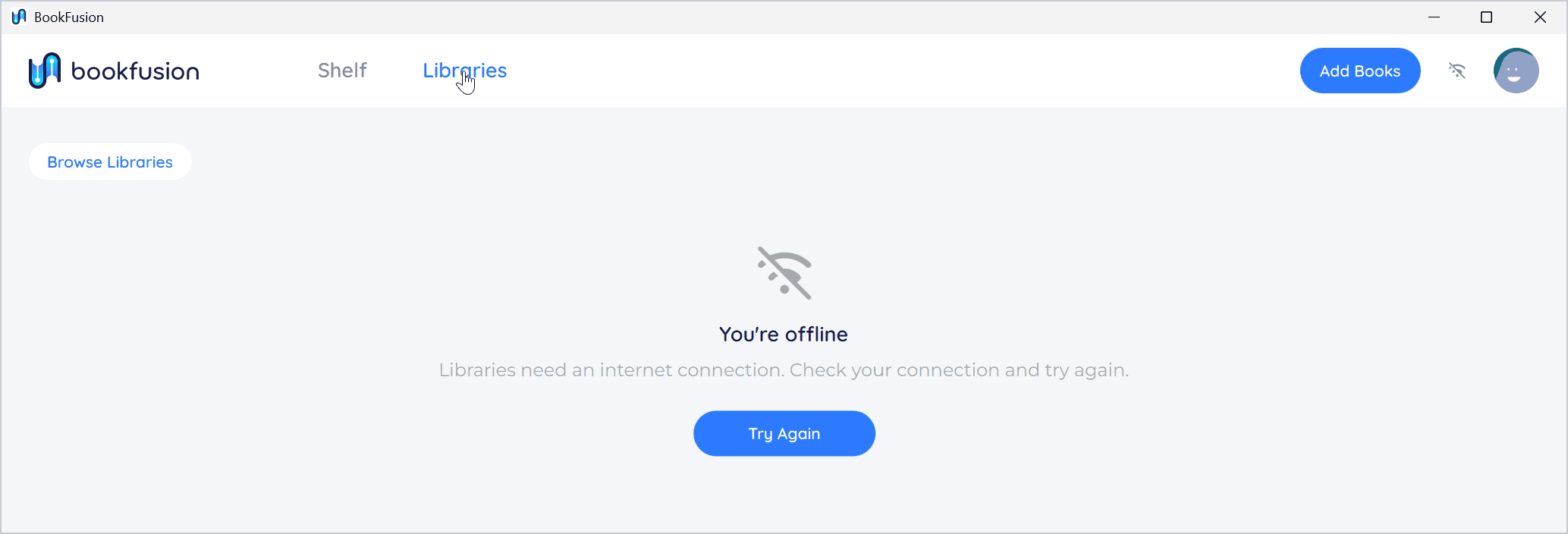
- Libraries: browsing, joining, borrowing and returning. The Libraries page says You're offline.
- Your profile in Settings.
- Advanced voices for reading aloud.
- Checking for updates.
Get back online
When your connection is back, click Refresh Shelf (the circular arrow next to My Shelf). BookFusion reconnects, shows your whole library again, and sends the changes you made offline to your account: new highlights, notes, bookmarks, reading positions, book edits, shelves, series and uploads.
BookFusion doesn't switch back online by itself while it's open. Click Refresh Shelf once you're connected again (or restart the app).
Without an account
If you use BookFusion without an account, everything is on your PC and it always works offline. There's nothing to sync.
Tips and important differences
- Download before you go. Only the books on this PC can be read offline. Before a trip, download the books you'll want; the Downloaded list shows what you have. See Downloading Books for Offline Reading.
- Changes on other devices. Changes you make offline on several devices are combined when each comes back online. See Syncing Your Library Across Devices.