Joining Libraries, Borrowing & Returning Books
Libraries on BookFusion, run by schools, organisations and public libraries, lend their books to members. In the Windows app you can browse libraries, join them, borrow books, read them and return them.
Before you begin
- Joining a library and borrowing need a BookFusion account and an internet connection. Without an account you can browse libraries but not join them or borrow.
- Each library sets its own rules: who can join, how many books you can borrow, and how long a loan lasts. They're on the library's page.
Find a library
-
Click Libraries at the top of the app.
-
Browse Libraries lists the libraries you can see. Once you've joined some, My Libraries lists those.
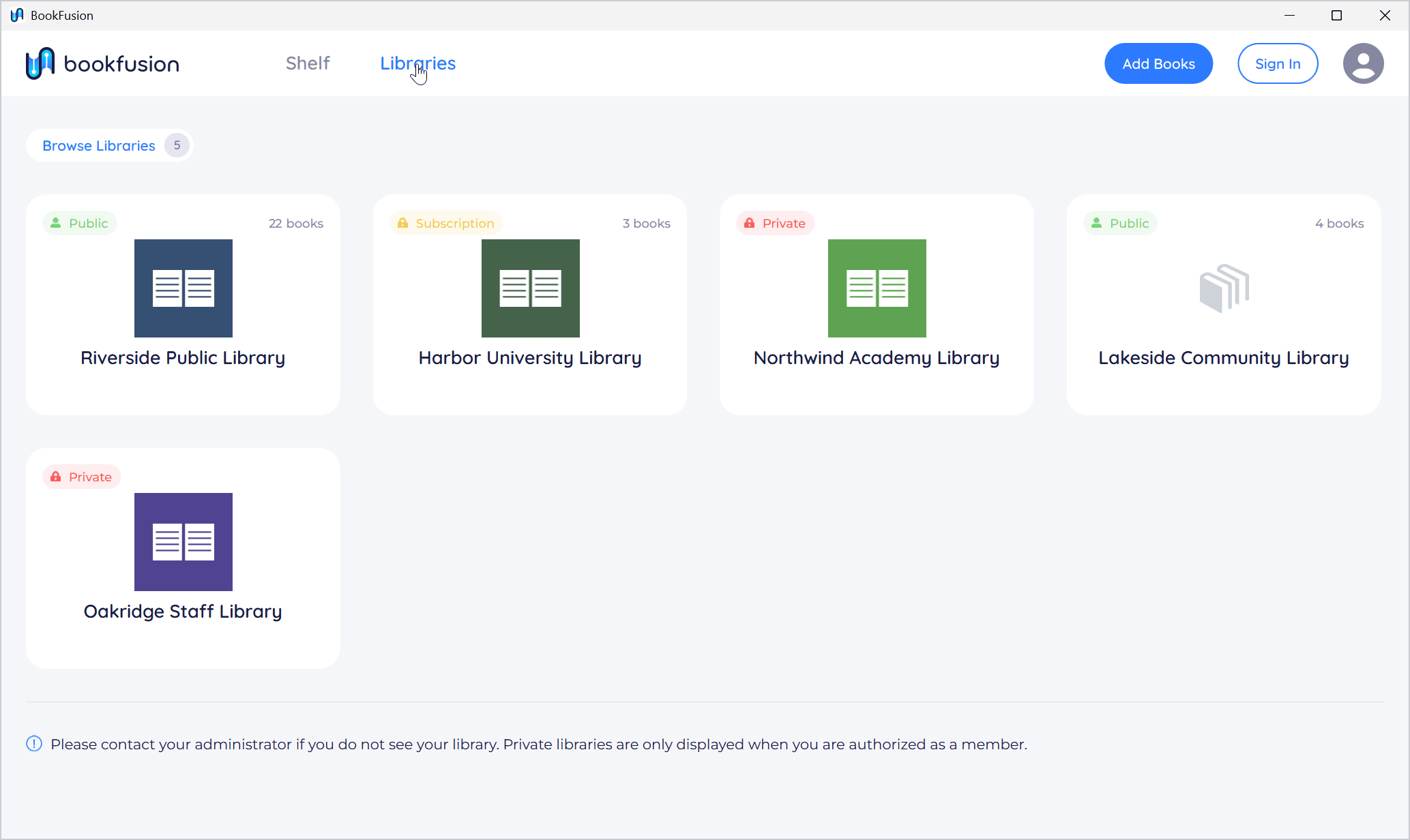
Each library is marked with who can join it:
| Mark | Who can join |
|---|---|
| Public | Anyone with a BookFusion account |
| Invitation | People the library has invited |
| Subscription | Subscribers. Click Subscribe on the Web to subscribe on the BookFusion website |
| Private | Members only. Private libraries are shown only to their members |
If you don't see your school's or organisation's library, contact its administrator.
Join a library
-
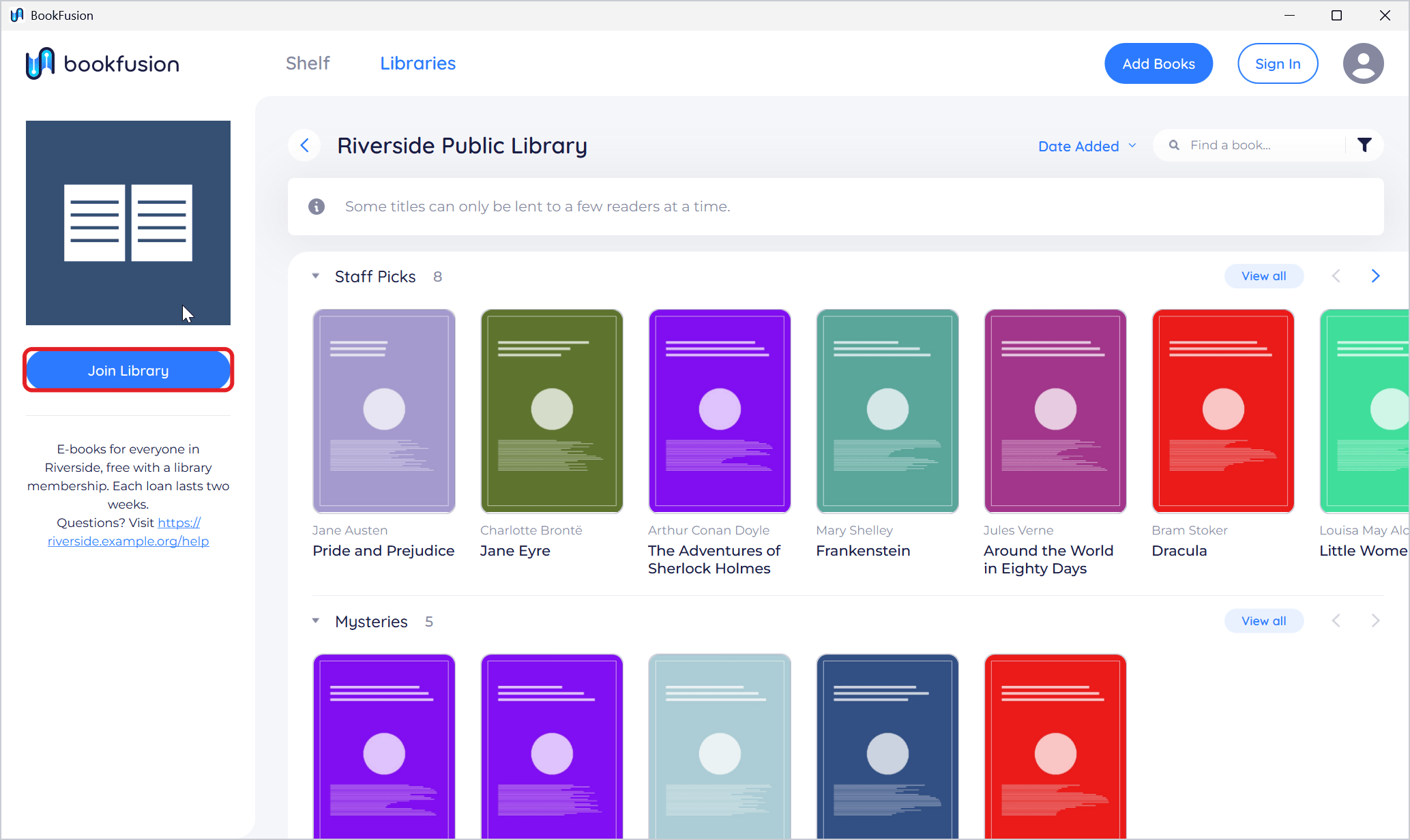
Click a library to open it. Its page shows its books in rows, with Join Library on the left.
-
Click Join Library, then Join Library again to confirm.
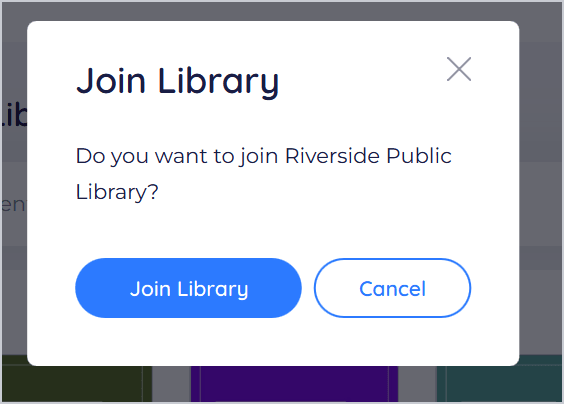
BookFusion confirms You joined [library]. To find a book, use the library's Find a book... search, its sort menu, or View all on a row.
Borrow a book
-
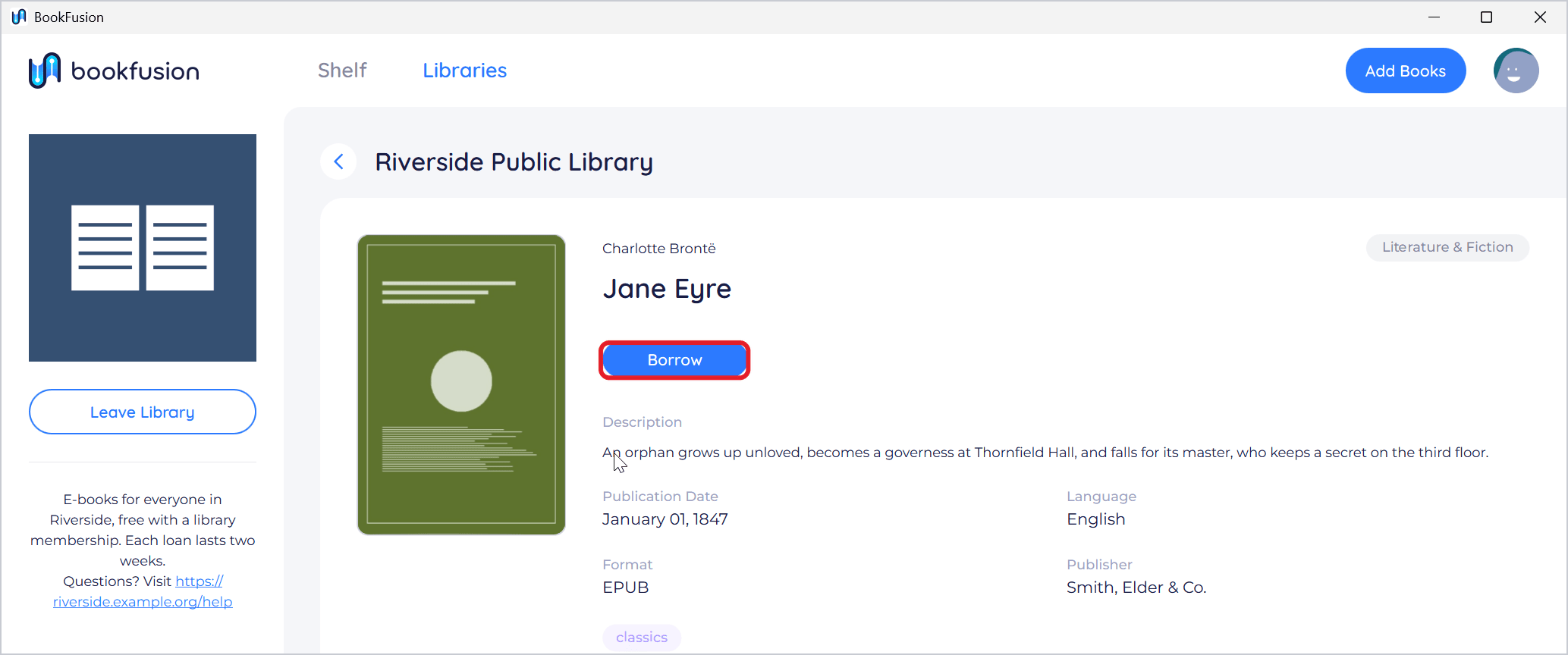
Click a book in the library to see its details.
-
Click Borrow. (If you haven't joined the library yet, BookFusion offers Join and Borrow.)
-
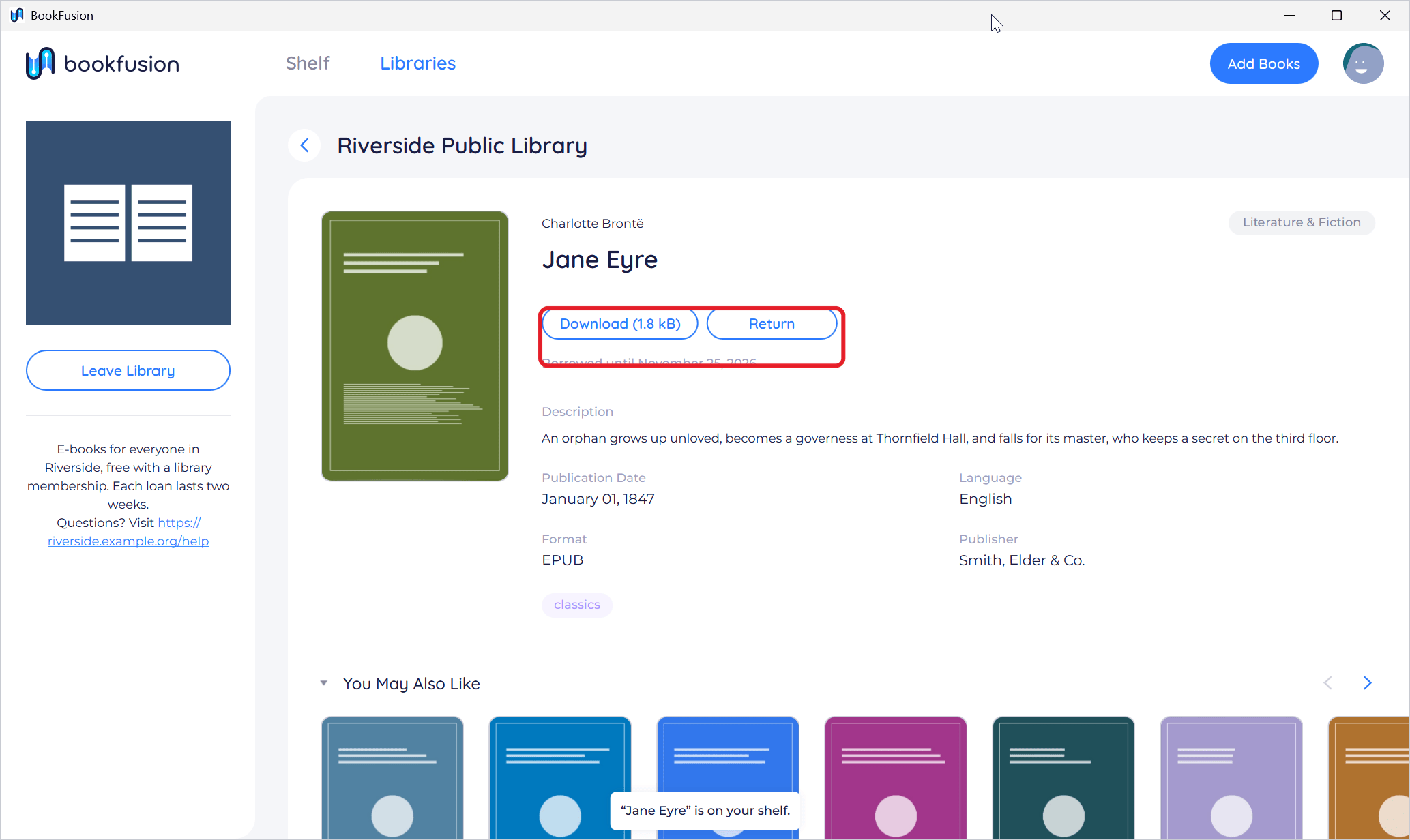
BookFusion says “[title]” is on your shelf. The page shows Borrowed until and the date your loan ends.
-
Click Download, then Read. The book is on your bookshelf too, with your other books.
Return a book
-
Open the book's page in the library (or its details on your shelf, then More actions).
-
Click Return (or Return Book), then Return to confirm.
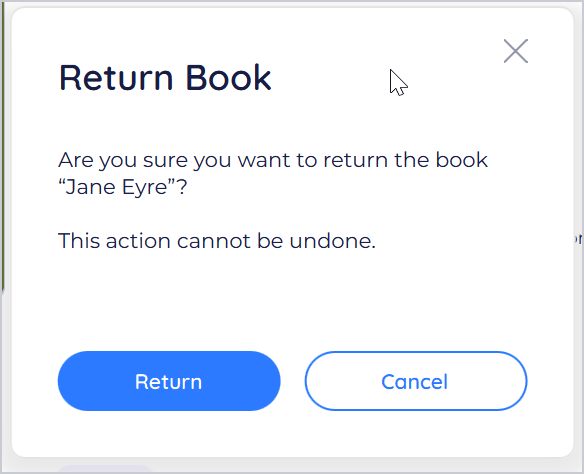
BookFusion says “[title]” is returned.
When a loan ends
When a loan ends, the book goes back to the library. Its cover on your shelf is marked Expired, and its details say Your loan has ended. BookFusion removes its downloaded copy from your PC. To read it again, borrow it again (from the book's details, Borrow or Open in Library).
Leave a library
On the library's page, click Leave Library and confirm. Any books you borrowed from it are returned.
Tips and important differences
-
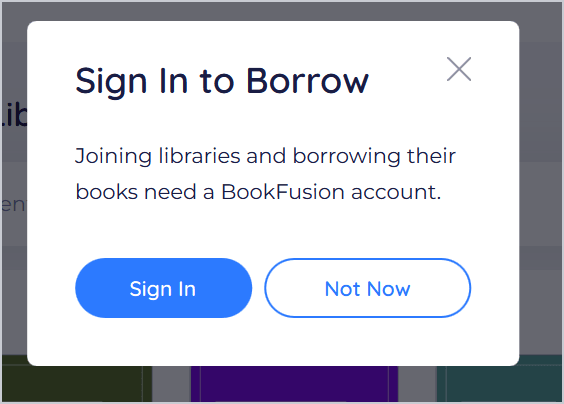
Without an account. Clicking Join Library or Borrow shows Sign In to Borrow. Click Sign In to sign in or create an account.
-
Offline. Libraries need an internet connection: joining, borrowing and returning don't work offline, and the Libraries page says You're offline.