Installing BookFusion on Windows
BookFusion for Windows is free in the Microsoft Store. The Store downloads and installs it for you, and it takes a minute or two.
Before you begin
- Check that your PC meets the System Requirements.
Install from the Microsoft Store
-
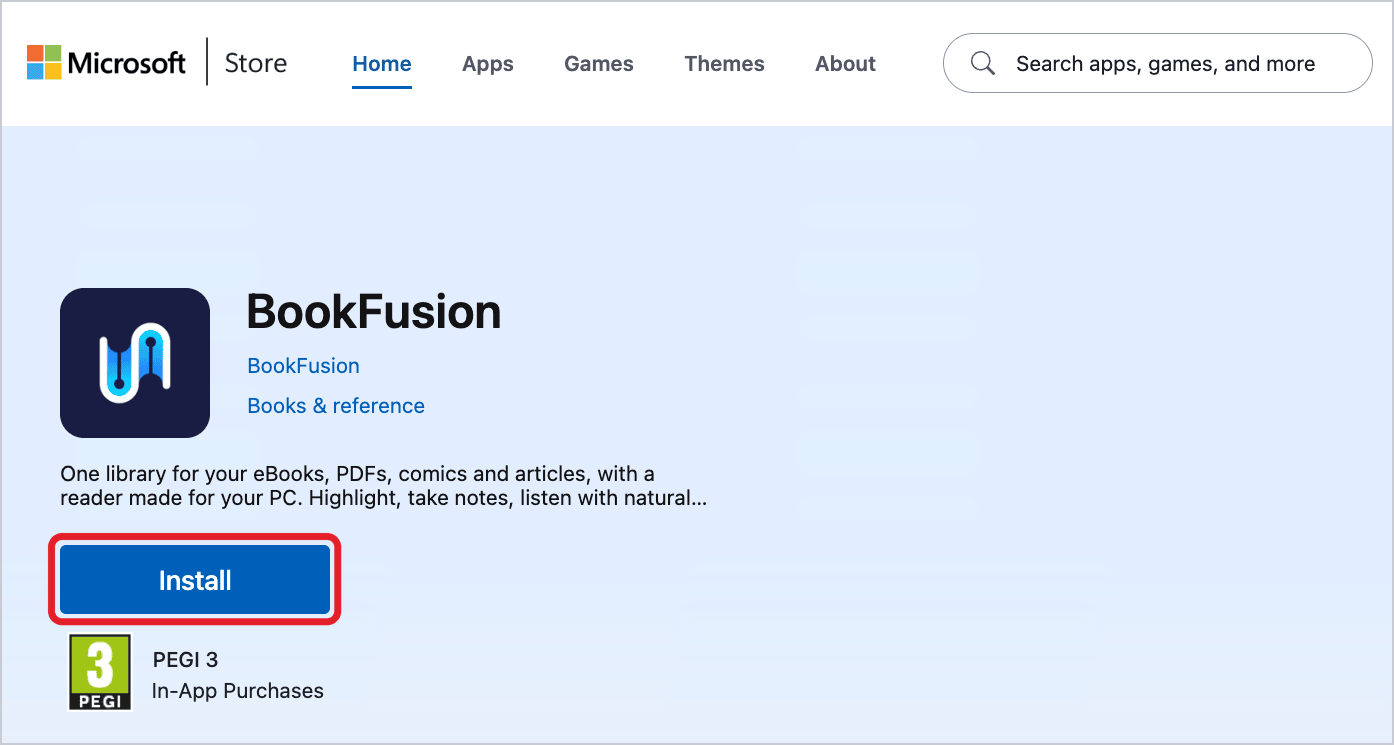
Open BookFusion in the Microsoft Store. (Or open the Microsoft Store app and search for BookFusion.)
-
Click Install. The Microsoft Store downloads BookFusion and installs it.
-
When it's installed, click Open, or open BookFusion from the Start menu.
Install with the installer file
If you have the BookFusion installer file instead (it's named like BookFusion-1.5.42-win64.msi), you can run it yourself. It also lets you install BookFusion for every user of the PC.
-
Open the installer (double-click it in your Downloads folder).
-
Read the End User License Agreement, tick I accept the terms in the License Agreement, and click Install.
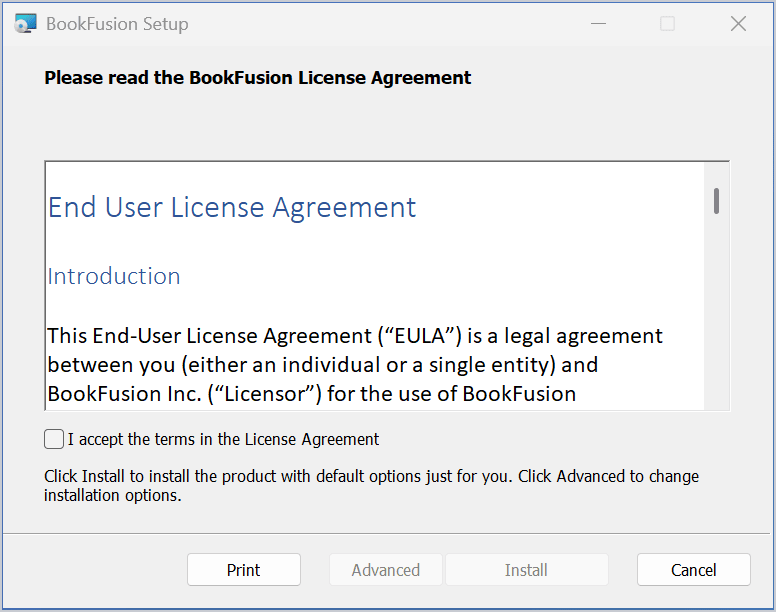
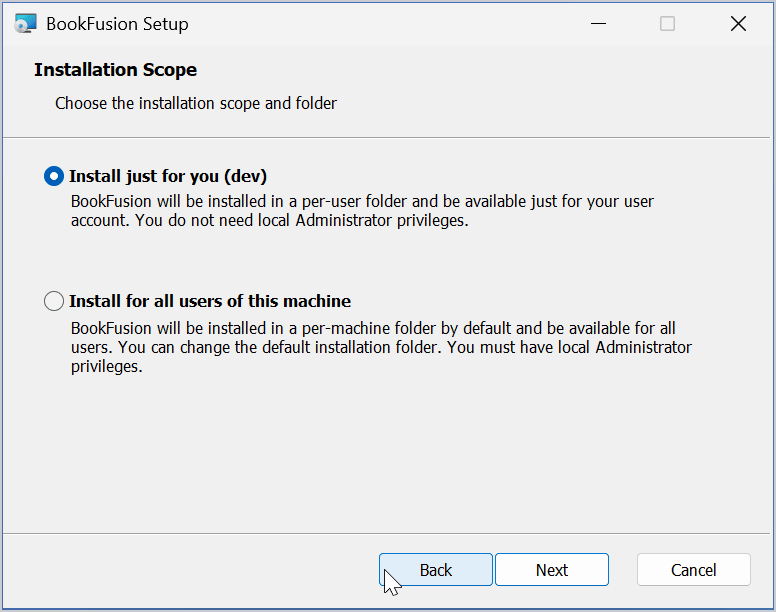
Install installs BookFusion just for you. To install it for everyone who uses the PC, click Advanced instead, choose Install for all users of this machine (this needs administrator rights), click Next, and then Install.
-
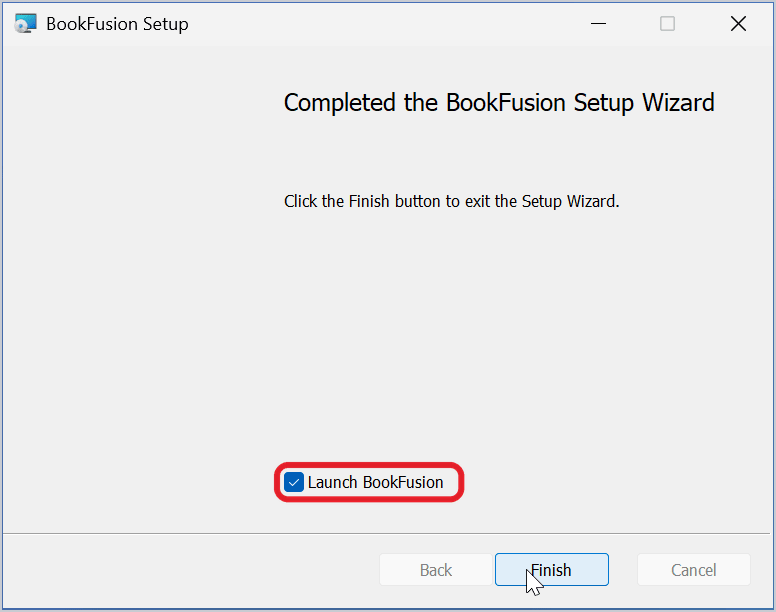
Wait while the Setup Wizard installs BookFusion. When it's finished, leave Launch BookFusion ticked and click Finish.
However you install it, BookFusion adds a BookFusion shortcut to your desktop and to the Start menu.
Open BookFusion for the first time
BookFusion shows its logo while it starts, then the sign-in window.


From here you can:
- Sign in to the BookFusion account you already have.
- Sign up to create a new account.
- Continue without an account to read your own eBooks on this PC.
Choose How to Get Started walks you through each one.
Tips and important differences
- Only one BookFusion runs at a time. If you open BookFusion while it's already open, Windows brings the open window to the front.
- Updates come from the app. You don't need to reinstall BookFusion for each version: it checks for updates each time it starts. See Updating BookFusion & Joining Beta.
- Where it's installed. Installed just for you, BookFusion goes in
%LOCALAPPDATA%\Programs\BookFusion. Installed for all users, it goes inC:\Program Files\BookFusion.
If something doesn't work
If BookFusion won't install or won't start, see Troubleshooting Common Problems.