Highlights, Notes, Tags & Bookmarks
Mark the passages that matter, add your thoughts, tag them to find later, and bookmark pages to come back to.
Highlight a passage
-
Select the text: drag across it with the mouse (or double-click a word).
-
A menu appears under the selection. Click a colour.
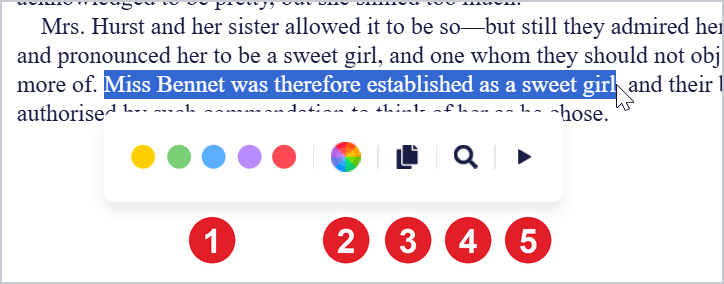
- (1) Colours: the colours you've used most recently. Click one to highlight.
- (2) Color picker: choose any colour.
- (3) Copy the text (or press Ctrl+C).
- (4) Search the book for the text.
- (5) Play from here: read aloud from this point.
The passage is highlighted, and the highlight is saved.
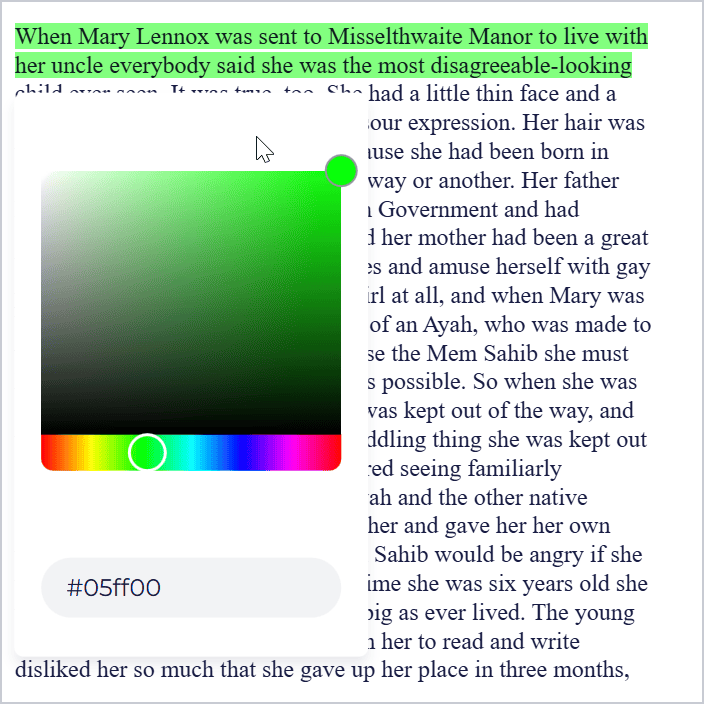
To pick another colour, click Color picker, then drag in the colour square or type a colour code.
Add a note, tags, or change a highlight
Click a highlight on the page to open its menu:
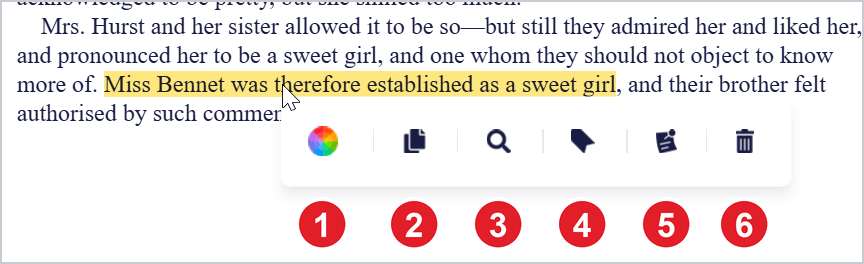
- Color picker: change the highlight's colour.
- Copy its text.
- Search the book for it.
- Edit Tags
- Create or edit note
- Delete the highlight.
Add or change a note:
-
Click the highlight, then Create or edit note.
-
Type your note in Update Note and click Update.
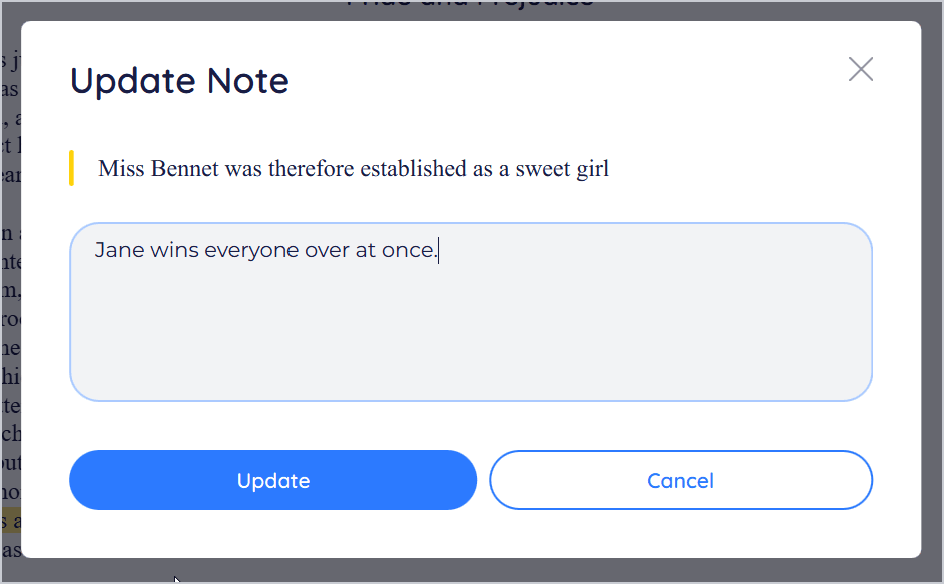
To remove a note, open it, delete its text and click Update.
Tag a highlight:
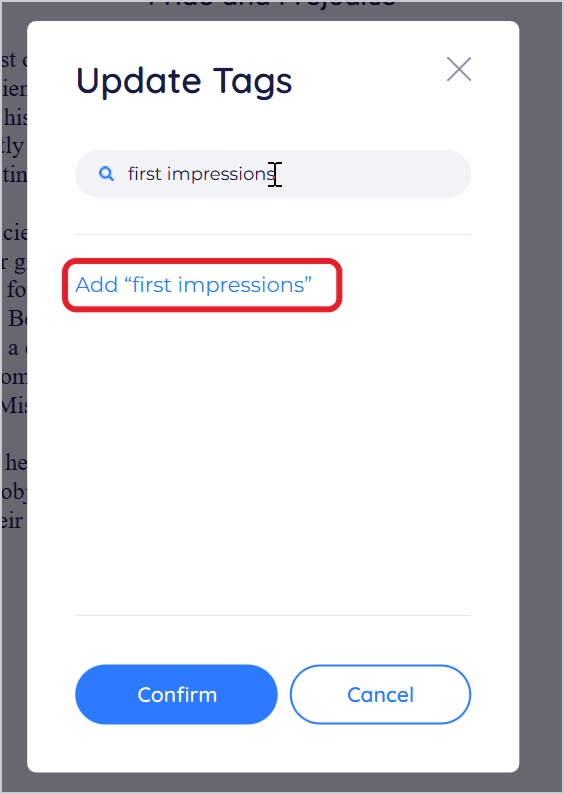
- Click the highlight, then Edit Tags.
- Tick the tags you want. To make a new one, type it in Search and click Add “[tag]”.
- Click Confirm.
Delete a highlight: click it, then Delete, and confirm with Delete. Its note and tags are deleted with it.
See the highlights in a book
Click Open highlights at the top right of the reader. The panel lists the book's highlights with their notes and tags.
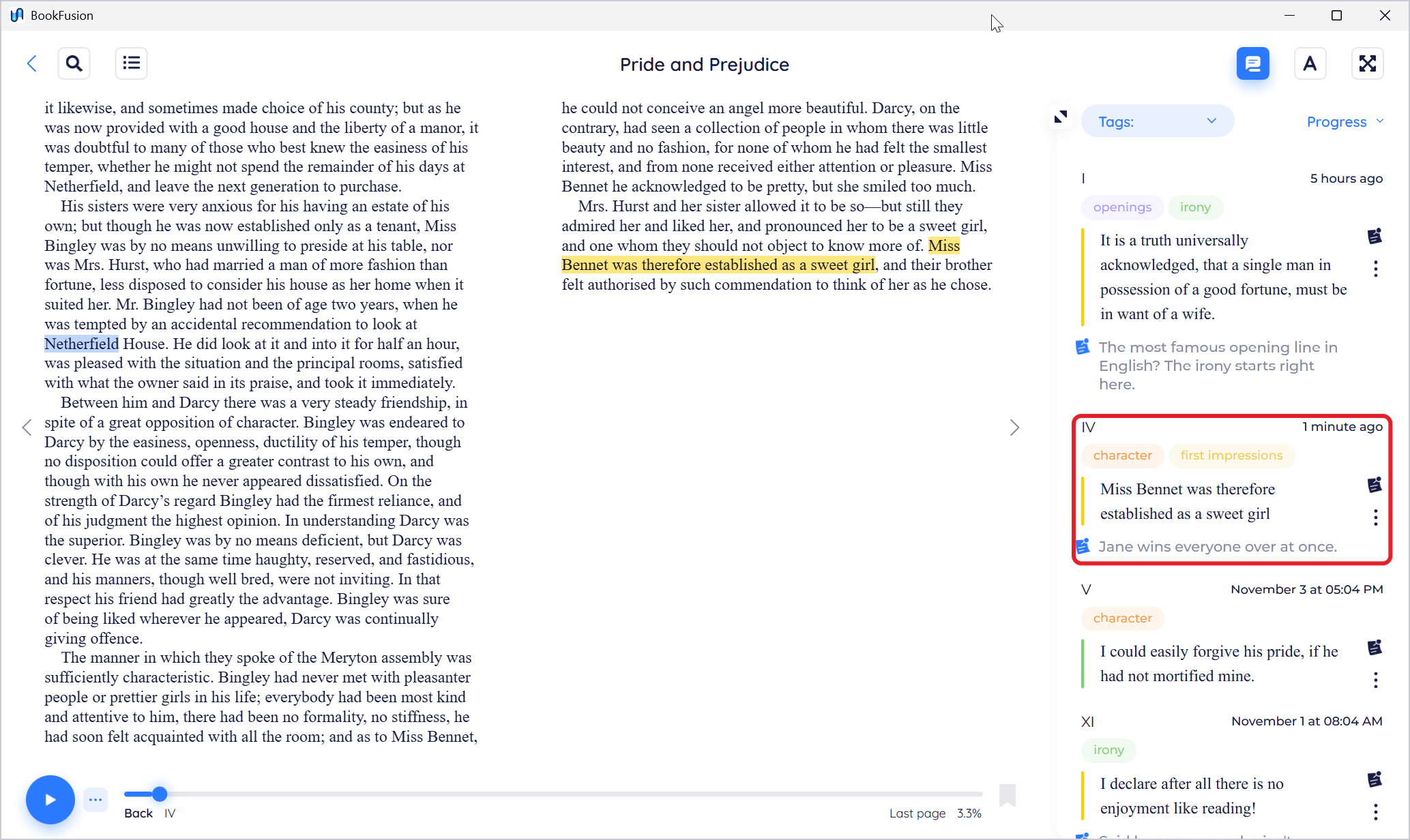
- Click a highlight's chapter to go to it in the book.
- Sort by Progress (where it is in the book) or Date.
- Filter by tag with Tags, or click a tag on a highlight.
- Edit a note with the note button, or open the three dots for Copy, Edit Tags and Delete.
See all your highlights
Click Highlights in the bookshelf's sidebar to see every highlight from every book, in My Highlights & Comments.
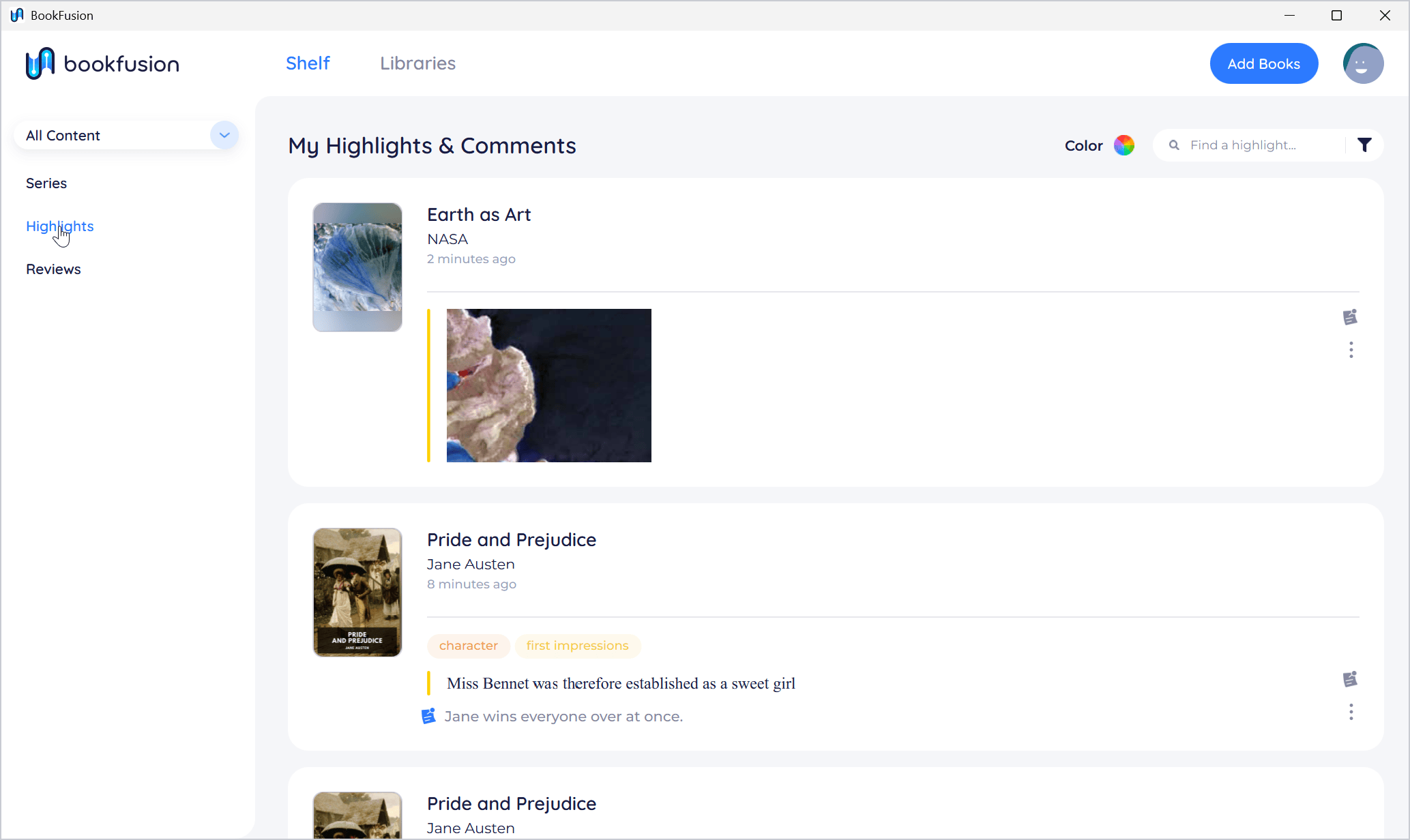
- Search them with Find a highlight..., filter them by Color, or click a tag to see the highlights with it.
- Click a highlight to open the book at that spot. If the book isn't on this PC, its details open so you can download it.
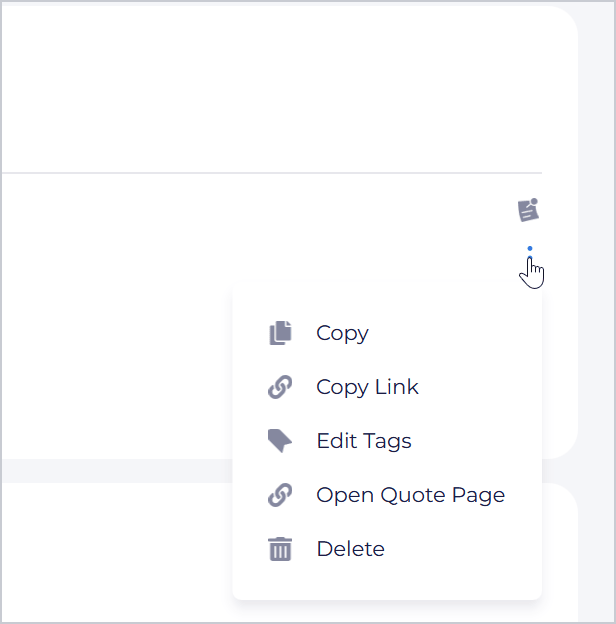
- The three dots on a highlight offer Copy, Copy Link, Edit Tags, Open Quote Page and Delete.
Bookmarks
Bookmark a page: click the bookmark ribbon at the bottom right of the reader. It turns red: the page is bookmarked.
See your bookmarks: click Open table of contents and choose the Bookmarks tab. Click a bookmark to go to that page.
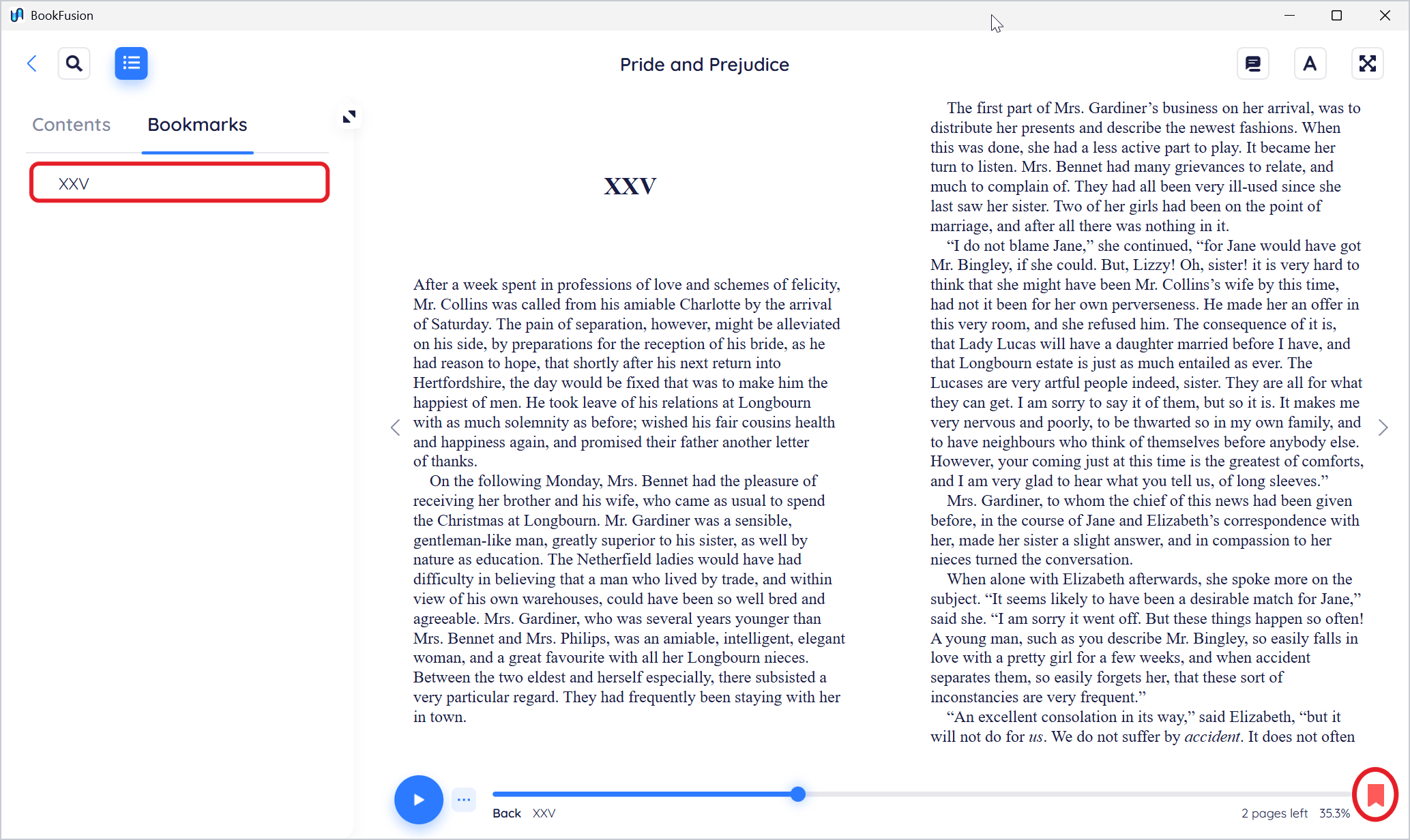
Remove a bookmark: go to the page and click the ribbon again, or click × next to the bookmark in the Bookmarks tab.
Highlights in PDFs
In PDFs you can highlight text as above, or highlight an area of a page, such as a picture or a chart. See Reading PDFs & Comics. Comics can't be highlighted.
Tips and important differences
- Sync. When you're signed in, highlights, notes, tags and bookmarks are saved to your BookFusion account and show on your other devices. Ones you make offline are sent when BookFusion is back online; see Syncing Your Library Across Devices.
- Without an account, they're kept on this PC only. If you sign in later, they move to your account with their books.