Exploring Your Bookshelf
The bookshelf is the first thing you see when BookFusion opens. This tour shows where everything is.
The bookshelf at a glance
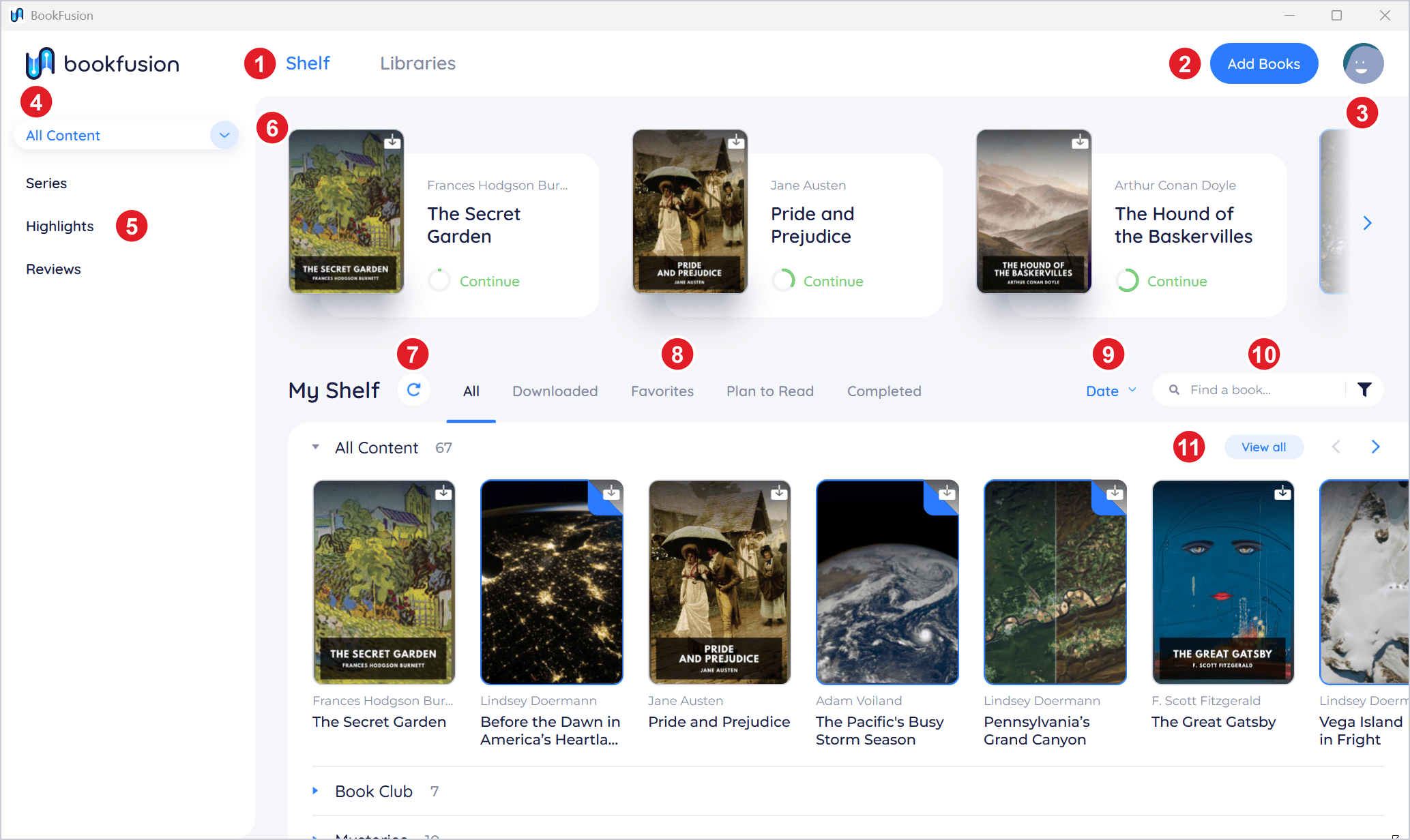
- Shelf and Libraries. Switch between your own books and the libraries you belong to. See Joining Libraries, Borrowing & Returning Books.
- Add Books. Add EPUB, PDF, CBZ and CBR files from your PC. See Adding Books to Your Library.
- Profile menu. Click your profile picture for Settings and Sign Out.
- Content type. Show All Content, only Books, or only Articles.
- Series, Highlights and Reviews. Your series, every highlight across your books, and the reviews you've written.
- Currently reading. The books you've read most recently. Click one to carry on where you left off.
- My Shelf, with Refresh Shelf (the circular arrow) to fetch the latest from your account.
- Lists. All, Downloaded, Favorites, Plan to Read and Completed.
- Sort. The order books are shown in. See Searching, Sorting & Filtering Books.
- Search your books, and filters (the funnel).
- Your shelves. A row for all your content, then one for each of your shelves. Click View all to see a whole row, and the arrows to scroll it.
The lists
The lists under My Shelf show your books in different ways:
| List | Shows |
|---|---|
| All | Every book and article in your library |
| Downloaded | The books on this PC, which you can read offline |
| Favorites | The books in your account's Favorites |
| Plan to Read | The books in your account's Plan to Read list |
| Completed | The books in your account's Completed list |
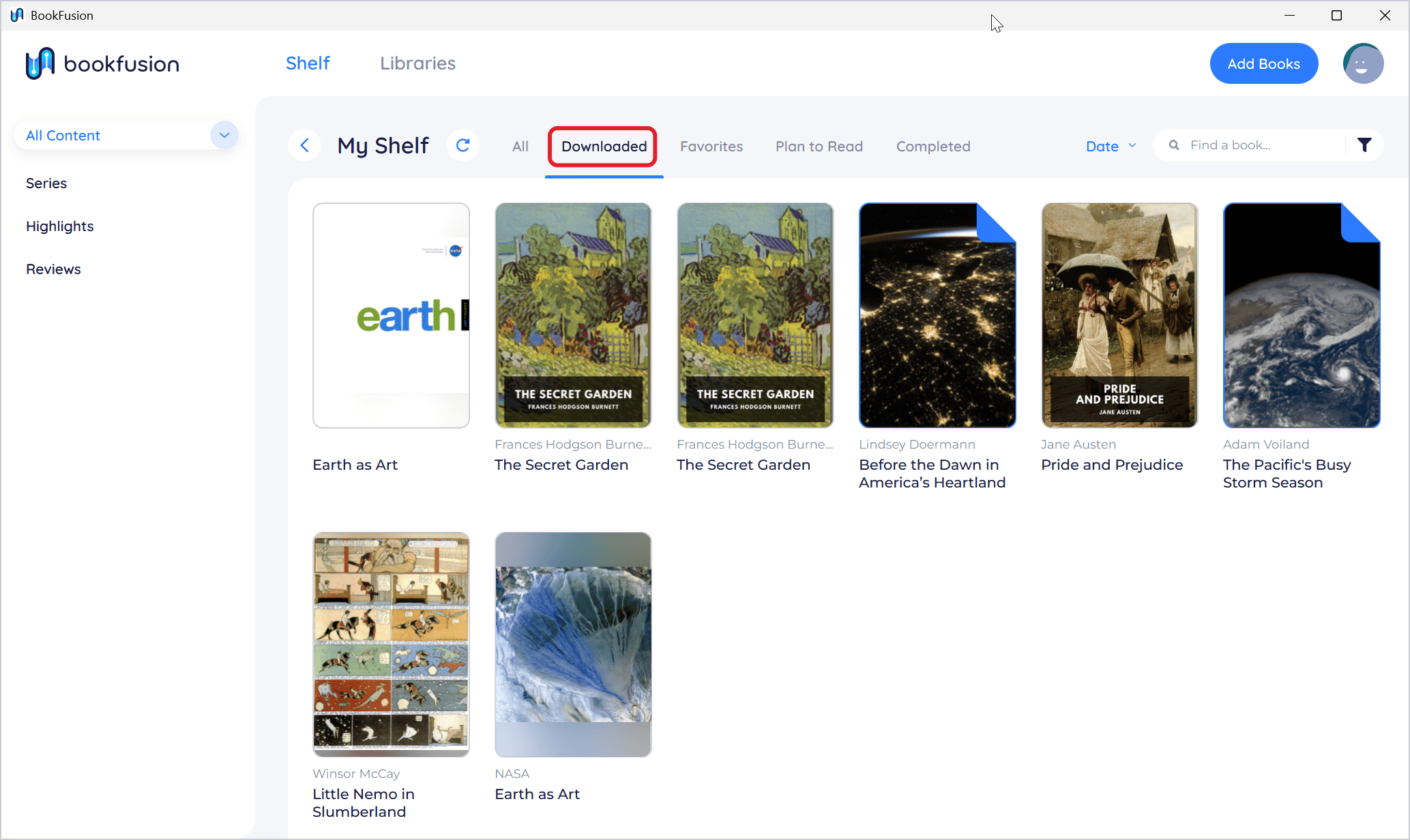
Favorites, Plan to Read and Completed show the lists from your BookFusion account. You can't add books to them in the Windows app. Add them on the web or in the mobile apps, and they show here after you refresh the shelf.
In a narrow window, the lists fold into a menu.
Books, articles or both
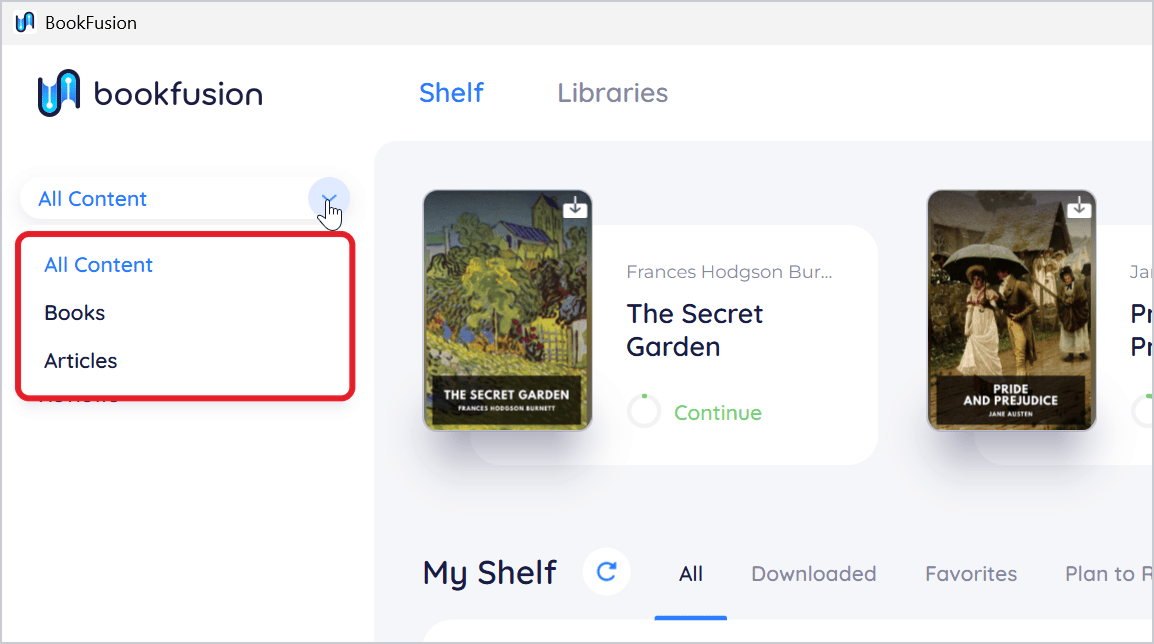
Click the content type at the top of the sidebar (All Content to begin with) and choose All Content, Books or Articles. The shelf, the lists and search then show only that kind of content. BookFusion remembers your choice.
Articles have a folded corner on their cover. See Reading Articles on Windows.
A book's details
Click a book's cover to see its details: its description, publication date, language, format, publisher, series and tags.
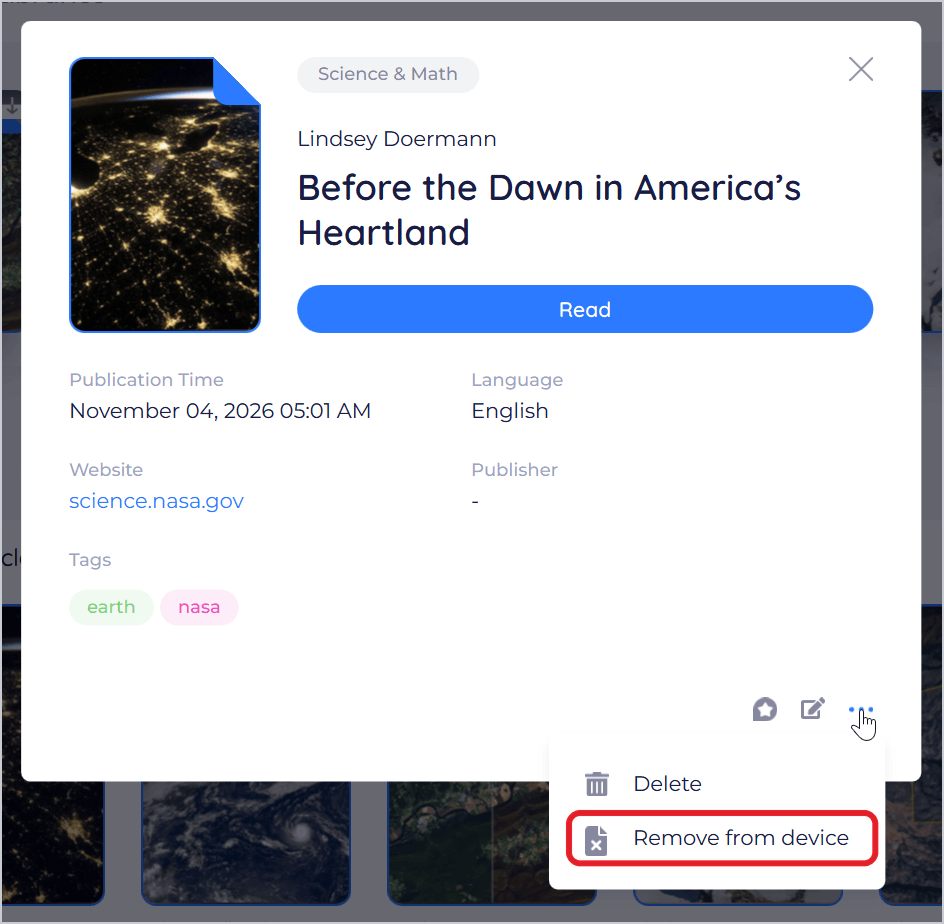
From the details you can:
- Download the book, or Read it once it's downloaded.
- Review it (the speech bubble). See Reviews.
- Edit its details, shelves and series (the pencil). See Editing Book Details.
- Open More actions (the three dots) for Delete and, for a downloaded book, Remove from device.
BookFusion doesn't have a right-click menu on covers: everything you can do with a book is in its details.
What the cover corners mean:
- A download icon in the corner: the book is in your library but not on this PC. Click it to download the book.
- A progress ring: the book is downloading. Click it to cancel.
- No icon: the book is on this PC.
Reviews
Click Reviews in the sidebar to see the reviews you've written. To write one, open a book's details, click Review (the speech bubble), write your review, choose a star rating and click Submit.
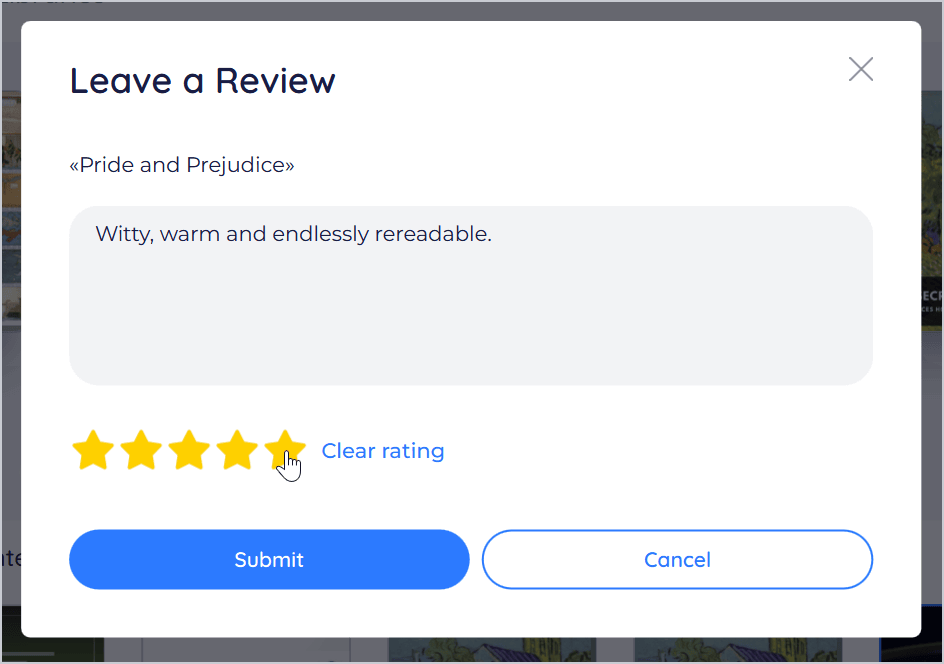
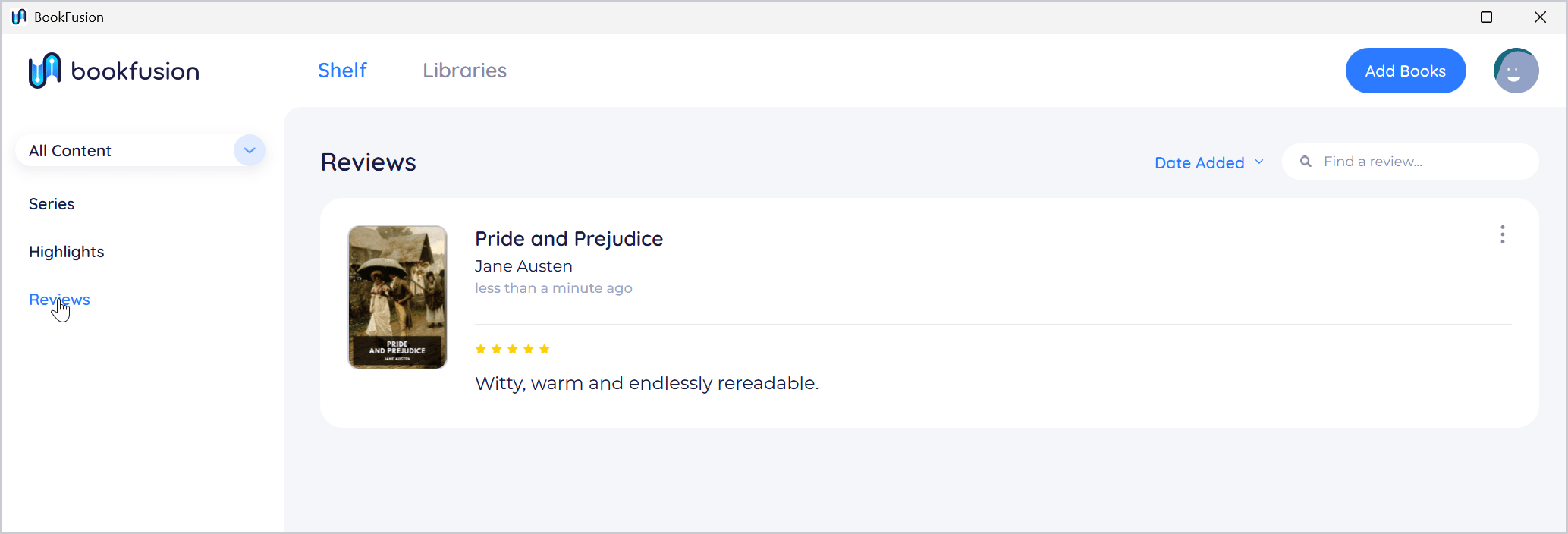
To change or delete a review, click the three dots on it and choose Edit or Delete.
Without an account
If you use BookFusion without an account, the shelf shows only the books you've added to this PC. Sign In appears next to Add Books, and the profile menu has Sign In instead of Sign Out. See Choose How to Get Started.