Editing Book Details
Fix a misspelt title, add a missing author, change a cover, or organise a book with shelves, series, categories and tags. These changes are to the book's details in BookFusion; the book's text isn't changed.
Edit a book's details
-
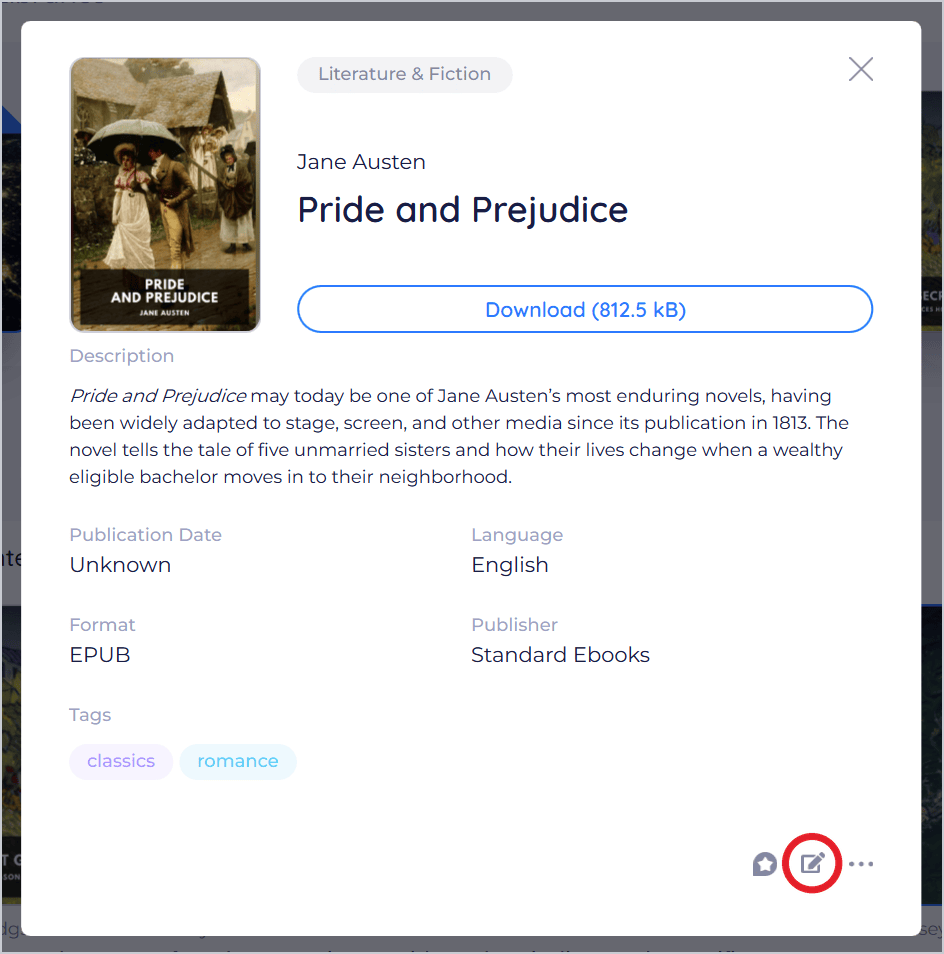
Click the book's cover to open its details.
-
Click Edit (the pencil) at the bottom right.
-
Update Book opens on the General tab. Change what you need:
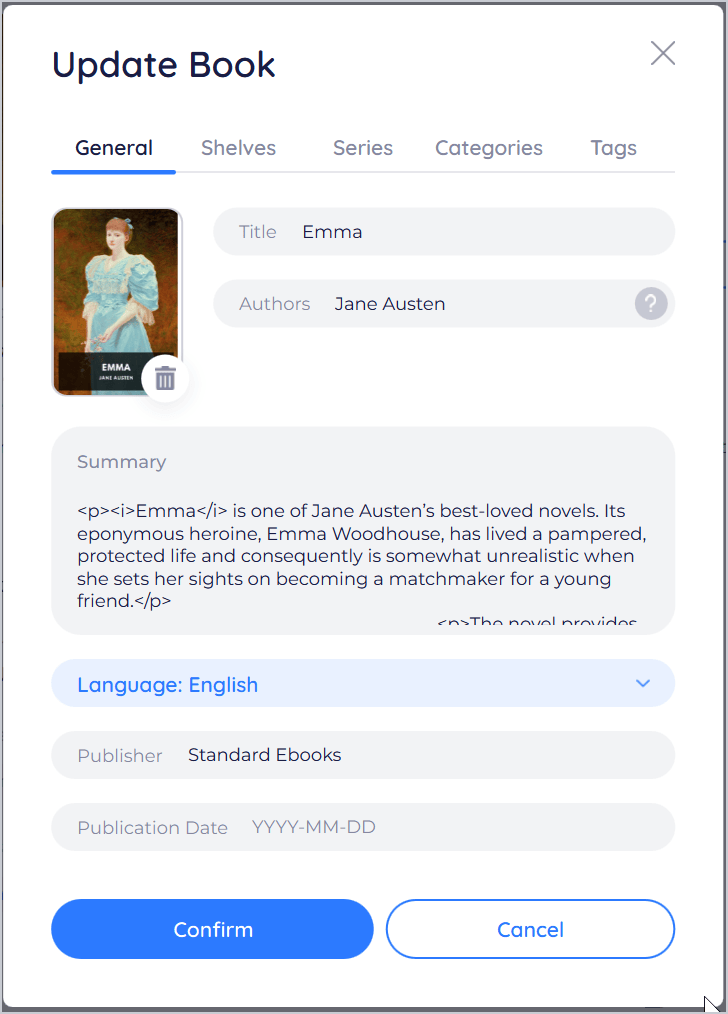
Field What to enter Cover Click Choose a cover to use a JPG, PNG or GIF picture, or Remove the cover Title The book's title Authors Authors' names separated by commas Summary The book's description Language The language the book is written in Publisher The publisher Publication Date The date, as YYYY-MM-DD -
Use the other tabs to organise the book:
- Shelves: the shelves it's on. See Organizing Shelves & Series.
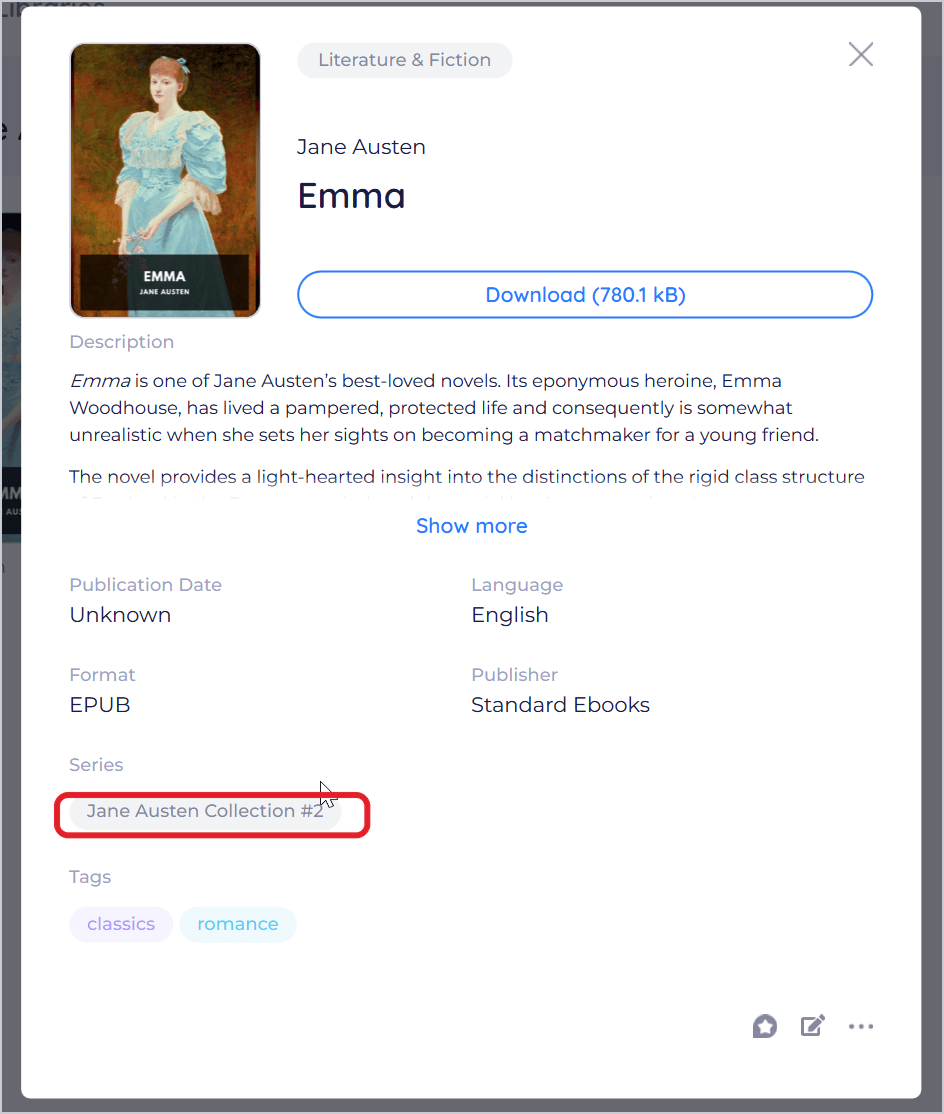
- Series: the series it's in, and its place in each. See Organizing Shelves & Series.
- Categories: tick the categories that fit.
- Tags: tick tags, or type a new one and click Add “[tag]”.
-
Click Confirm.
The details show your changes straight away.
Which details you can change
You can change the General details (cover, title, authors and so on) of books you added yourself. For other books, such as those from a library or the BookFusion store, the General tab shows the details but they can't be changed. You can still change their shelves, series, categories and tags.
Tips and important differences
- Syncing. When you're signed in, your changes are saved to your BookFusion library and show on your other devices. Changes made offline are sent once BookFusion is back online. If your library doesn't accept a change, BookFusion puts the book back as it was.
- Without an account. Your changes are kept on this PC.
- The file isn't changed. Editing details doesn't change the EPUB, PDF or comic file itself.
- Dates. BookFusion asks for a date as
YYYY-MM-DD, and a publication date that isn't in the future.