Downloading Books for Offline Reading
When you're signed in, your shelf shows every book in your BookFusion library. To read one, BookFusion downloads it to your PC, where it stays, so you can read it with or without an internet connection.
Download a book
-
Click the book's cover to open its details.
-
Click Download. The button shows the book's size, such as Download (1.2 MB).
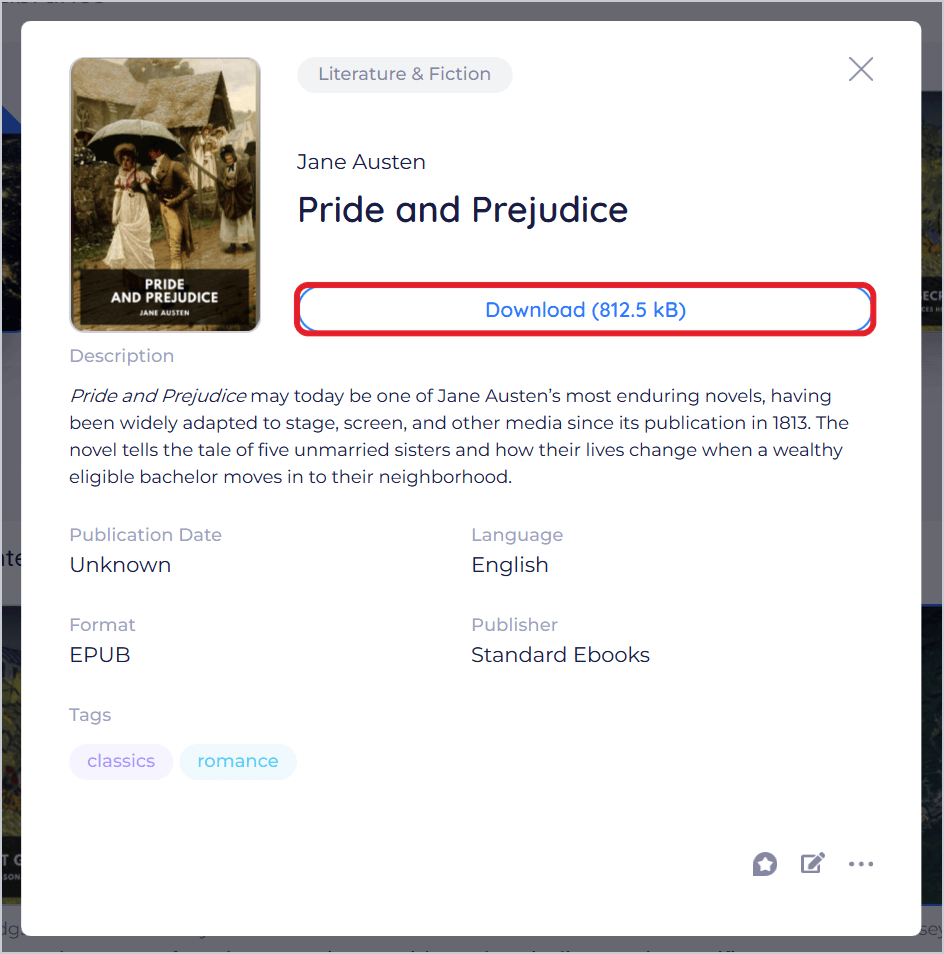
-
While it downloads, the button says Downloading. To cancel, click it.
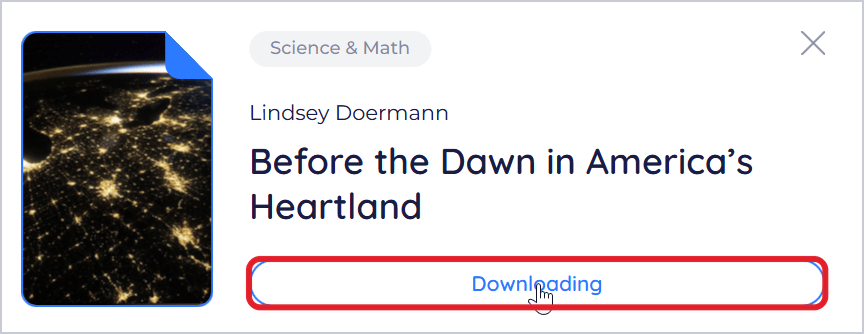
-
When it's done, the button says Read.
From the shelf: a book that isn't on your PC has a download icon in its cover's corner. Click the icon to download it without opening its details. While it downloads, the icon becomes a progress ring; click the ring to cancel.
See what's on your PC
Click Downloaded above your books to see only the books on this PC: the ones you can read offline.
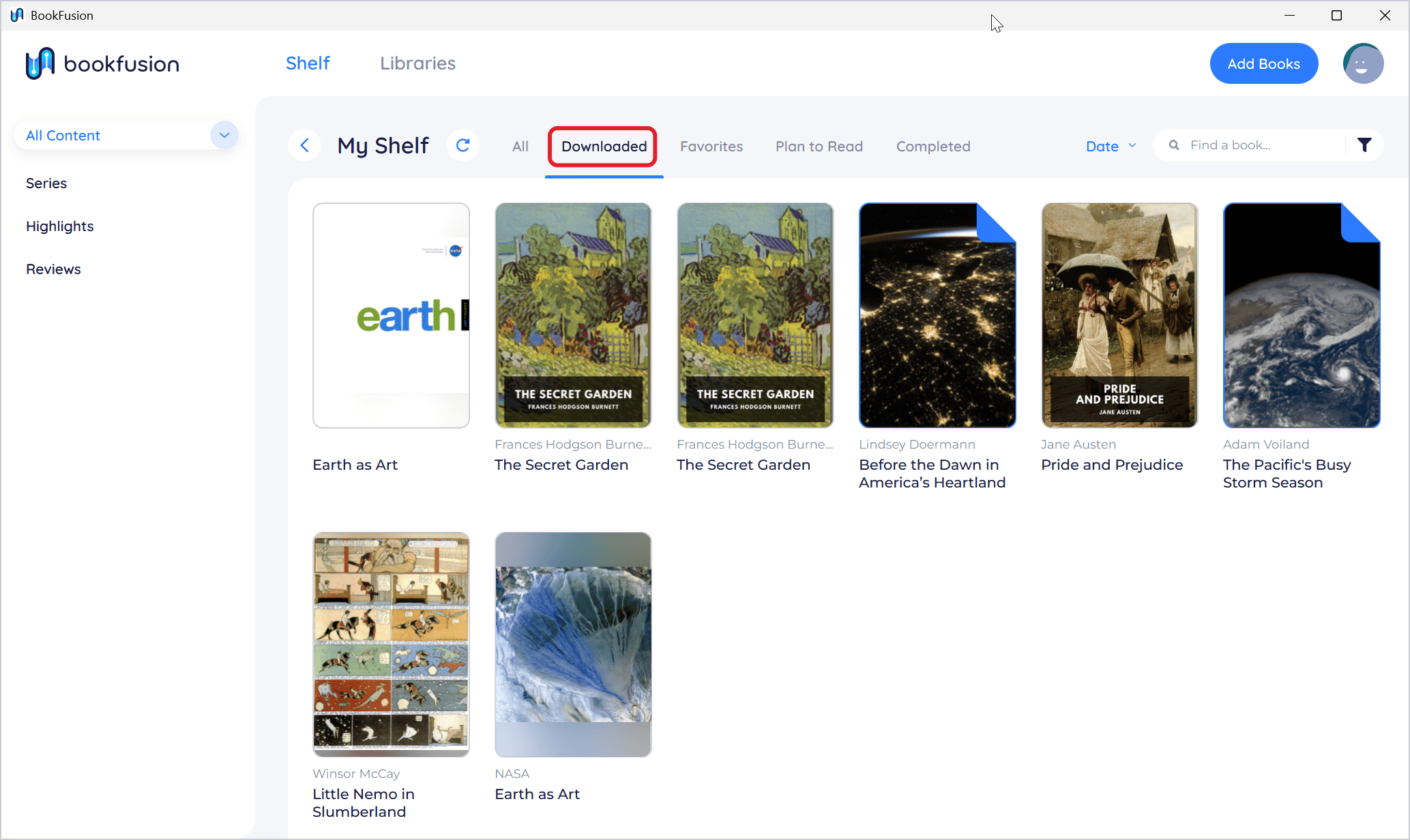
Books you've added from your PC are always downloaded.
Read offline
Open a downloaded book as usual. Everything you do while offline (your reading position, highlights, notes and bookmarks) is saved on your PC and sent to your account when BookFusion is back online. See Managing Your Library Offline.
Remove a download or delete a book
Open the book's details and click More actions (the three dots):
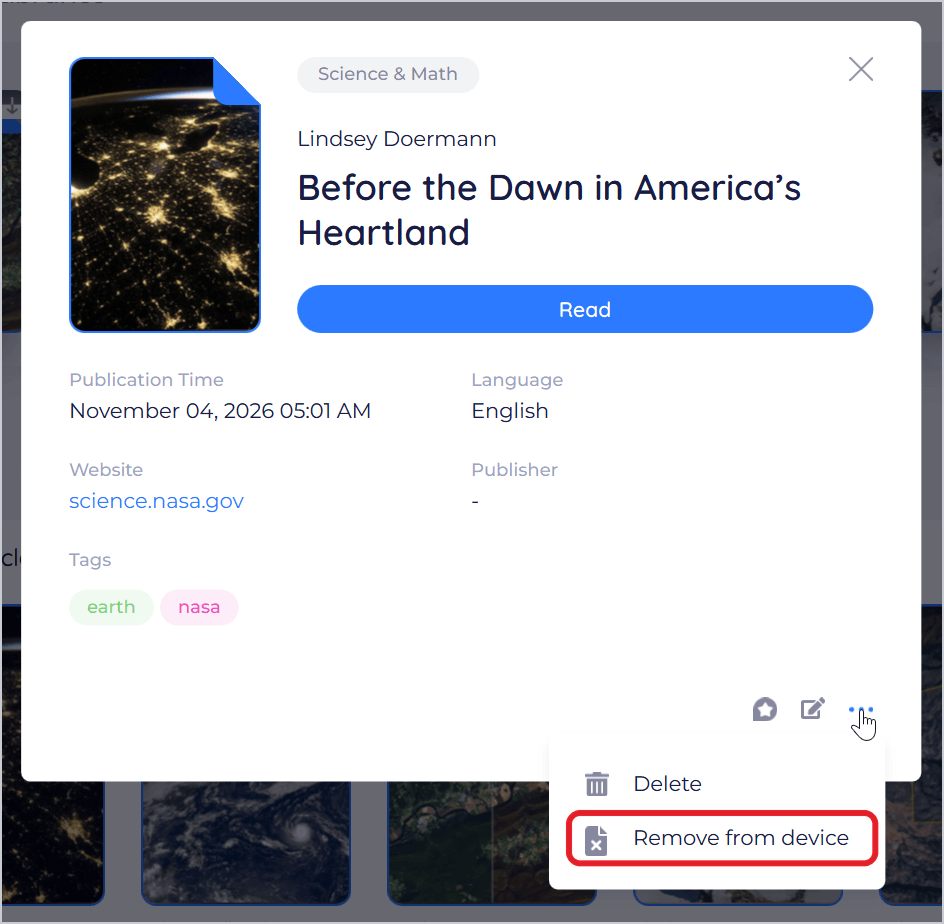
| Remove from device | Delete | |
|---|---|---|
| What it does | Removes the book's file from this PC | Deletes the book from your BookFusion library, and from this PC |
| The book in your library | Stays, with its highlights and reading position. Download it again any time | Gone from your library and all your devices |
| Asks first? | No | Yes: Are you sure you want to delete the book…? This action cannot be undone. |
Use Remove from device to free up space. Use Delete only to get rid of a book for good.
Without an account, your books exist only on this PC. Remove from device then removes the book completely, without asking first. Keep your original files.
Tips and important differences
- Where downloads are kept. In
%LOCALAPPDATA%\BookFusion\BookFusion\books. There's no setting to keep them somewhere else, and they're for BookFusion only: they can't be opened in other apps. - Space. Each download uses space on your PC. To see how much space is free, open Windows Settings › System › Storage.
- Borrowed books. When a library loan ends, BookFusion removes the book's download. See Joining Libraries, Borrowing & Returning Books.
- Books deleted elsewhere. If you delete a book on the web or another device, BookFusion removes it from this PC the next time it syncs.