Customizing Your Reading Experience
Make the reader comfortable for you: pick a font and text size, add space between lines, widen the margins, and choose a colour theme. Save a combination you like as a preset, and use it on your other devices.
These settings change how books look in the reader. The colours of the app itself (light or dark) are set separately; see App Settings & Appearance.
Open the reader settings
Open a book and click Open settings (the A at the top right). The settings open at the right of the page, and the page changes as you choose. To close them, click the A again, press Esc, or click the page.
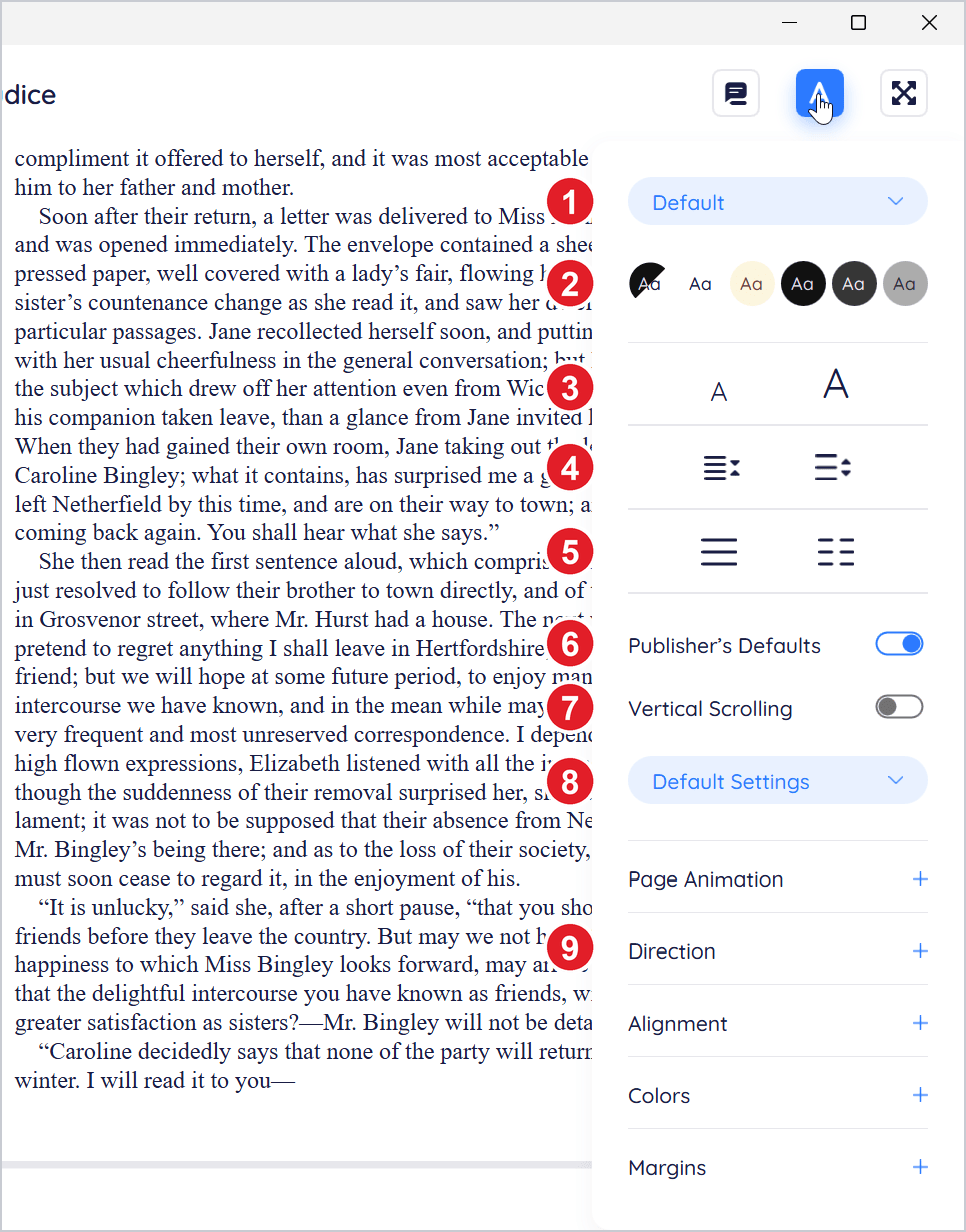
- Font
- Colour theme
- Text size
- Line spacing
- One or two columns
- Publisher’s Defaults
- Vertical Scrolling
- Presets
- More settings: Page Animation, Direction, Alignment, Colors, Margins and Paragraph Spacing. Click + to open each one.
Font and text size
-
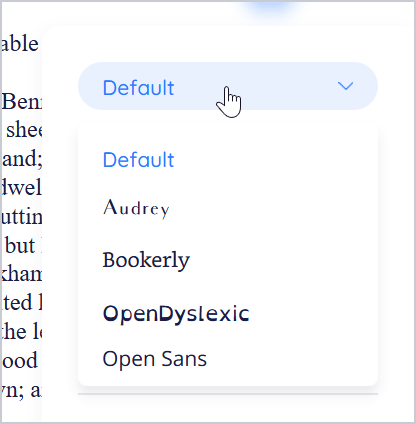
Font. Click the font menu (Default to begin with) and choose a font. Each is shown in its own lettering. Default uses the book's own font. The list includes Bookerly, OpenDyslexic, Lora, Noto Serif, Open Sans, PT Serif and more.
-
Text size. Click the small A to make the text smaller and the large A to make it bigger. You can also hold Ctrl and turn the mouse wheel.
-
Line spacing. Use the two buttons under the text size to put less or more space between lines.
Colour themes
Click a theme to change the page's colours: Auto, White, Sepia, Night, Dark grey and Light grey. Auto follows Windows: White when Windows uses light mode, Night when it uses dark mode.
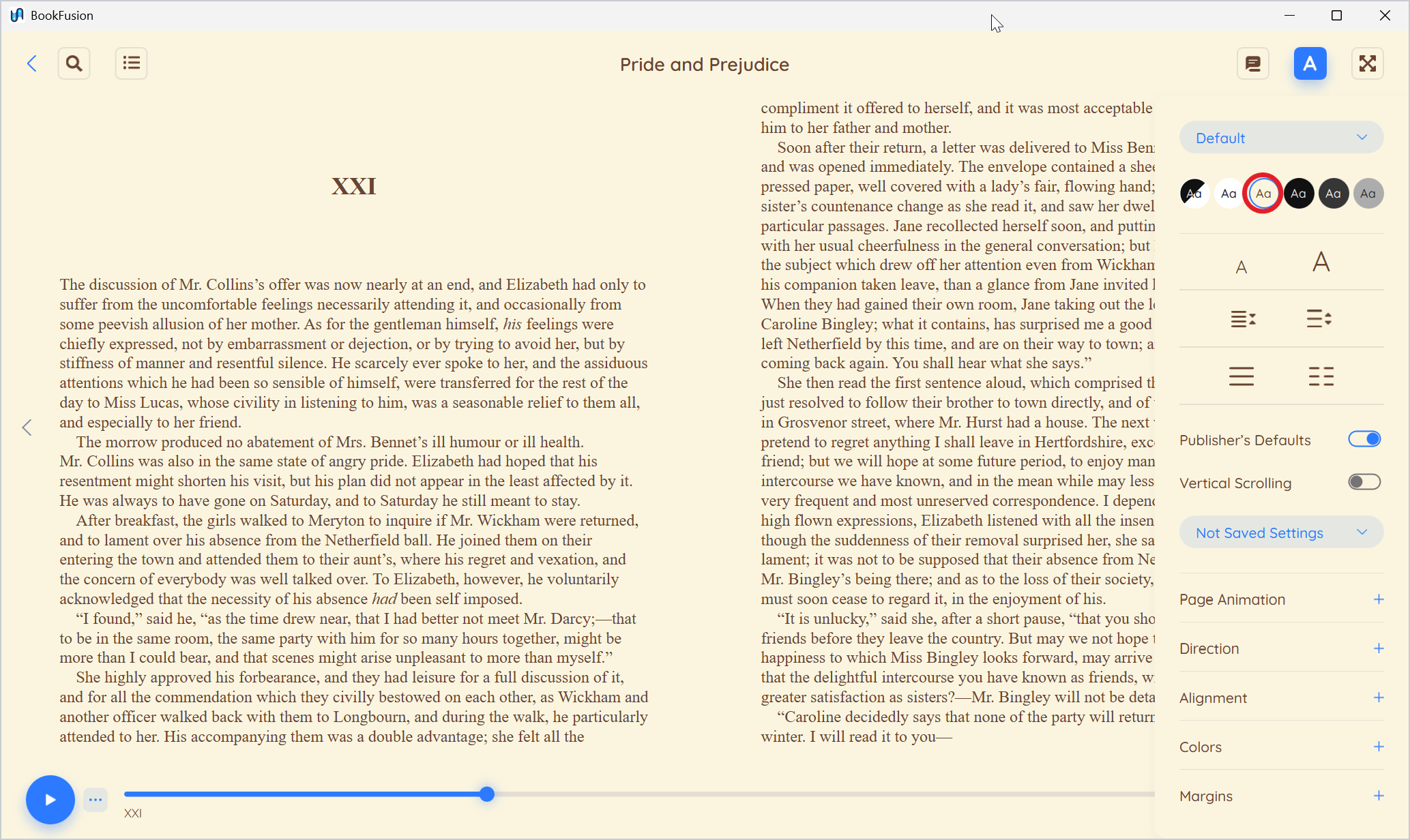
To choose your own colours, expand Colors and click Text, Link or Bg (background) to pick a colour.
Layout
-
One or two columns. Choose one column or two. Click the selected one again to let BookFusion decide by the window's width.
-
Publisher’s Defaults. When it's on, the book keeps its publisher's styling. Turn it off to set aside the book's own styles, so that your font, spacing and alignment apply throughout.
-
Vertical Scrolling. Scroll through the book instead of turning pages.
-
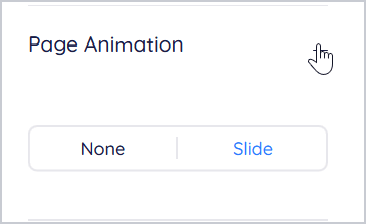
Page Animation. Slide slides pages across as they turn; None turns them at once.
-
Direction. Auto, LTR (left to right) or RTL (right to left). Leave it on Auto unless pages turn the wrong way. It's kept for each book.
-
Alignment. Align text to the left, centre or right, or justify it. Click the selected one again to go back to the book's own alignment.
-
Margins. Make the space around the text narrower or wider.
-
Paragraph Spacing. Turn on Override to set your own space between paragraphs.
Presets
A preset saves your current settings under a name, so you can switch to them in one click.
Save your settings as a preset:
-
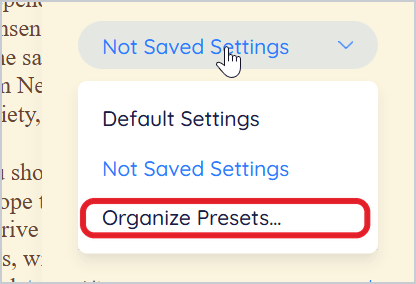
Set up the reader the way you like it. The preset menu shows Not Saved Settings.
-
Click the preset menu and choose Organize Presets….
-
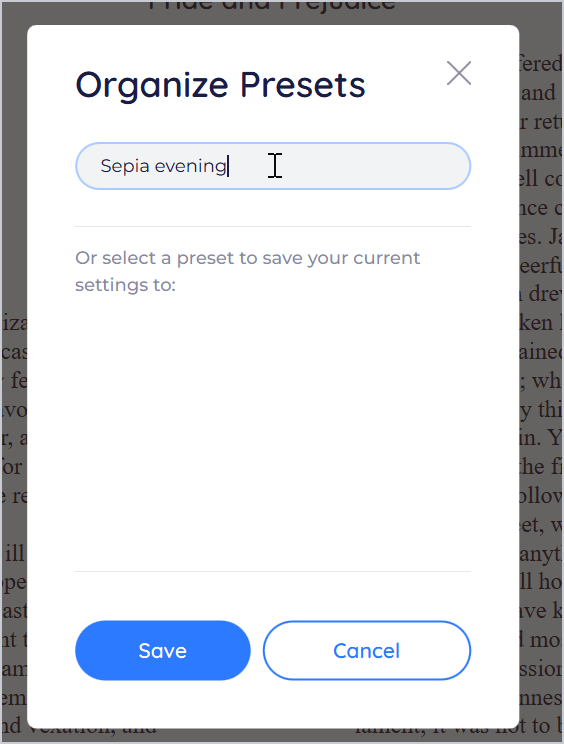
Type a name in Enter a name for a new preset and click Save. (To update a preset you have already, choose it in the list instead, then click Save.)
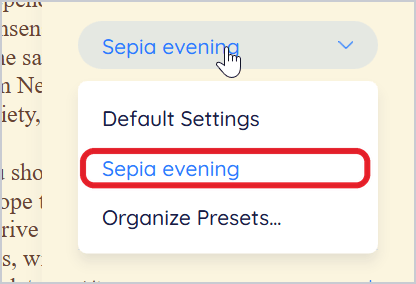
Use a preset: click the preset menu and choose it. Choose Default Settings to go back to BookFusion's defaults.
Delete a preset: choose Organize Presets… and click the bin next to it.
What syncs to your other devices
- Presets sync. When you're signed in, your presets are saved to your BookFusion account, and you can choose them in BookFusion on your other devices.
- Other settings stay on this PC. The settings you choose without a preset are kept on this PC, for each kind of book (EPUB, PDF, comic) rather than each book.
Tips and important differences
- PDFs and comics have fewer settings: themes, zoom, columns, scrolling, page animation, spreads and scale. See Reading PDFs & Comics.
- Fixed-layout books (with set pages, like picture books) don't offer fonts, line spacing, Publisher’s Defaults or your own colours; they offer Scale instead.