Choose How to Get Started
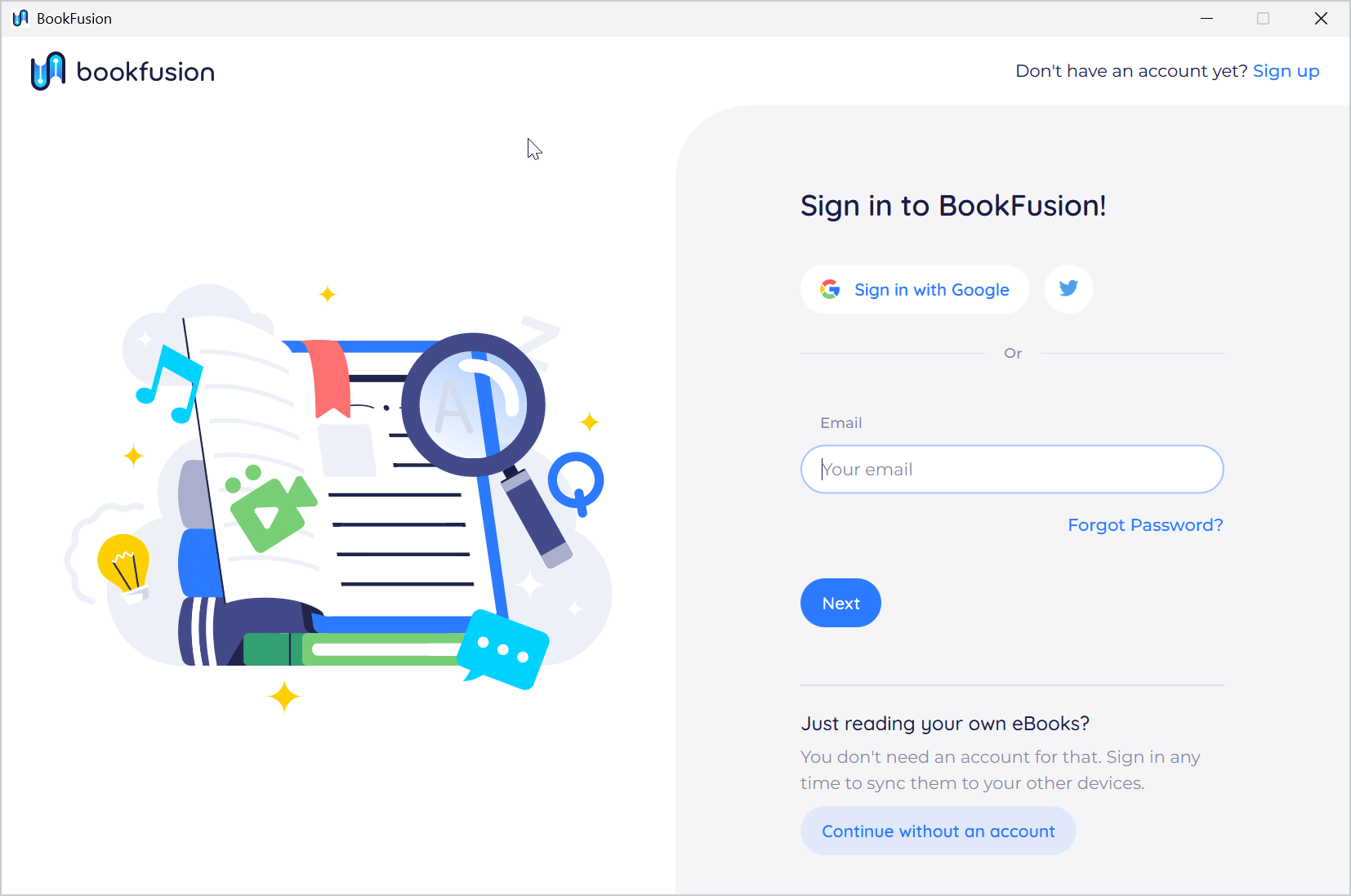
The first time you open BookFusion for Windows, the sign-in window offers three ways in. Pick the one that fits you:
- Already have a BookFusion account? Sign in and your library is on the shelf.
- New to BookFusion? Create a free account in the app.
- Prefer reading without an account? Read your own eBooks on this PC only.
Already have a BookFusion account?
Sign in with the account you use on the web or in the mobile apps.
-
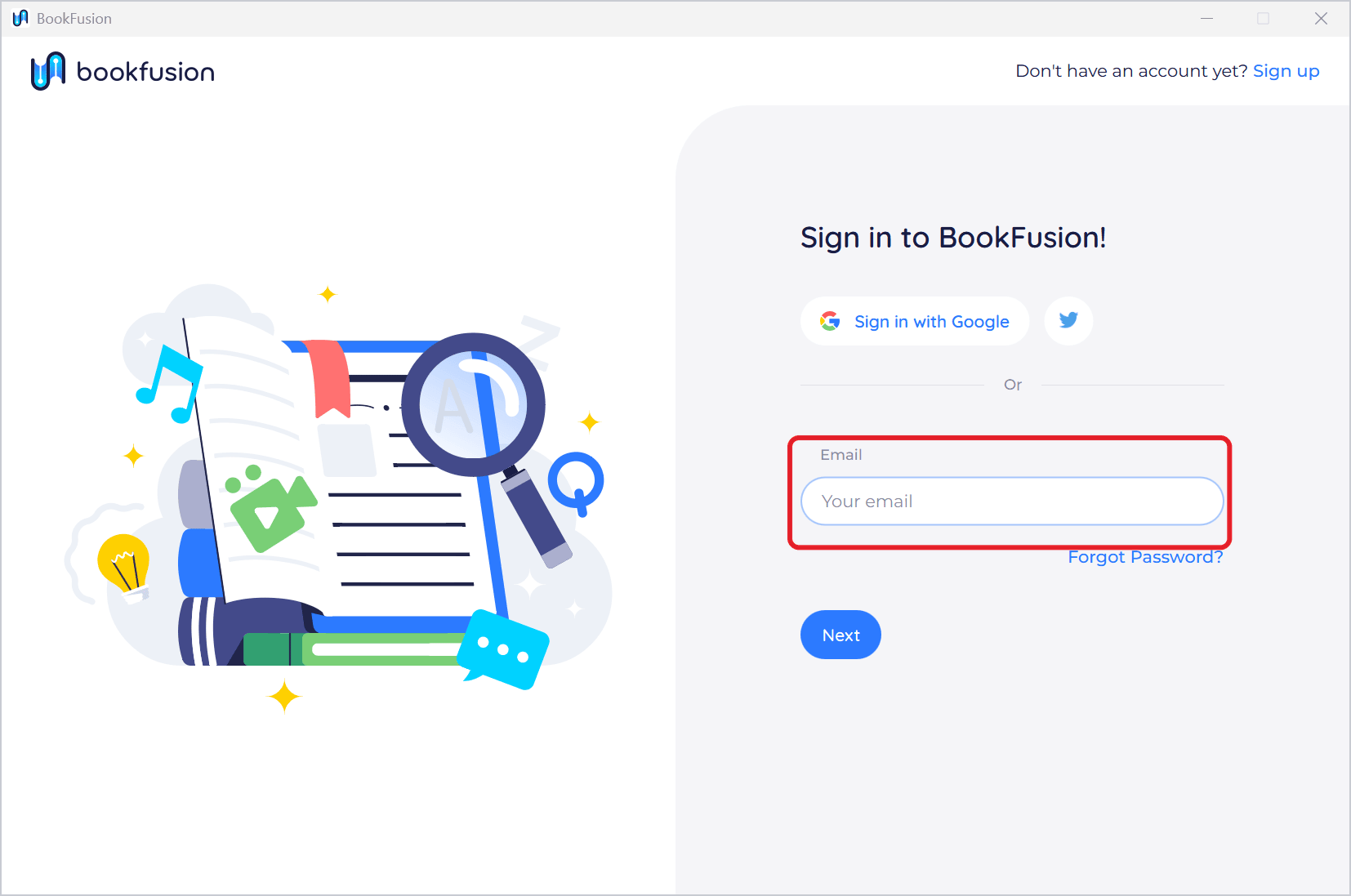
Type your email address in Email and click Next.
-
Type your password in Password and click Sign In.
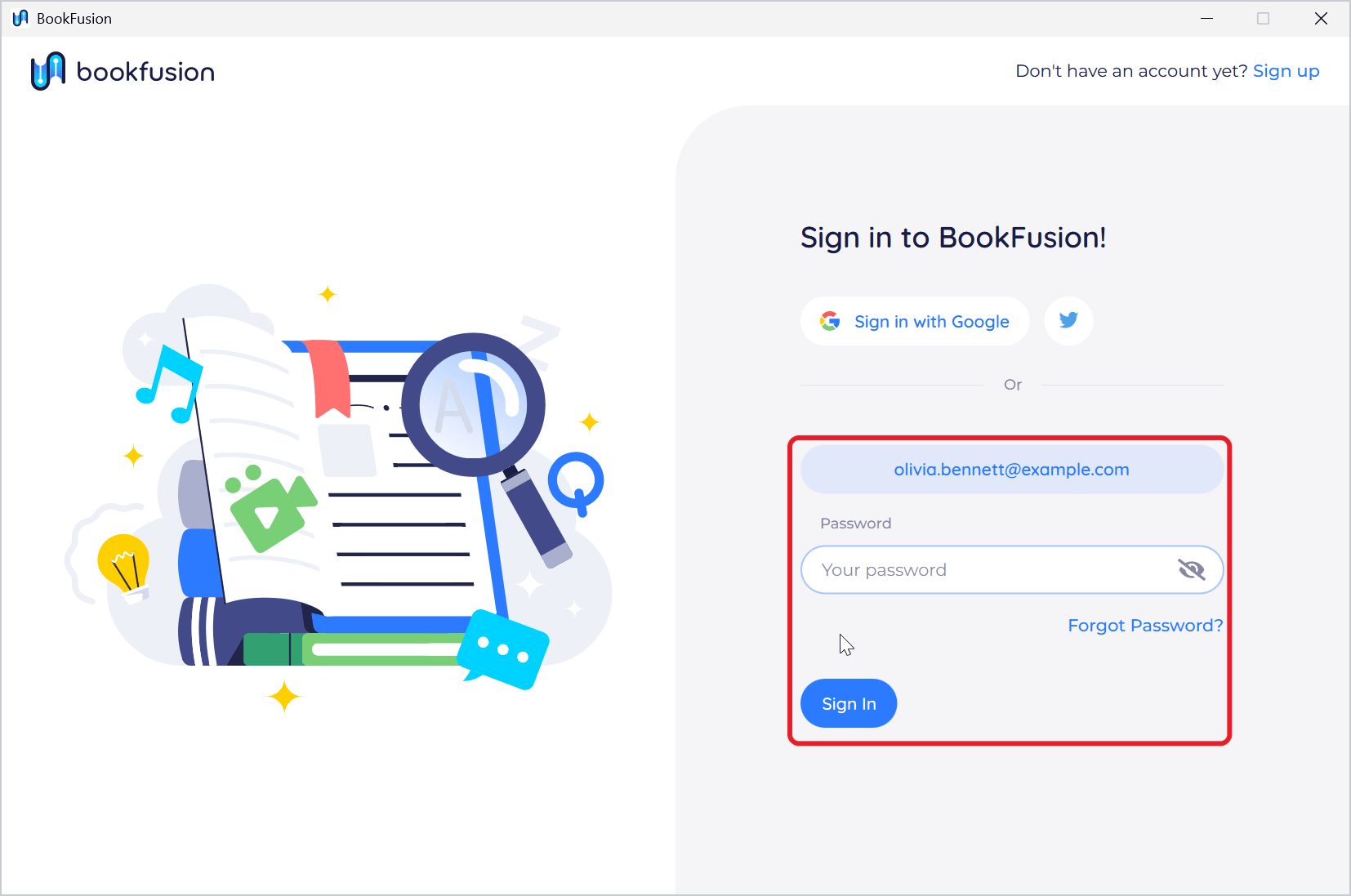
To use a different email, click your email address above the password field.
-
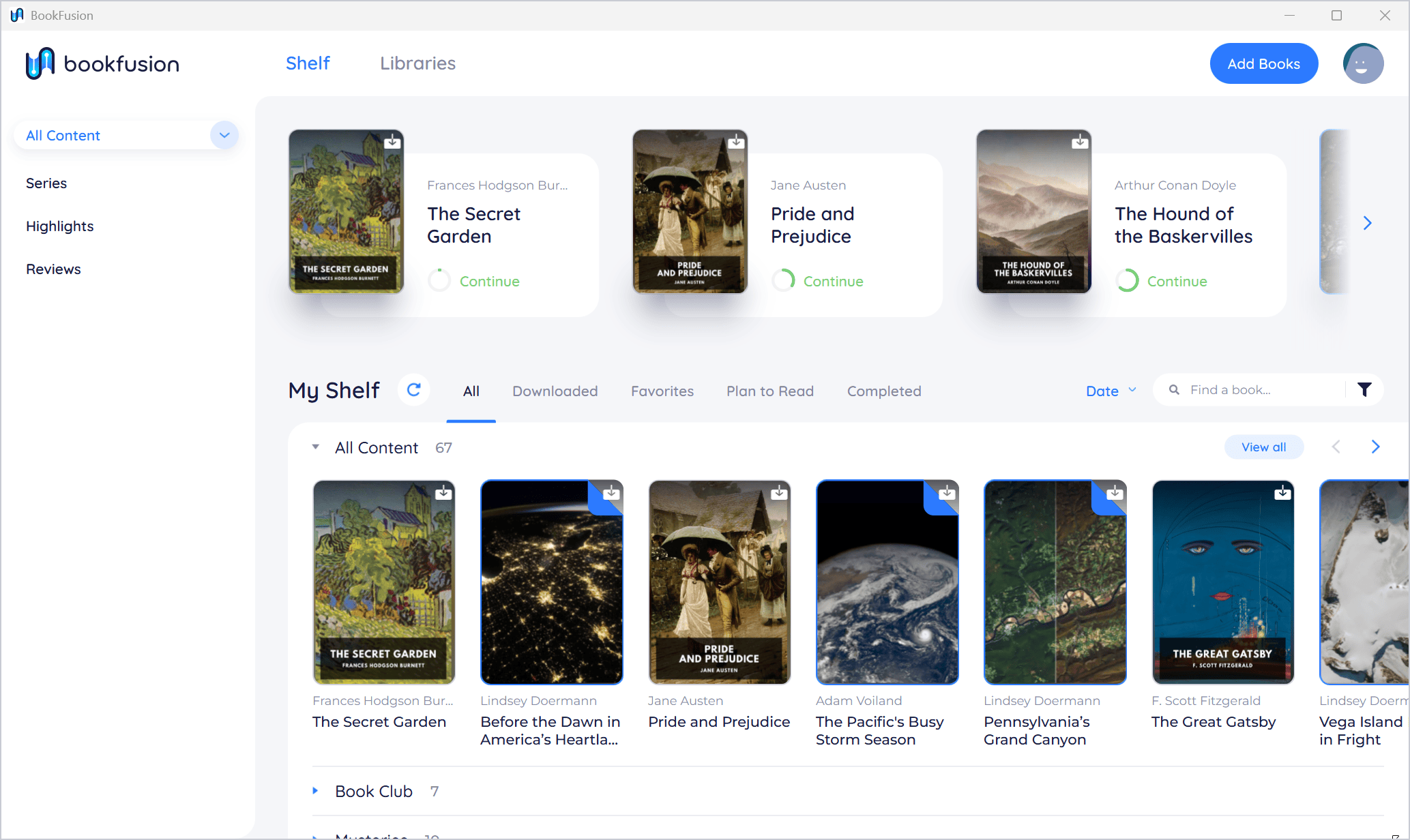
Your bookshelf opens, with the books, shelves and series from your account. Books you've been reading are along the top.
-
Click a book's cover to open its details, then click Download to keep a copy on this PC, and Read to open it. See Your First Book on Windows.
Other ways to sign in:
- Sign in with Google opens your web browser to sign in with your Google account, then hands you back to the app. The X button next to it does the same with an X (Twitter) account.
- If your organisation signs you in to BookFusion, typing your work email and clicking Next opens your organisation's sign-in page in your browser.
- Forgot Password? opens BookFusion's password reset page in your browser.
New to BookFusion?
Create a free account right in the app. With an account, your books are stored in your BookFusion library, and your reading position, highlights, notes and bookmarks sync to the web and the iOS and Android apps.
-
In the sign-in window, click Sign up at the top right (next to Don't have an account yet?).
-
Fill in Full Name, Email and Password (at least 6 characters).
-
Answer Are you over 18 years old? If you choose No, also enter your Date of Birth.
-
Tick Yes, I have read and I do agree with BookFusion Terms & Conditions and Privacy Policy, and click Sign Up.
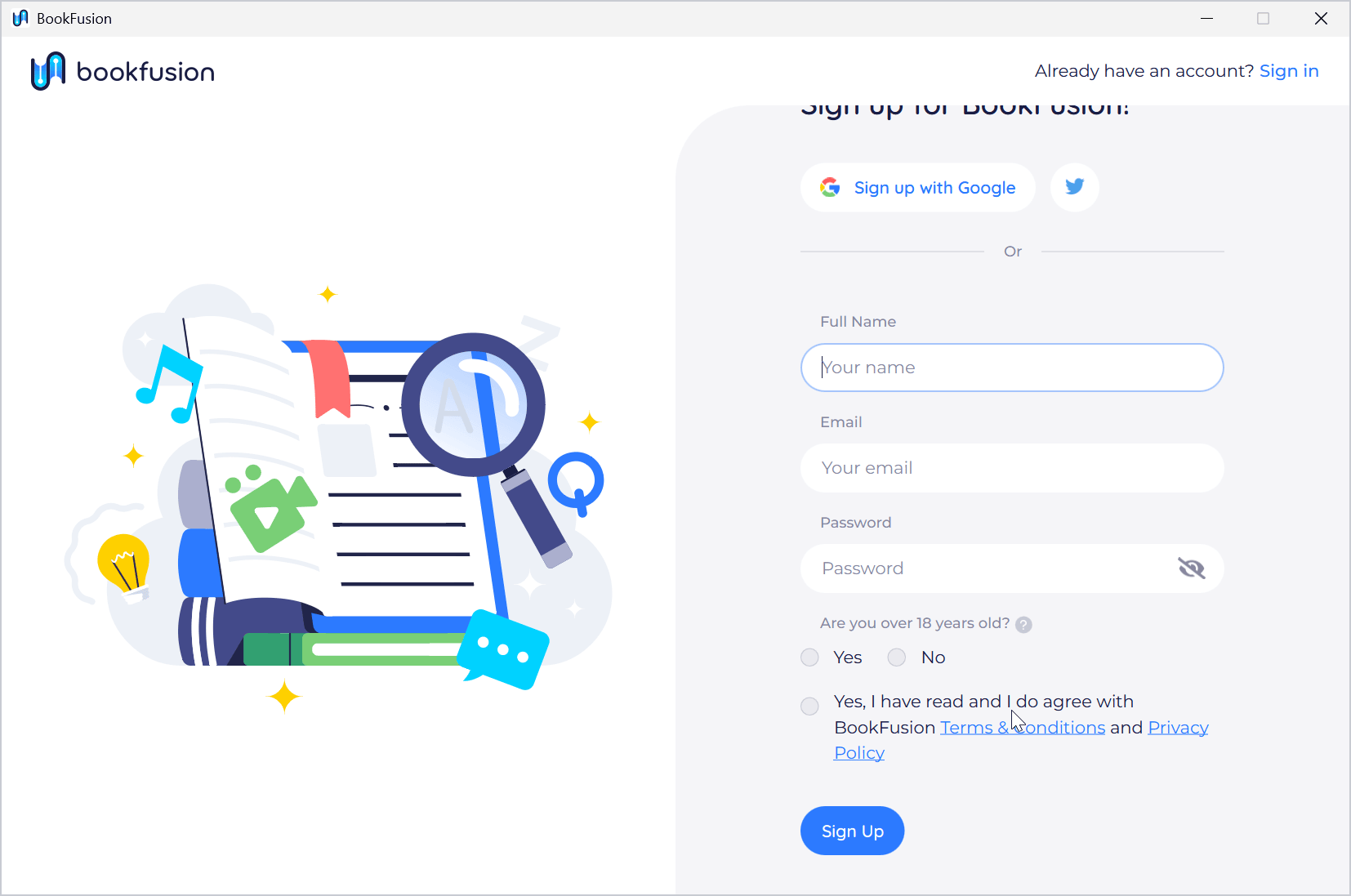
You can also click Sign up with Google or the X button to create your account with one of those.
-
BookFusion signs you in and opens your new, empty shelf. Click Add Books to add your first book; see Adding Books to Your Library.
Prefer reading without an account?
If you only want to read eBooks you already have on your PC, you don't need an account.
-
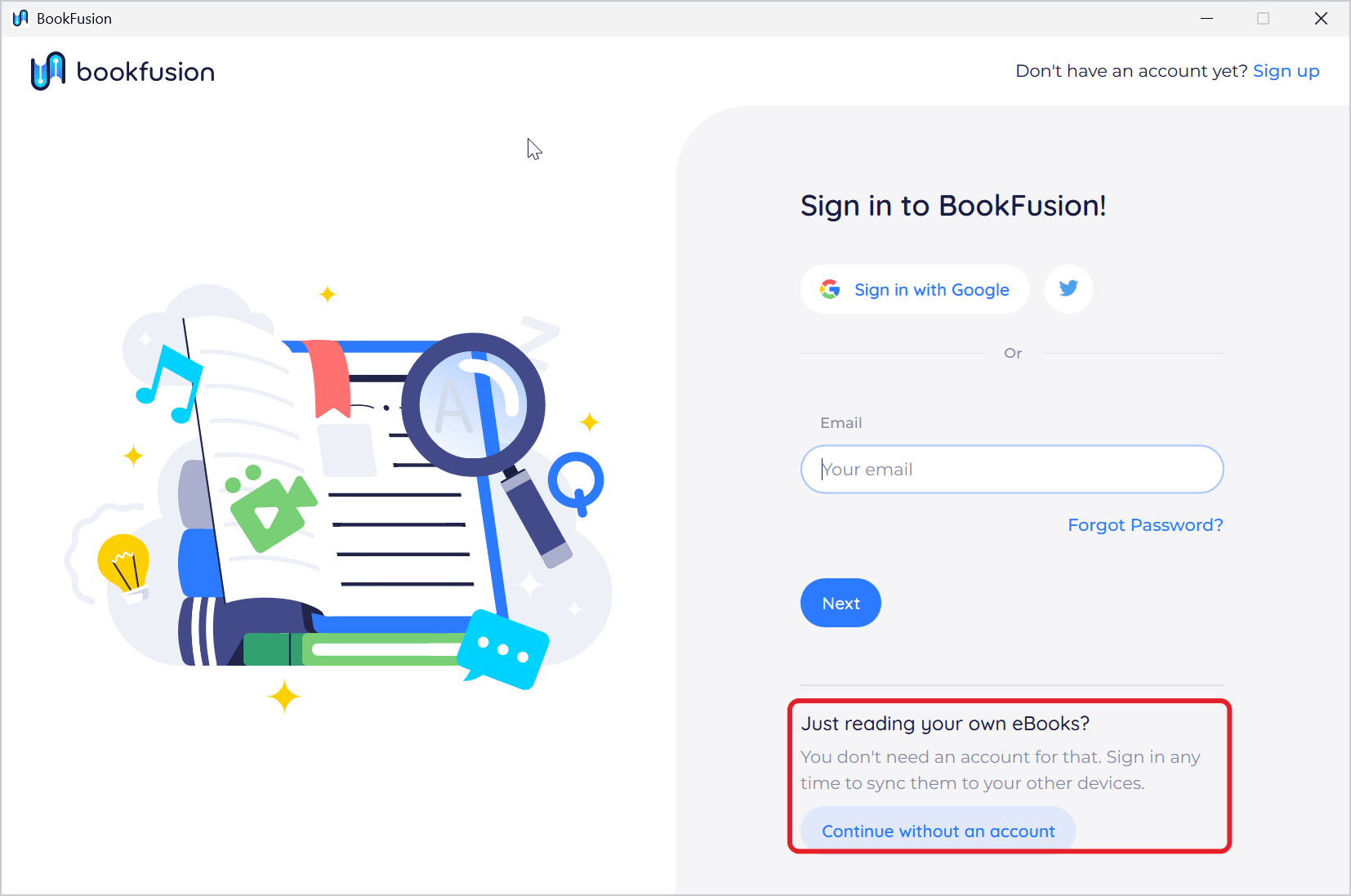
In the sign-in window, under Just reading your own eBooks?, click Continue without an account.
-
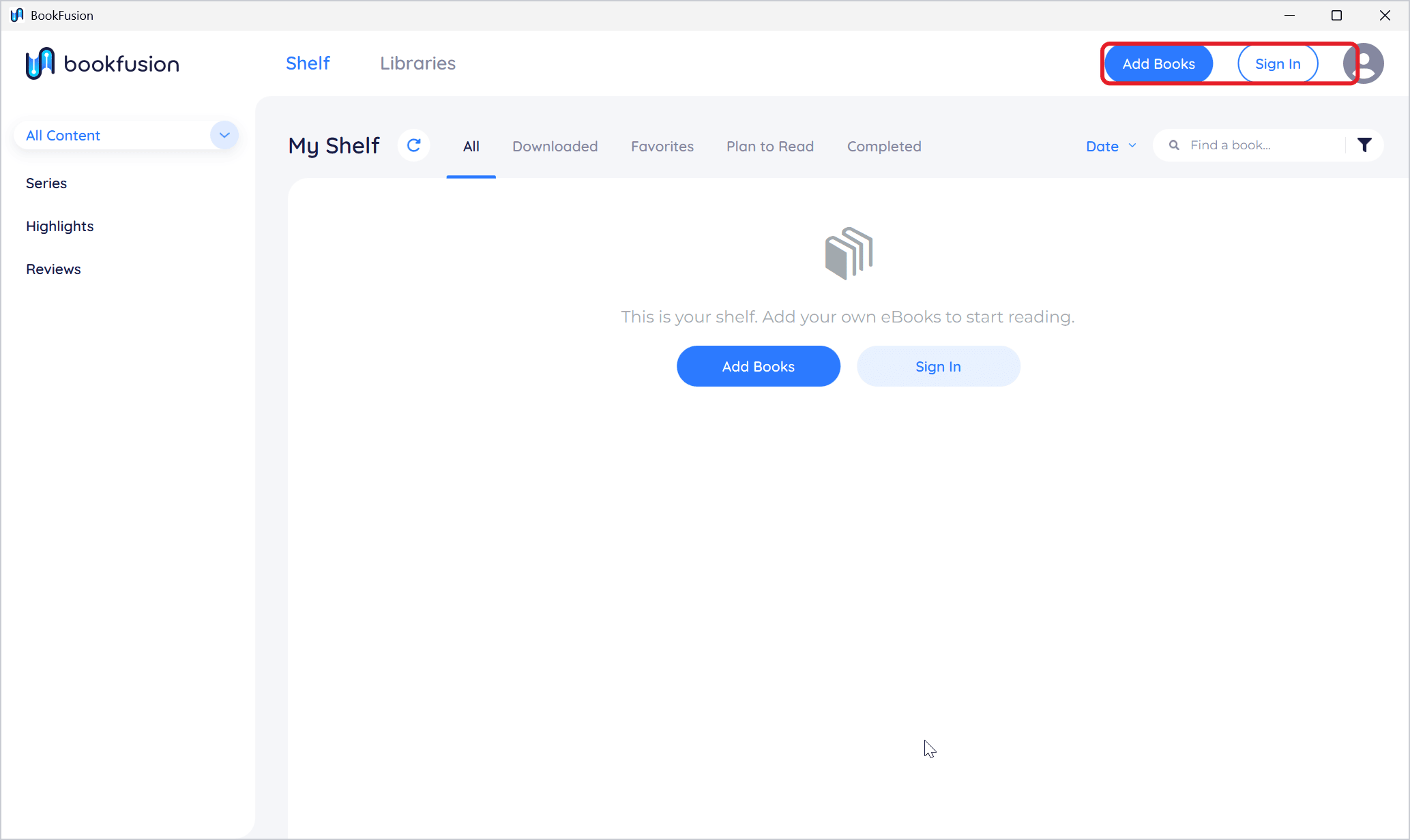
Your shelf opens, empty. Click Add Books.
-
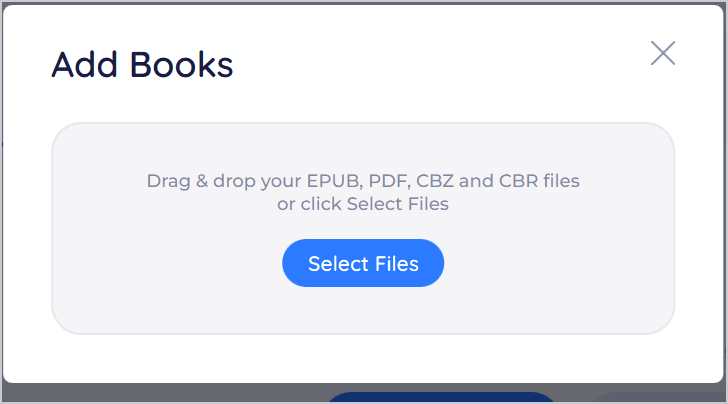
Click Select Files, choose an EPUB, PDF, CBZ or CBR file, and click Open. You can also drag files from File Explorer onto the shelf.
-
The book appears on your shelf. Click its cover, then Read.
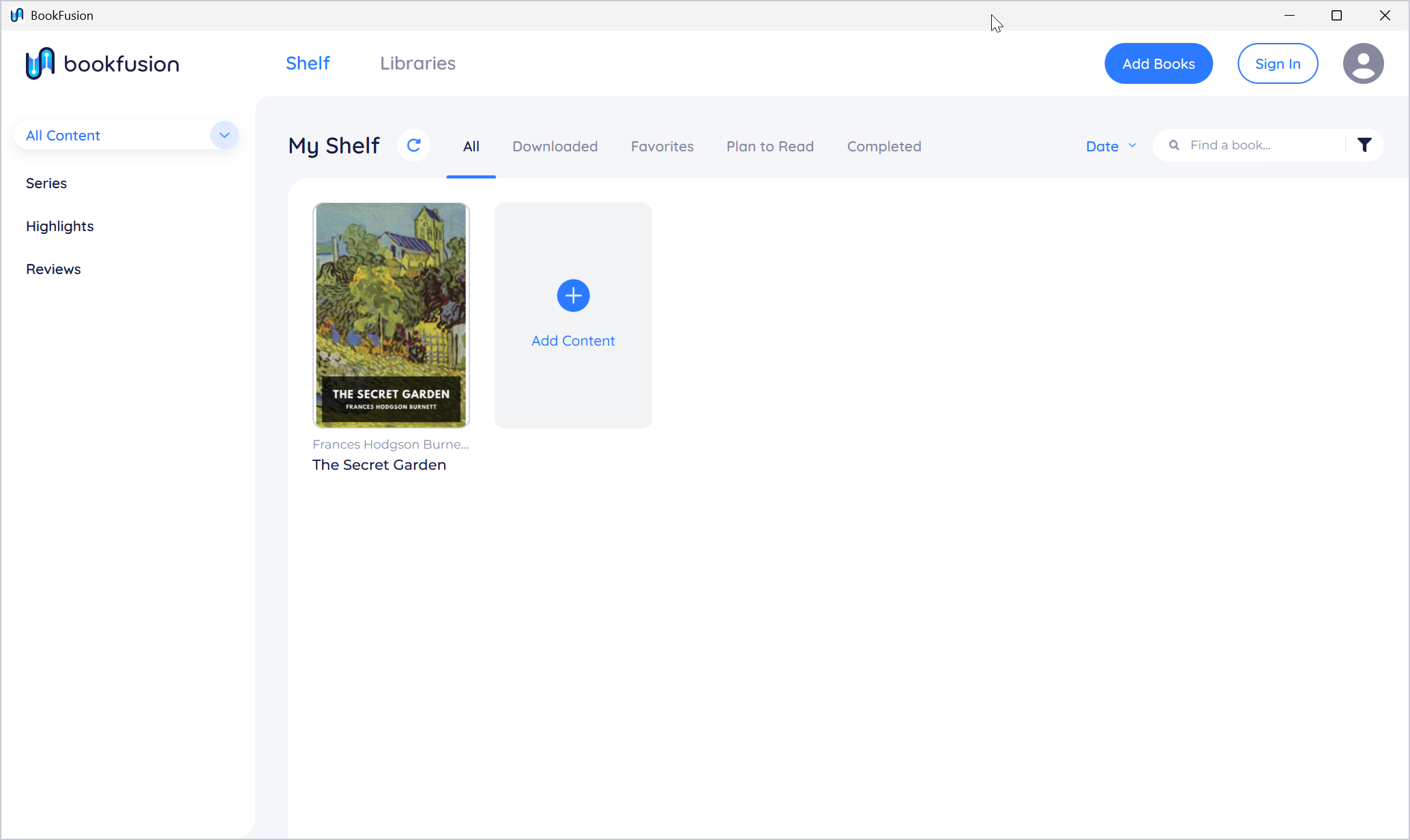
When the no-account option is offered
Continue without an account is offered only on a PC where no BookFusion account has been used in the app. Once you (or anyone) signs in to an account in BookFusion on that PC, the app doesn't offer the no-account option again, even after signing out.
The option appears under the sign-in form's first step (the Email step). It isn't shown on the password step or on the sign-up form.
How reading without an account differs
| Without an account | Signed in | |
|---|---|---|
| Your books | Stored only on this PC | Stored in your BookFusion library, and downloaded to the PCs and devices you choose |
| Highlights, notes, bookmarks, reading position | Kept on this PC | Synced with your account and your other devices |
| Libraries | Browse only. Joining a library or borrowing needs an account | Join libraries, borrow and return books |
| Reading aloud | Voices downloaded to your PC | Voices downloaded to your PC, and BookFusion's streamed voices with a plan that includes them |
| Works offline | Yes, always | Yes, for books downloaded to this PC |
Sign in later
You can sign in or create an account at any time: click Sign In at the top of the shelf, or click the profile picture and choose Sign In.
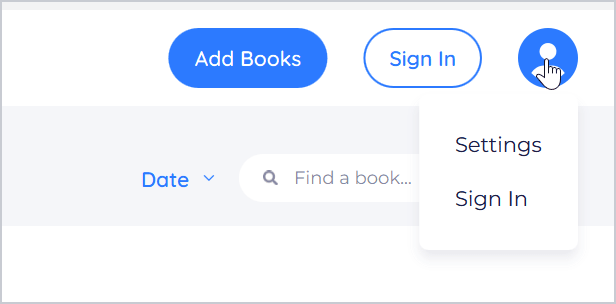
When you sign in, the books you added without an account move into that account, with their highlights, notes, bookmarks and reading positions, and BookFusion uploads them to your library while you're online. After that, this PC uses your account and no longer offers the no-account option.
The books you add without an account exist only on this PC until you sign in. If you uninstall BookFusion and choose to remove its data, or the PC is lost, those books and their highlights are gone. Keep your original files.