App Settings & Appearance
BookFusion's Settings page holds the settings for the app as a whole: its appearance, your profile, its version and updates. The settings for how books look are in the reader; see Customizing Your Reading Experience.
Open Settings
Click your profile picture at the top right and choose Settings.
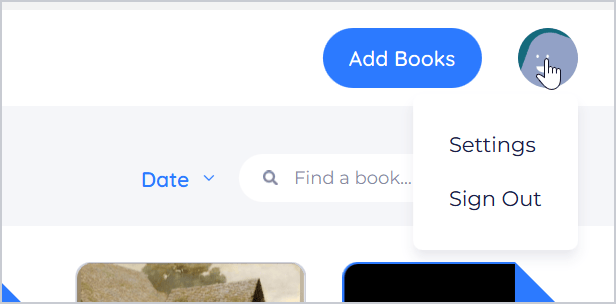
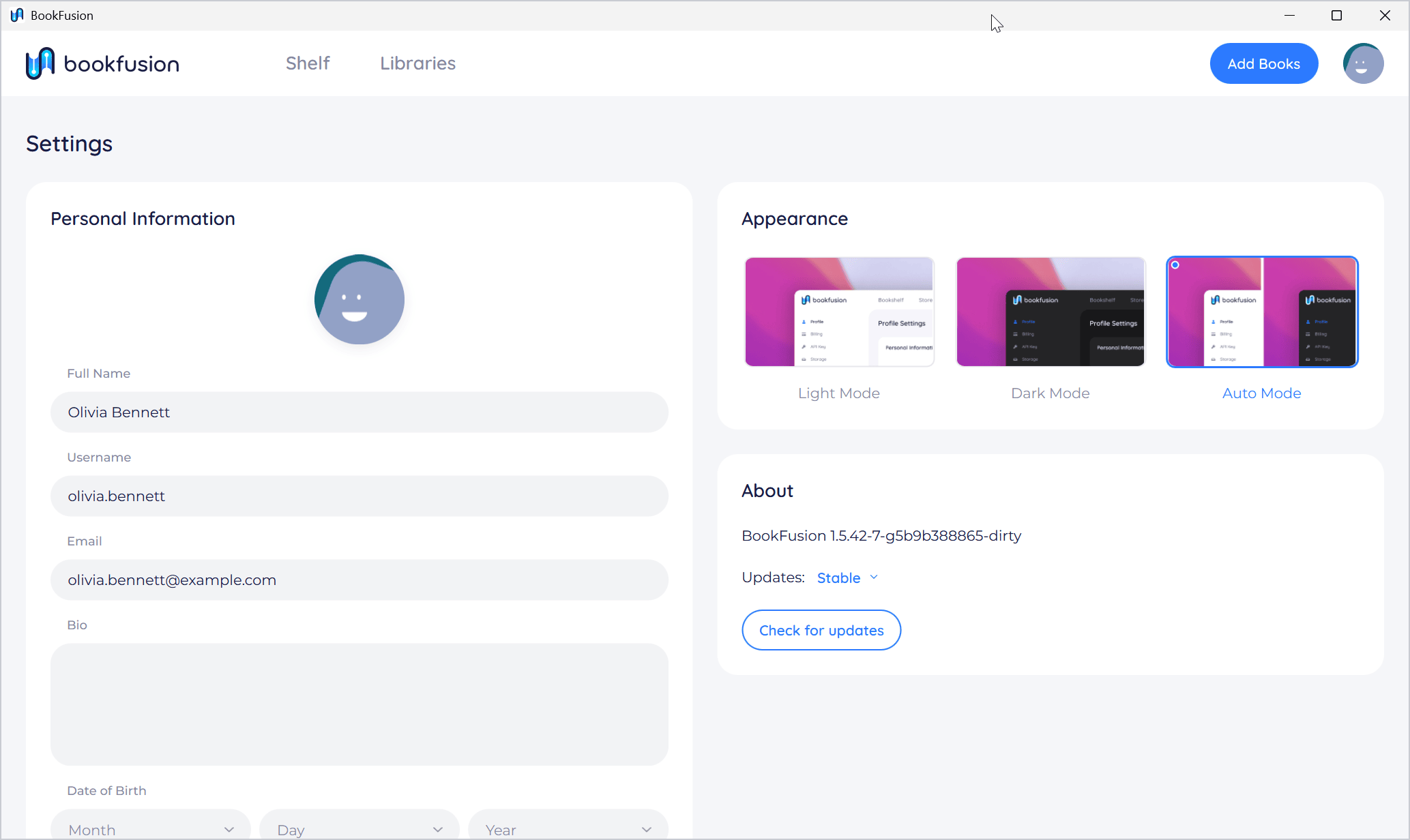
To leave Settings, click Shelf or Libraries at the top.
Appearance
Under Appearance, choose how the app looks:
- Light Mode: light backgrounds.
- Dark Mode: dark backgrounds.
- Auto Mode: follows Windows. When Windows switches between light and dark (in Windows Settings › Personalization › Colors), BookFusion does too. This is the default.
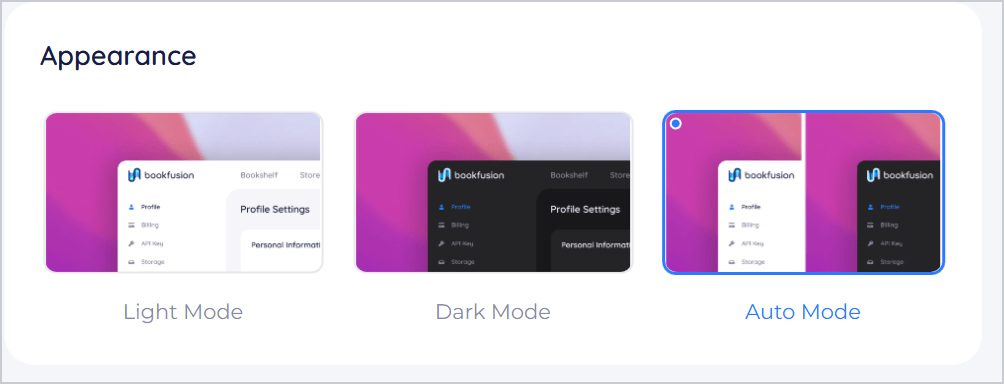
Appearance changes the app: the shelf, menus and windows. The colours of the page you're reading are set in the reader with its colour themes. The reader's Auto theme follows Windows in the same way.
Personal Information
When you're signed in, Personal Information shows your BookFusion profile: your picture, Full Name, Username, Email, Bio and Date of Birth. Change them and click Update Profile. BookFusion says Your profile is updated.
Your profile needs an internet connection. Offline, the card says You're offline. Without an account, there's no Personal Information.
About
About shows the version of BookFusion you have, such as BookFusion 1.5.42, and how it's updated:
- Updates: Stable or Beta.
- Check for updates: looks for a newer version now.
See Updating BookFusion & Joining Beta.
Tips and important differences
- Your account's settings online. Your plan, billing and other account settings are on the BookFusion website.
- Sign Out is in the profile menu, not on the Settings page. See Signing Out & Uninstalling.
- Settings are kept on this PC. Appearance and Updates apply to BookFusion on this PC only.