Adding Books to Your Library
Add the eBooks, PDFs and comics you have on your PC to BookFusion for Windows. Drag them onto the shelf, or choose them with Add Books. You can add several at once.
Before you begin
- BookFusion for Windows adds EPUB, PDF, CBZ and CBR files. BookFusion's library supports more formats on other platforms; see Supported Formats.
- Files must be DRM-free. BookFusion can't open books locked to another store's app.
- If you're signed in, the books you add also upload to your BookFusion library, and count towards your plan's storage or book limit.
Drag books onto the shelf
- Open File Explorer next to BookFusion and select one or more books.
- Drag them onto the shelf. The shelf shows Drop EPUB, PDF, CBZ and CBR files to add them.
- Let go of the mouse button. The books appear at the start of your shelf.
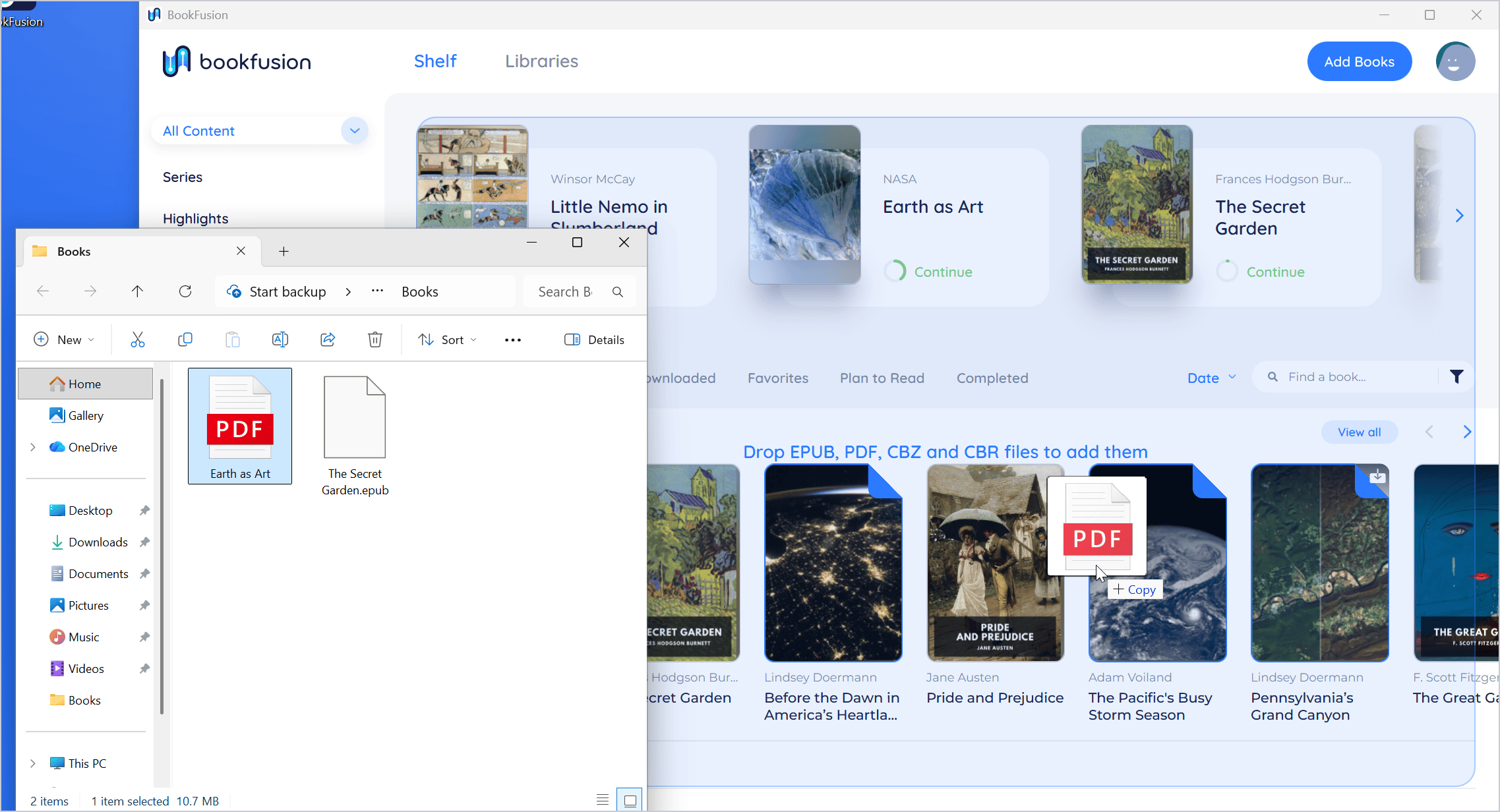
If you drag in a file of another kind, the shelf says Only EPUB, PDF, CBZ and CBR books can be added.
Choose books with Add Books
-
Click Add Books at the top of the shelf.
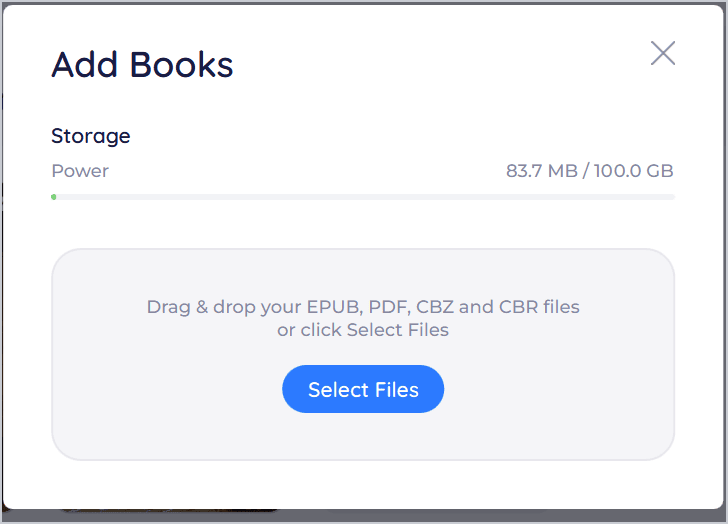
When you're signed in, the top of the window shows how much of your plan's Storage (or number of Books) you're using, with Upgrade if your plan offers one.
-
Click Select Files. Choose one or more books (hold Ctrl to select several), then click Open.
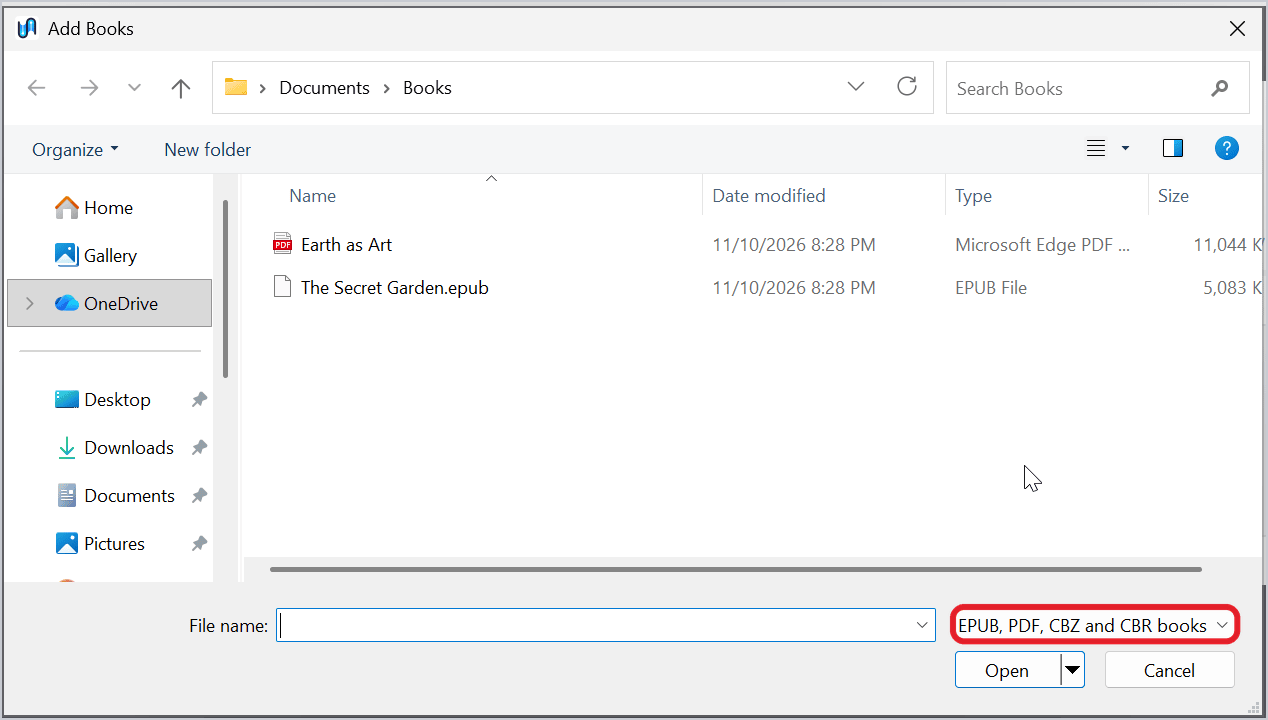
You can also drag files onto the Add Books window.
-
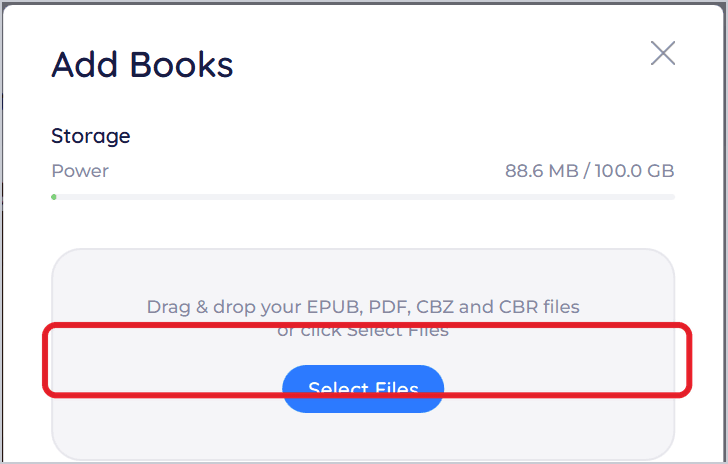
Each book is listed while it's added and uploaded, with how far along it is. Finished books leave the list after a few seconds.
-
Close the window. Your books are at the start of the shelf, ready to read.
Uploads to your library
When you're signed in, BookFusion adds a book to your PC first, so you can read it straight away, then uploads it to your BookFusion library so your other devices have it too.
- Books upload one at a time, and only while you're online. If you're offline, they wait and upload once BookFusion is back online.
- While a book uploads, its cover shows Uploading and how far it's got. A book waiting its turn shows Upload pending.
- A book that didn't upload shows Not uploaded. Click its badge (or open Add Books) to see why, then click Try Again, or Remove to take it off the list.
- The book's details also show its upload status, with Try Again, Upload or Cancel.
Without an account
If you use BookFusion without an account, books are added to this PC only and nothing is uploaded. The Add Books window has no storage meter or upload list. If you sign in later, the books you added upload to your new library. See Choose How to Get Started.
Tips and important differences
- Duplicates. Adding a book you've already added shows “[title]” has been added already. Adding one that's already in your library shows “[title]” is in your library already.
- File size. Your plan may limit the size of each file. A book over the limit isn't uploaded, and BookFusion tells you the limit.
- Articles. Articles are saved to BookFusion from the web, not added here. See Reading Articles on Windows.
- Your original file stays put. BookFusion keeps its own copy, so moving or deleting the original file afterwards doesn't affect the book in BookFusion.
If something doesn't work
- “[title]” couldn't be added: the file may be damaged, DRM-protected, or not really the kind of file its name says. Try opening it in another app, or get a fresh copy.
- The upload was canceled or BookFusion couldn't be reached: check your internet connection and click Try Again.
See Troubleshooting Common Problems.