Mobile (Android & iOS)
You can listen to supported books in BookFusion on both Android and iPhone or iPad using Text to Speech. This includes Standard Text to Speech and, where available, Realistic Voices.
Use this guide to start listening, change voices, and control playback on mobile.
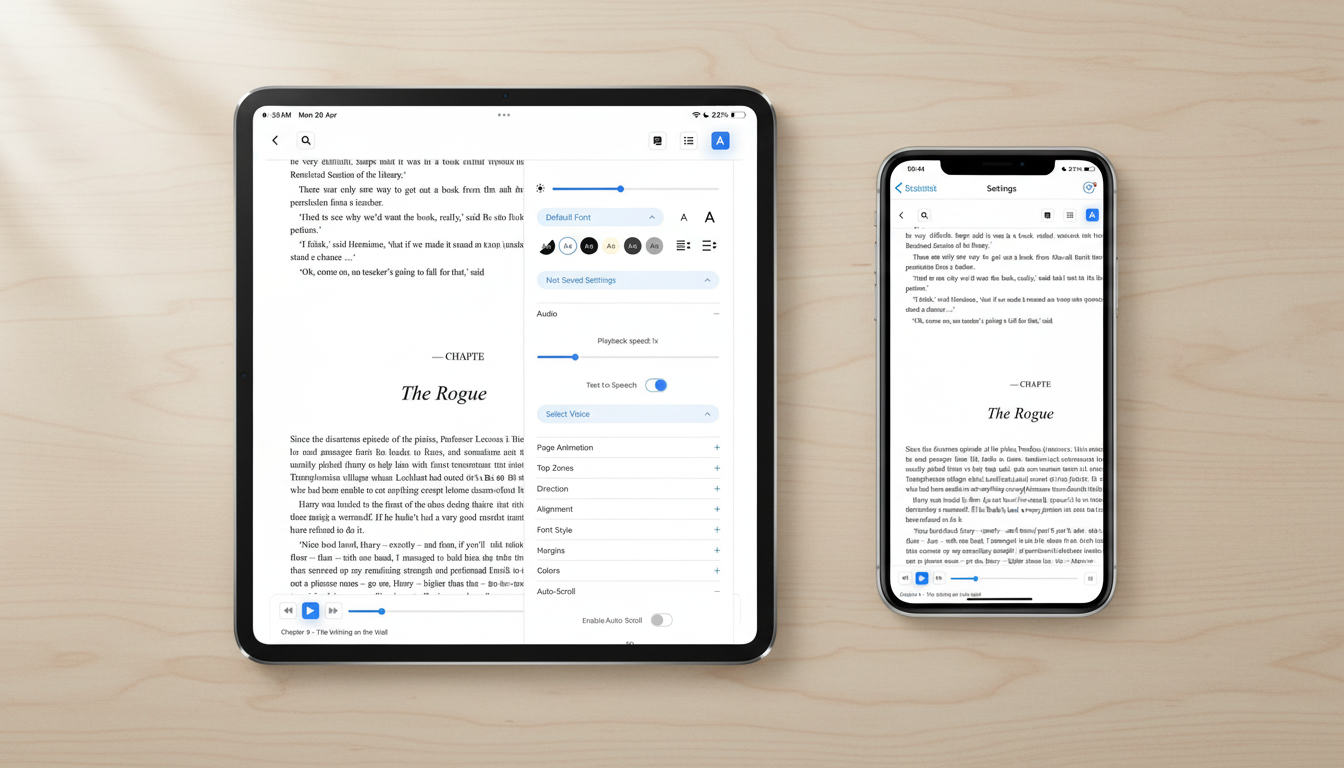
Start listening on mobile
To start listening in the BookFusion mobile app:
- Open a supported book.
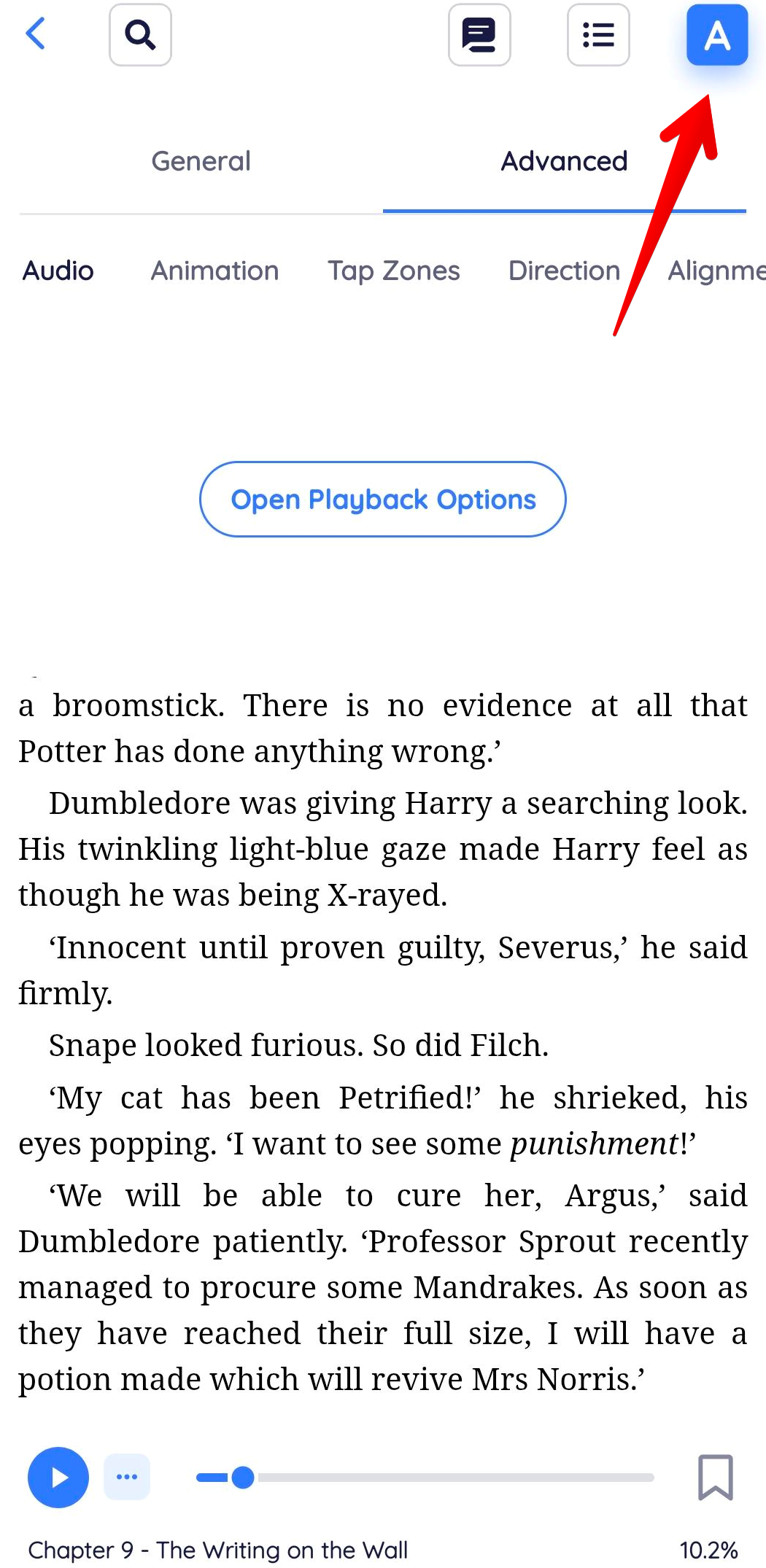
- Tap the A icon in the top-right corner to open the reader settings, where you can access audio and playback options.
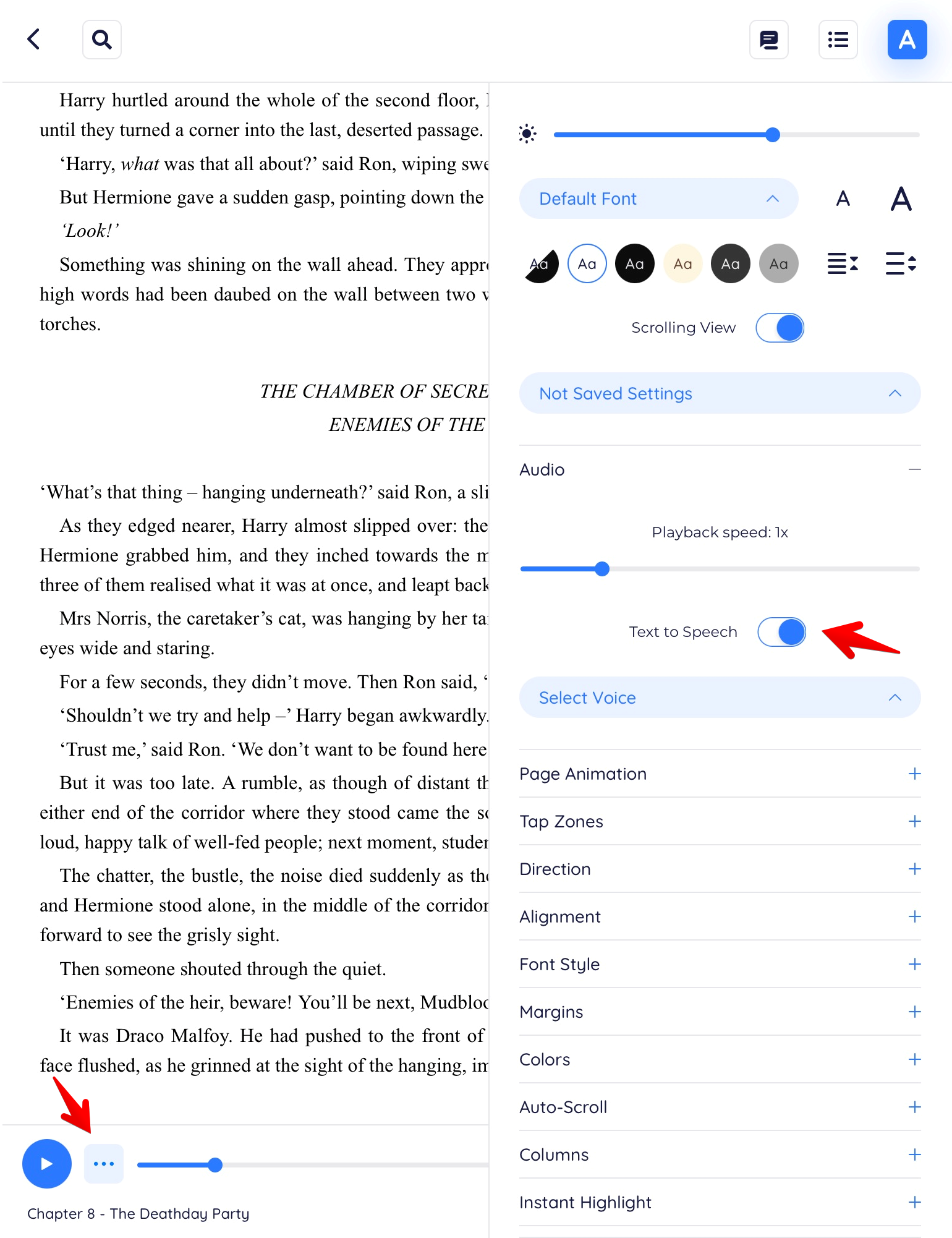
- Enable Text to Speech, or tap the ellipsis icon (…) if it is already available.
-
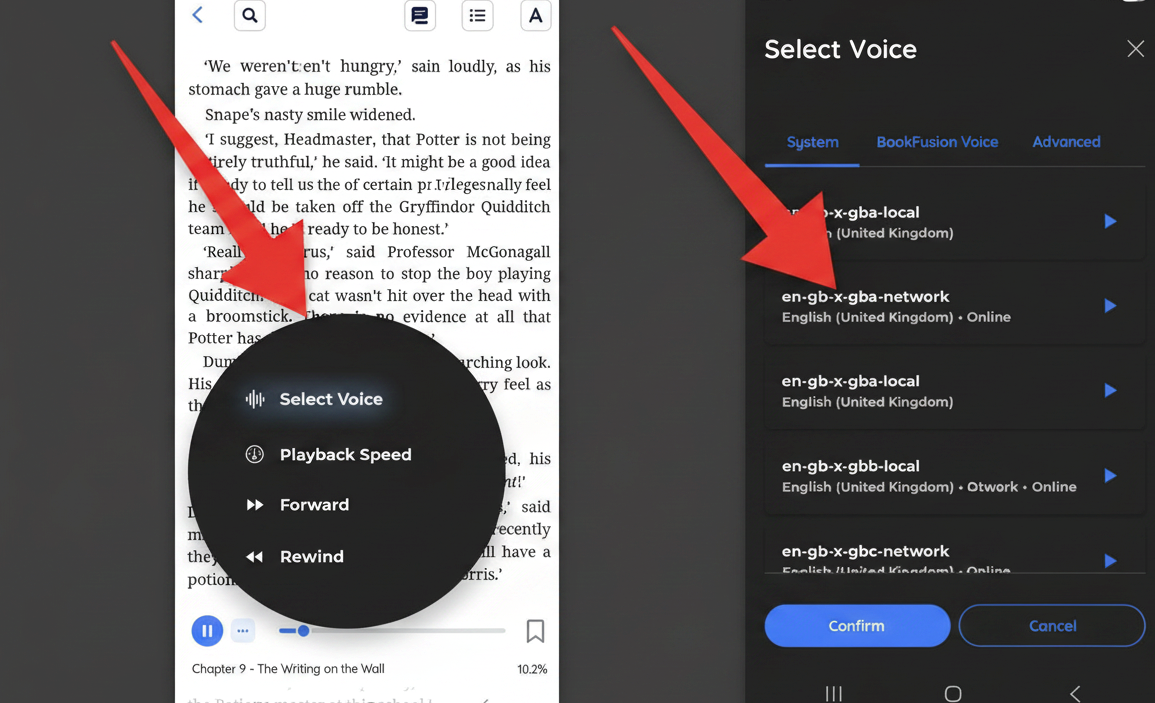
Choose a voice.
-
Press Play.
Playback begins, and you can continue listening while reading or while using other supported features.
Choose a voice
BookFusion lets you listen using the voices available to your mobile device and, where supported, Realistic Voices.
To change the voice:
-
Open the audio or Text to Speech settings while inside the reader.
-
Select the voice you want to use.
-
Return to playback and continue listening.
The selected voice is applied to the current session.
If you don't see the voice you want, check your device voice settings.
Playback controls
When listening on mobile, you can use playback controls to manage your experience.
Depending on your device and setup, you may be able to:
- Play and pause narration.
- Move backward and forward.
- Adjust playback speed.
- Resume where you left off.
- Continue listening in the background.
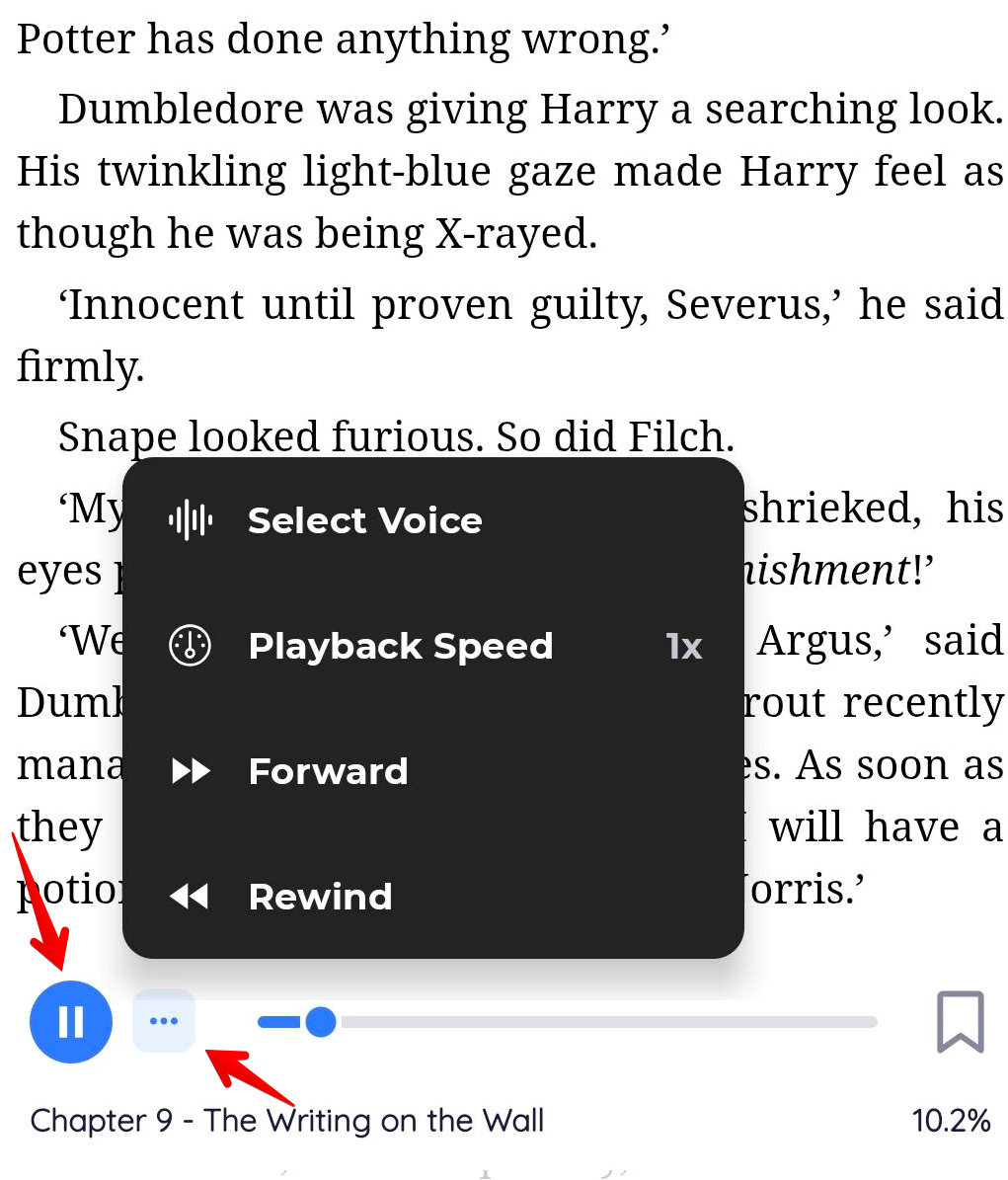
For more details, see Playback Controls.
Realistic Voices on mobile
If Realistic Voices are available on your mobile device and plan, you can select them from the available voice options.
Realistic Voices are ideal when you want a more natural-sounding listening experience.
If you don't see Realistic Voices, see Access and Plans.
Platform-specific setup
Some settings differ between Android and iOS. Select your platform below.
- Android
- iPhone & iPad
Advanced voices are high-quality online voices available directly in BookFusion — no additional app required.
To use an Advanced voice on Android:
-
Open BookFusion and open the book you want to listen to.
-
Tap the A icon in the top-right corner to open the reader settings.
-
Enable Text to Speech, or tap the ellipsis icon (…) if it is already available.
-
Tap Select Voice to open the voice selector.
-
Tap the Advanced tab.

-
Tap the ▶ icon next to any voice to preview it.
-
Tap the voice you want to use to select it.
-
Tap Confirm.
The selected voice is applied to playback.
Advanced voices require an active internet connection. For offline listening, see BookFusion Voice — a free neural TTS engine with 100+ voices across 38+ languages that runs fully offline on Android.
On iPhone and iPad, BookFusion uses the voices installed through iOS. Downloading Apple's premium (enhanced) voices gives you a noticeably more natural listening experience in BookFusion.
To install premium voices on iPhone and iPad:
- Open the Settings app on your device.
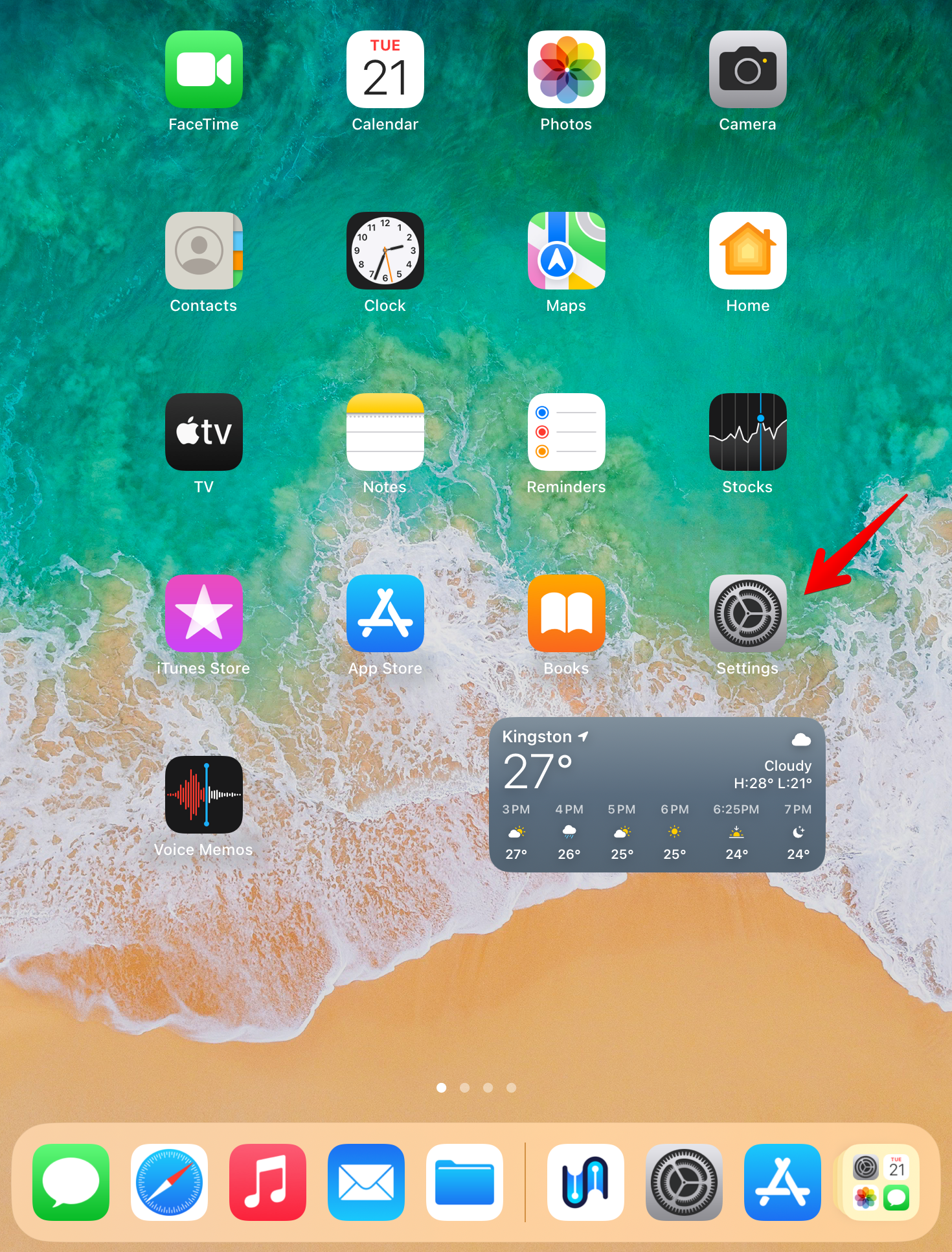
-
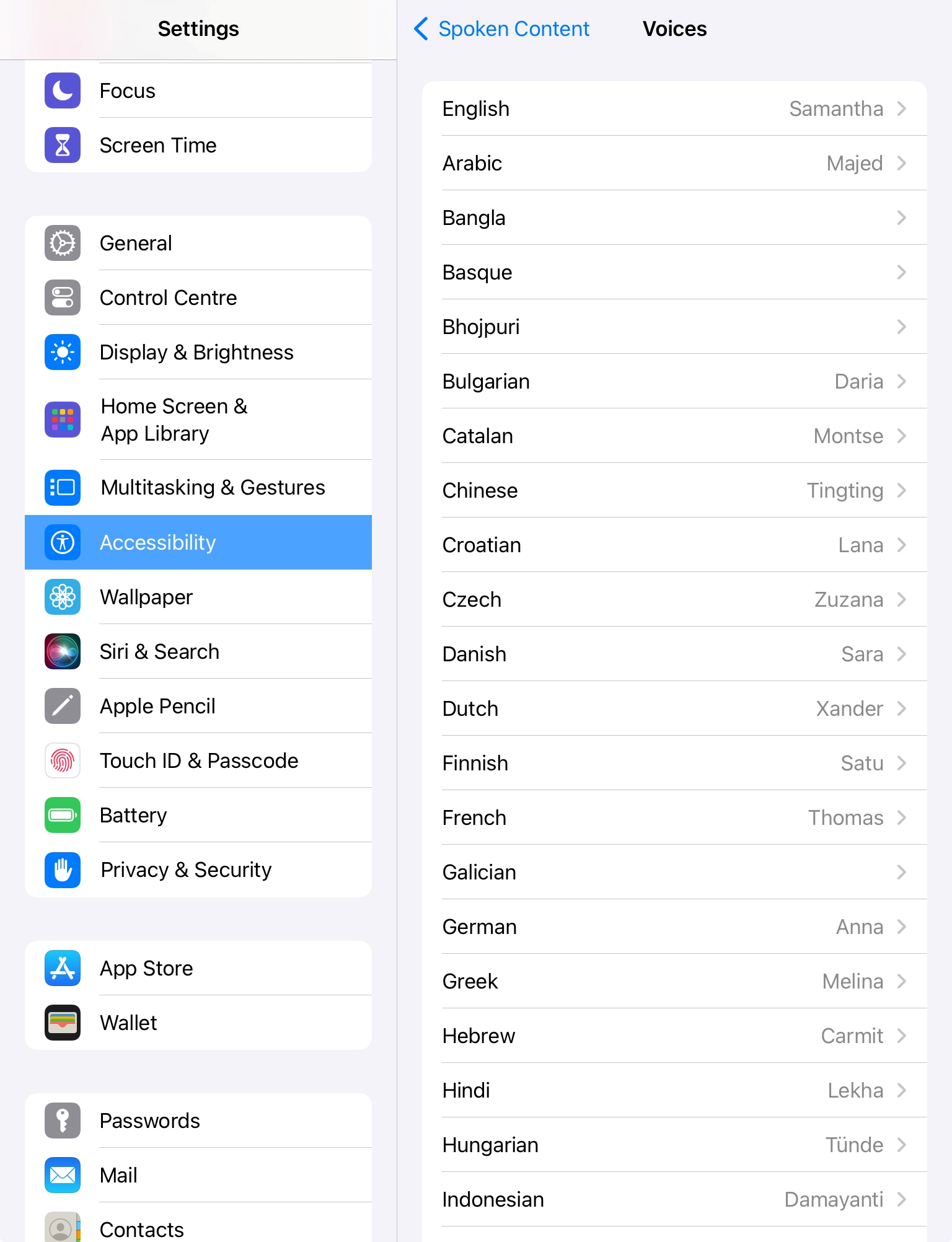
Go to Accessibility and Tap Spoken Content.
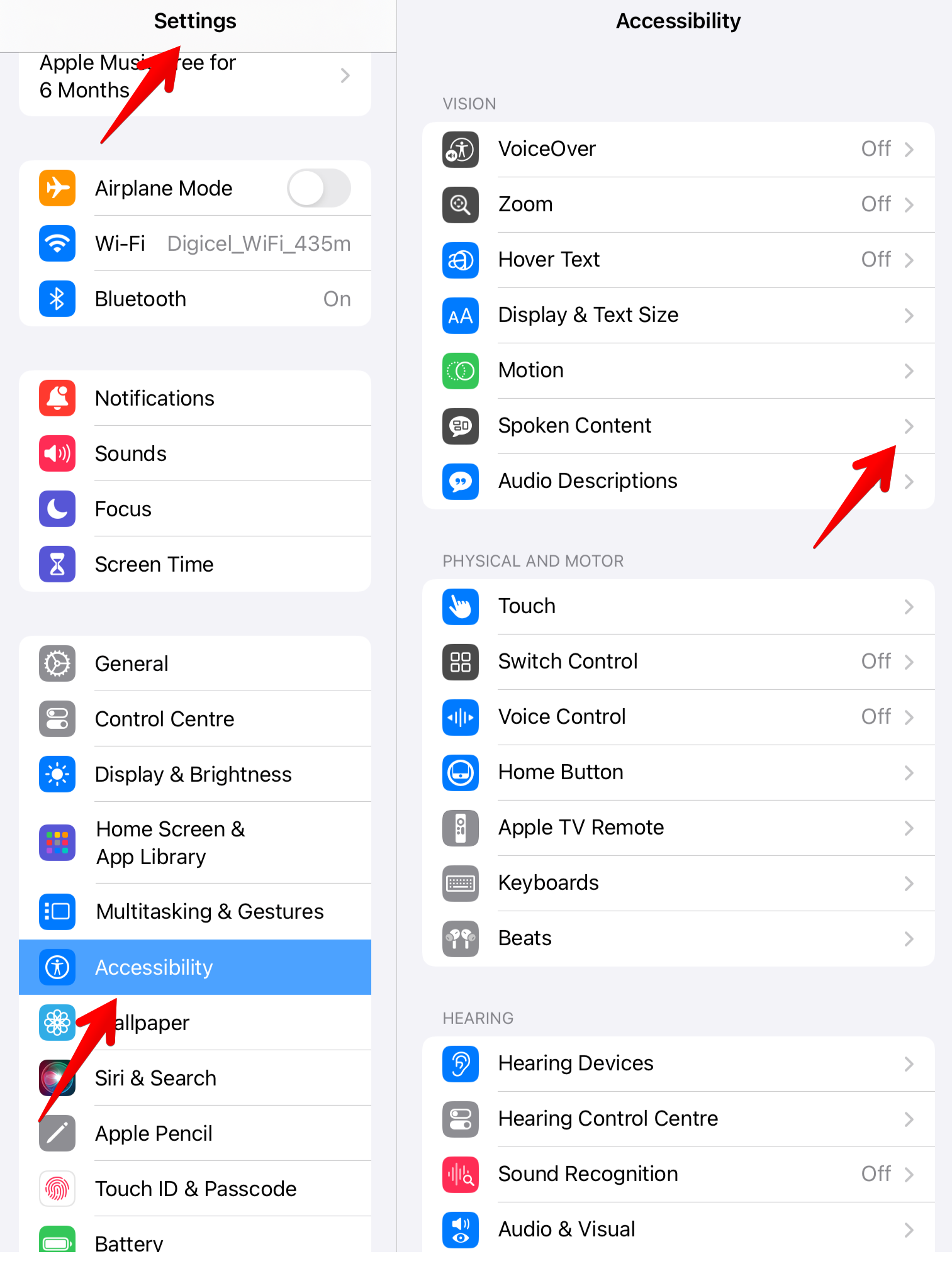
-
Tap Voices.
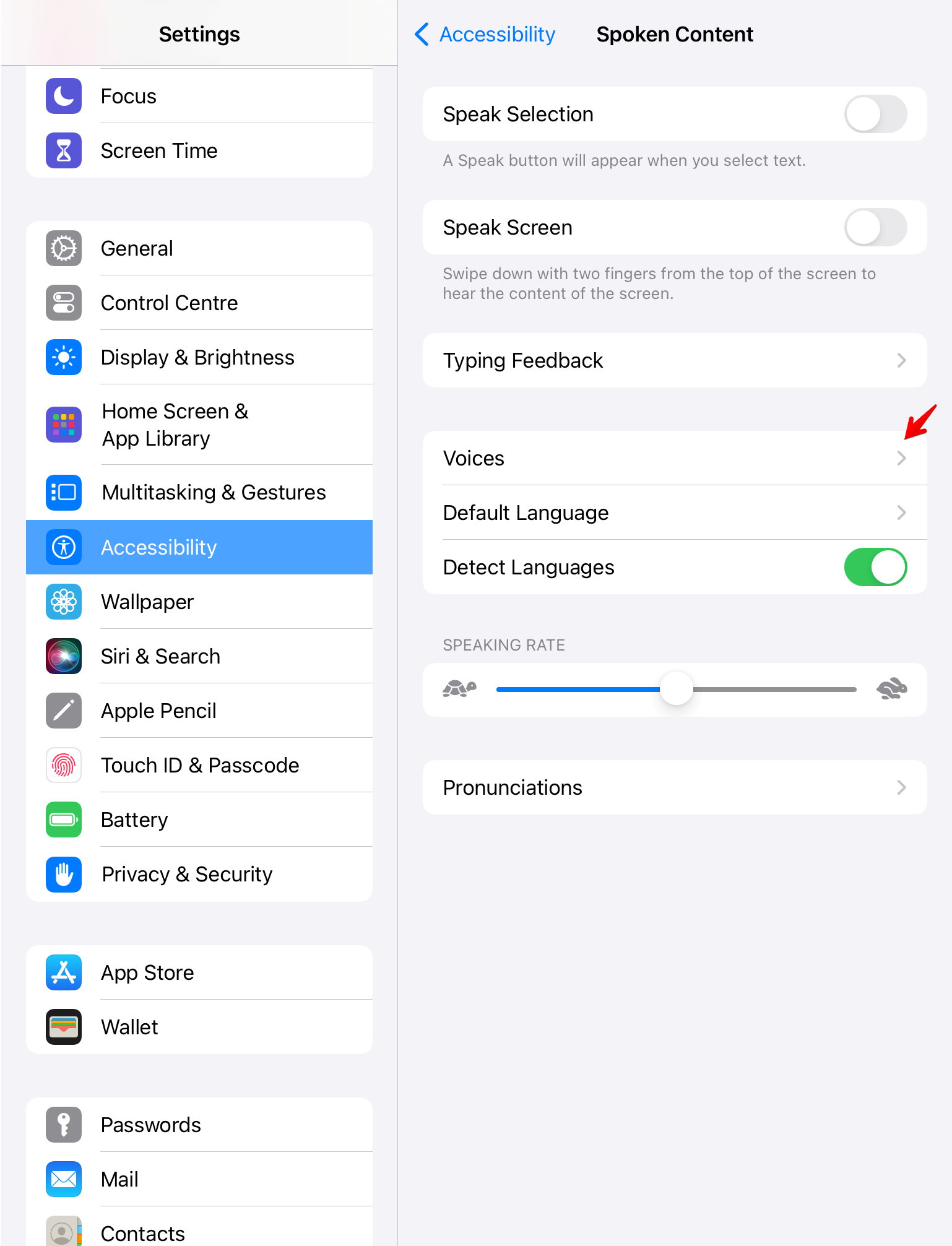
-
Select the language that matches the voice you want to install. Install voices for additional languages if needed.
-
Look for voices with download icons and tap them to download the premium versions.
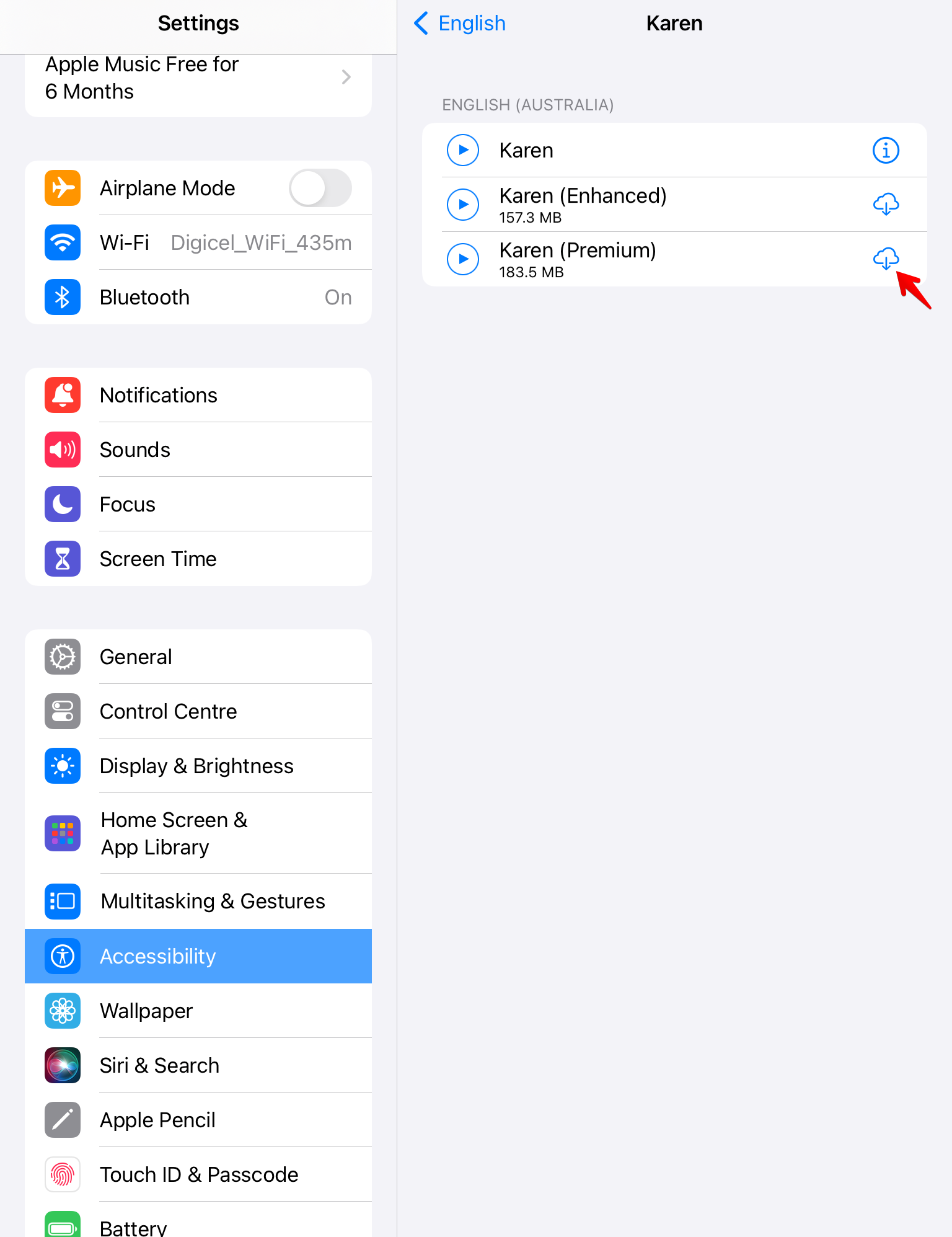
Siri voices are not available to third-party apps due to Apple restrictions, so they won't appear in BookFusion.
-
Alternatively, download a voice directly within BookFusion from the Local tab of the voice selector, so it works fully offline. See How to use Offline Realistic Voices on iOS for details.
-
Return to BookFusion, open a supported book, and select your newly installed voice from the reader's voice selector.
The downloaded voice is now available whenever you listen in BookFusion.