Get Started
You can start listening to your books in BookFusion using either Standard Text to Speech or Realistic Voices.
Standard Text to Speech uses the voices already available on your device or browser. Realistic Voices offer a more natural-sounding listening experience.
If you're not sure which listening options are available on your plan or device, see Access and Plans.
Before you begin
Before using Text to Speech in BookFusion, make sure:
- You're using the latest version of the BookFusion app or Web reader.
- You've opened a supported book.
- Your device or browser has at least one available voice.
- Your volume and audio settings are turned on.
If you want to use Realistic Voices, availability may depend on your plan, platform, and device support.
Start listening
To start listening in BookFusion:
-
Open a supported book.
-
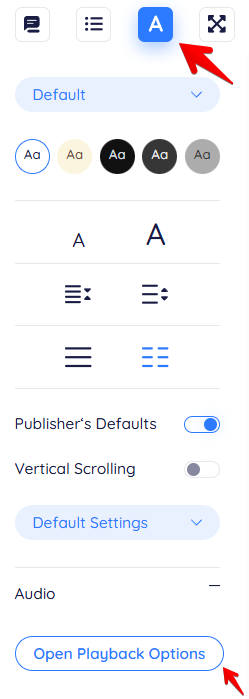
Tap the A icon in the top-right corner to open the reader settings, where you can access audio and playback options.
-
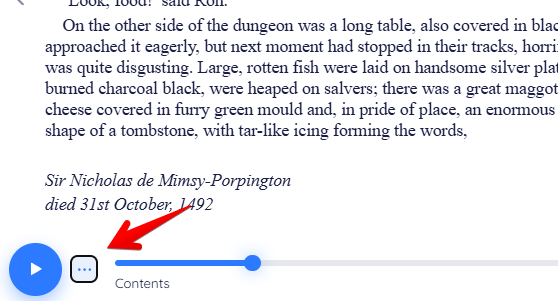
Enable Text to Speech, or tap the ellipsis icon (…) if it is already available.
-
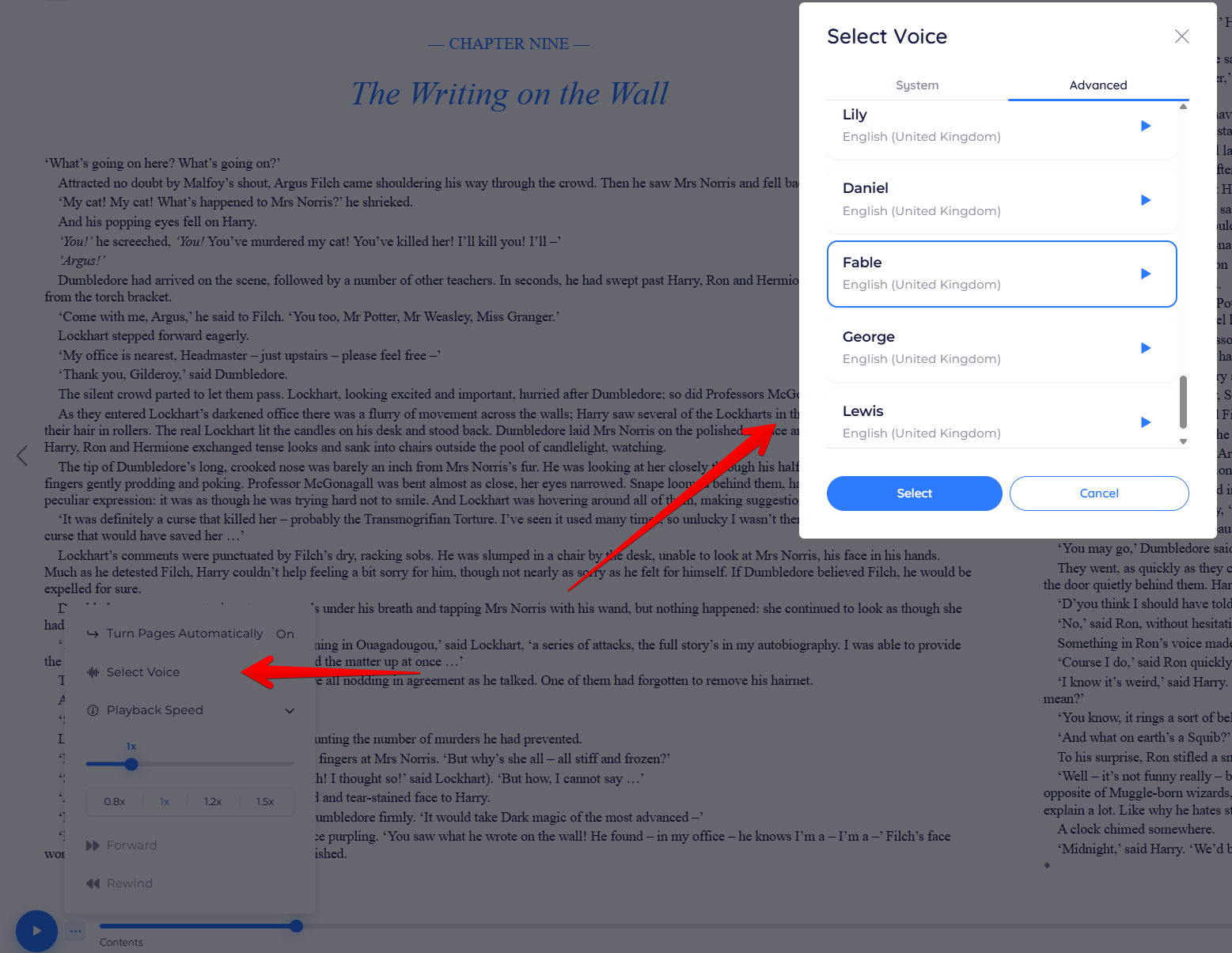
Tap Select Voice, then choose a voice from the System tab for Standard Text-to-Speech voices, or open the Advanced tab to access Realistic Voices available with your plan and device.
-
Press Play.
Playback begins, and you can continue following along in the text.
Choose a listening option
BookFusion may show one or both of the following options depending on your setup.
Standard Text to Speech
Use this option to listen with the voices already available on your device or browser. This is the quickest way to start listening.
Realistic Voices
Use this option if Realistic Voices are available on your plan and platform, or if your device supports a downloadable model. This option provides a more natural listening experience.
Adjust playback
After playback starts, you can use the available controls to manage your listening experience.
Depending on your device and platform, you may be able to:
- Play or pause.
- Move backward or forward.
- Change playback speed.
- Switch voices.
- Resume from where you left off.
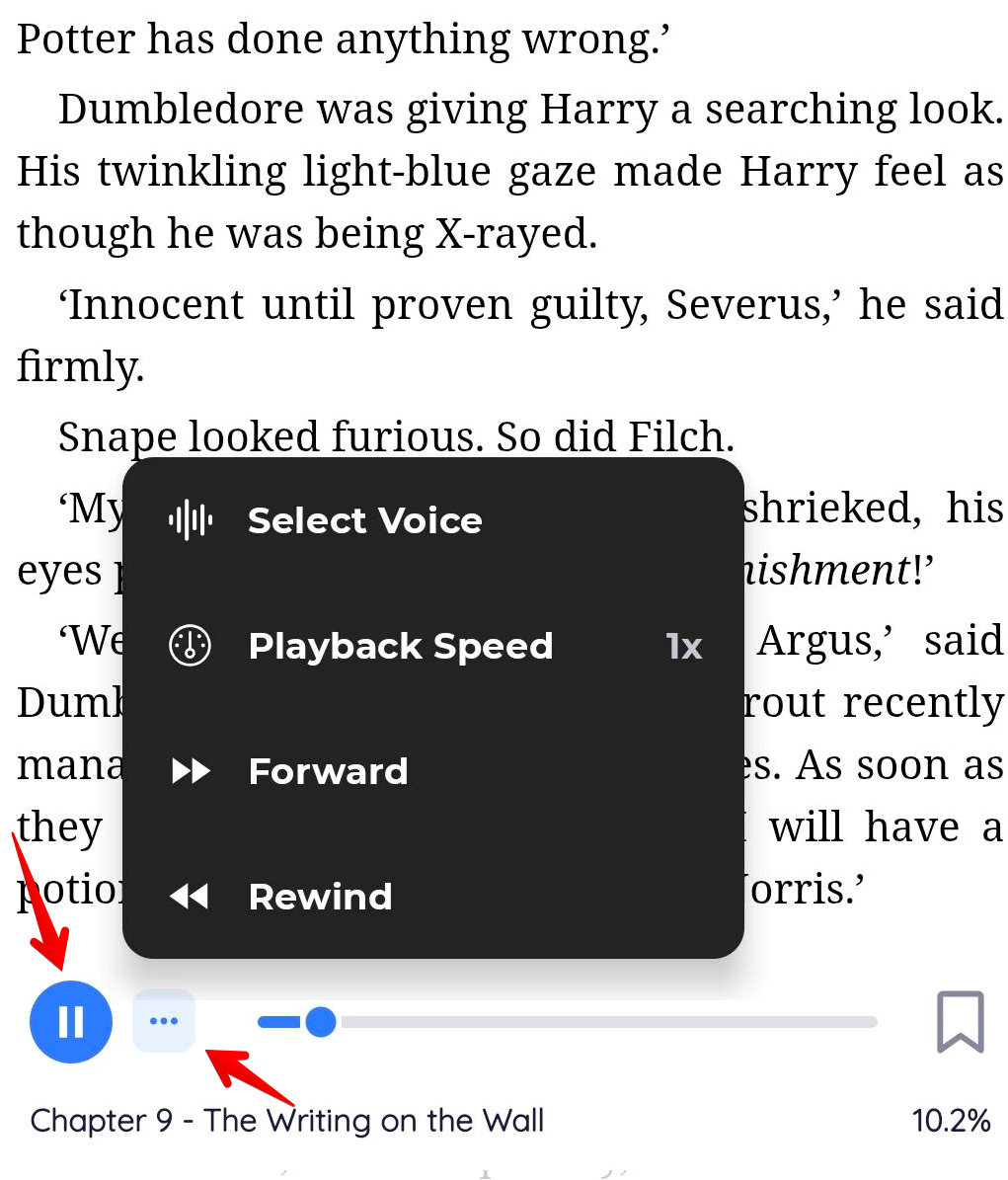
For more details, see Playback Controls.
If you do not see a voice
If no voice appears when you try to listen:
- Check that your device or browser has an available Text to Speech voice.
- Make sure your BookFusion app is updated.
- Confirm that your current plan includes the listening option you want to use.
- Check whether your device supports downloadable Realistic Voice models.
Next steps
Use the guides below for more help based on your device or listening preference: