BookFusion Voice (Offline Realistic Voices on Android)
BookFusion Voice is a neural text-to-speech engine for Android that brings natural-sounding AI voices to your device. Once a voice is downloaded, speech synthesis works fully offline on that device.
BookFusion Voice works especially well with BookFusion. If you use it together with the BookFusion eBook reader, installed voices are detected automatically, so you can download a voice in BookFusion Voice and then start listening in BookFusion.
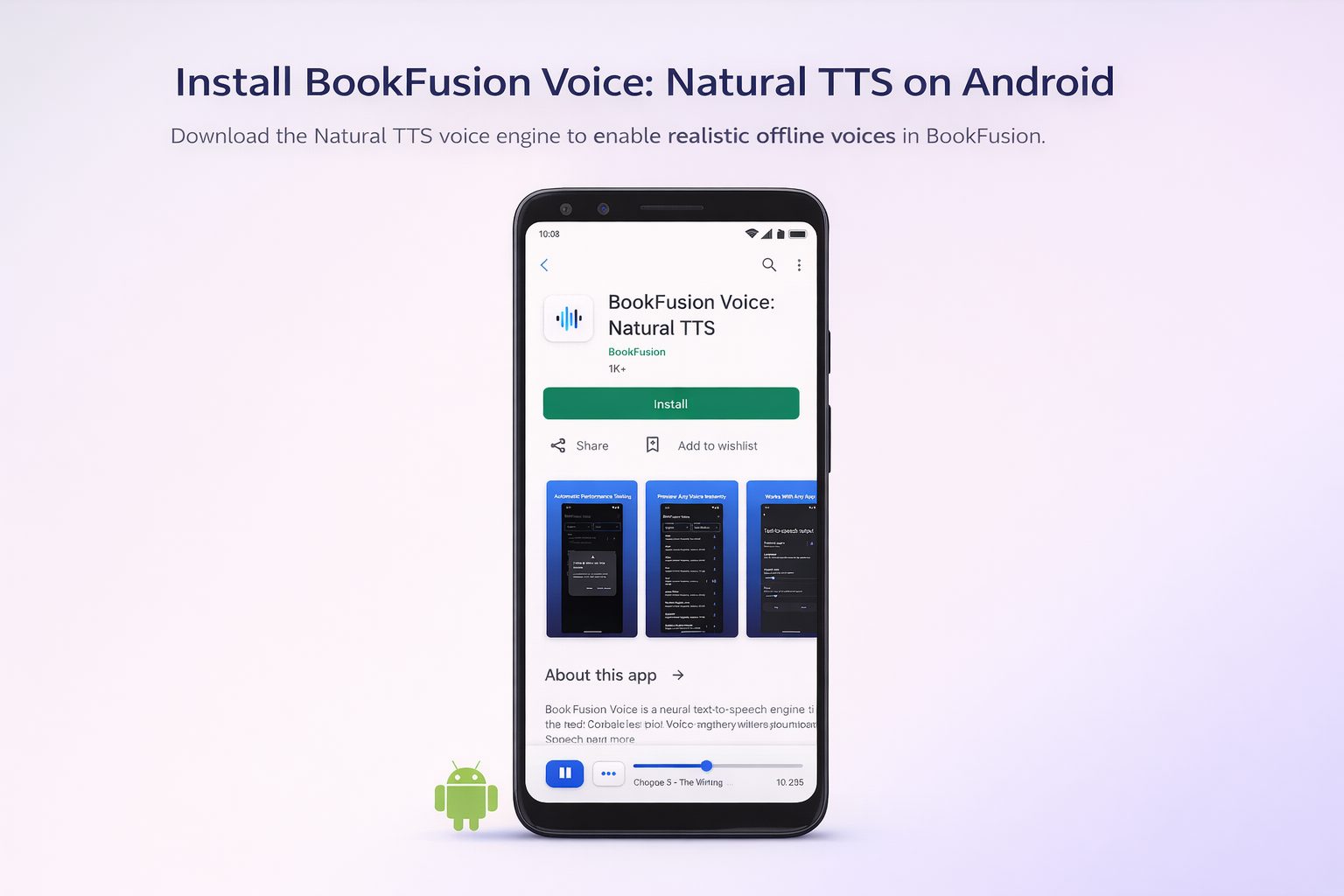
What you can do with BookFusion Voice
With BookFusion Voice, you can:
- Browse a catalogue of 100+ voices.
- Choose from 38+ languages.
- Preview voices before downloading.
- Download voices for offline use.
- Choose between Low, Medium, and High quality options.
- Adjust speech speed.
- Use downloaded voices in BookFusion and other Android apps that support Android Text to Speech.
- Set BookFusion Voice as your device's default Text-to-Speech engine and choose a default voice.
Before you begin
Before using BookFusion Voice, make sure:
- You're using an Android device.
- You've installed the BookFusion Voice app.
- You have an internet connection for browsing the voice catalogue and downloading voices.
- You have enough storage space for the voices you want to install.
After a voice has been downloaded, an internet connection is no longer required for speech synthesis.
Get started with BookFusion Voice
To get started:
- Open the Google Play Store on your Android device.
- Search for BookFusion Voice, or open the listing directly at play.google.com/store/apps/details?id=com.bookfusion.voice.
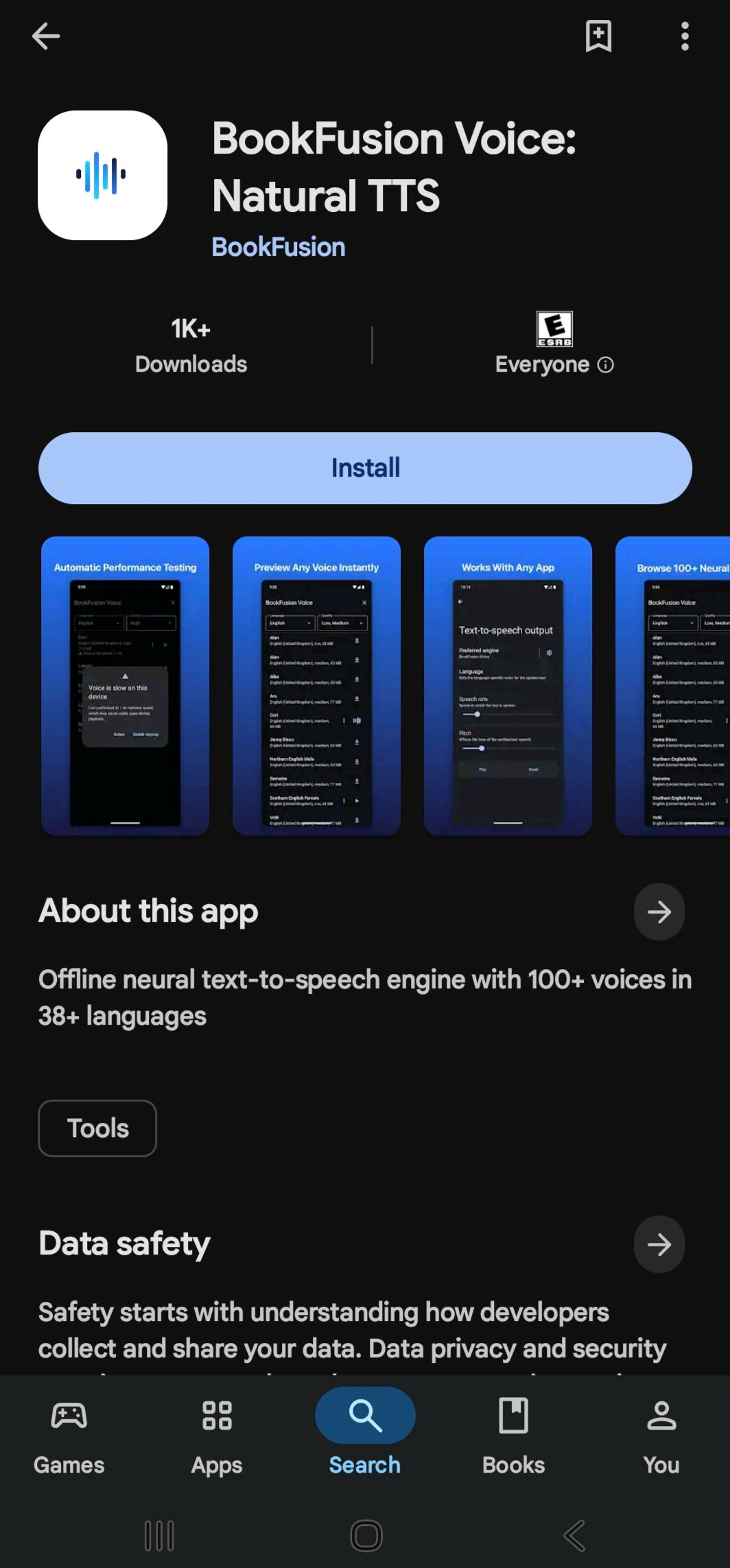
- Tap Install.
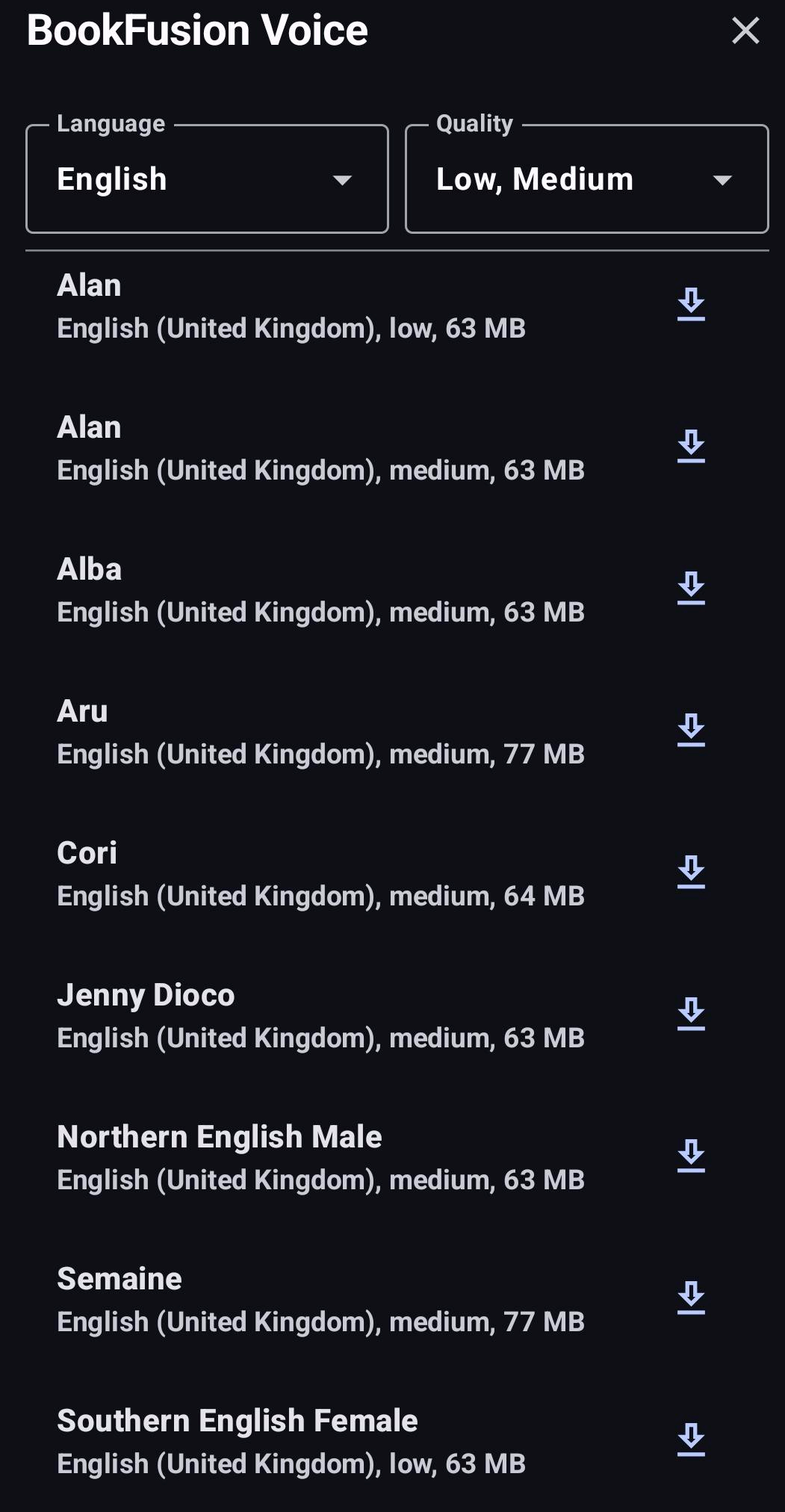
- Browse the voice catalogue.
-
Download the voice you want to use.
The voice is saved to your device and becomes available to supported Android apps.
-
Preview any voice using the sample sentence.
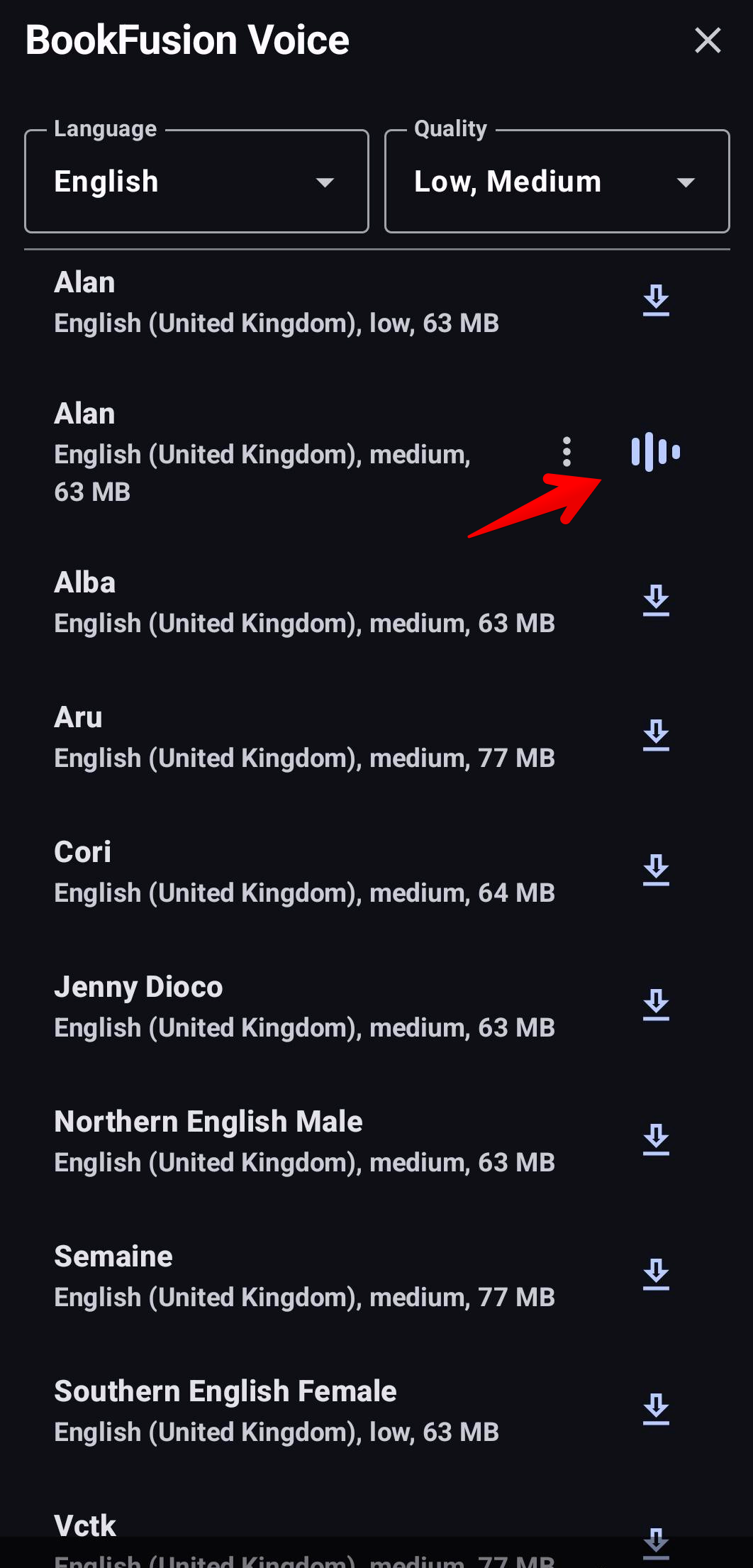
If you're using BookFusion, the app detects installed voices automatically. In most cases, no additional configuration is needed.
Use BookFusion Voice with BookFusion
After downloading a voice in BookFusion Voice:
-
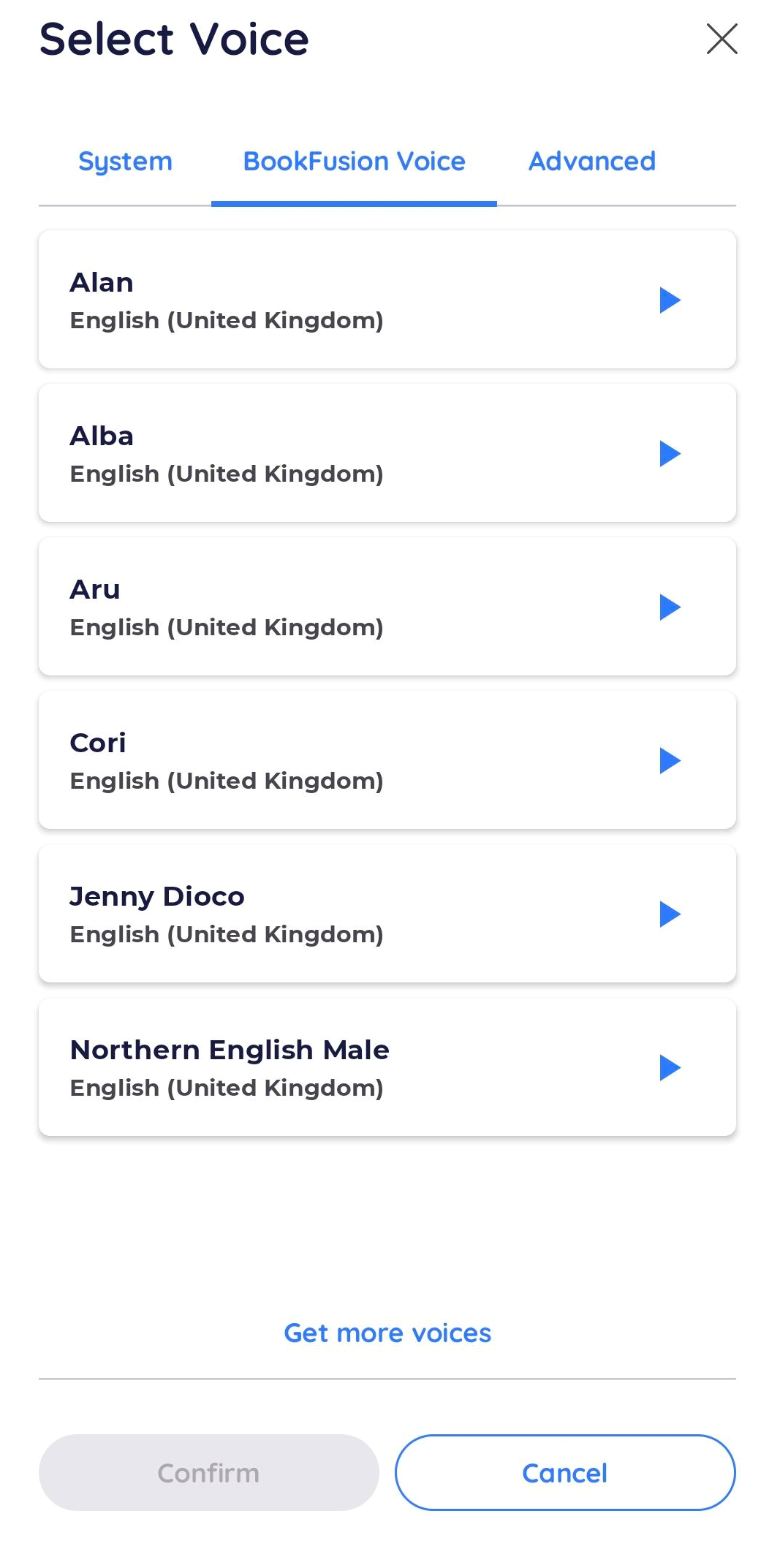
Open a supported book in BookFusion.
-
Open the Text to Speech or audio controls.
-
Select an available voice.
-
Start playback.
Playback begins using your downloaded voice.
When used with BookFusion, voices are pre-buffered ahead of time for smoother, gap-free narration with fewer pauses between paragraphs or pages.
Use BookFusion Voice with other Android apps
BookFusion Voice can also work with other Android apps that use the Android Text-to-Speech system, including reading apps, accessibility tools, TalkBack, navigation apps, and more.
To make BookFusion Voice available across your device, set it as your default Text-to-Speech engine, then choose the voice you want it to use.
Set BookFusion Voice as your default engine
-
Open Android Settings.
-
Go to Text-to-speech output.
Depending on your device, you'll find this under Accessibility, or under System > Languages & input > Text-to-speech output.
-
Under Preferred engine, select BookFusion Voice.
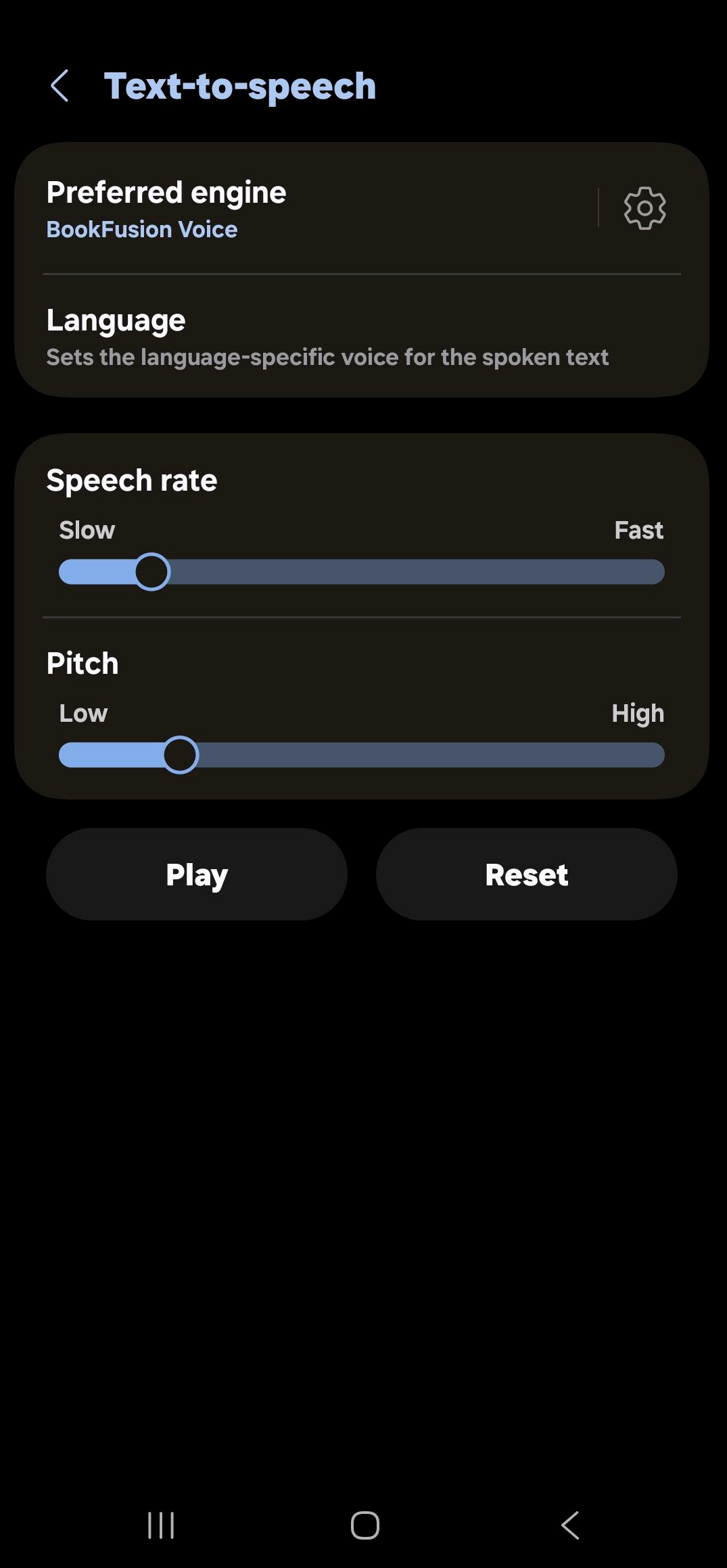
BookFusion Voice becomes the default Text-to-Speech engine for your device, and supported Android apps can now use it for speech output.
Choose a default voice for the engine
Once BookFusion Voice is your preferred engine, you can choose which voice it uses by default across your device.
-
On the Text-to-speech output screen, tap the settings icon (⚙) next to Preferred engine.
The BookFusion Voice engine settings open, showing the voices you've downloaded.

-
Use the Language dropdown to filter the list to the language you want.
-
Tap the play icon (▶) next to a voice, such as Daniel, to preview it.

-
Open the menu icon (⋮) next to the voice you want, then tap Use for [language] in other apps (for example, Use for English in other apps).

The Default label moves to the selected voice, and BookFusion Voice uses it whenever an app requests the default voice.

Only voices you've already downloaded appear in this list. To add more, open the BookFusion Voice app and download the voices you want, then return to this screen.
Test the engine
Back on the Text-to-speech output screen, you can check how the engine sounds and fine-tune it for other apps:
- Adjust the Speech rate to control how fast text is spoken.
- Adjust the Pitch to change the tone of the voice.
- Tap Play to hear a sample using your current settings.
- Tap Reset to return the speech rate and pitch to their defaults.
Some voices may be flagged as slow on your device (for example, Slow on this device). If a voice sounds laggy, preview a different voice or use a lower-quality version of the same voice.
Voice quality options
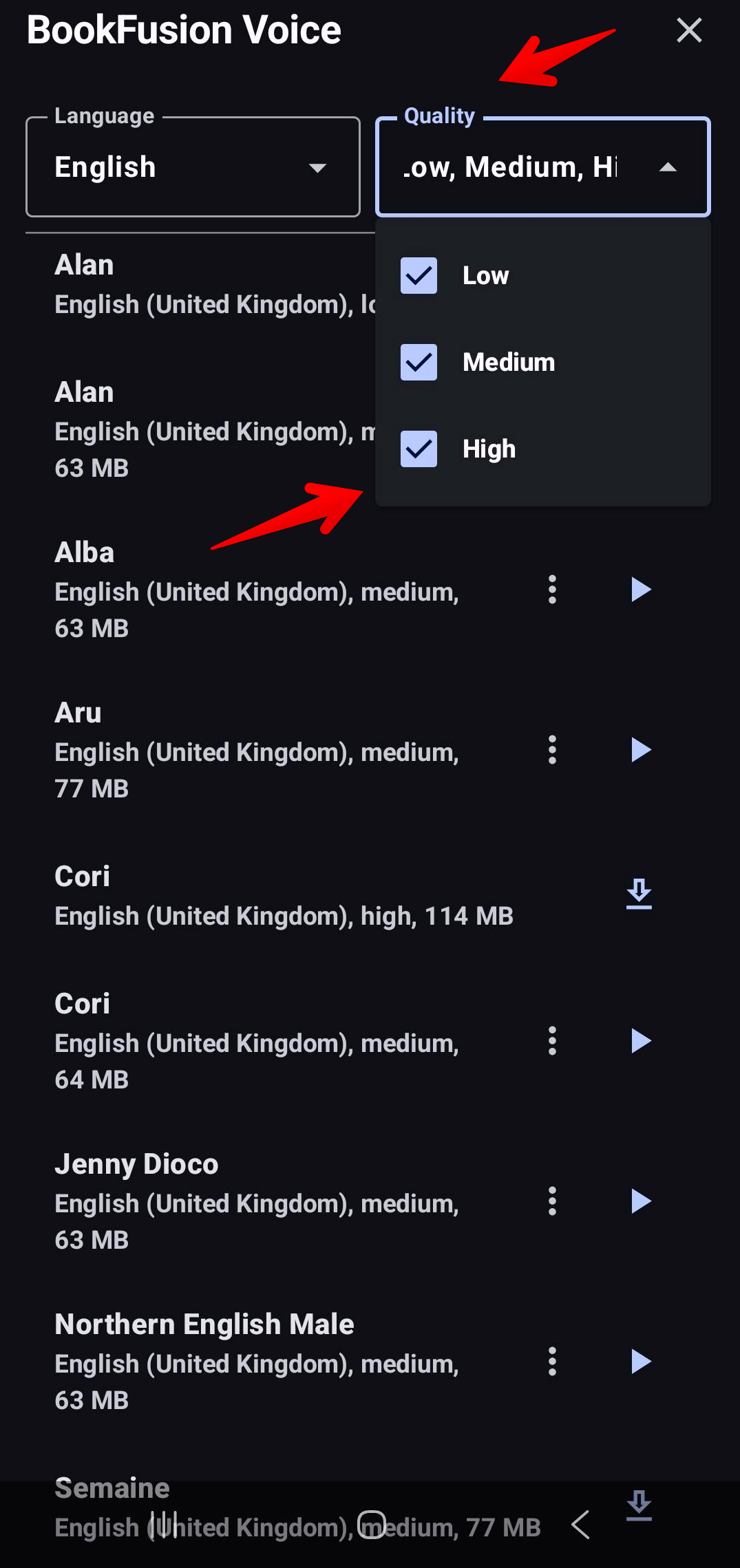
Each voice may be available in multiple quality tiers:
- Low
- Medium
- High
This lets you choose the balance that works best for your device, depending on the naturalness you want and the performance your device can handle.
Speech speed
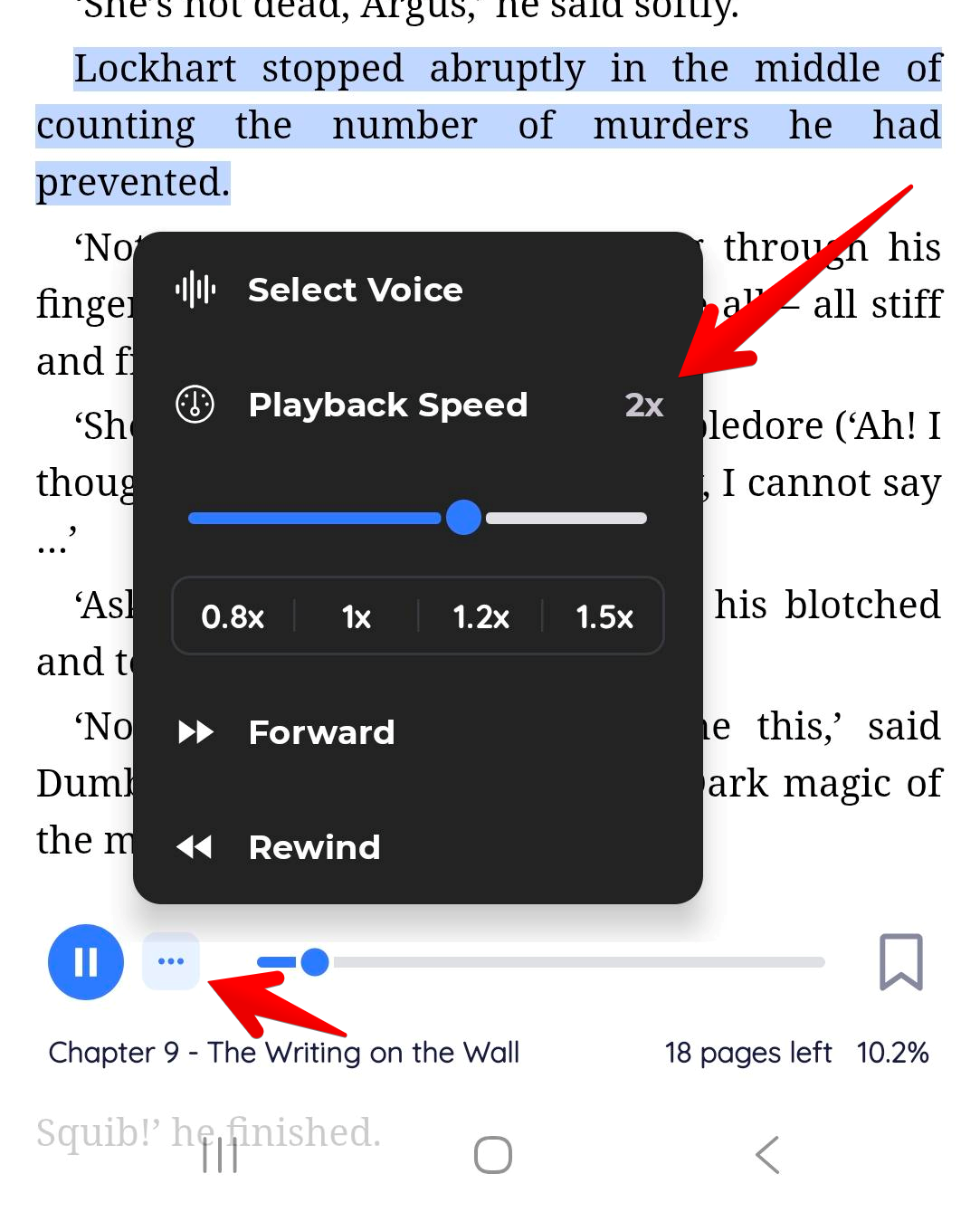
BookFusion Voice supports adjustable speech speed from 0.5x to 2.0x.
You can adjust the speed based on how you prefer to listen.
Performance notes
After a voice is downloaded, BookFusion Voice runs an automatic performance test. Slower voices may be flagged so you can tell which voices work best on your device.
If a higher-quality voice doesn't perform well on your device, try using a lower-quality version of the same voice.
Privacy
All speech synthesis happens locally on your device. Your text is not sent to a server for speech generation. The app connects to the internet only to fetch the voice catalogue and download voice files.
Supported languages
BookFusion Voice supports 38+ languages, including English, Spanish, French, German, Italian, Portuguese, Russian, Ukrainian, Polish, Czech, Dutch, Danish, Swedish, Norwegian, Arabic, Hebrew, Farsi, Hindi, Chinese, Vietnamese, Turkish, Greek, Romanian, and more.
If something is not working
If BookFusion Voice is not working as expected:
- Make sure the voice finished downloading.
- Make sure your device has enough storage space.
- Try a lower-quality version of the same voice if performance is poor.
- Make sure BookFusion Voice is selected as the active Text-to-Speech engine when using other Android apps.
- If no voices appear when choosing a default voice for the engine, open the BookFusion Voice app and download at least one voice first, then return to Text-to-speech output.
- Update both BookFusion and BookFusion Voice to the latest version available.