Sending Books to Kindle
Prefer to read on a dedicated eReader? You can send eBooks from your BookFusion library straight to your Amazon Kindle. There's a one-time setup that links your account to Amazon, and after that sending books takes just a couple of clicks.
One-time Kindle setup
Before you can send anything, you need to authorise BookFusion's sending address on Amazon, then tell BookFusion your Kindle's email address. You only need to do this once.
-
In BookFusion, open Send to Kindle from the left menu. It shows your unique BookFusion sending address (for example,
u378503@bookseam.com) and the steps to follow.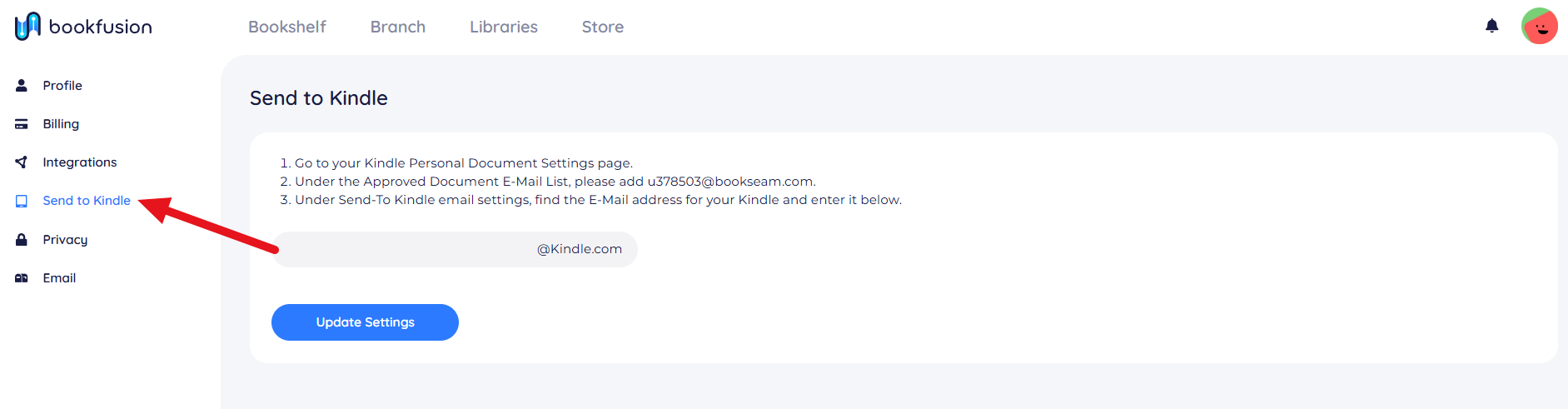
-
In a new tab, sign in to Amazon and go to Manage Your Content and Devices, then open Preferences.

-
Scroll to Personal Document Settings. Under Approved Personal Document E-mail List, click Add a new e-mail address.

-
Enter your BookFusion sending address (
u378503@bookseam.com) and click Add Address.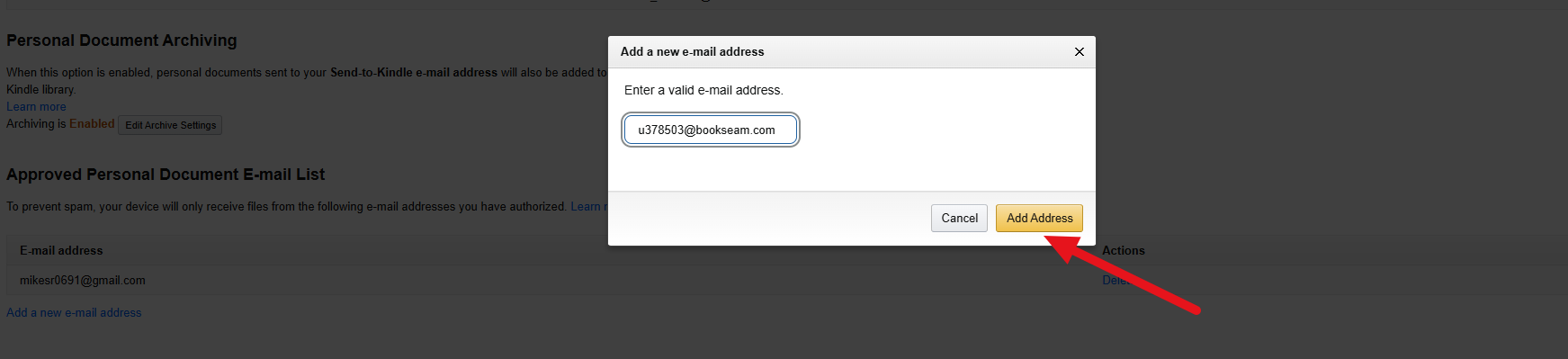
-
Still on that page, find your Kindle under Send-to-Kindle E-Mail Settings and copy its
@kindle.comaddress.
-
Back on BookFusion's Send to Kindle page, paste the
@kindle.comaddress into the field and click Update Settings.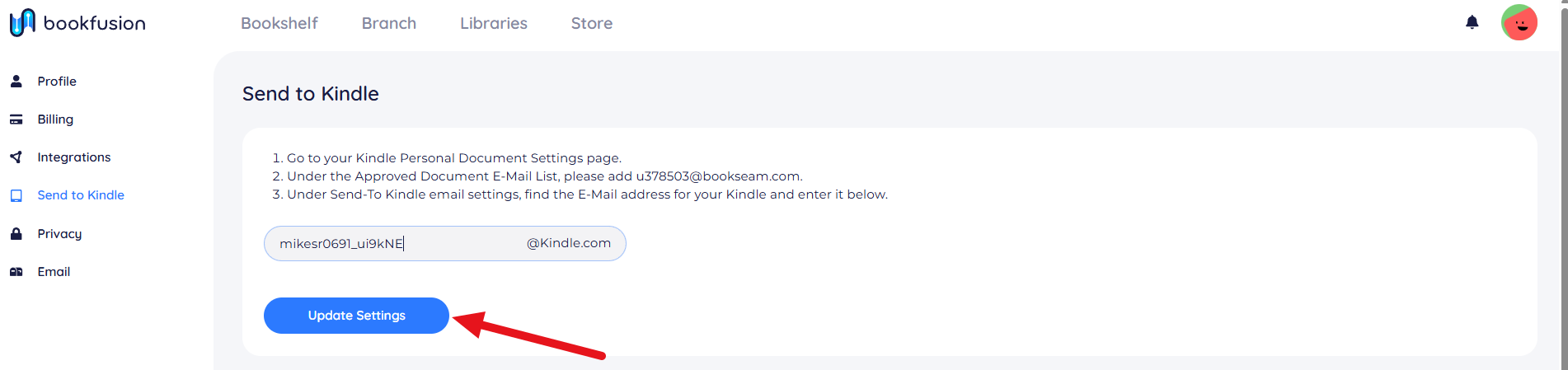
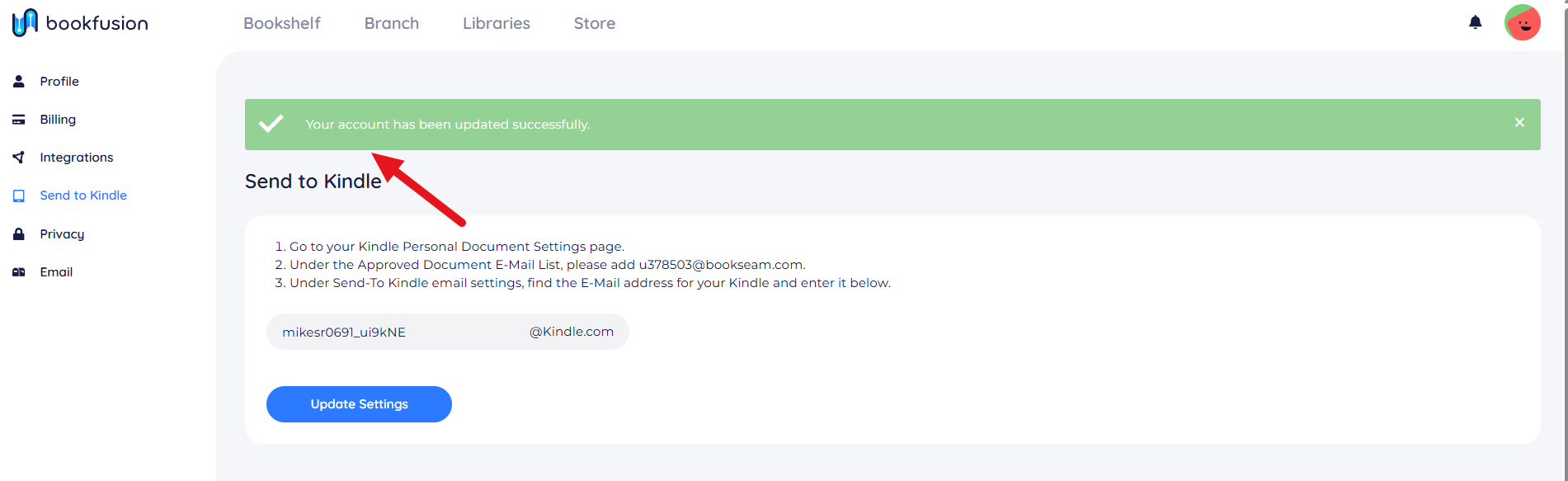
A confirmation message appears once your settings are saved — setup is now complete.
Sending a book
To send books to your Kindle:
-
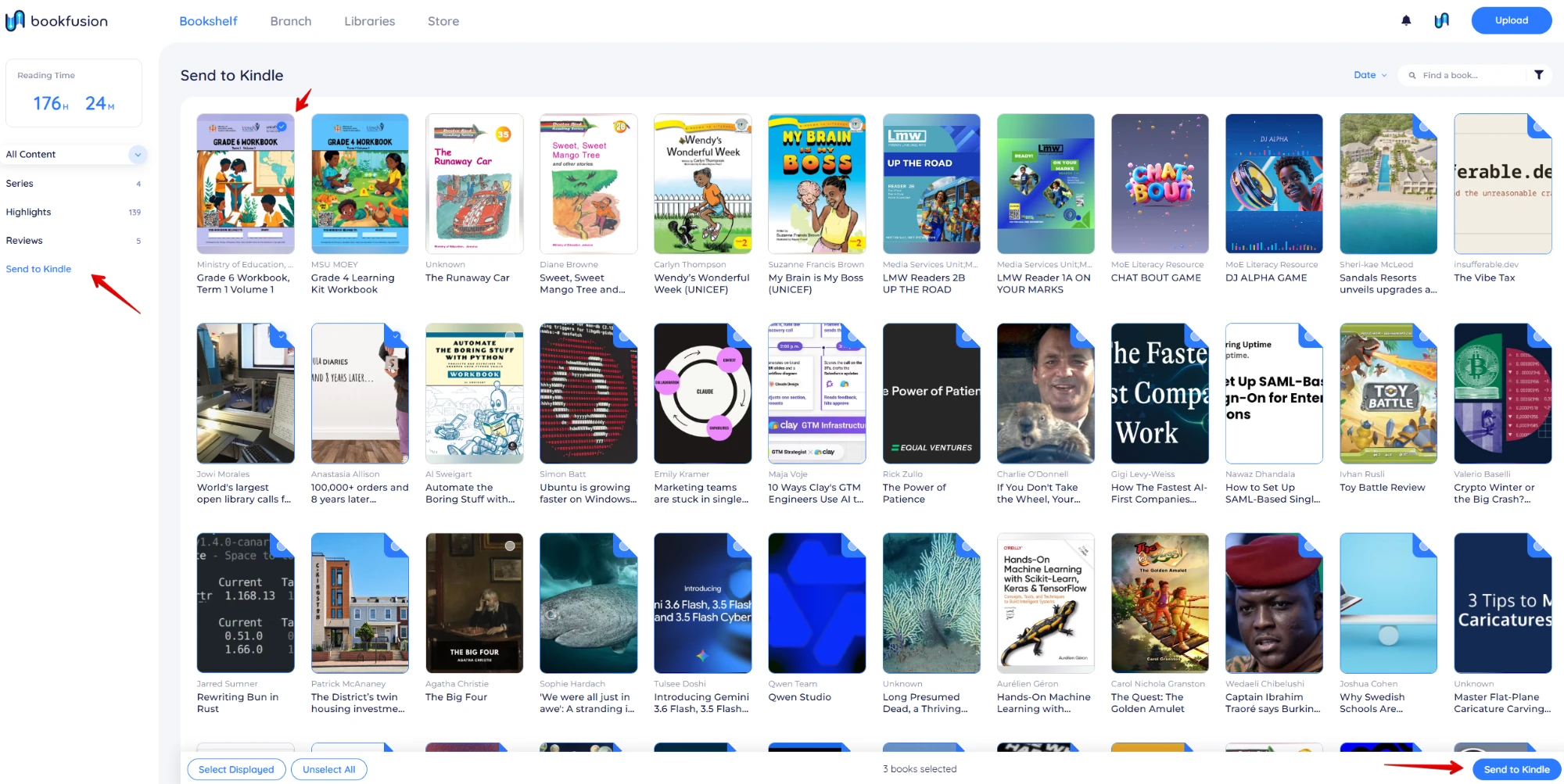
Click Send to Kindle in the left navigation menu.
-
Select one or more books. Use the search or filter options to find titles quickly in a large library.
-
Click the Send to Kindle button in the bottom-right corner.
-
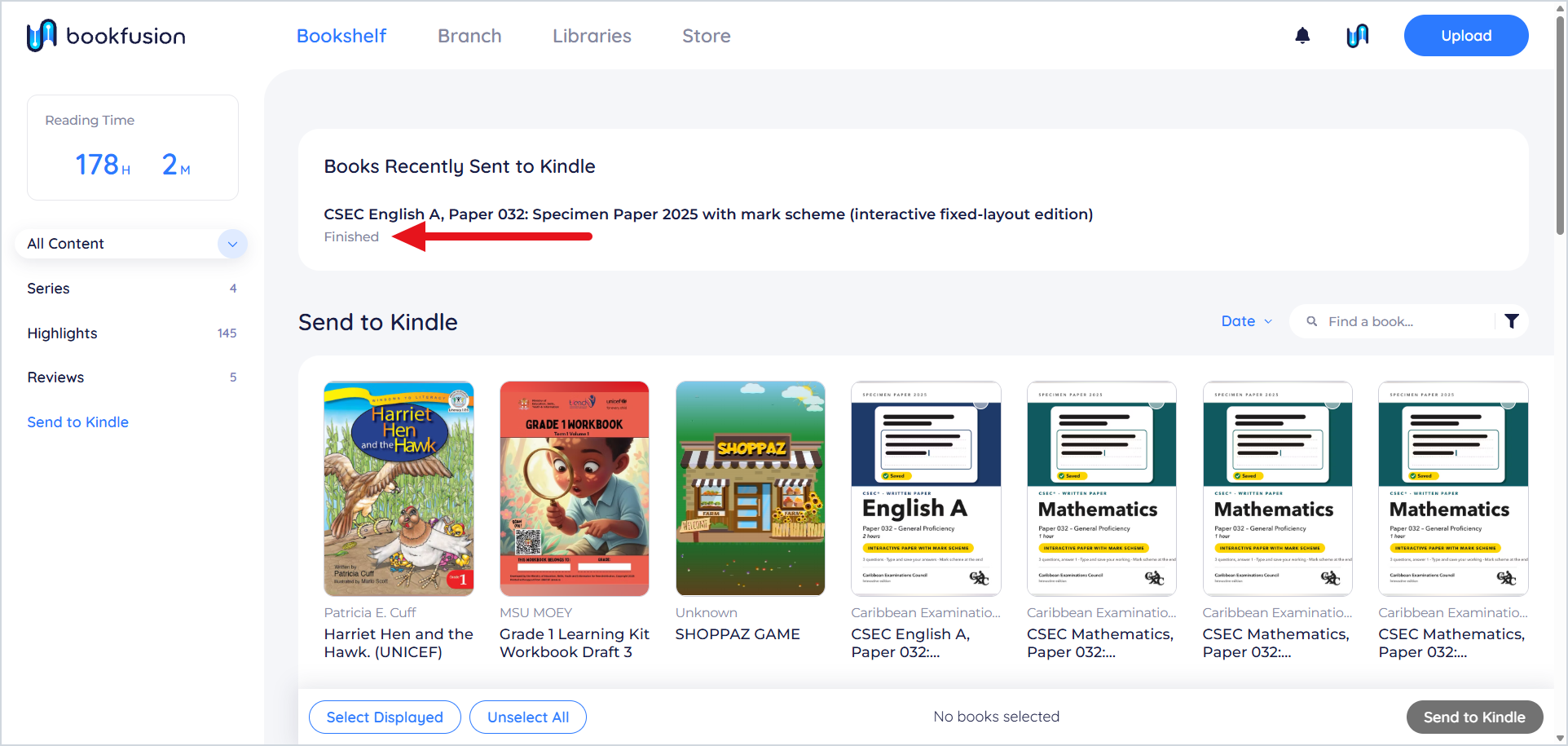
A status list appears at the top of the page. Each book starts as Pending and moves to Finished once it's sent.
If a book shows an error or failure, revisit the setup steps above and check that both email addresses were entered correctly. A book must be in a Kindle-compatible format to send.