Reader Settings
BookFusion's reader is yours to personalise. Adjust the font, size, colours, and page layout until reading feels just right — your choices are remembered the next time you open a book. The display settings are available in both the Web reader and the mobile apps.
On the Web
To change your reader settings on the web:
-
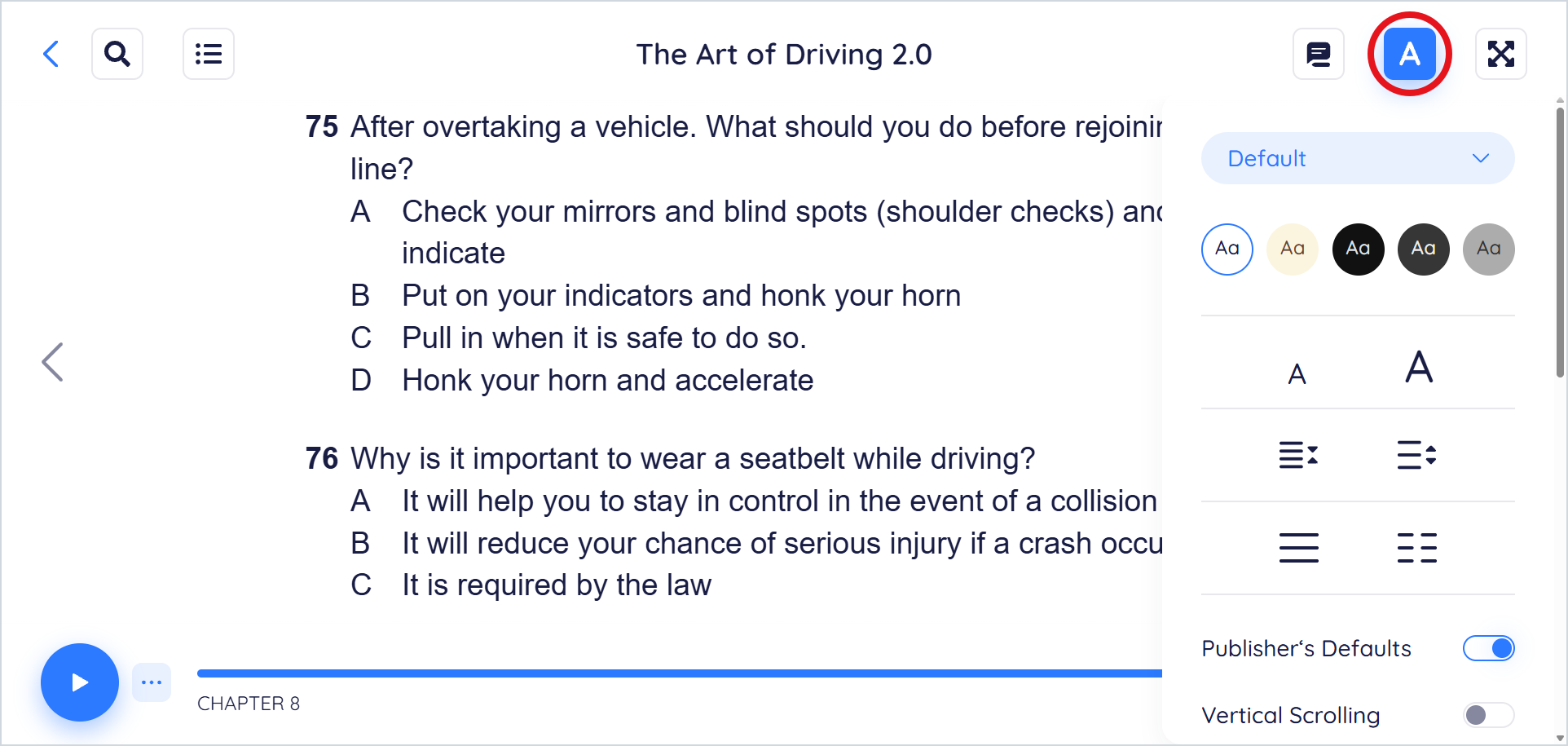
While reading, click the A button in the top-right corner to open the display settings.
-
Adjust any of the available options:
-
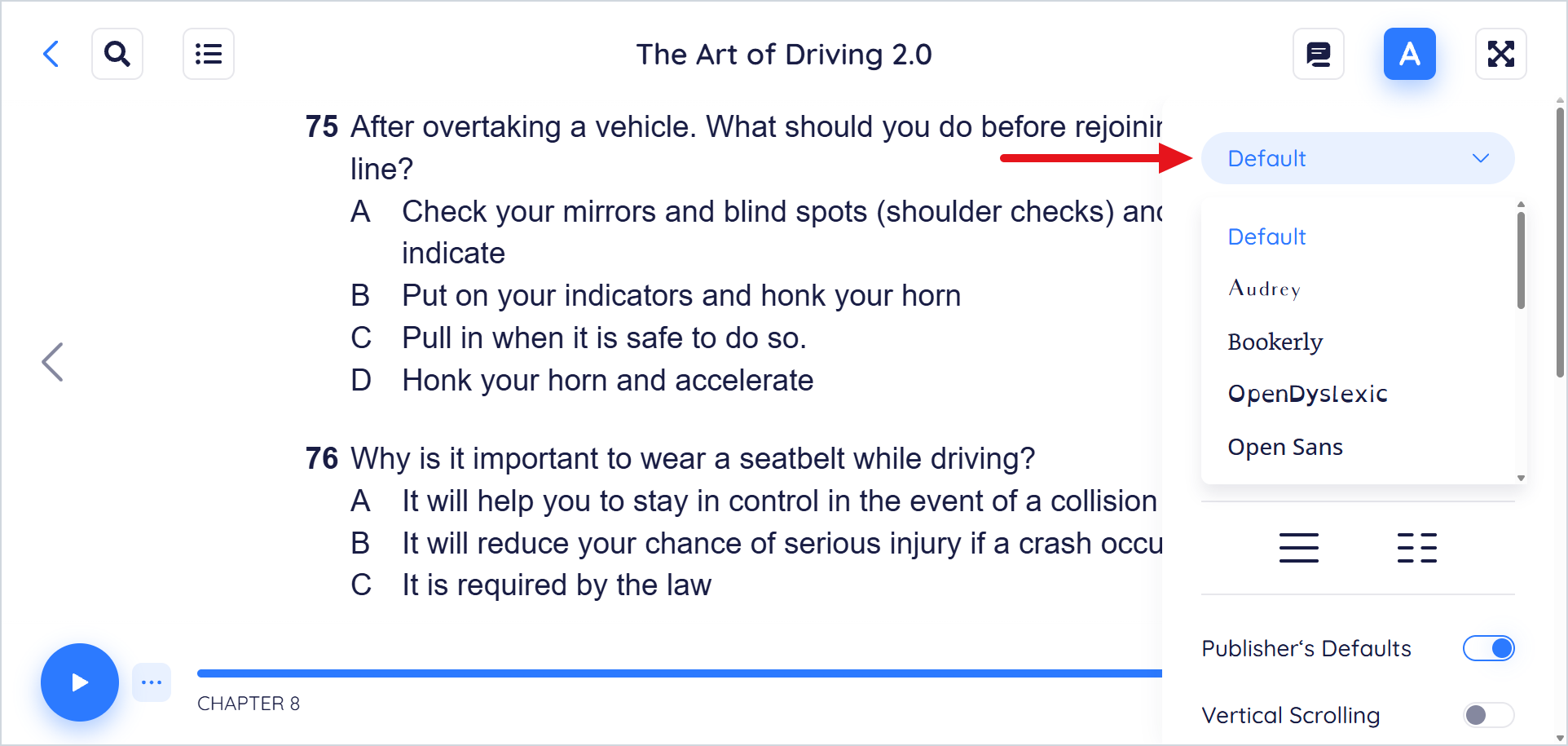
Font — switch between the book's native font and the fonts BookFusion provides.
-
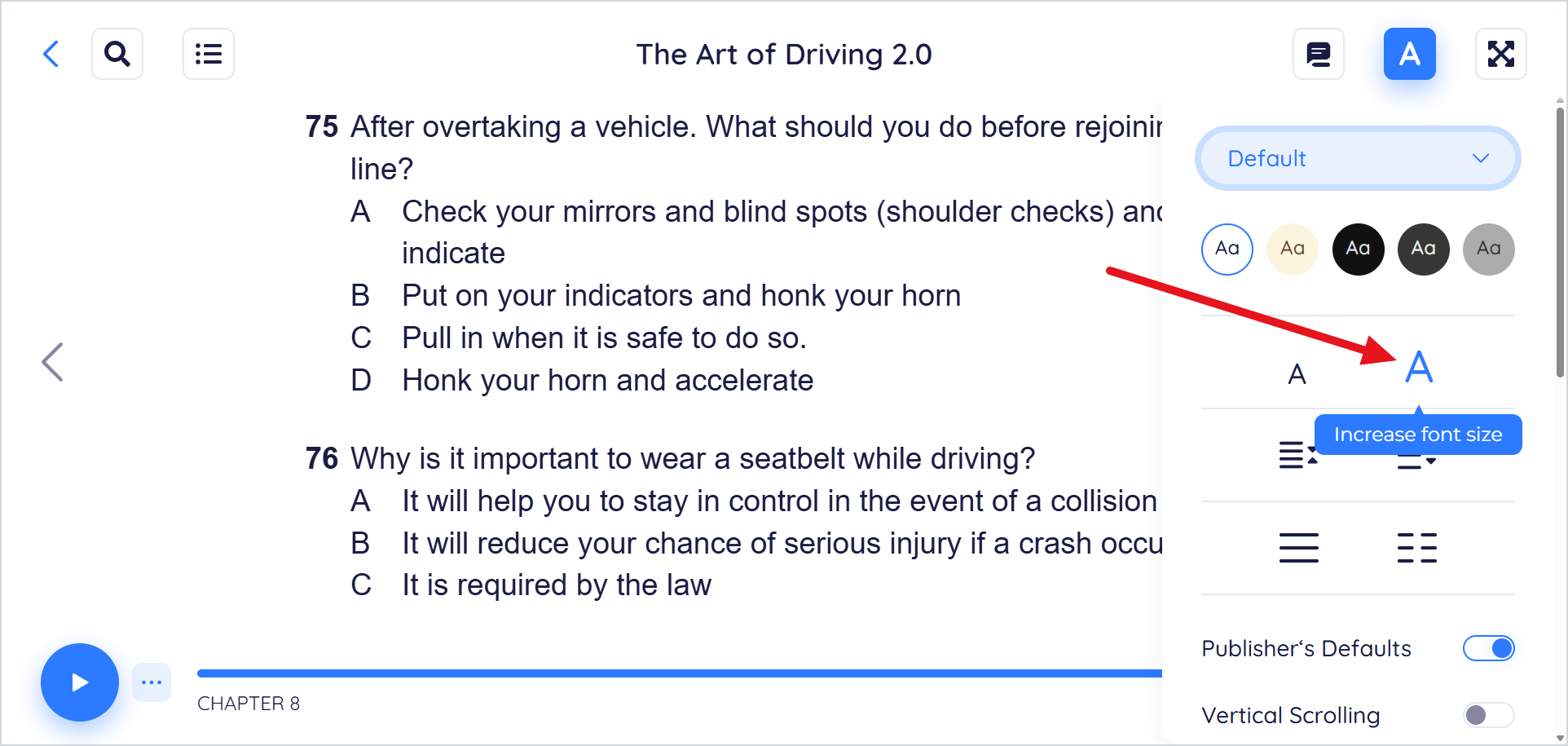
Font size — make the text smaller or larger.
-
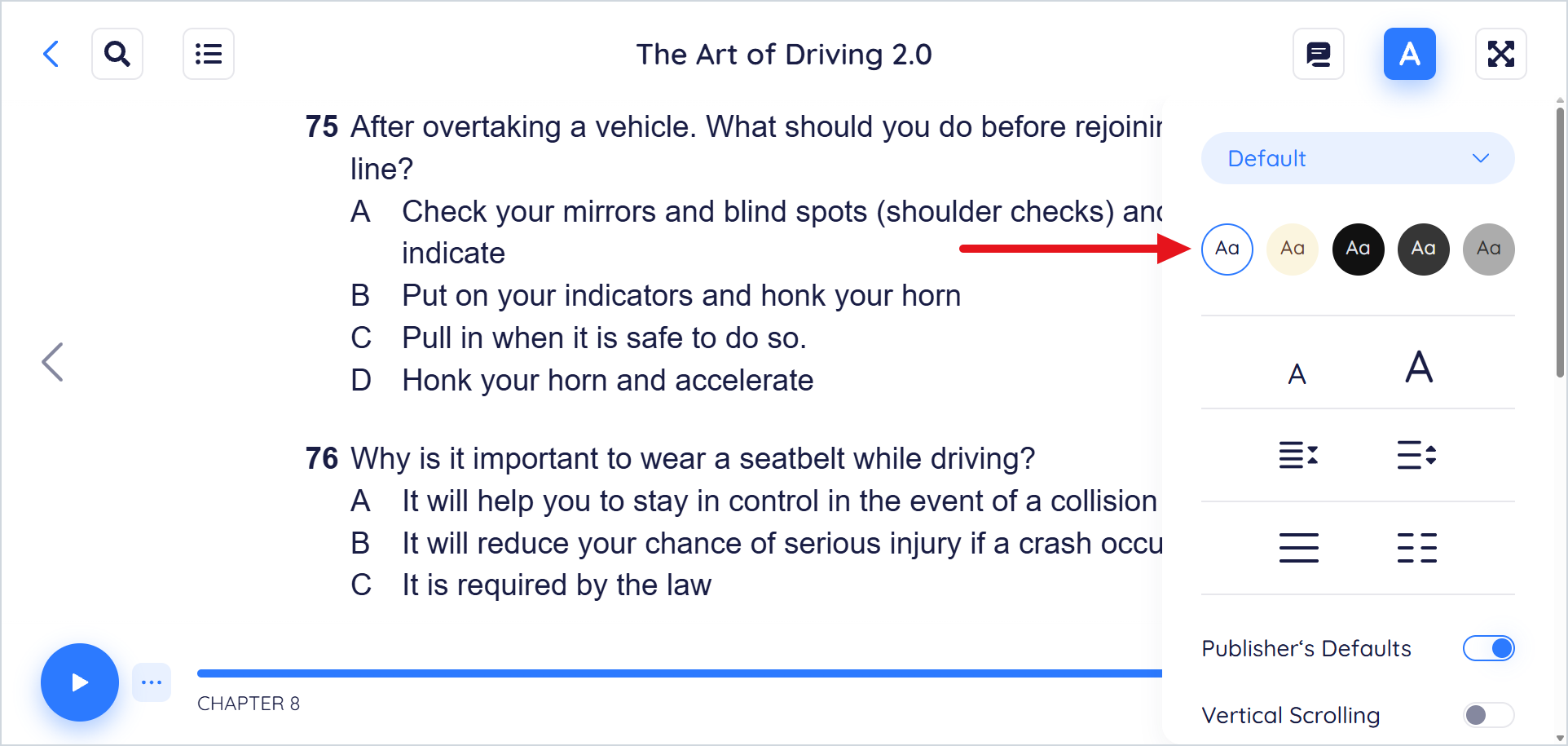
Theme / background colour — choose a background that's comfortable for your surroundings, such as a light, sepia, or dark theme.
-
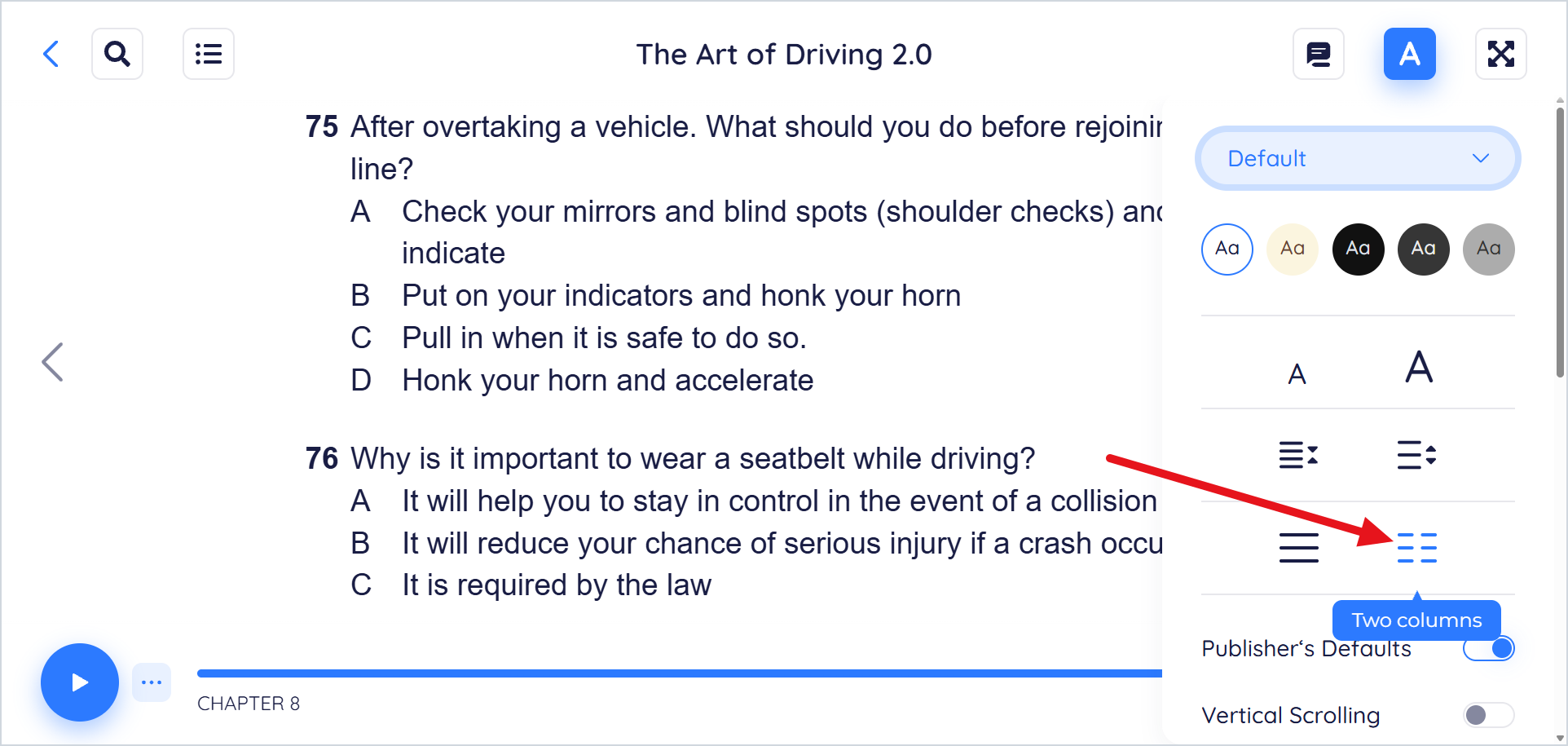
Layout — read in a single column or double column mode.
-
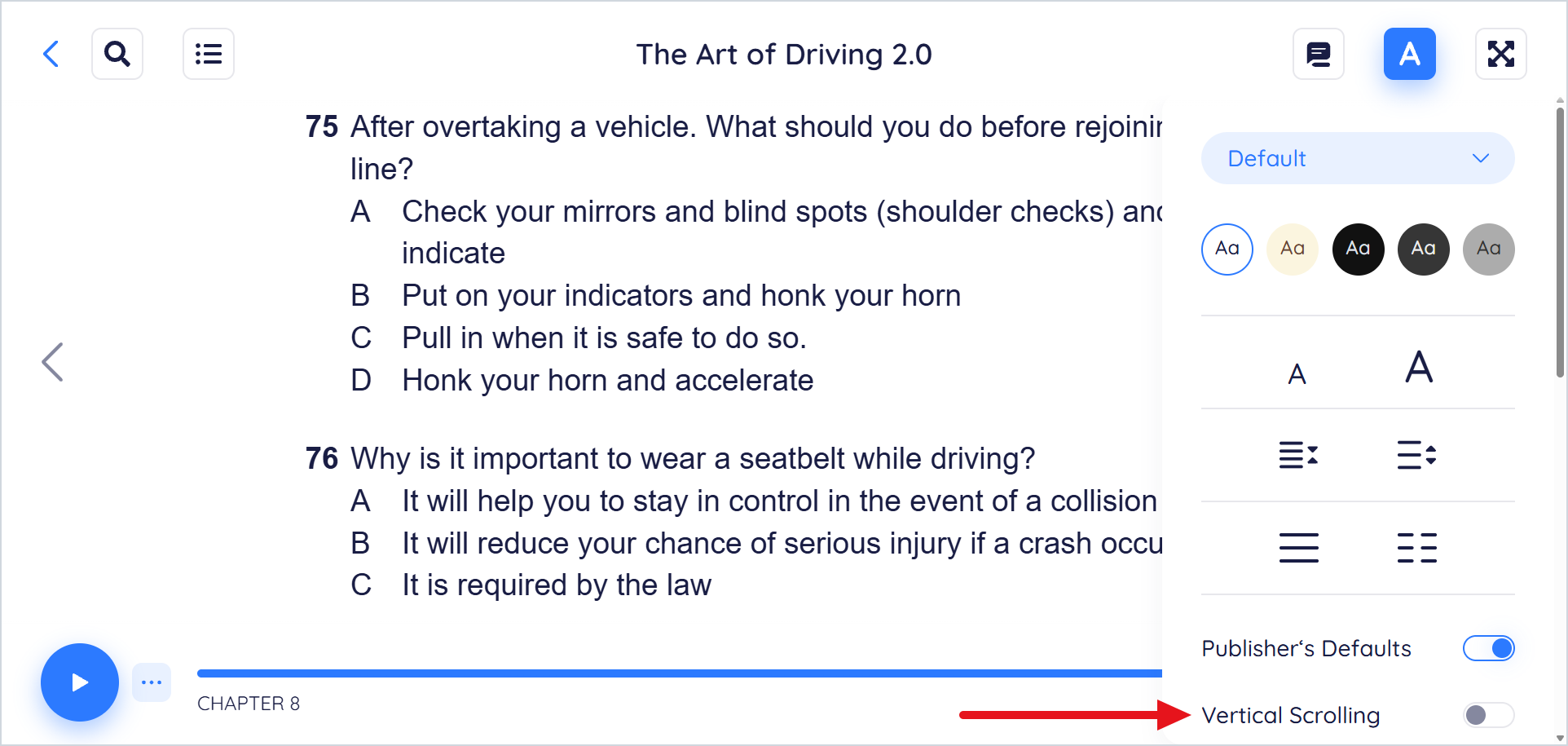
Vertical Scrolling — scroll continuously instead of turning pages.
-
-
Your changes apply straight away and are saved for the next book you open.
On Mobile
To change your reader settings in the iOS or Android app:
-
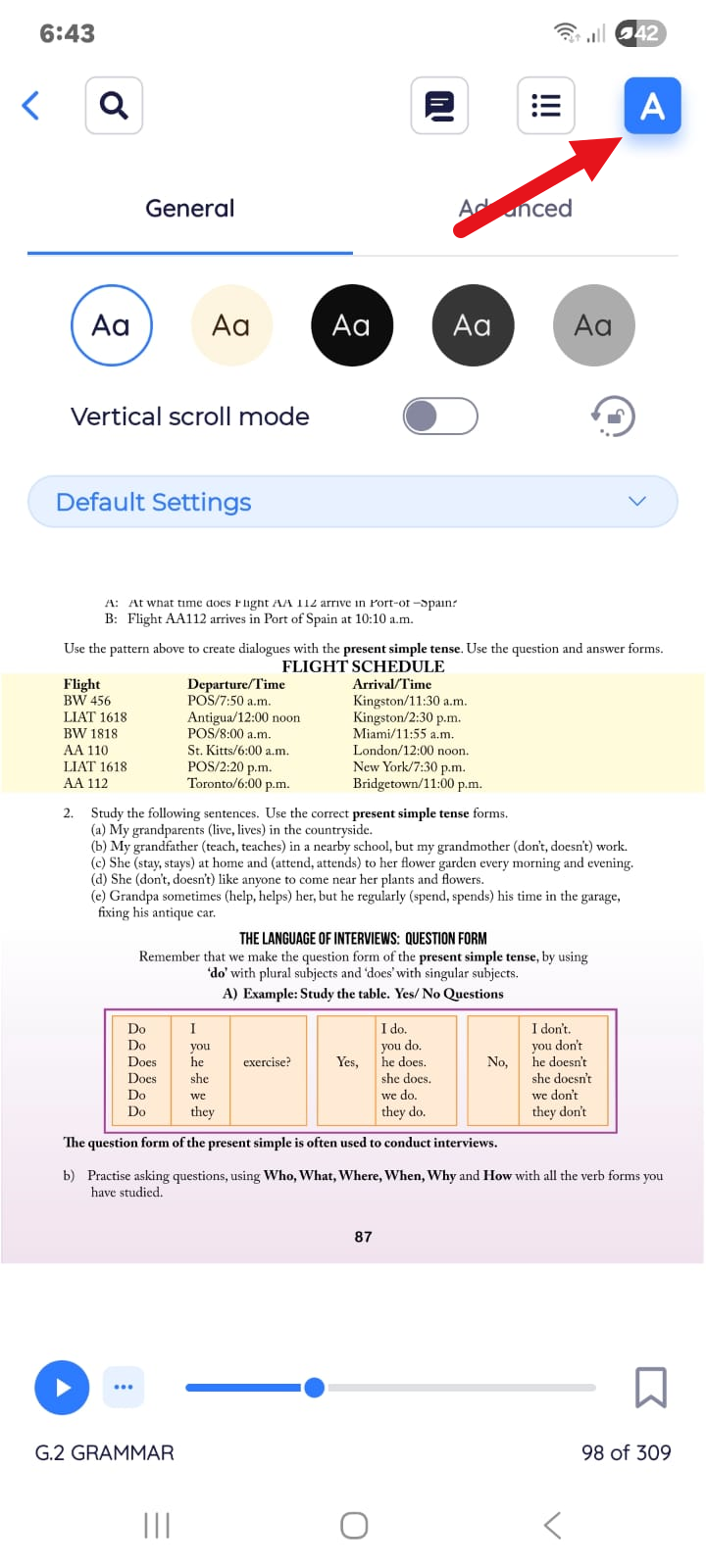
While reading, tap the A icon to open the display settings.
-
Adjust any of the available options — font, font size, theme / background colour, layout, and vertical scrolling.
-
Your changes apply straight away and are saved for the next book you open.
The exact options available can differ slightly between the Web reader and the mobile apps, and some settings — such as double column mode — depend on your screen size.