How to Read a Book
Opening a book to read takes a click on the web, or a tap on your phone or tablet. The steps differ slightly between the two, so pick your platform below.
On the Web
To open and read a book in the Web reader:
-
Go to your Bookshelf and find the book you want to read.
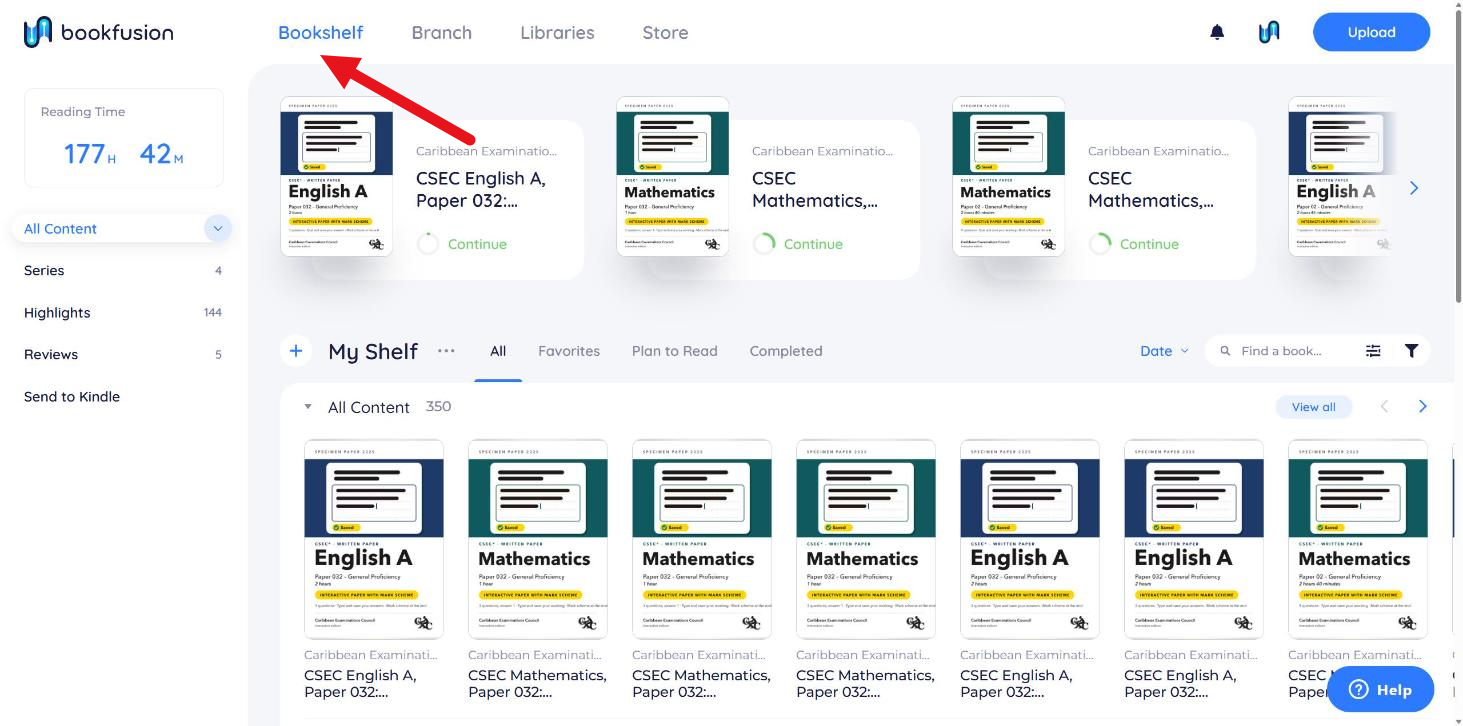
-
Click the book cover to open its details screen.
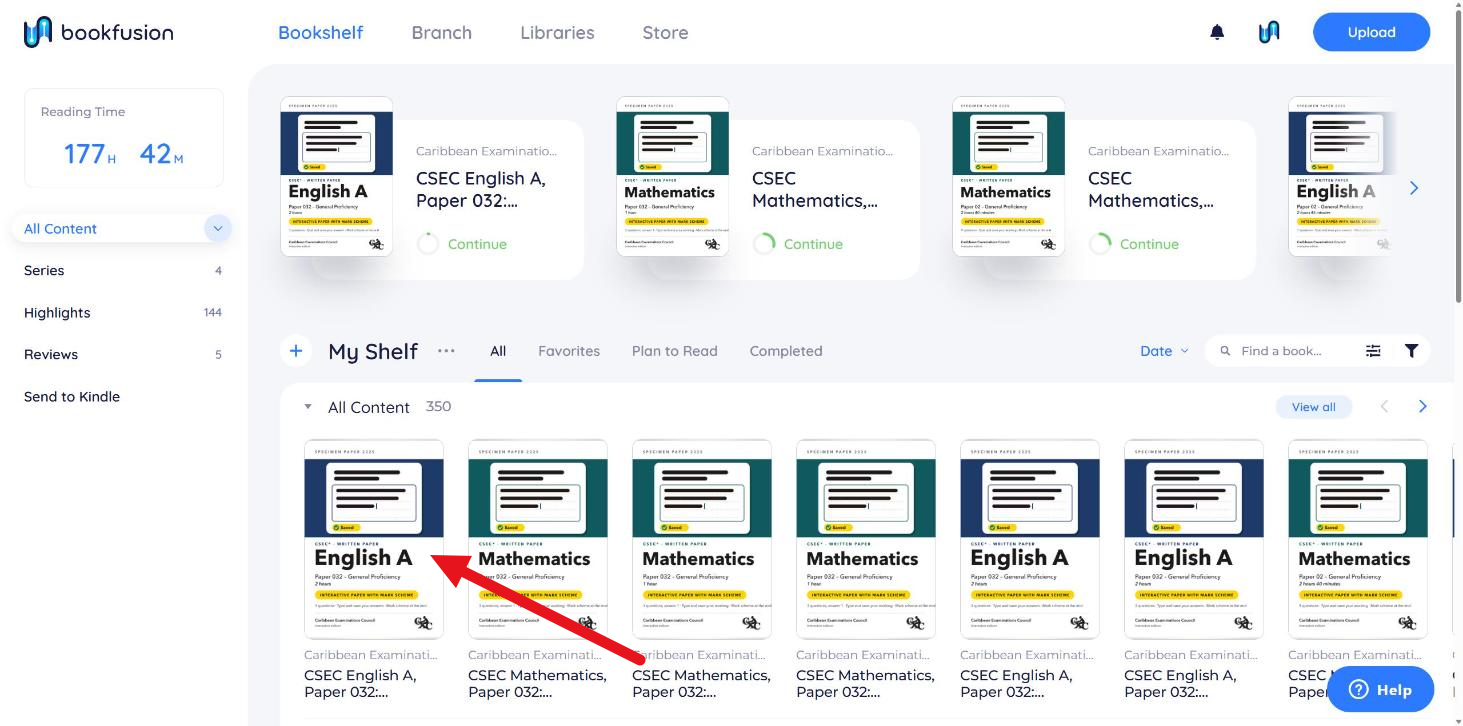
-
Click the blue Read button to open the book.
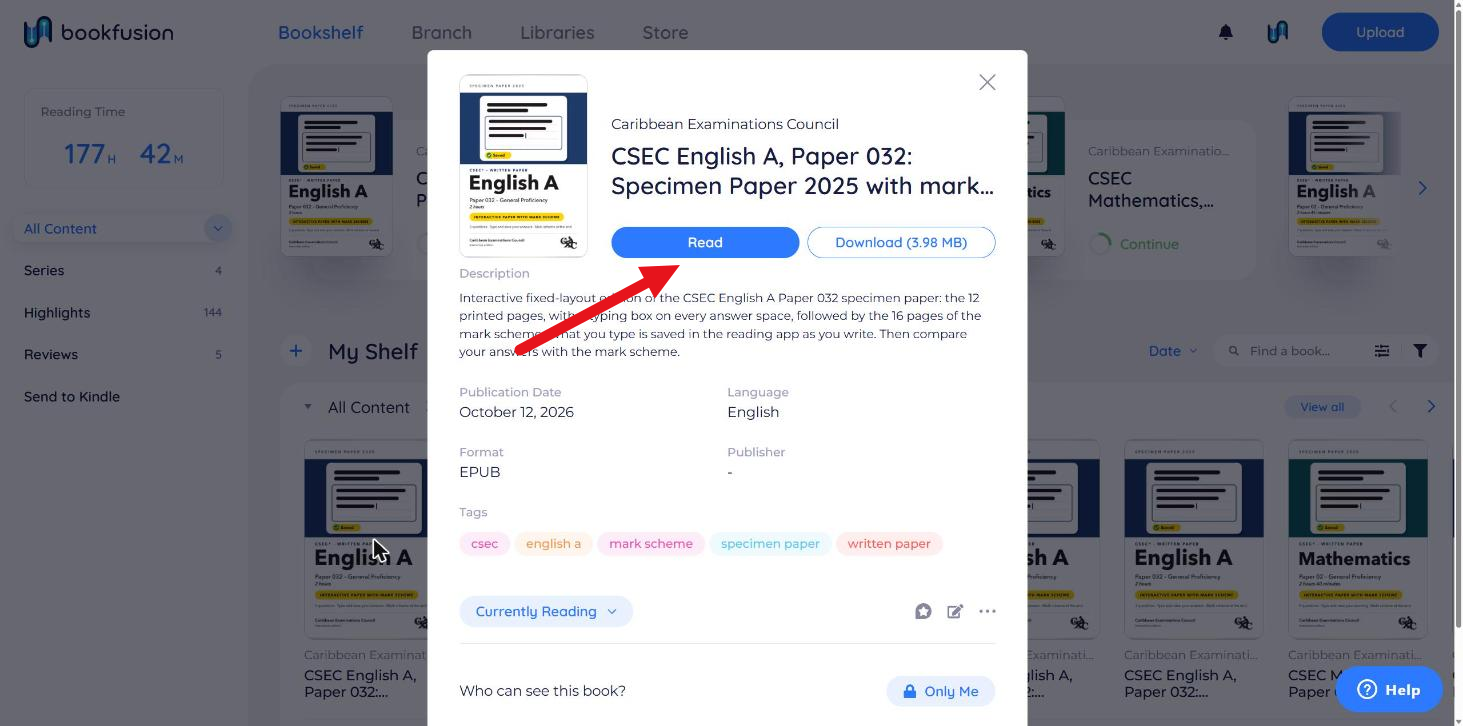
-
Turn pages using the ‹ and › arrows on either side of the screen, or the left and right arrow keys on your keyboard.
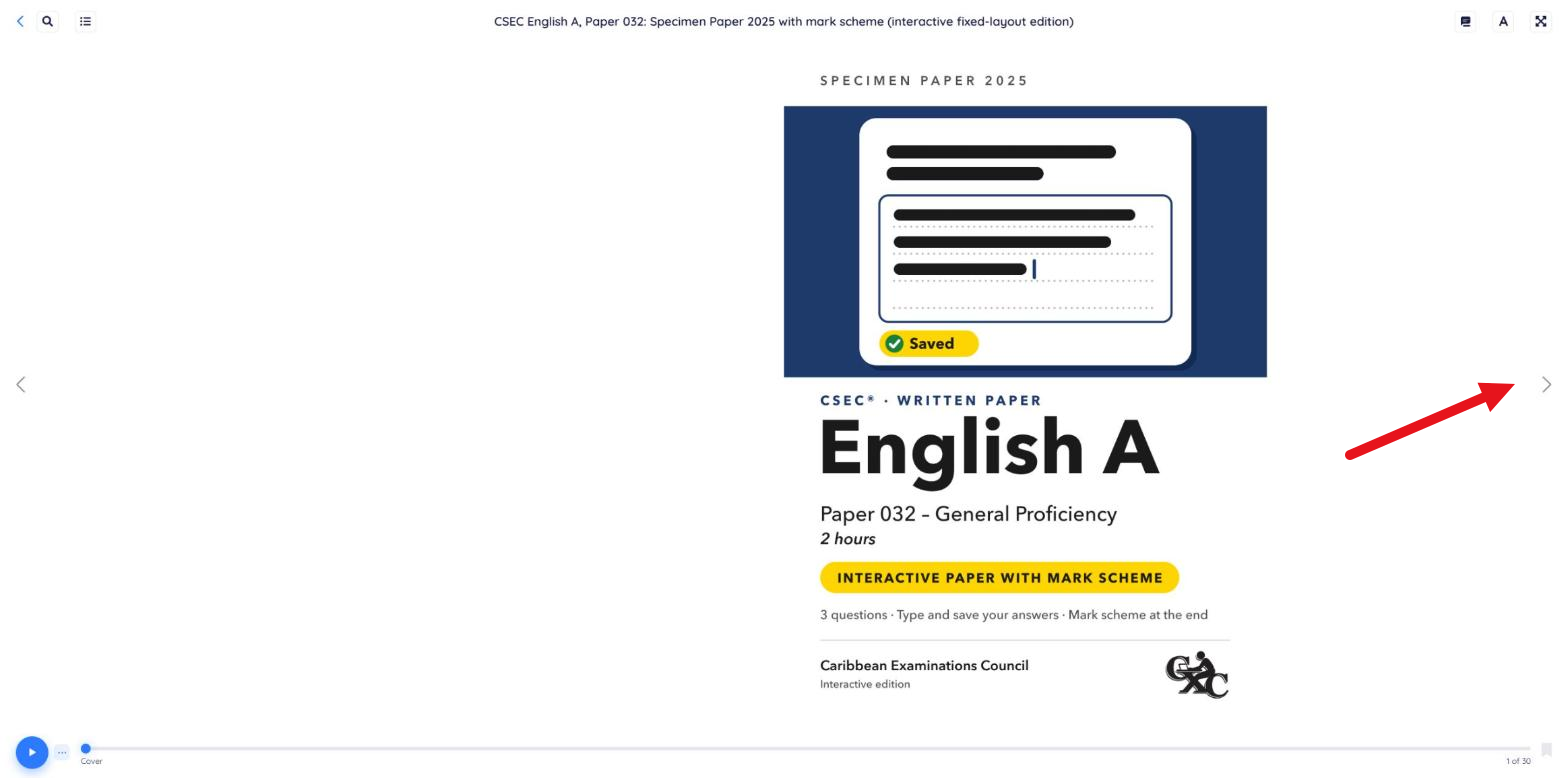
The reader remembers your place, so you can close the book and pick up exactly where you left off — on this device or any other.
On Mobile
To open and read a book in the iOS or Android app:
-
Open the app to your Bookshelf and tap the book you want to read.
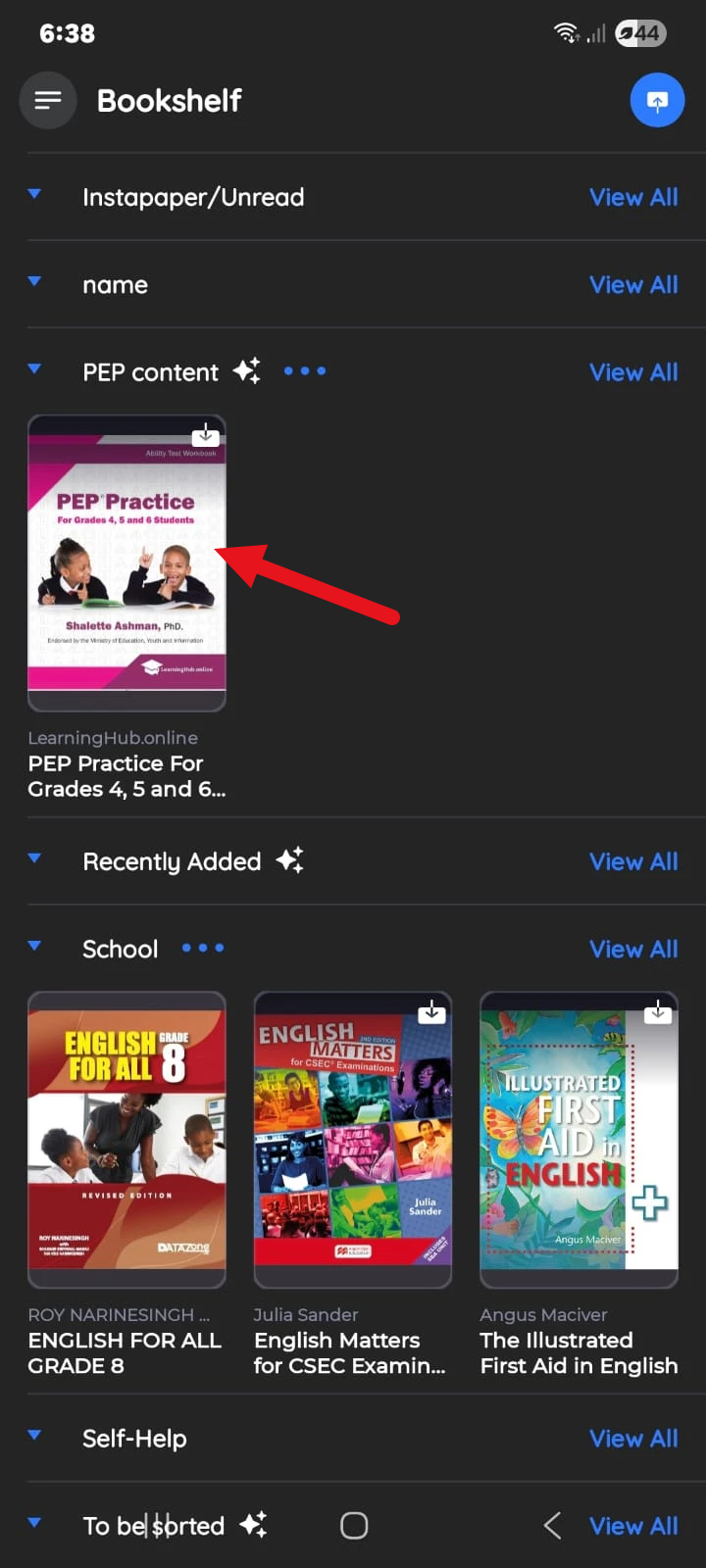
-
Tap Read to open the book.
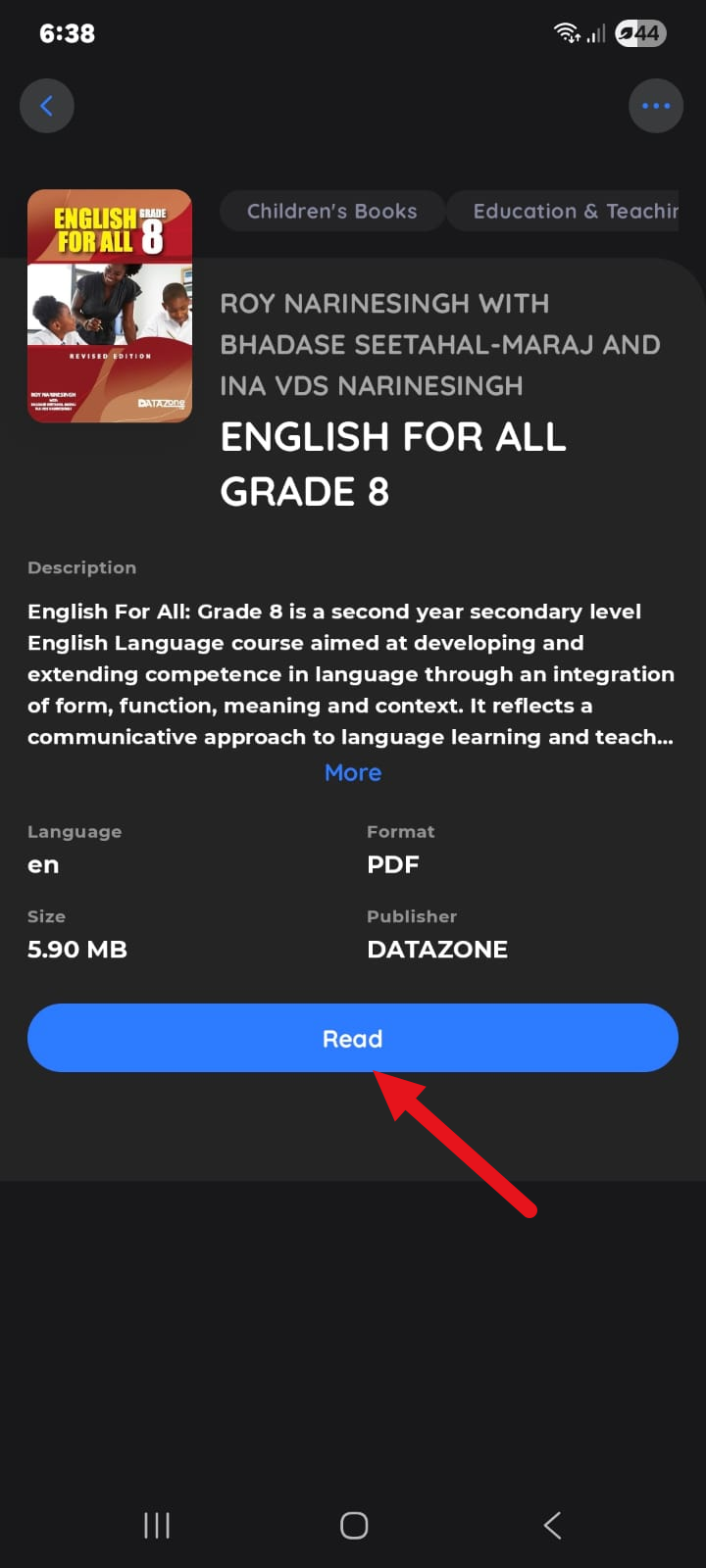
-
Turn pages by tapping the left or right edge of the screen, or by swiping.
Your reading position syncs to your account, so you can switch devices and carry on where you left off.
Prefer scrolling to turning pages? Turn on Vertical Scrolling in the reader settings — see Reader Settings.