Creating Deep Links
A deep link takes you straight to a specific spot in a book — a bookmark or a highlight — rather than just opening the book at the start. Copy the link and save it anywhere; clicking it later drops you right back at that place. Deep links work for both PDFs and EPUBs.
Link to a bookmark
First, set a bookmark, then copy its link.
-
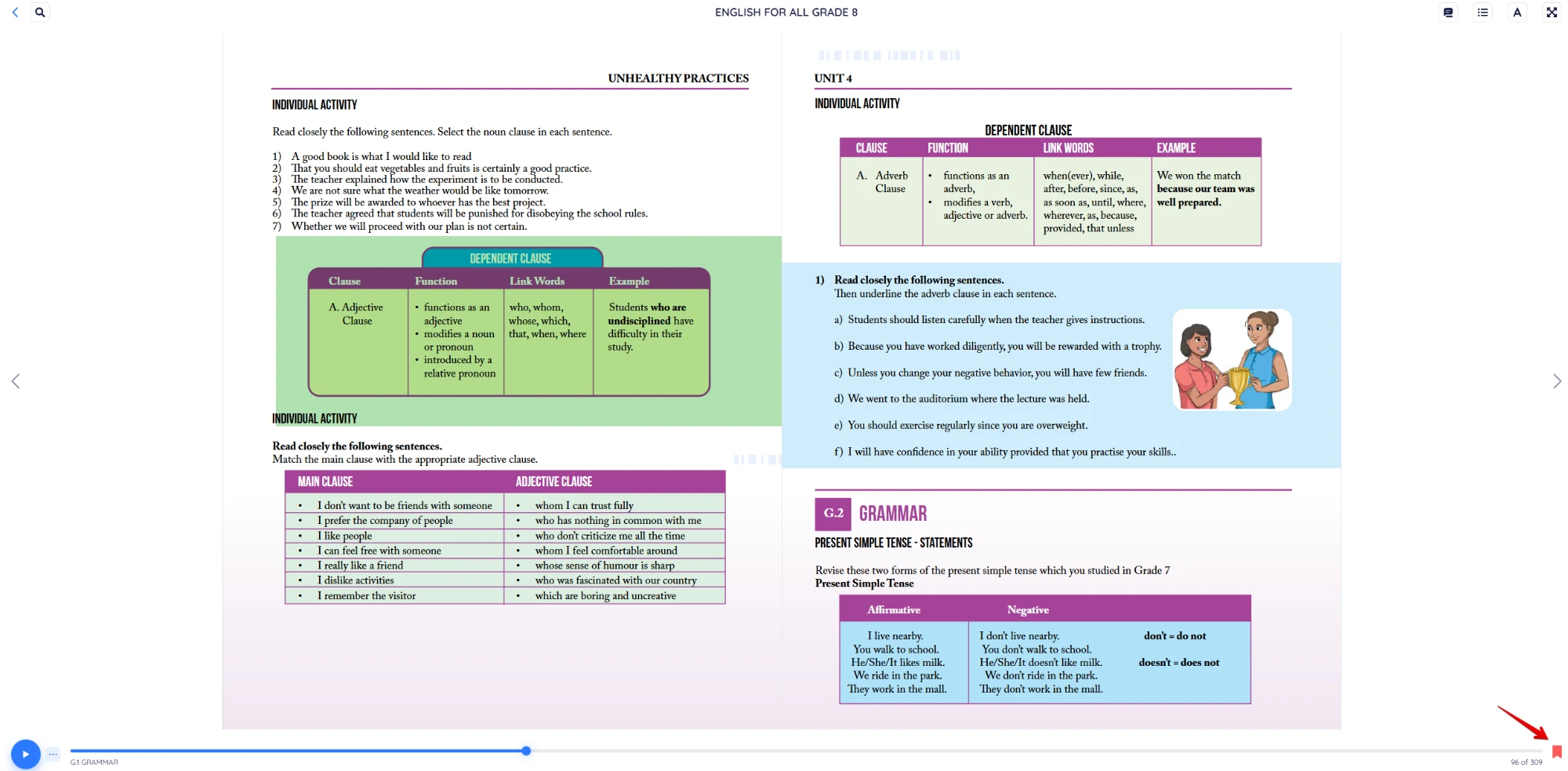
While reading, click the bookmark icon at the bottom-right of the screen, next to the progress bar.
The bookmark turns red to confirm it's saved.
-
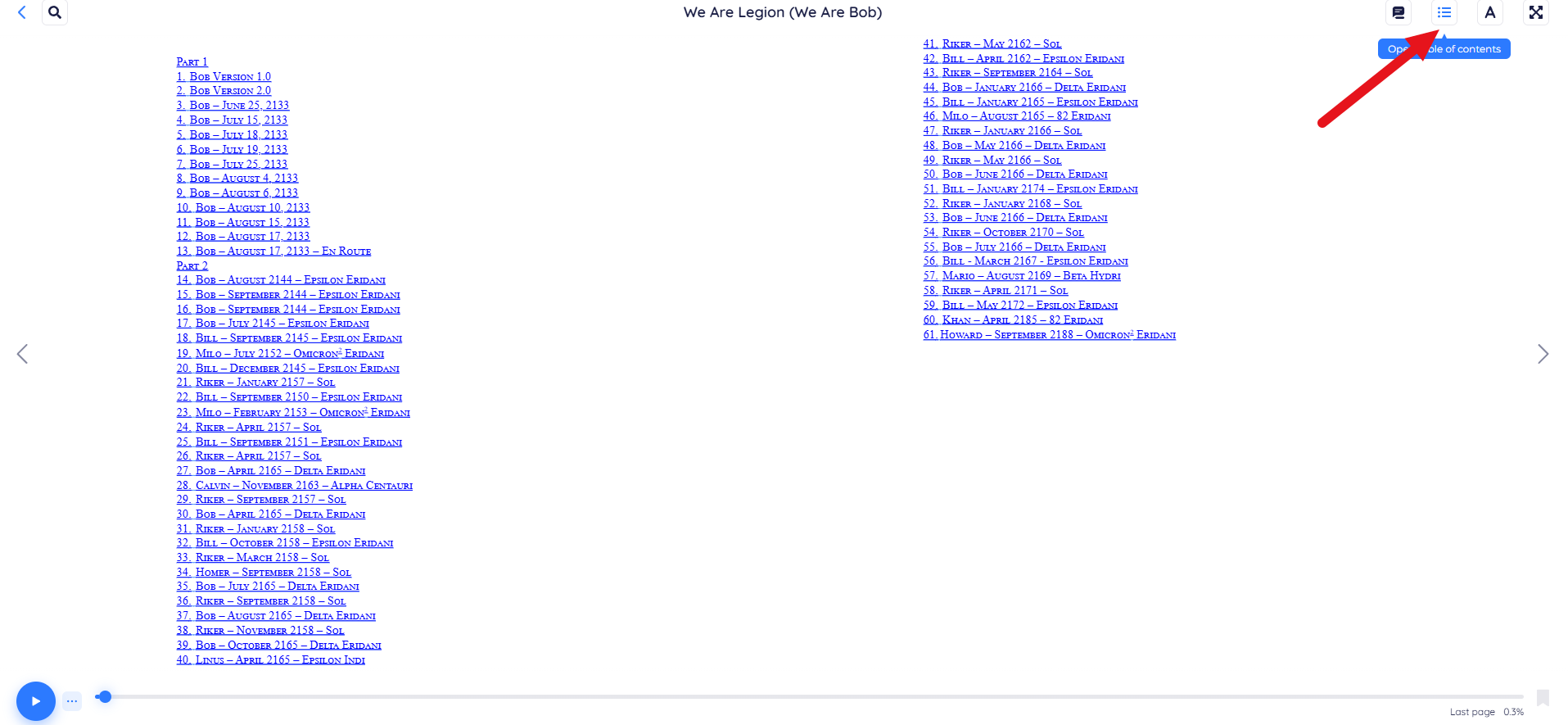
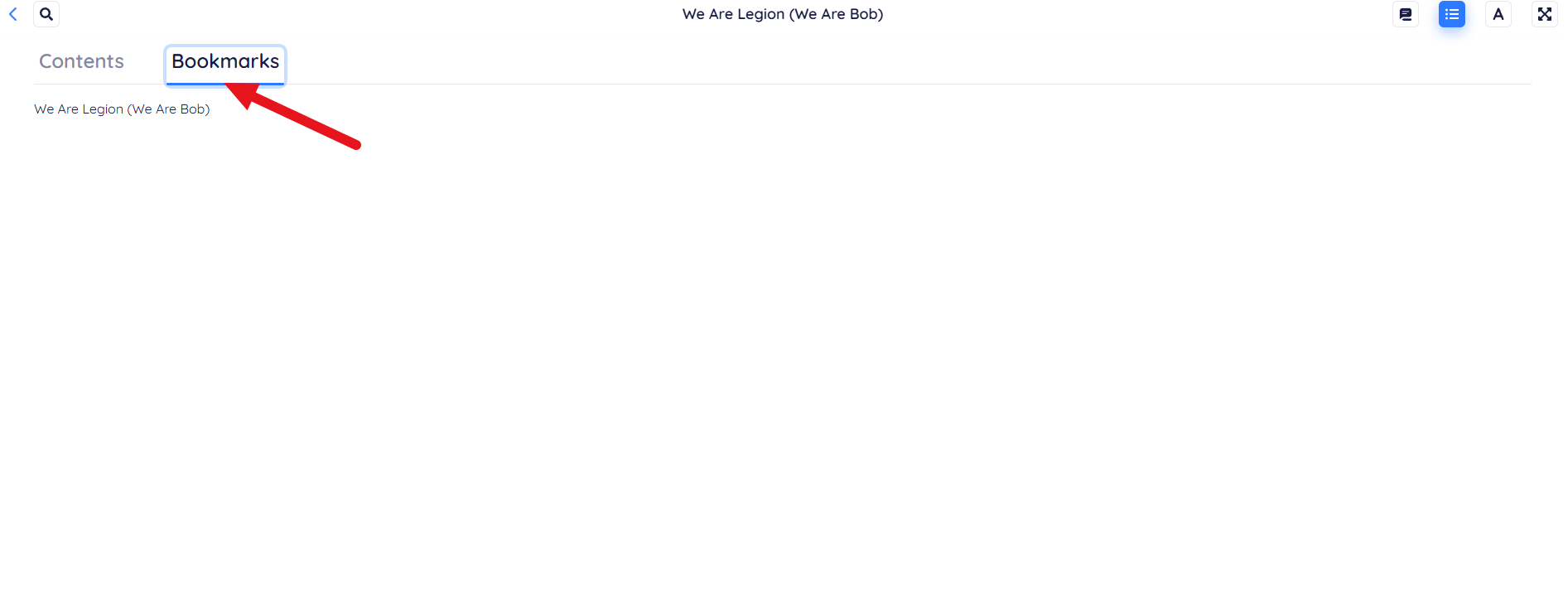
Click the Table of Contents icon in the top-right corner, then open the Bookmarks tab.
-
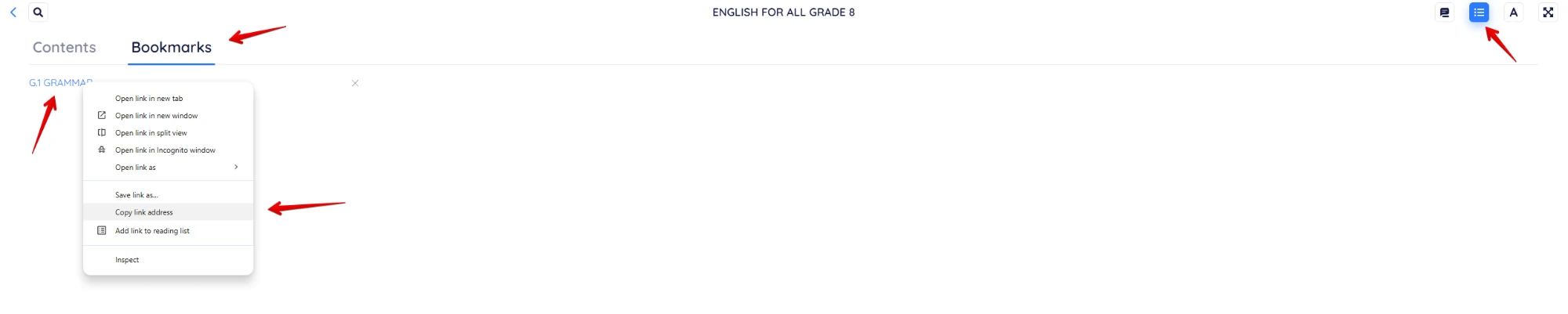
Right-click the bookmark you want and choose Copy link address from the menu.
-
Paste the link wherever you'd like to keep it. Clicking it later opens the book at that bookmark.
Link to a highlight
You can link to a highlight from the reader, or from your Highlights page.
From the reader
-
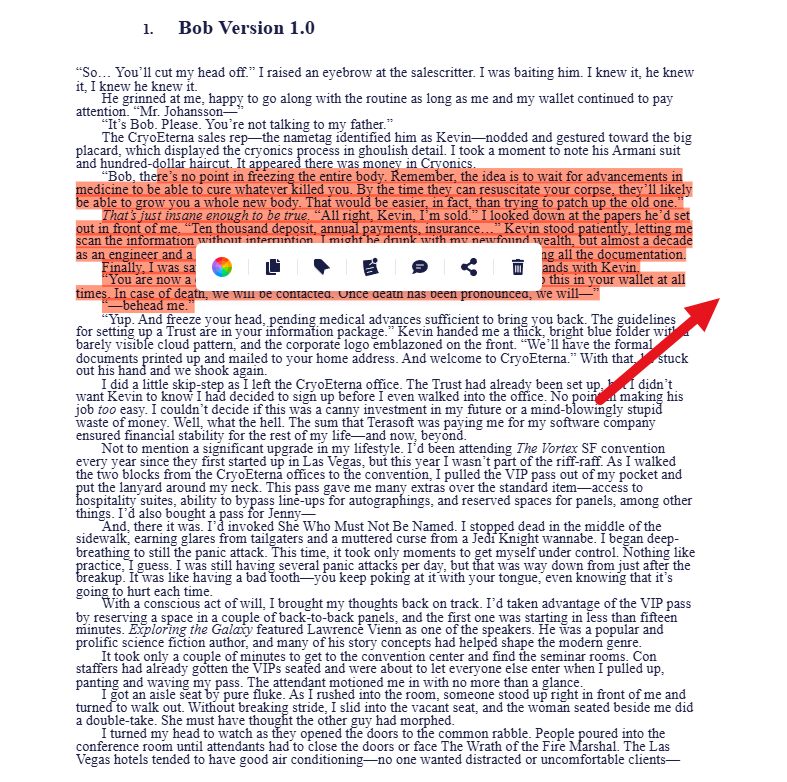
Click the highlight to open its toolbar, then click the Share button.
-
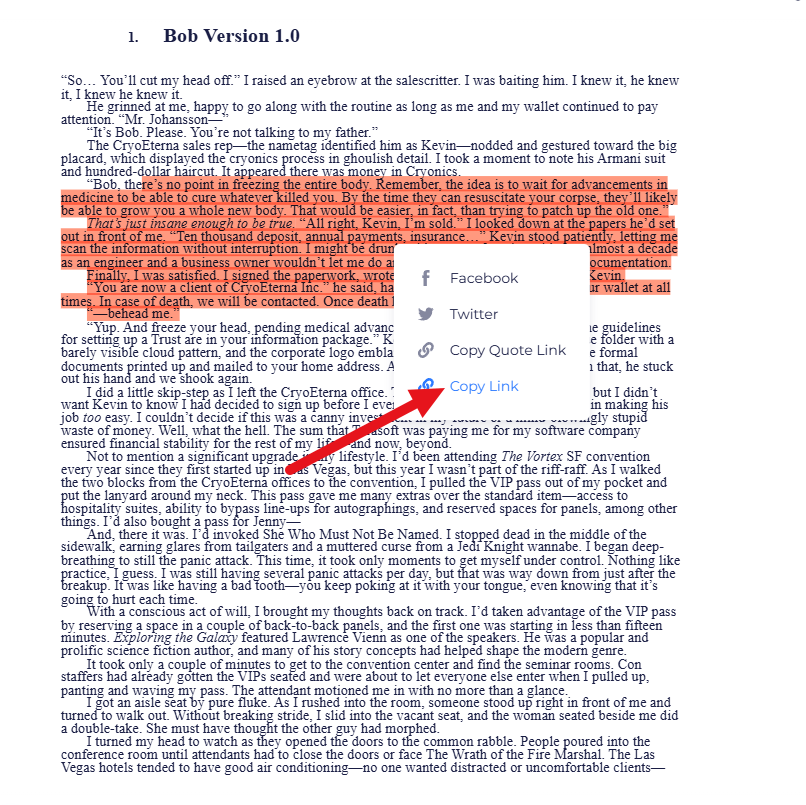
Choose Copy Link.
From the Highlights page
-
From your main Bookshelf, open the Highlights page.
-
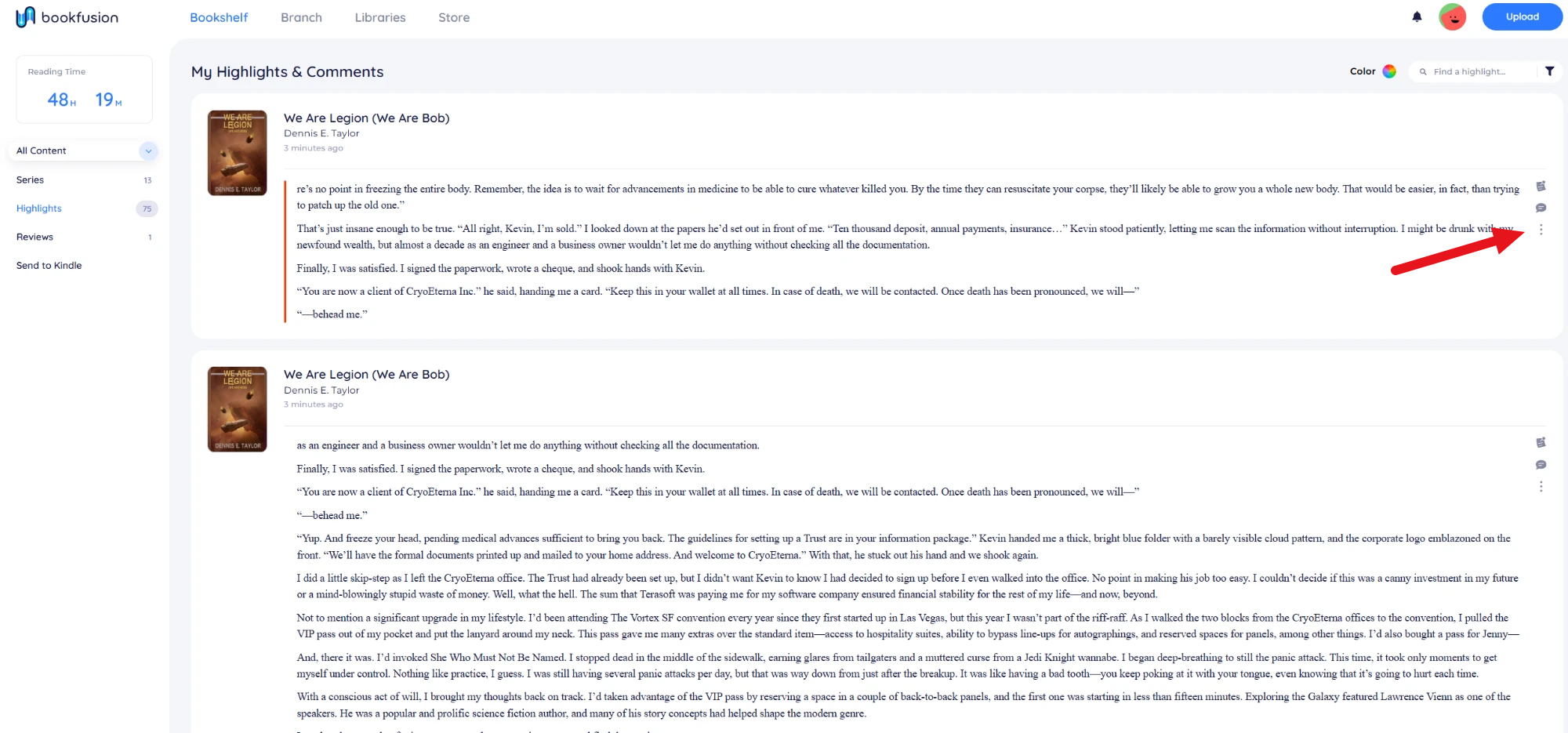
Find the highlight you want, click the ⋯ (three dots), and choose Copy Link.
-
Paste the link wherever you want to save it.
Deep links open in whatever device you follow them on, as long as you're signed in to the account that owns the book.