Linking Your Device
Linking connects KOReader to your BookFusion account so it can access your library and sync your reading data. You only need to do this once per device.
Link Your Device
Step 1 — Open the BookFusion Plugin
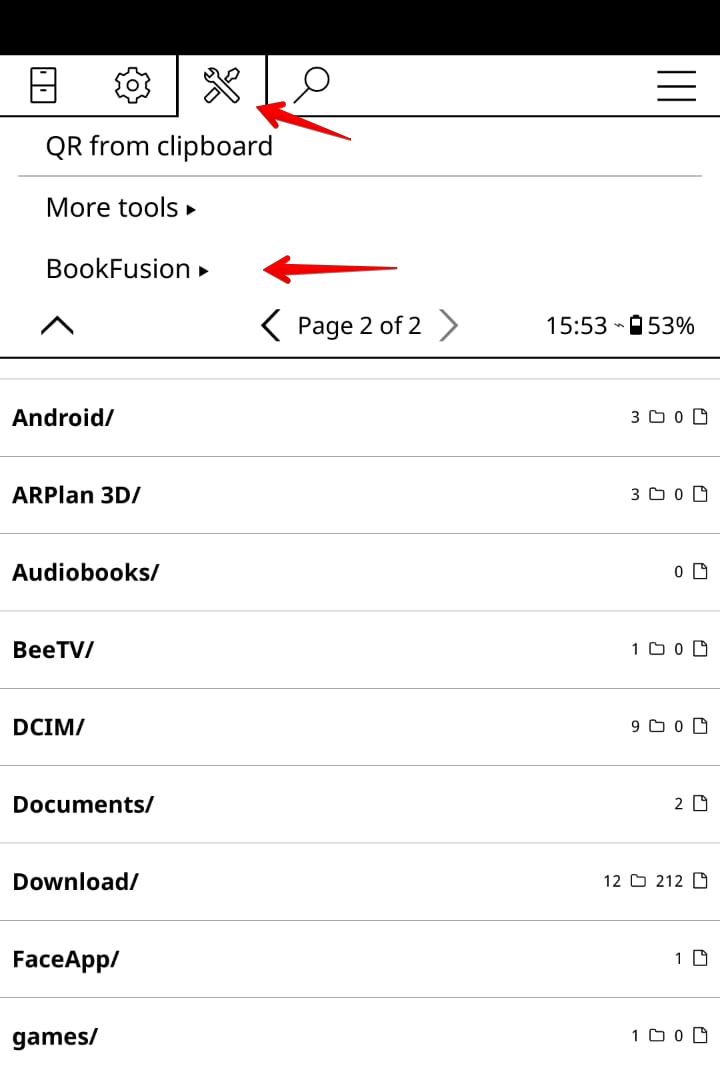
In KOReader, open the Tools menu and tap BookFusion.
Step 2 — Generate a Secret Code
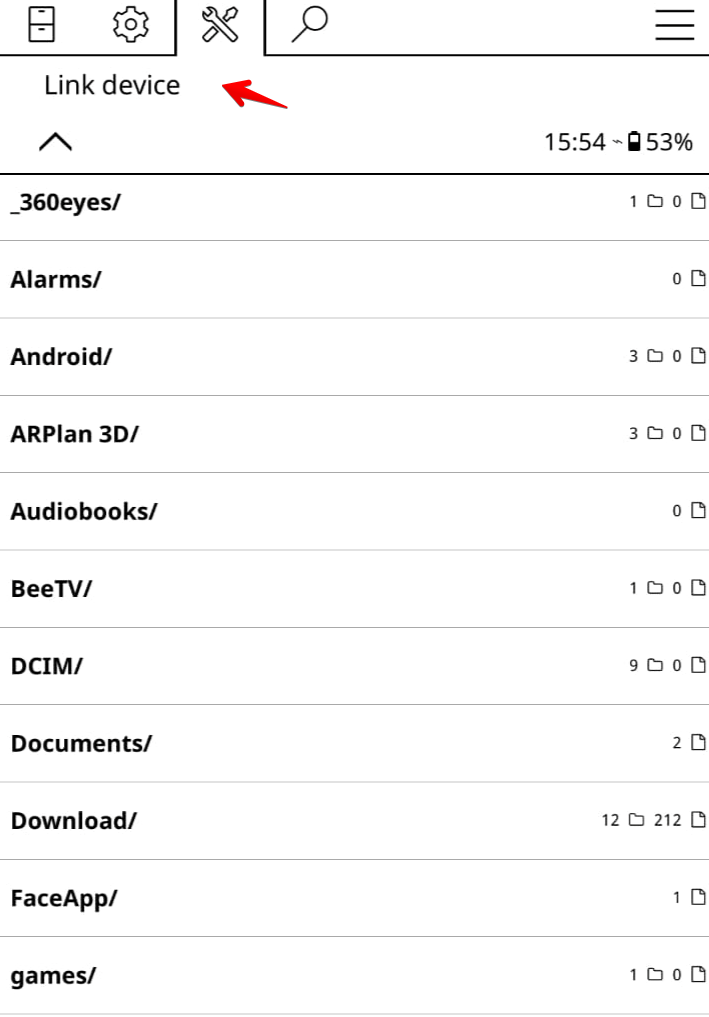
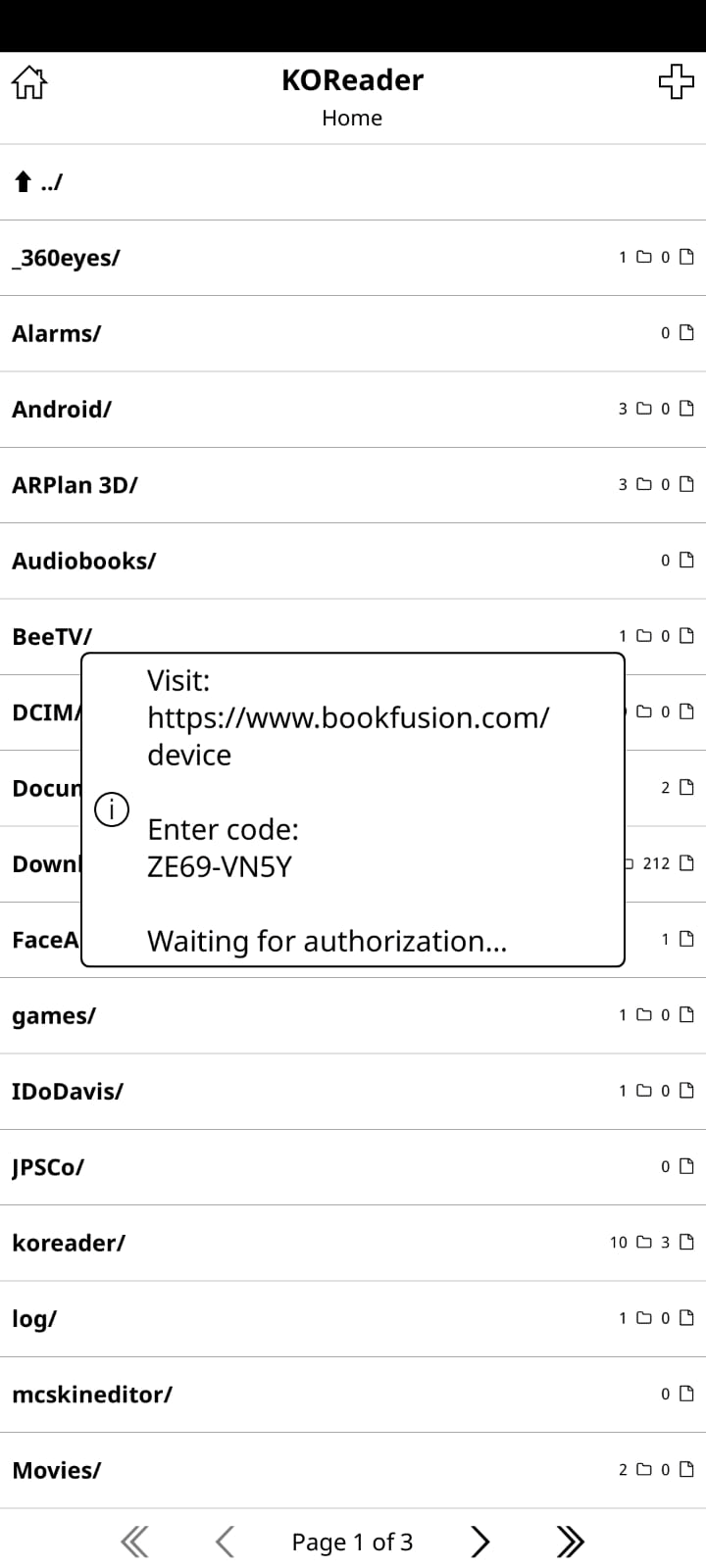
Choose Link device. KOReader will display a short, one-time secret code.
Step 3 — Enter the Code in BookFusion
On a phone or computer, open your browser, sign in to your BookFusion account, and go to the device-linking page at https://www.bookfusion.com/device when prompted. Enter the secret code.
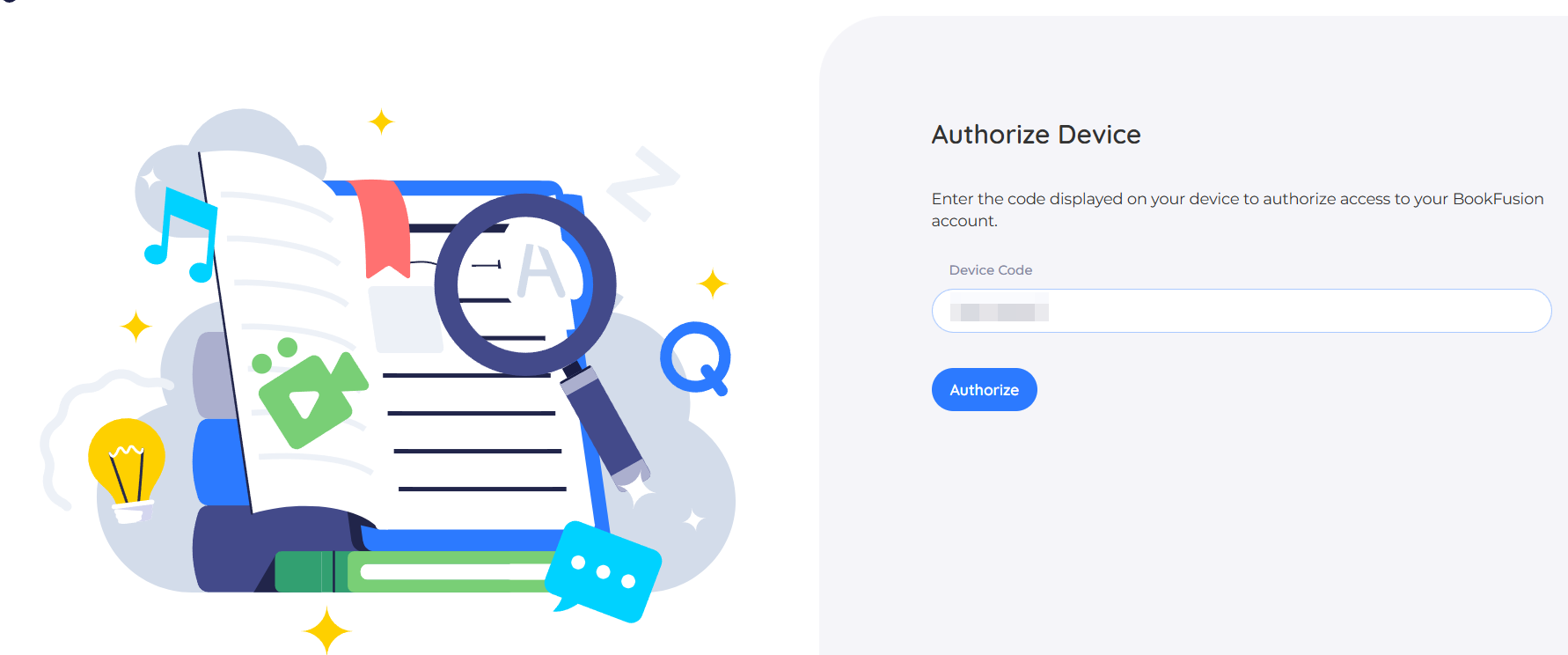
The secret code expires within a few seconds, so enter it promptly. If it expires, generate a new one in KOReader and try again.
Step 4 — Confirm the Link
Once the code is accepted, the link is confirmed. Linking usually completes in seconds.
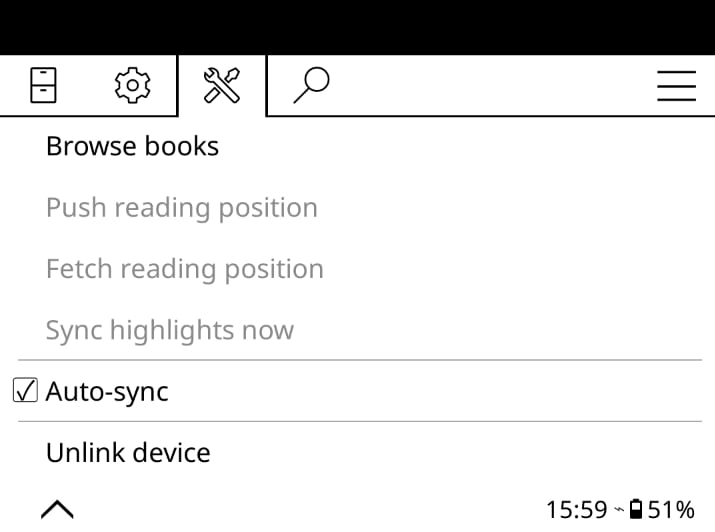
After linking, opening BookFusion from the Tools menu shows the full set of options: Browse books, Push reading position, Fetch reading position, Sync highlights now, Auto-sync, and Unlink device.
Unlink a Device
To disconnect a device from your account, open Tools → BookFusion → Unlink device. The device will stop syncing until you link it again.