Tap & Gesture Controls
You don't have to open the menu every time you want to sync. The plugin adds sync actions to KOReader's Gesture Manager so you can trigger them with a tap or swipe.
Set Up Gestures
Step 1 — Open the Gesture Manager
In KOReader, open Tools → Taps and gestures → Gesture Manager.
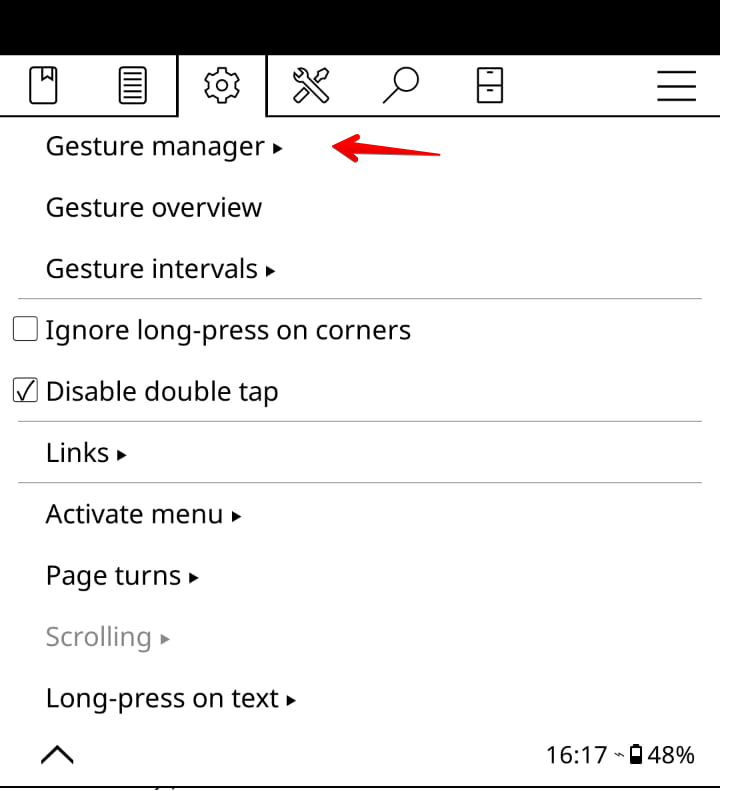
Step 2 — Find the BookFusion Actions
Find the actions under the Reader group of actions. Depending on your setup, you may need to scroll to the last page of the Reader group to find them.
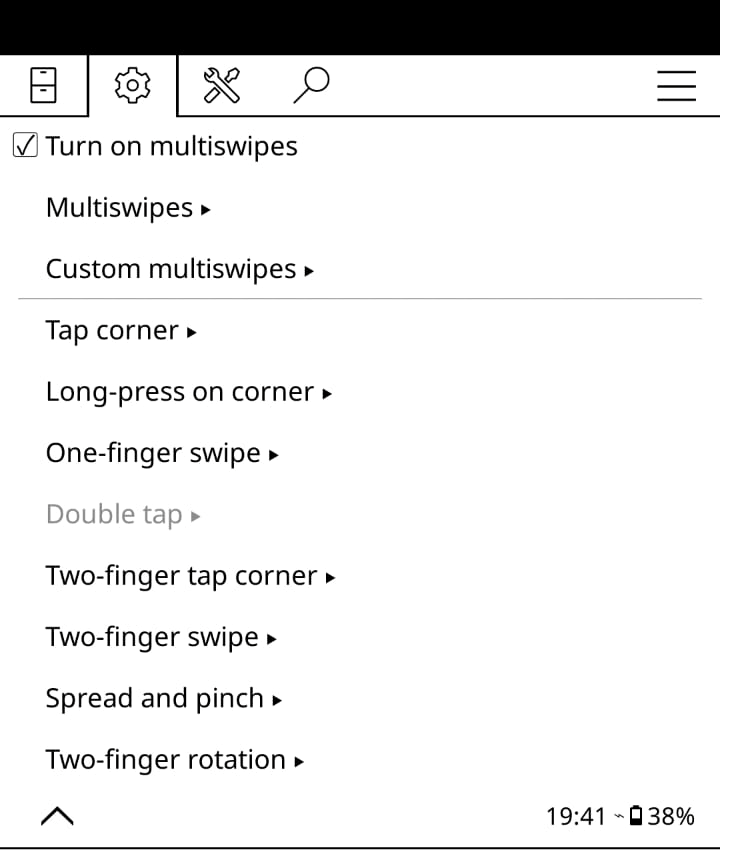
Step 3 — Assign the Actions
Assign the BookFusion actions to the gestures you prefer — for example:
- Push progress
- Pull progress
- Sync highlights
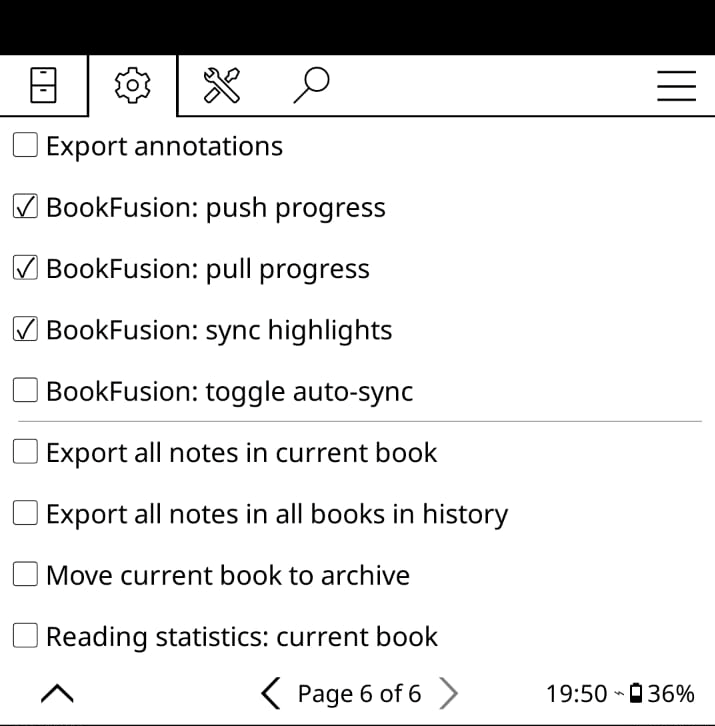
Once assigned, you can push or pull your progress and highlights with a single gesture — for instance, a short tap in a screen corner to push your position and a long press to pull it.