Browsing & Downloading Books
You can pull books straight from your BookFusion library onto your device — no manual file transfers required.
Browse Your Library
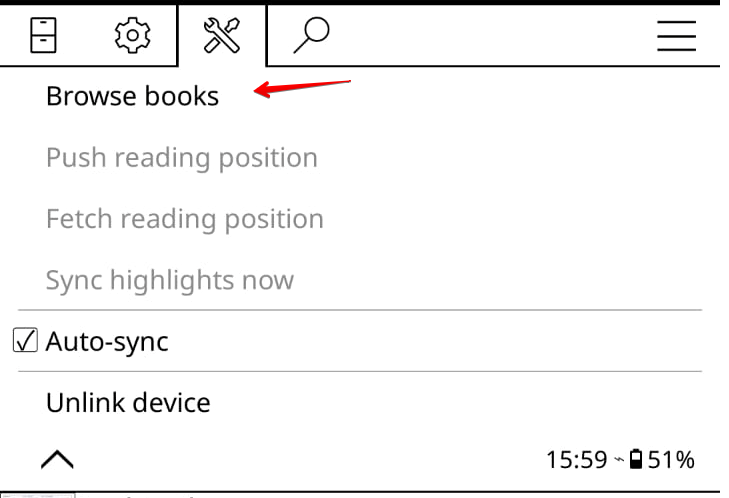
Step 1 — Open Browse Books
Open Tools → BookFusion → Browse books.
Step 2 — Find a Book
Browse your library by collection, including Series, Tags, your custom shelves, and your smart shelves. You can also search for a specific title.
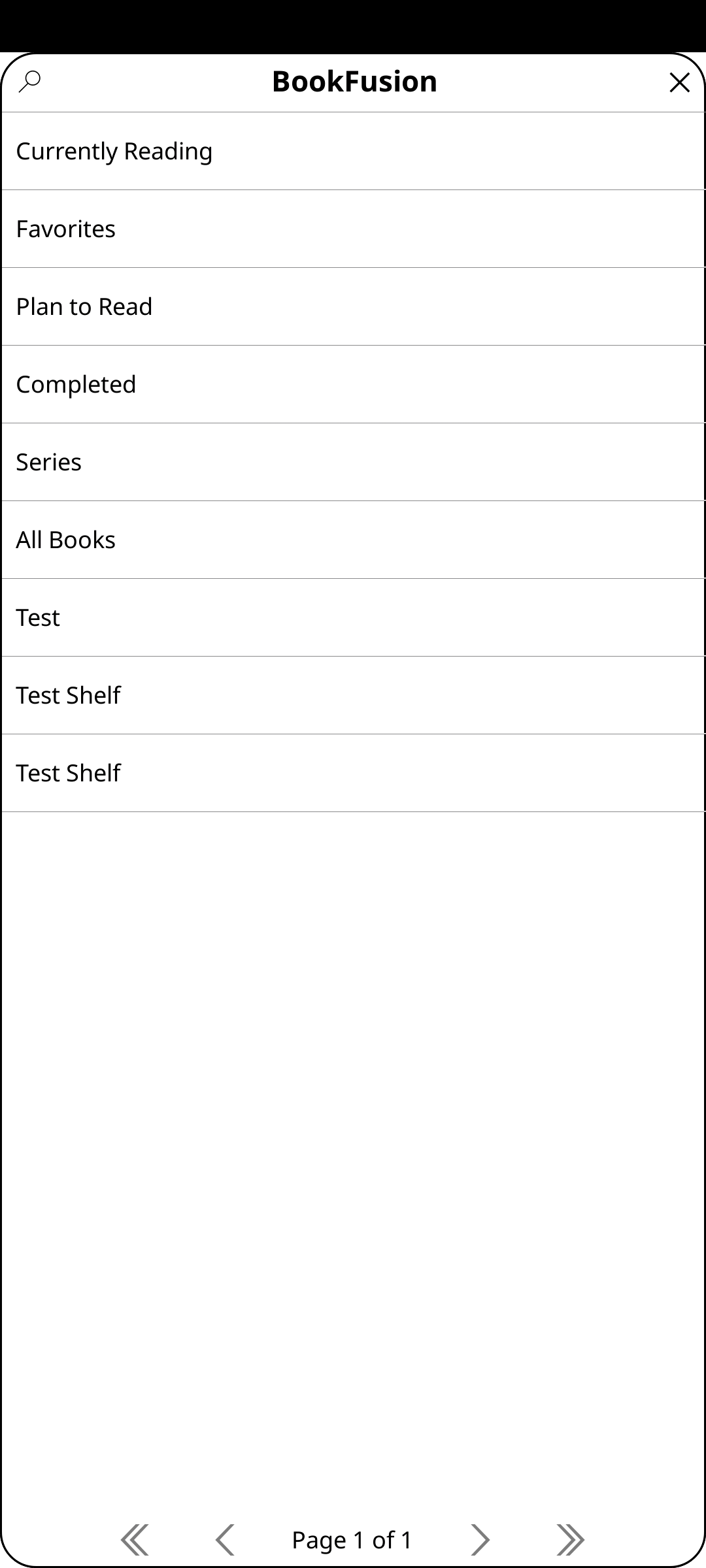
When you open a Series, the books are listed in reading order so you can see what comes next.
Download a Book
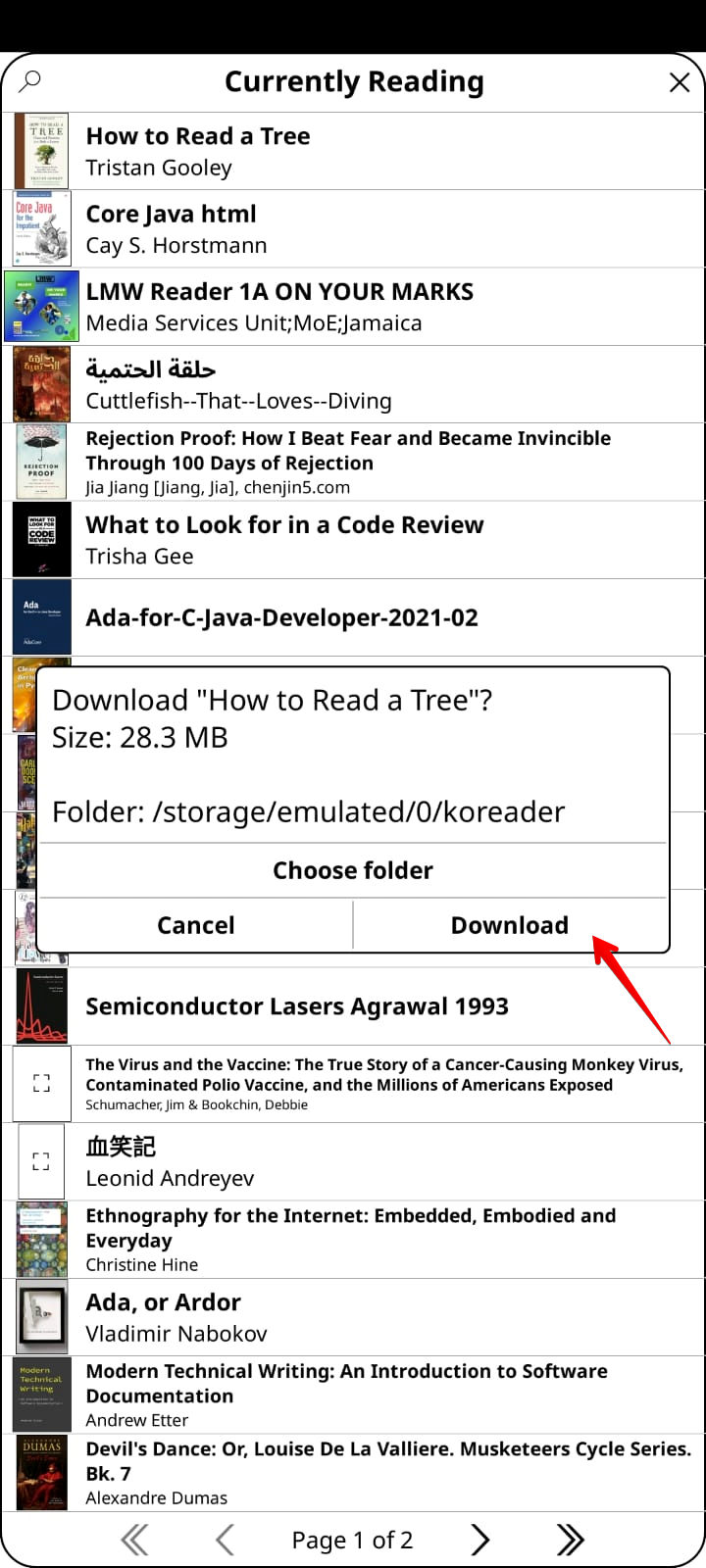
Step 1 — Open the Book
Tap the title you want, then tap Download.
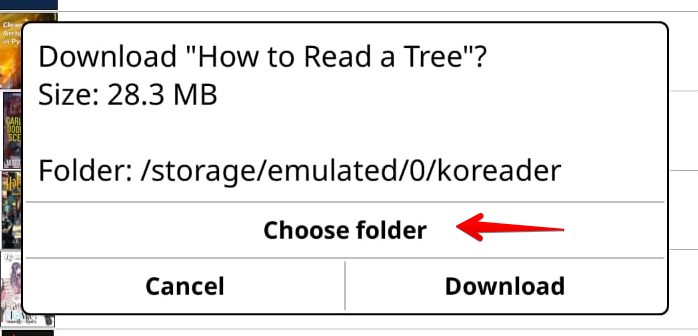
Step 2 — Choose a Folder
The first time you download, you'll be asked to choose a folder on your device. You can download to any folder, and different books can go to different folders.
Step 3 — Read the Book
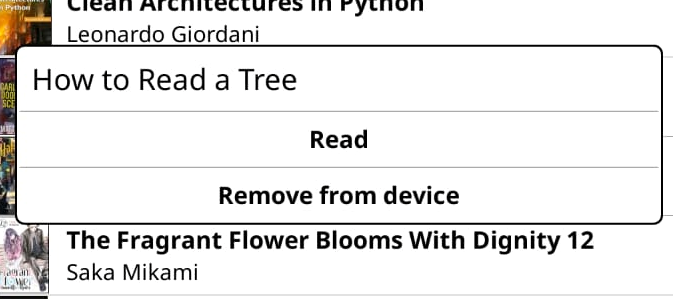
After the download finishes, tap the title again and choose Read to open it.
Your reading progress, highlights, and notes for that book will sync back to BookFusion and out to your other devices automatically.
Managing Downloaded Books
When you tap a book that's already on the device, you'll see Read and Remove from device. Removing a book deletes the local file from your device; it does not remove the book from your BookFusion library.
Newly downloaded books may not appear in KOReader's file browser right away. This is normal KOReader refresh behaviour — see Troubleshooting & FAQ.