Using a Custom Column to Indicate a Book's Sync Status
You can set up a custom column in Calibre to automatically track which books you've synced to BookFusion and which you still need to send over using the plugin.
Step 1 — Open Custom Columns Settings
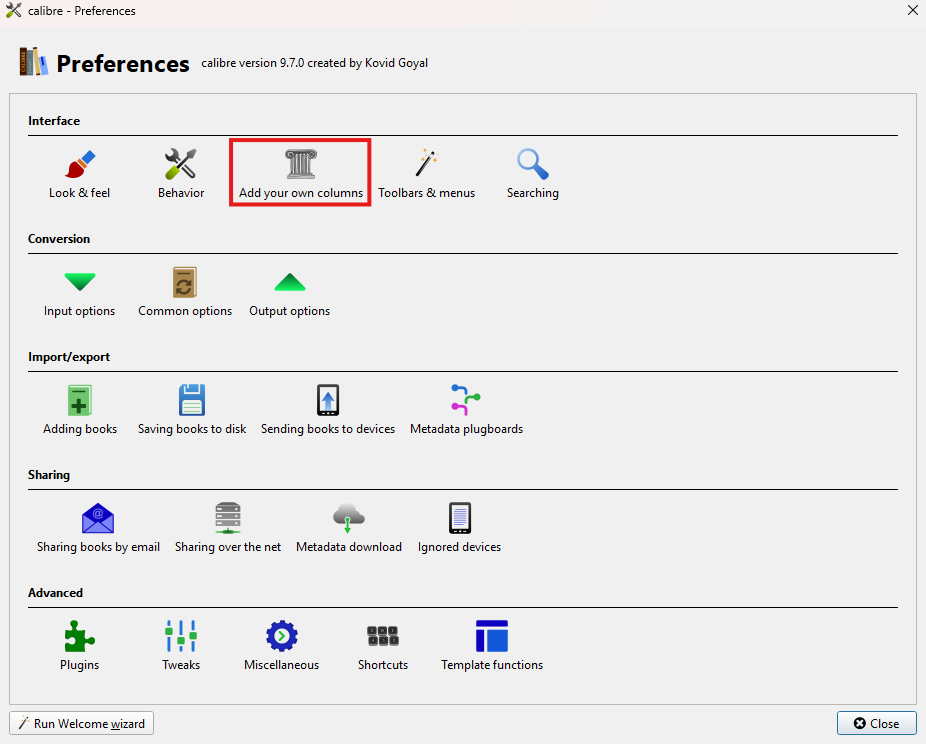
Open the Preferences screen in Calibre and select "Add your own columns" under the Interface section at the top.
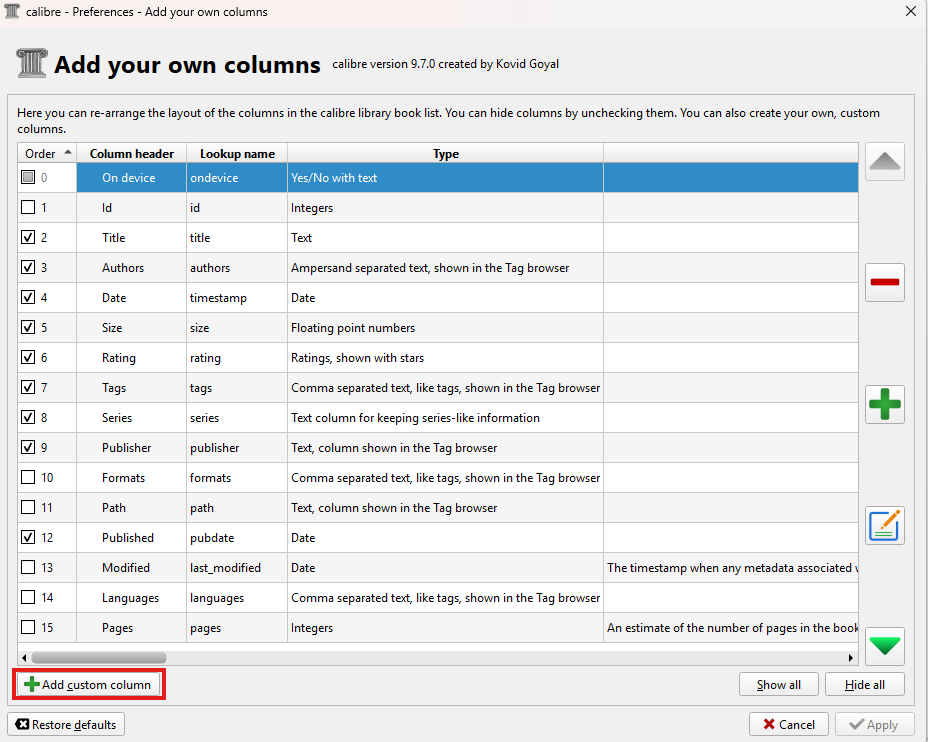
From there, click the "Add custom column" button at the bottom left to begin setup.
Step 2 — Configure the New Column
Use the following settings when filling out the column form:
| Field | Recommended Value |
|---|---|
| Lookup name | bookfusion — must be all lowercase letters or numbers, no spaces. This is how Calibre searches for this column's data. |
| Column heading | BookFusion or BookFusion Sync — this is the label shown when browsing your library. |
| Column type | Column built from other columns |
| Description | A brief description of your choice |
For the Template field, copy and paste the following exactly:
program: test(select(field('identifiers'),'bookfusion'),'Yes','No')
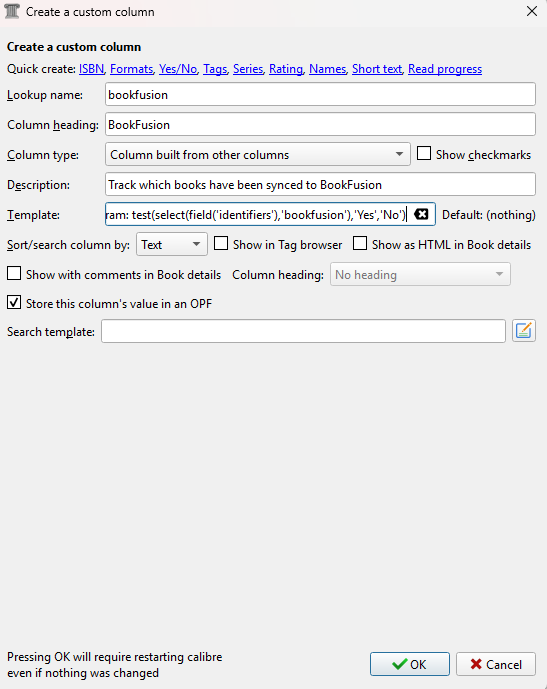
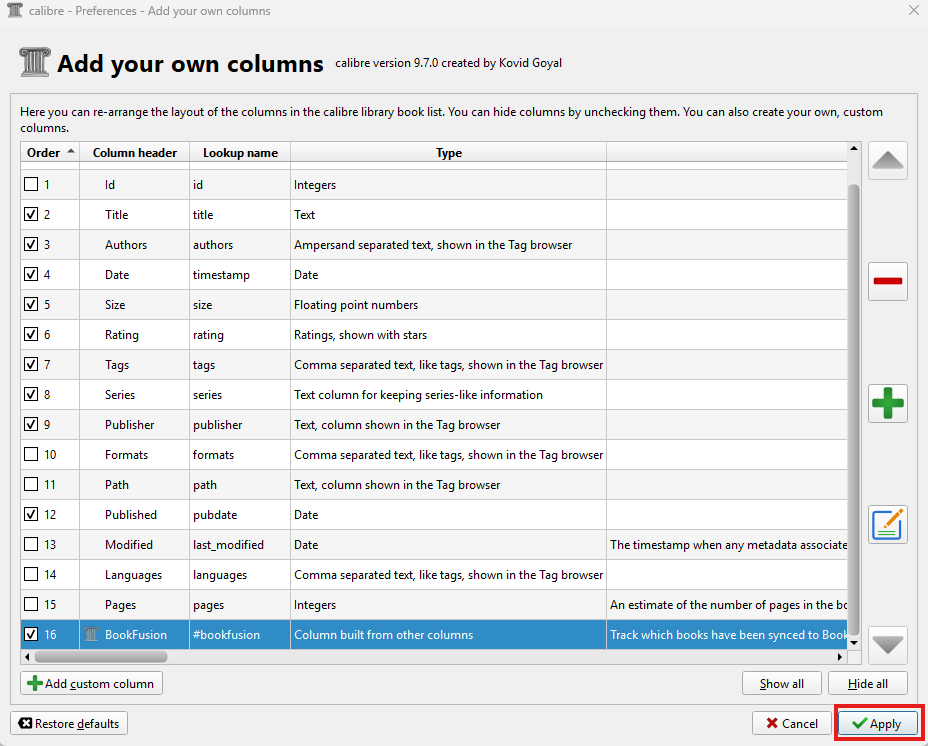
Once filled in, click "OK". Confirm the new column appears in the list and is checked so it shows in the library view, then click "Apply" to save your changes.
Step 3 — Restart Calibre
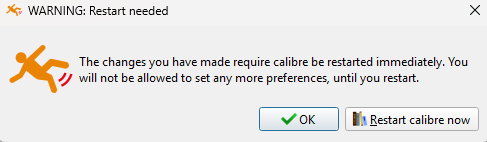
You'll be prompted to restart Calibre for the new column to take effect. After restarting, the column will be visible in your library view, showing Yes for synced books and No for books not yet synced.