Syncing eBook Updates to BookFusion
After doing an initial sync of a book from Calibre into BookFusion, you may need to edit the contents of that book. Previously, this required deleting the book from BookFusion and re-syncing it — but no longer. You can now perform a special sync to push the updated book file directly, with no manual deletes required.
Step 1 — Select Books and Open the Sync Menu
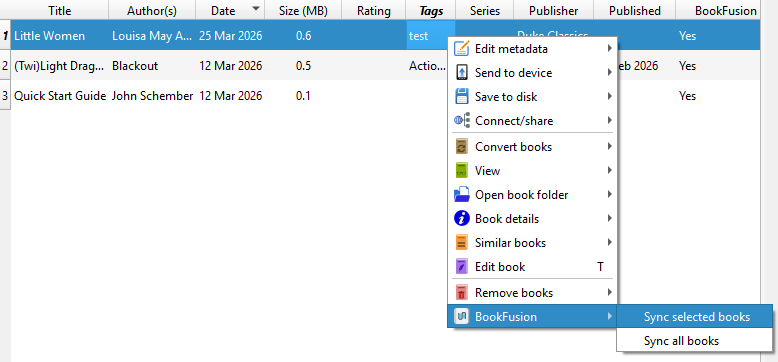
Select the book (or multiple books) you want to update, then right-click and choose the BookFusion plugin option from the context menu, followed by "Sync selected books".
Step 2 — Enable the Re-upload Option
In the sync window, check the "Re-upload book files" option, then click "Start".
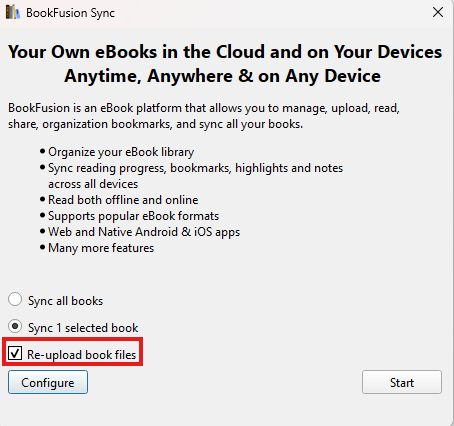
To prevent accidental overwrites, "Re-upload book files" is always unchecked by default. You'll need to manually enable it each time you want to push updated eBook content.
Step 3 — Confirm the Update
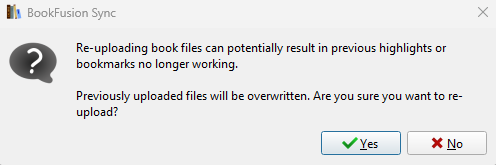
You'll see a confirmation prompt warning that updating the entire book may result in highlights being removed. This typically only happens when significant changes are made to text that was previously highlighted.
If you're syncing fanfiction or other content that receives frequent updates, you generally won't encounter highlight issues — new content is appended to the end of the existing book rather than replacing existing text.
Once the sync completes, the book will be refreshed in your BookFusion library. This covers a range of updates including an updated table of contents, spelling or typographical fixes, or entirely new chapters — keeping your eBooks as current as possible.