BookFusion Plugin for Calibre
Do you use Calibre to organize your eBook library and want to sync it into BookFusion so you can read across multiple devices while keeping your progress and highlights in sync? The BookFusion Calibre plugin makes this easy.
This guide covers:
Download and Install the Plugin
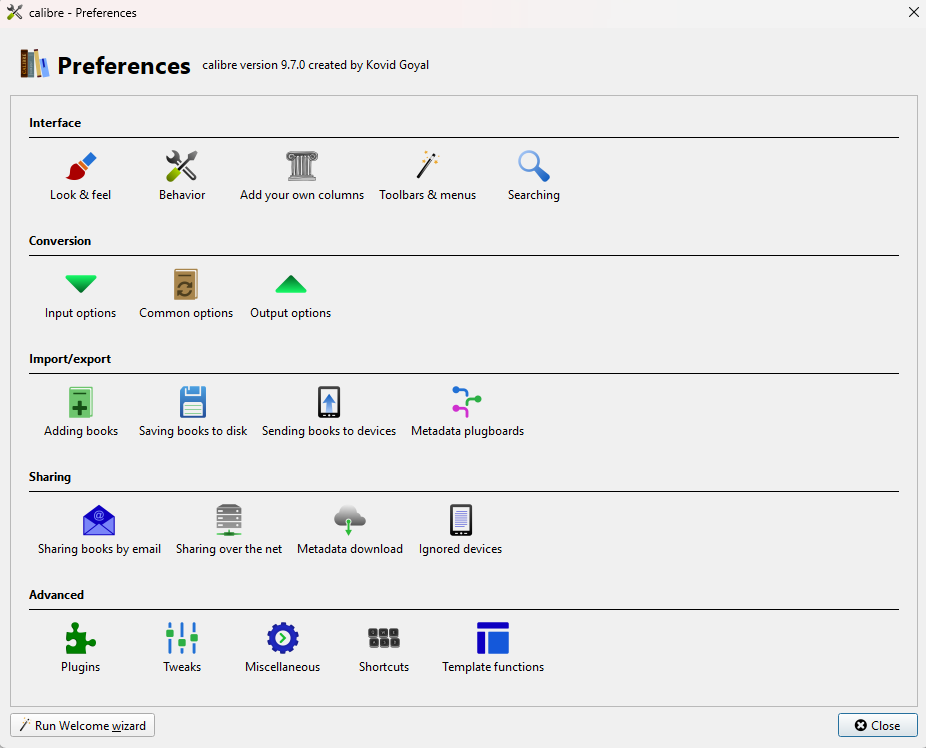
Step 1 — Open Calibre Preferences
From within Calibre, open the Preferences screen and click the Plugins option in the Advanced section at the bottom.
Step 2 — Install the Plugin
You have two options:
Option A — Install from the plugin directory
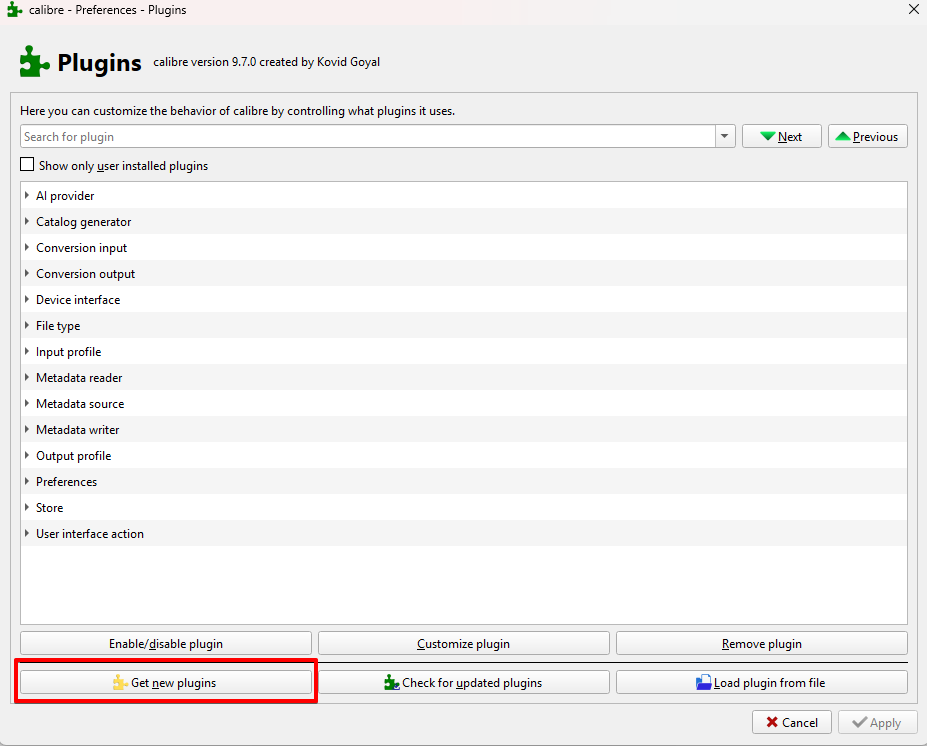
- On the Plugins screen, click "Get new plugins" at the bottom.
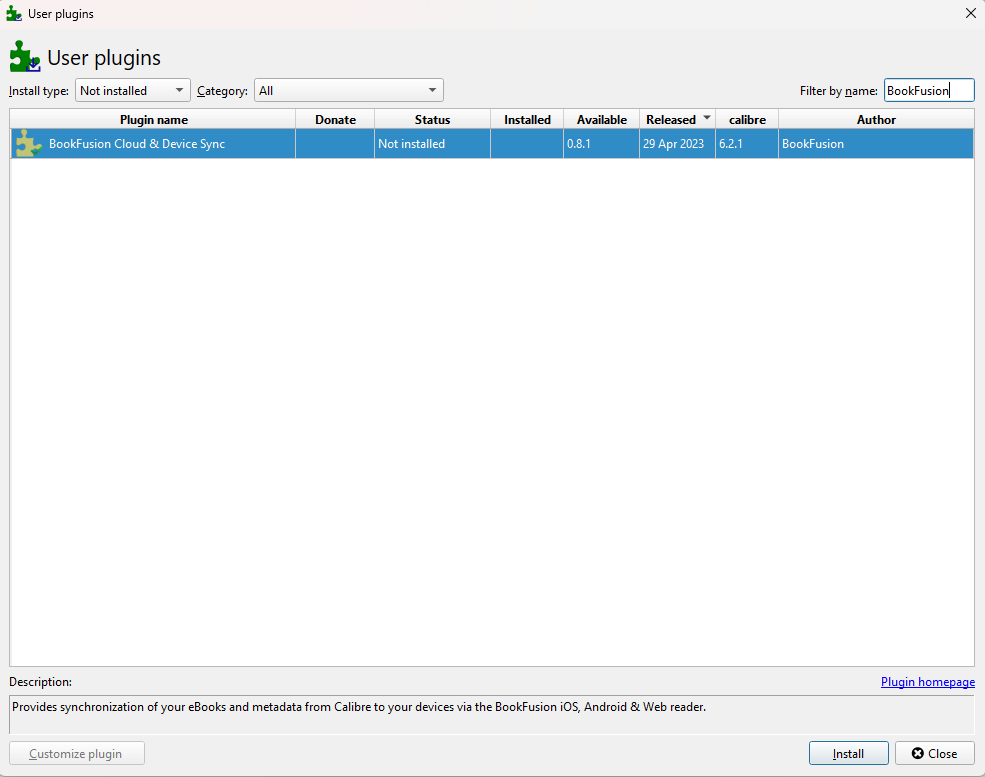
- In the filter field at the top right, type
BookFusionand select the BookFusion plugin from the results and click "Install", then confirm.
Option B — Install manually
- Download the plugin file manually.
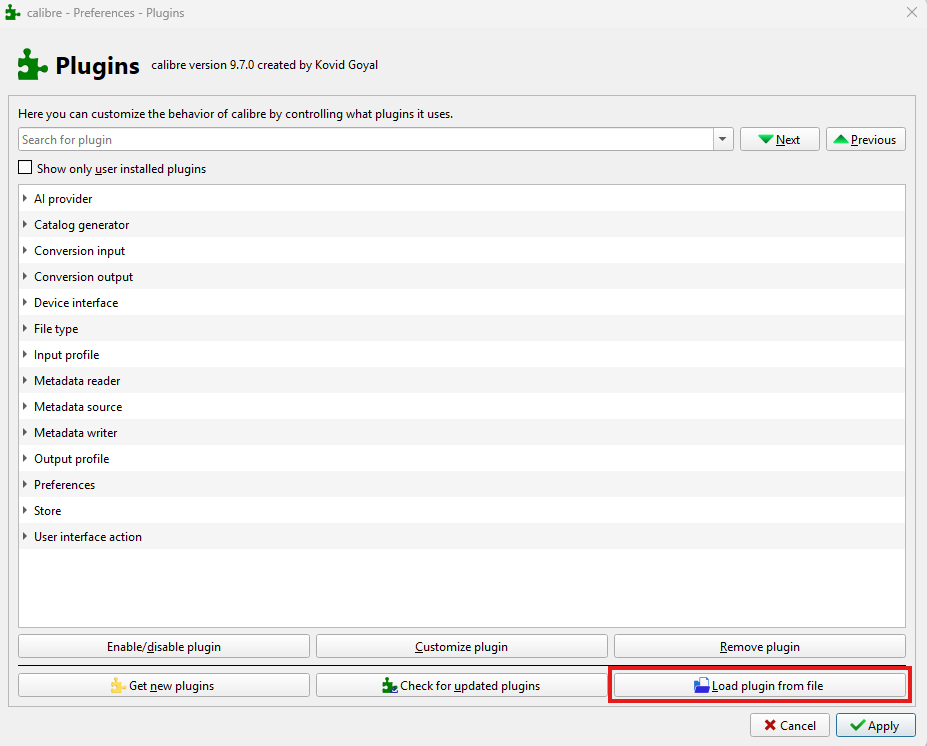
- On the Plugins screen, click "Load plugin from file" — it will install automatically.
After installing, you may be prompted to add a BookFusion icon to your toolbar or context menu for quick access. Once confirmed, restart Calibre before proceeding to configuration.
Configuring the Plugin
Step 1 — Open Plugin Settings
From the Plugins screen, expand the "User interface action" section, select the BookFusion Plugin, and click "Customize plugin".
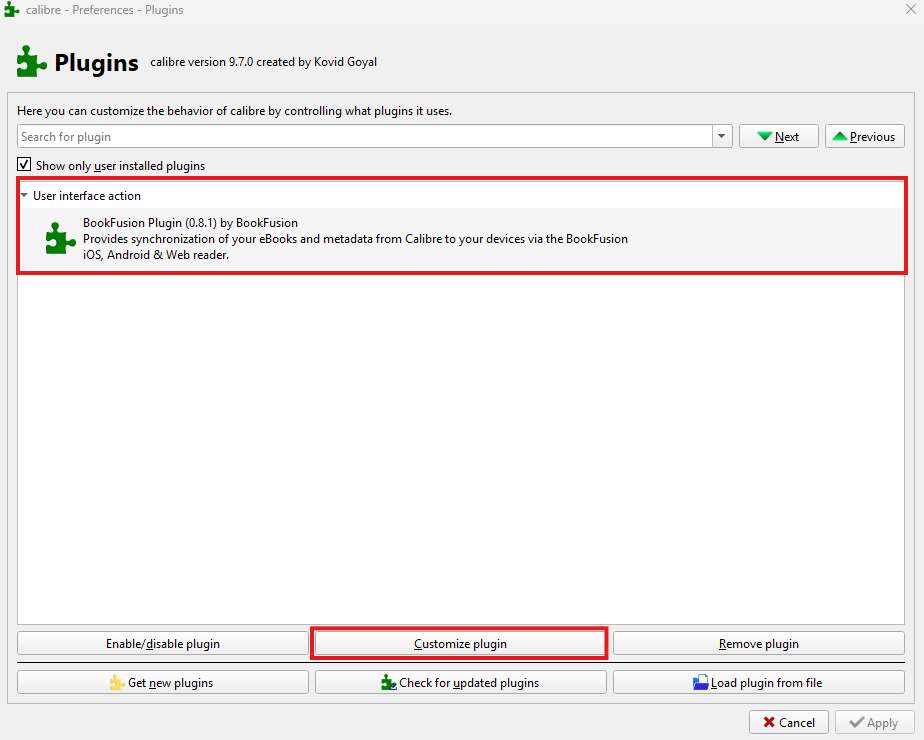
Step 2 — Enter Your API Key and Preferences
You'll be prompted to enter:
- BookFusion API Key (required)
- Update metadata during sync — recommended to keep this enabled
- Sync threads — how many books to process simultaneously. If you have a slower internet connection, set this to
1or2.
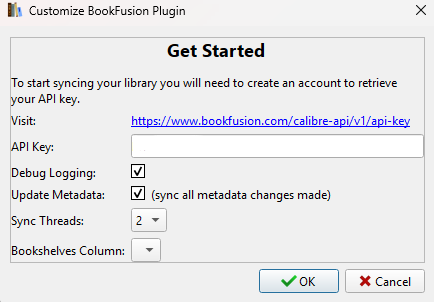
Step 3 — Get Your API Key
- Go to your BookFusion account settings and navigate to Integrations → Calibre.
- Copy the generated key and paste it into the Calibre plugin configuration screen.

Using the Plugin
Sync Your Entire Library
For a first-time sync, it's recommended to do a full library sync:
- Click the BookFusion icon on your toolbar (or wherever you placed it).

- Select "Sync all books".
- In the sync dialogue, click "Start".
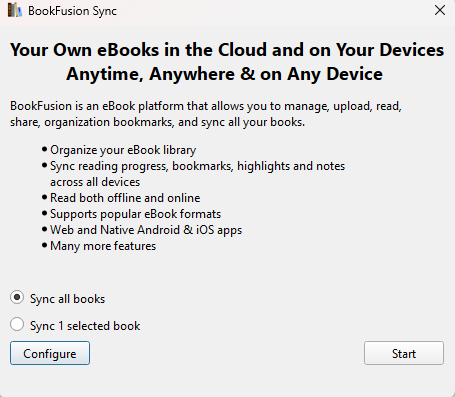
Depending on your library size, this may take a while — you can leave it running in the background. If your internet is interrupted mid-sync, simply run "Sync all books" again and it will resume where it left off.
Sync Selected Books Only
If you've already done a full sync, or only want to push specific titles:
- Select the books you want in Calibre.
- Click the BookFusion icon and choose to sync only the selected books.
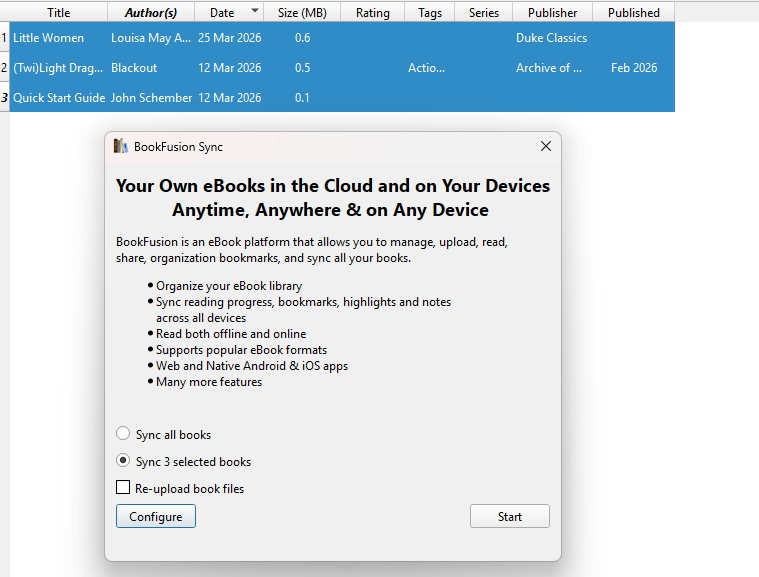
Once complete, you'll see a confirmation summary for each book with one of these statuses:
| Status | Meaning |
|---|---|
uploaded | New book added to your BookFusion library |
updated | Existing book synced with new metadata or cover |
skipped | No changes detected since last sync |
Currently, sync only goes from Calibre → BookFusion, not the other way around. Support for custom columns and automatic virtual bookshelf assignment is also planned for a future update.