Uploading Books on Mobile
Upload eBooks from your phone or tablet with the BookFusion app for iOS or Android. To upload from a computer, see Uploading Books on the Web.
Before You Start
- Save the eBook files to your device first, for example in the Files app on iOS or Downloads on Android. If you keep books in iCloud Drive, Google Drive, or Dropbox, you can also pick them from there when those apps appear in your device's file picker.
- Files must be in a supported format and DRM-free.
On iOS
To upload a book on iOS:
-
Open the BookFusion app to your Bookshelf.
-
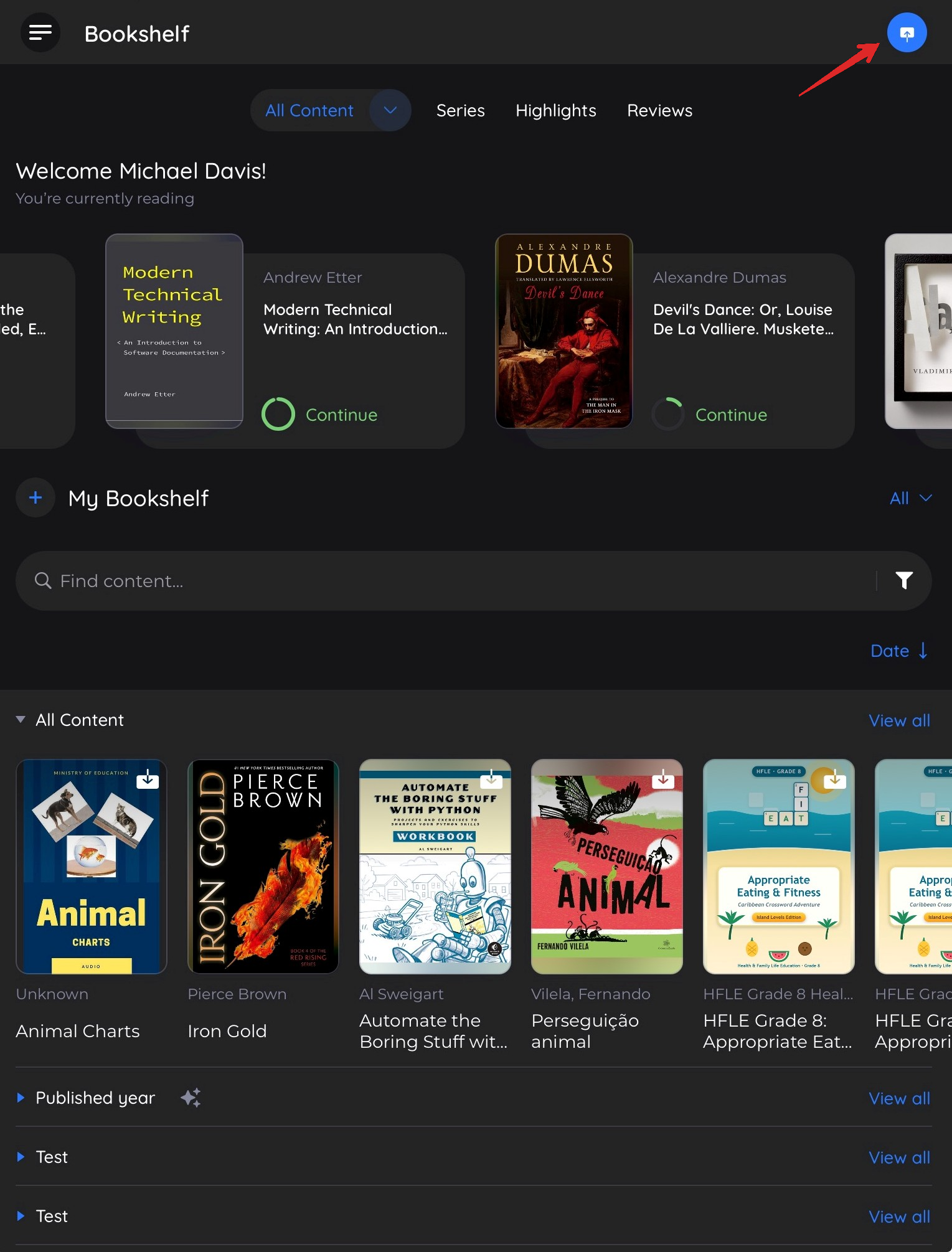
Tap the Upload icon in the top-right corner.
-
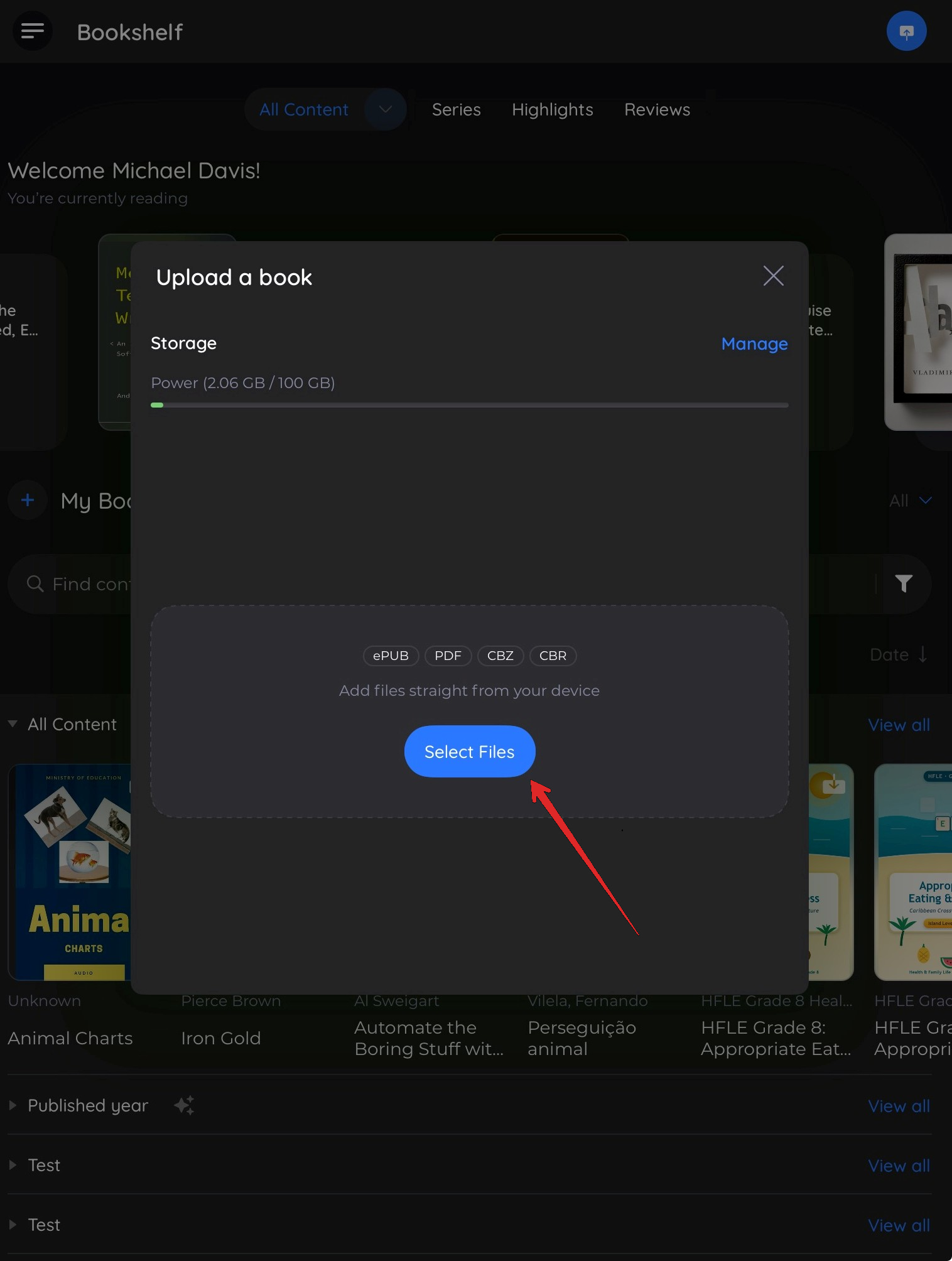
In the Upload a book sheet, tap Select Files.
-
In the Files browser, go to where your eBook is saved and tap the file.
The book uploads and appears first on your Bookshelf.
On Android
To upload books on Android:
-
Open the BookFusion app to your Bookshelf.
-
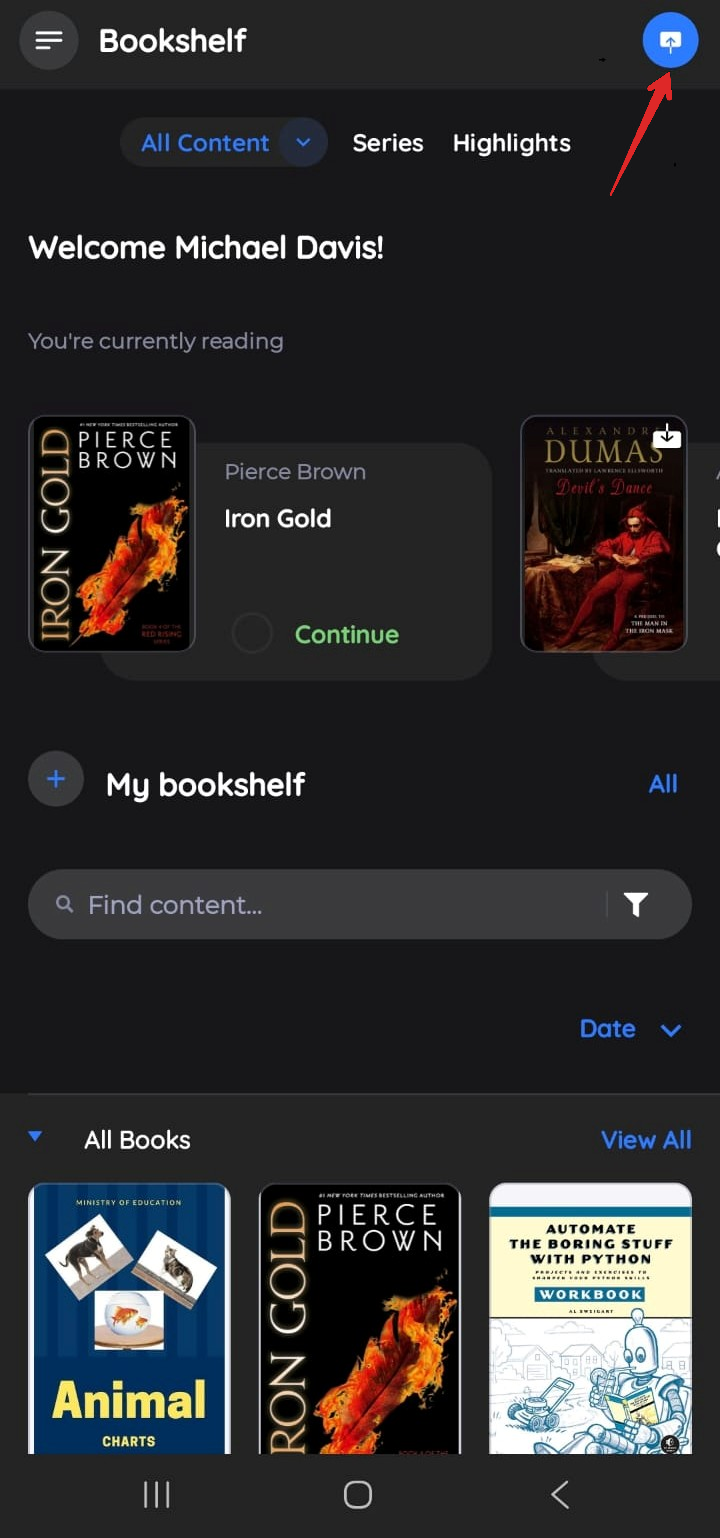
Tap the Upload icon in the top-right corner.
-
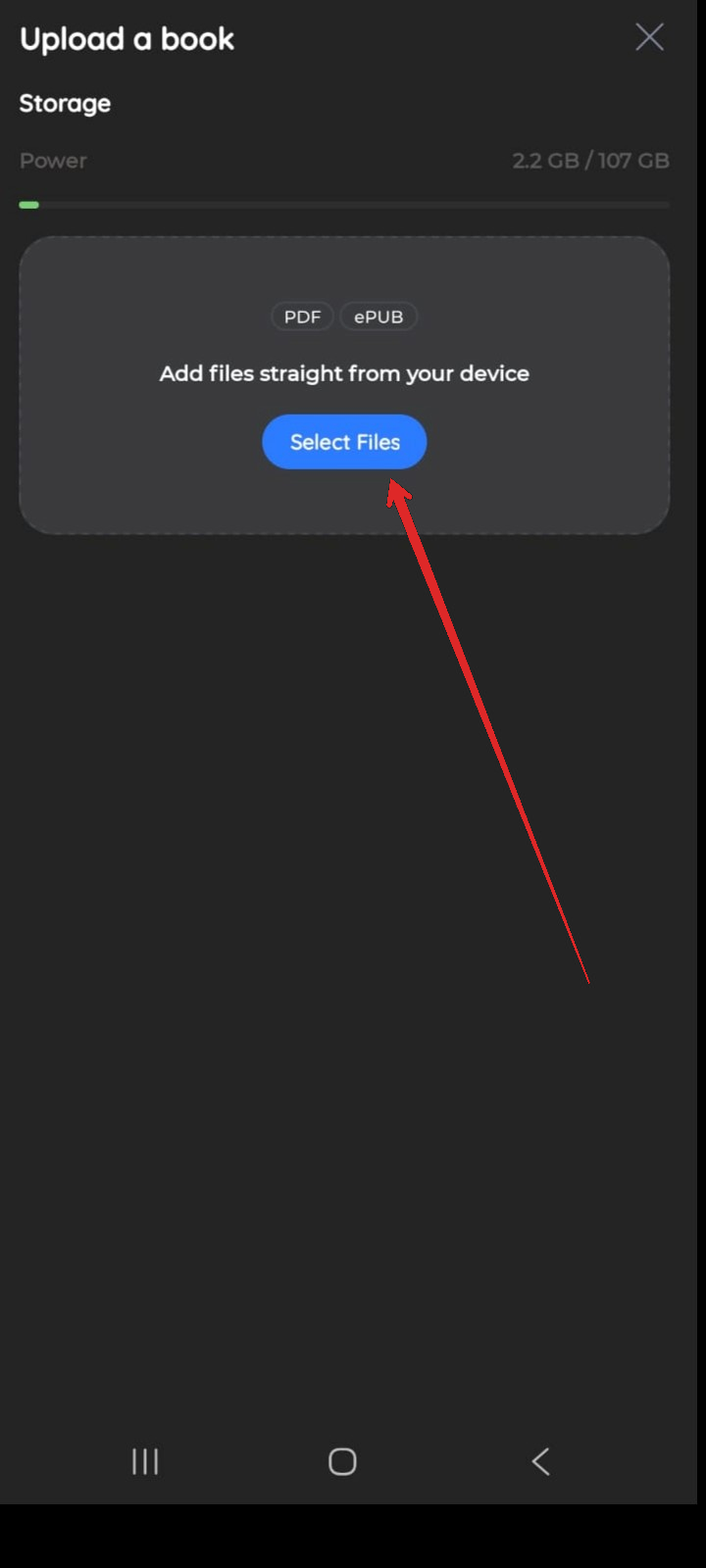
In the Upload a book screen, tap Select Files.
-
In the file browser, go to where your eBooks are saved and tap the file you want. To upload several, tap each one before confirming.
The books upload and appear first on your Bookshelf.
The file picker comes from your device, so it may not match the screenshots exactly.