Making Bulk Changes to eBooks
Select several books in the BookFusion web app to move, edit, or delete them together.
Step 1 — Select Your Books
To select books:
-
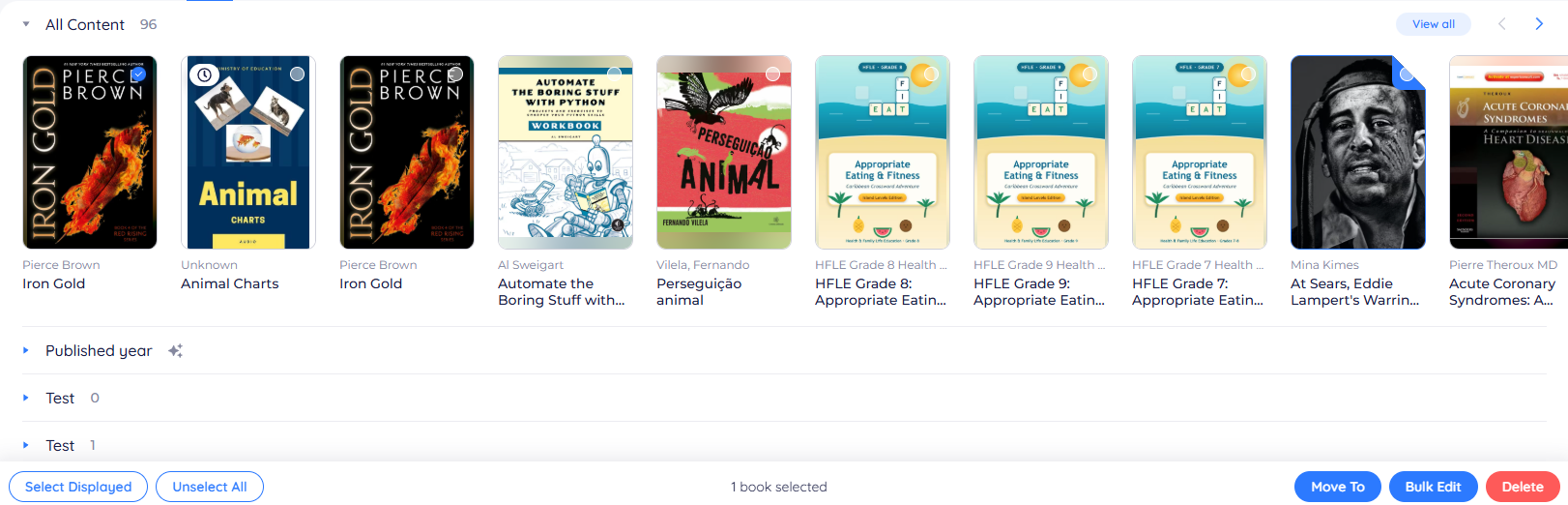
On your Bookshelf, hover over a book. A selection circle appears in the top-right corner of the cover.
-
Click the circle to select the book and turn on selection mode.
-
Click any other covers you want to add. Selected books show a blue tick.

Step 2 — Choose an Action
When at least one book is selected, an action bar appears at the bottom of the screen:
- Select Displayed: Selects every book currently on screen.
- Unselect All: Clears your selection.
- Move To: Moves the selected books to a shelf such as Completed or Plan to Read.
- Bulk Edit: Opens a form to update the metadata of every selected book at once.
- Delete: Removes the selected books from your BookFusion account.
Step 3 — Apply a Bulk Edit
To edit several books at once:
-
Click Bulk Edit. A pop-up shows the fields you can change for every selected book, such as tags, author, series, or categories.
-
Fill in only the fields you want to change. Fields you leave blank stay as they are.
-
Click Update.
The changes apply to every selected book.
A bulk edit changes every selected book at once. Check your selection and the fields you've filled in before you click Update.